This lesson provides an overview of Viedoc Clinic. It describes the user interface and summarizes the main settings that can be configured in Viedoc Clinic.
Viedoc Clinic is the interface for the end user, and is primarily used by site and study staff (Investigators, Study Coordinators, Monitors, Data Managers and so on) and keeps track of all the activities performed by the site.
The access to Viedoc Clinic is by invitation only and provided by either the Study Manager or Site Manager. If invited, you will find the invitation in your email inbox (from no-reply@viedoc.net). In some cases the email can be caught by your email spam filter and in that case you will find it in the email spam folder. For detailed instructions on account activation, see Managing your Viedoc account.
The following main actions can be performed in Viedoc Clinic:
Customer computer requirements are defined as capabilities required by the customer computer to use all features of Viedoc with the intended graphical presentation and within guaranteed response times of Viedoc.
Viedoc supports the following browsers:
For non-compliant browsers you will receive a message on the login page that your browser is not supported.
For Viedoc Designer:
Viedoc does not support the use of private mode browsing in Safari.
The following are required for Viedoc to run in the compatible web browsers:
No data is permanently stored on the customer computer. All data stored in session cookies or local web storage is deleted when the browser session is terminated. The only exception to this is the optional persistent cookie used in the main portal of Viedoc 4 to remember if a user chooses to issue a 2FA trust for the browser for 30 days, and thus avoid further second-factor authentication during this period.
Viedoc 3 has no automatic checks enforcing the above requirements. Viedoc 4 checks for, and enforces, browser type and version, and support for JavaScript, local web storage, and session cookies.
The following screen resolutions are required:
Viedoc requires an internet connection of at least 384 kbit/s.
Viedoc requires an outbound firewall policy allowing encrypted HTTP to be established and communicated to a remote server on port 443 (HTTPS) using Transport Layer Security (TLS) version 1.2 or higher.
There are several layers of security built into the platform. Below are some examples:
| Important! All information related to managing your Viedoc account can be found in the following user guide: Viedoc User Account Management |
From the settings button (wheel) you can perform all actions related to managing your Viedoc account by selecting any of the following: Edit your profile, Change Password, Security Settings:
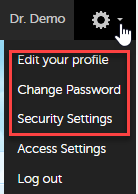
Selecting any of these options opens a new page, in the example below, the User Settings page. Select the Viedoc learning link to open the Viedoc User Account Management Guide:
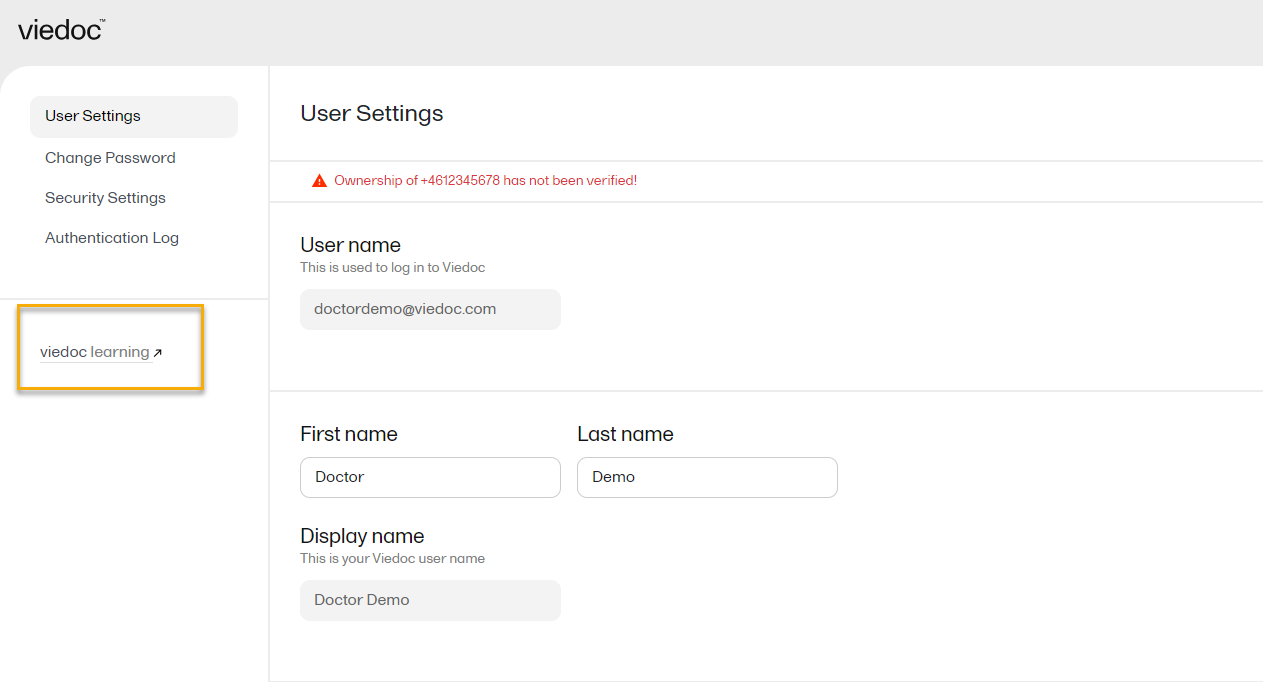
NOTE! If you update the User settings section here, make sure to also update User settings in System lessons>Viedoc User Account Management>User settings
When you are logged in to Viedoc, you can edit your profile.
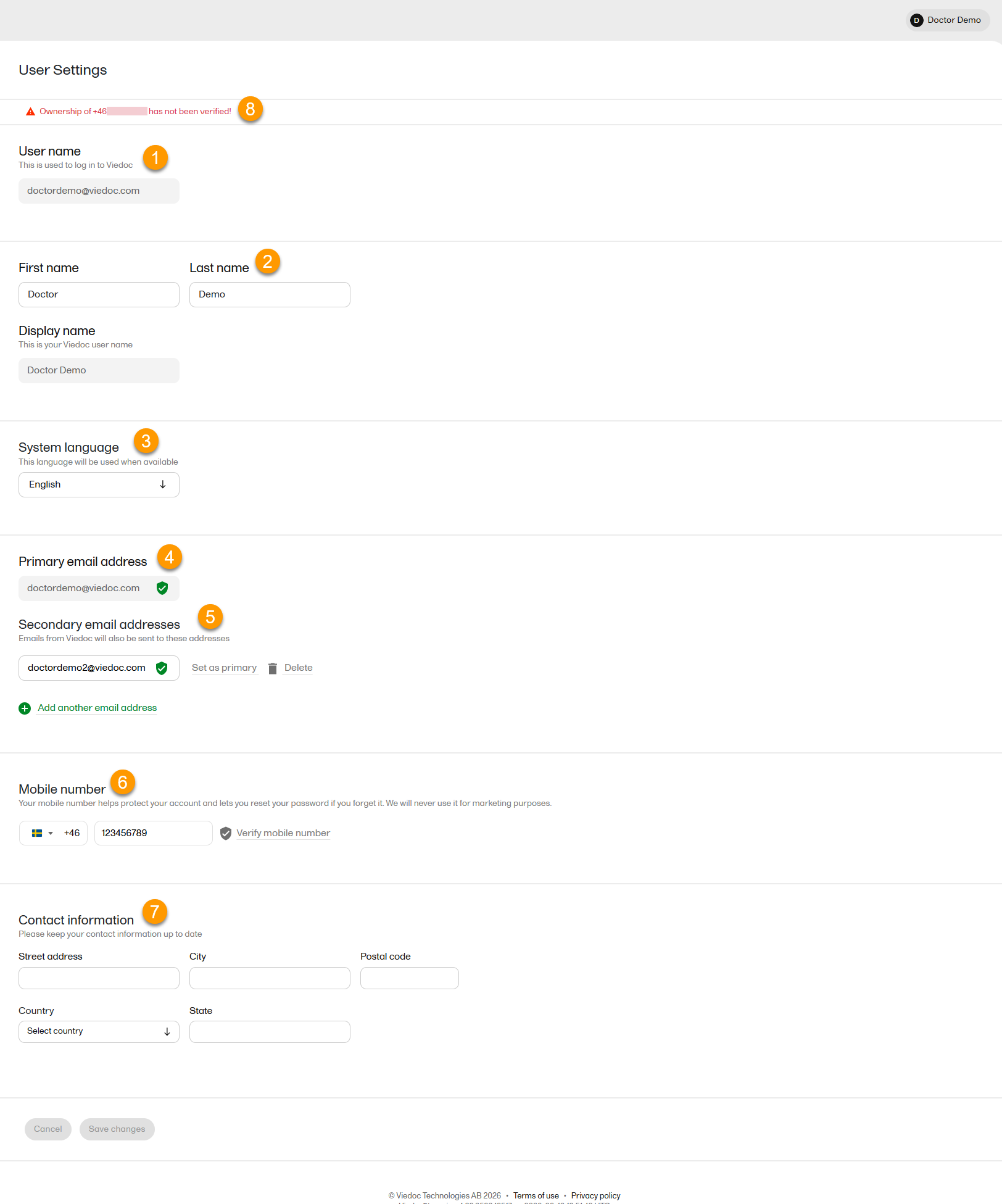
To view or edit your user settings, select the settings button (wheel) in the top right corner of the landing page, and select Edit your profile. The User Settings page opens, where you can configure the following:
1. User name - this is your primary email address used for your Viedoc account. This is the user name you use to log in to Viedoc. See the information below about your primary email address.
2. First name and Last name - fill in these fields that are used for your Display name, used in Viedoc to identify your user.
3. System language - select the language of your choice from the drop-down menu.
4. Primary email address - this is the same as the User name described above. It is the email address used in Viedoc to log in, as well as for Viedoc user account-related operations (account setup, password recovery, study invitations).
By default, this is set to the email address used to initiate the Viedoc user account.
The primary email address must be unique and is mandatory. Therefore, it is not possible to delete the primary email address.
See Changing the primary email address.
5. Secondary email addresses - you can add up to 3 additional email addresses.
Secondary email addresses is used only for:
Delivering second-factor verification codes for self-service password resets initiated by the user.
Sending a notification about changes to your user account when a secondary email address is added or removed.
See Adding a secondary email address and Verifying a secondary email address.
6. Mobile number - Select your country code and enter your mobile number.
You will be asked to Save and verify mobile number. A validation warning (8) will be displayed if the mobile number is not valid.
See Editing your mobile number and Verifying your mobile number.
Important!
|
7. Contact information - fill in the following fields: your street address, city, state, postal code and country.
To add a new (secondary) email address to your account:
Note! From the Viedoc 4.94 release, the primary email address and secondary email address cannot be the same.
| 1 | Select the Add another email address link under the current primary email address. |
| 2 | Enter the email address in the new field under Secondary email addresses. |
| 3 | Select Save changes. A notification email is sent to both the primary email address and to the newly added email address to inform you about the change. At the top of the Edit your profile page, you will see a warning message saying that the newly entered email address is not verified. |
To verify a secondary email address:
| 1 |
Select the Verify email address link next to the newly added email address. A six-digit code will be sent to your new email address and a Verify ownership pop-up is displayed asking you to provide the code in order to verify the new email address. Note! The verification link for the secondary email address is shown only after having saved the changes you may have performed on the other fields on the same page. |
| 2 | Enter the received code and select Confirm. The newly added secondary email address is now verified. |
To change the primary address to one of the existing secondary email addresses:
| 1 | Select Set as primary next to the secondary email address that is to be set as the primary email address. |
| 2 | Select Save changes. A notification email will be sent to both email addresses to inform you about the change. You will use the new primary email address the next time you log in to Viedoc. |
Note! For a secondary email address to be able to be set as primary, it has to be verified first.
To edit your mobile number:
| 1 | Select your country code and enter your mobile number. |
| 2 | Select Save and verify mobile number. A notification email will be sent to your primary email address to inform you about the change. |
To verify your mobile number:
| 1 | Make sure that the mobile number is correctly entered and select Verify mobile number. |
| 2 | A six-digit code will be sent as a text message to your mobile and a Verify mobile number pop-up is displayed. It will ask you to provide the code in order to verify the mobile number. |
| 3 | Enter the code and select Confirm. The mobile number is now verified. |
From the settings button (wheel) you can perform all actions related to study access management in Access Settings.

Select the settings button (wheel) in the top right corner of the window, and select Access settings.
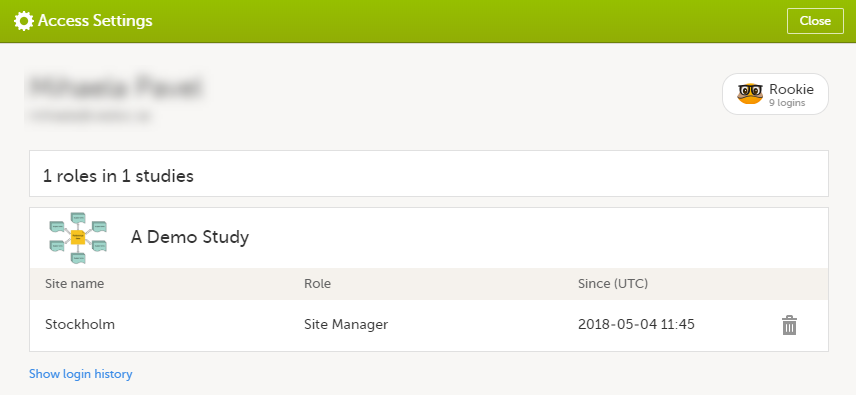
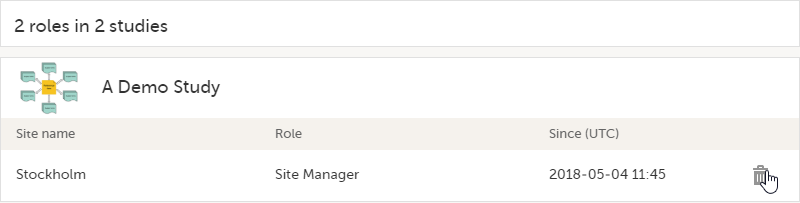
The following information is provided, grouped by study:
For users with organization roles, these are listed in the top of the page, in a separate section, providing the following information:
To remove yourself from a certain role within a study:
| 1 |
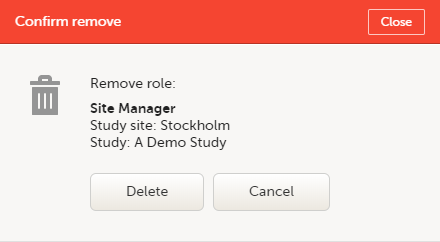
Select the trash can icon on the right, corresponding to the role, site and study to be removed from: A confirmation window is displayed. |
| 2 |
Select Delete to confirm the deletion: A notification email will be sent to all the Study Managers, or to the Site Managers if any roles are delegated. |
You can remove your Viedoc account when you have no study memberships left, that is, 0 roles in 0 studies.
To delete your Viedoc account:
| 1 | Go to Access Settings. To be able to remove your account, you should have no roles left in any study and no pending invitations: |
| 2 | Select Remove account from Viedoc. You will be prompted to confirm the account removal by entering your password: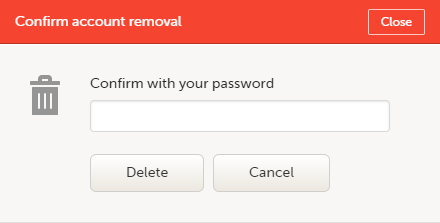 |
| 3 | Enter your password and select Delete. A confirmation message is displayed and a notification email will be sent to your primary email address: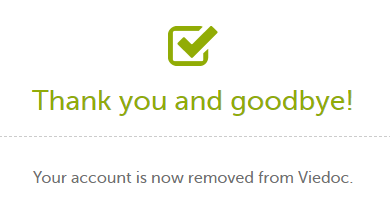
For identification purposes, Viedoc will keep: the user ID, display name, primary email address, and login history. They are kept until all the studies you have participated in are deleted. All other information related to your account will be removed from Viedoc. |
In case you have study invitations that you have not accepted or rejected yet, the Pending invitations window displays a list of all your pending study invitations:
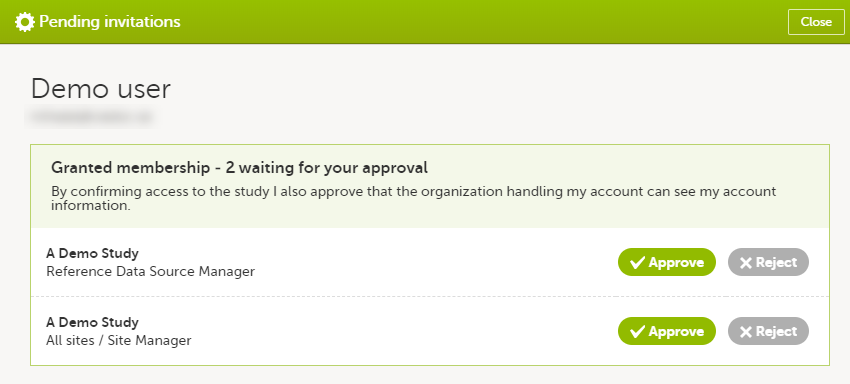
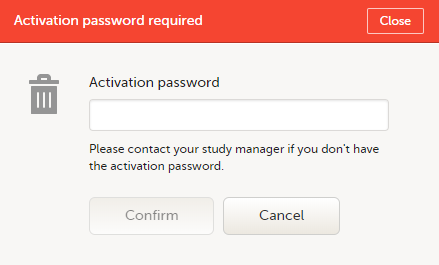
To accept a study invitation, select Approve next to the respective study role. If this is the first role you have in the respective study, and if the study requires an activation password, you will be prompted to enter it:
Note! All the pending role invitations for a user are automatically approved when the Application Programming Interface (API) method GetToken/Token is used.
To reject a study invitation, select Reject next to the respective study role. The invitation will be removed from the Pending invitations list.
To postpone the approval or rejection of study invitations, select Close in the top right corner of the Pending invitations window and postpone providing an answer to the study invitation.
To access the pending invitations again, the Pending invitations window is shown:
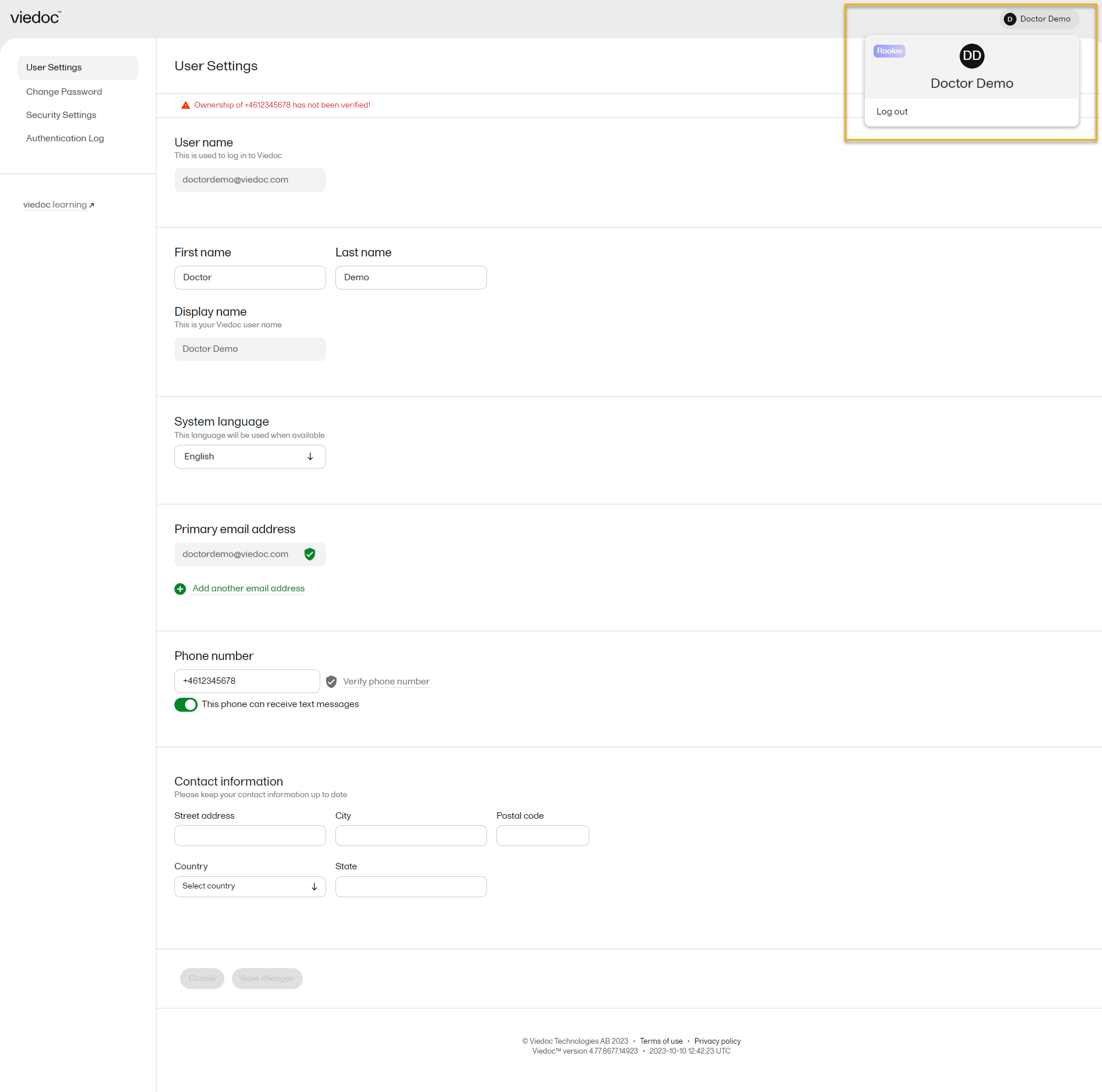
From Viedoc you can log out from different locations:

Note! If you exit the system without logging out, any subject you are currently working with will be locked for other users. After 5 minutes, the subject will be automatically unlocked.
This lesson describes the Viedoc landing page, which is displayed directly after a successful log in:
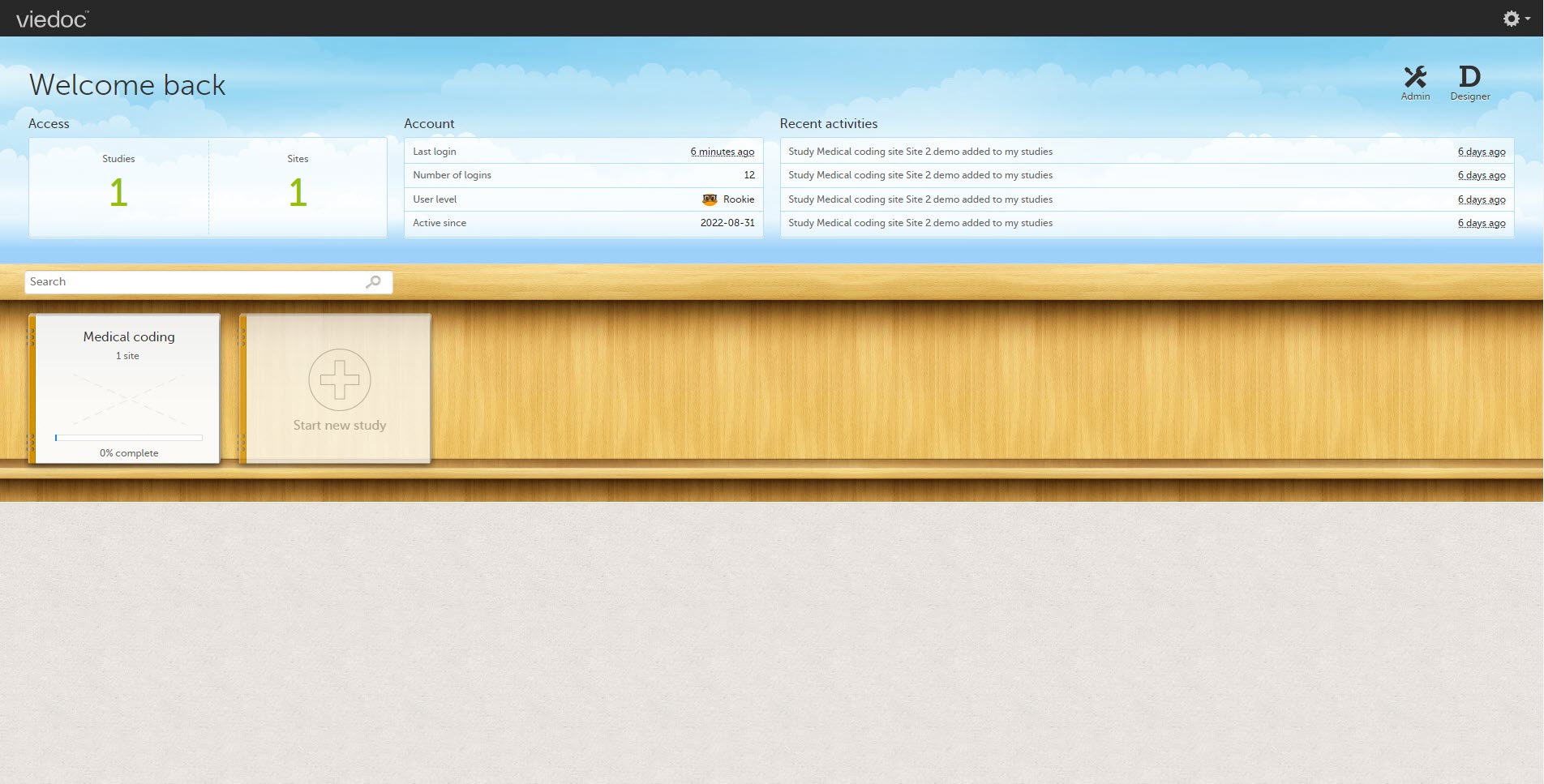
The landing page provides the following summary information:
| Skill level | Icon | Description |
|---|---|---|
| Rookie |  |
≤ 20 logins |
| Semi-pro |  |
21-100 logins |
| Pro |  |
101-1000 logins |
| Legend |  |
> 1000 logins |
The study slider shows the studies you have access to - each study is represented by a study logo. If you have access to many studies, you can easily find a specific study by entering the study name in the search field. All studies containing characters of the search string appear in the search results.
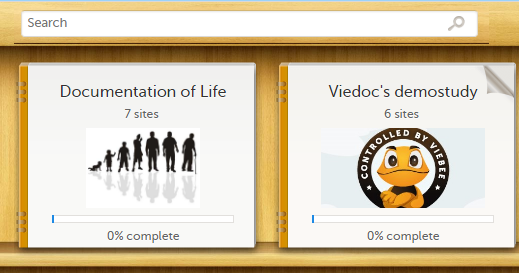
A progress bar is shown below each study logo. The percentage displayed is calculated by the mean completion of each subject (rounded down). Thus, it measures the total completion of the study.
Note!
Select a study logo to select a study to work with. The study start page is loaded on the lower half of the screen, for more information, see Study start page.
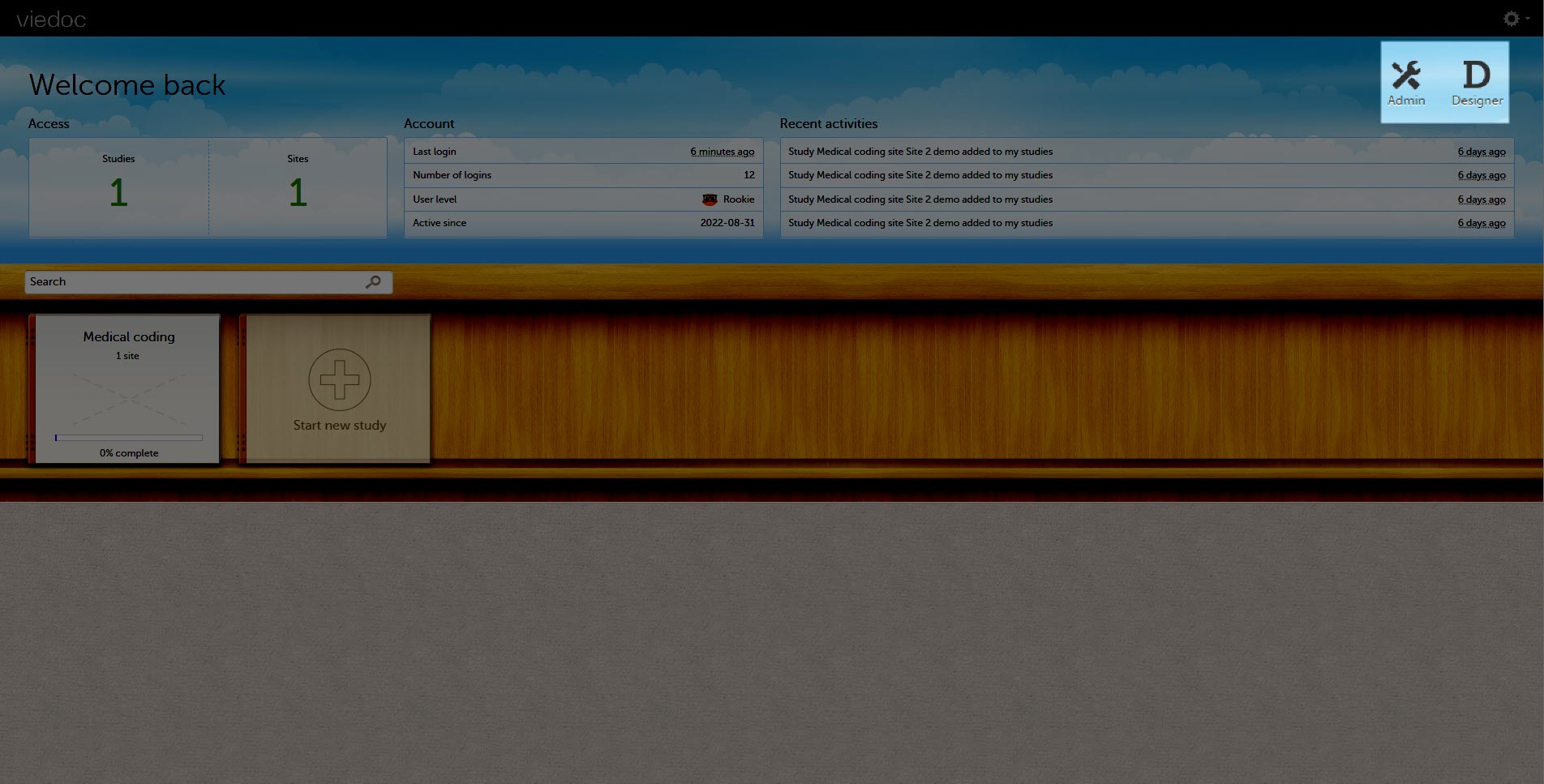
If you are an Administrator and/or Designer you will also have access to Viedoc Admin and Viedoc Designer. Select the respective icon at the upper right corner of the landing page:
When you select the study logo in the landing page, the study start page loads, which contains the following icons that give access to different features, or enable you to view information about the study:
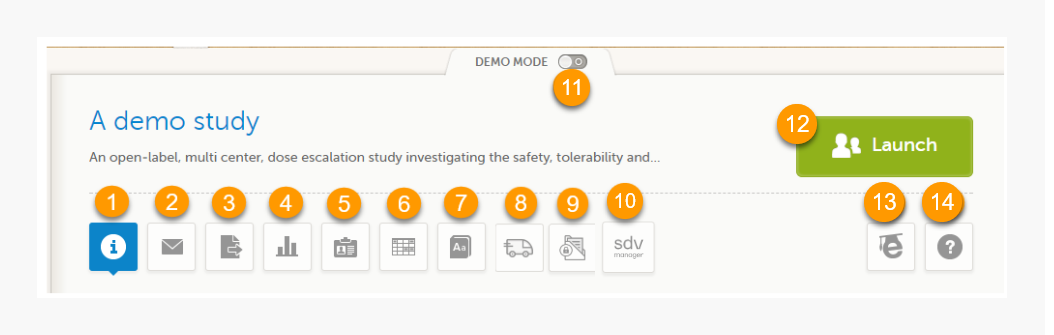
1. Study status
2. Messages
3. Data Export
4. Metrics and Viedoc Reports
5. Roles
6. Reference data
7. Medical coding
8. Viedoc Logistics
9. Viedoc eTMF
10. SDV manager
11. Demo mode
12. Launch
13. eLearning / Documentation & Training
14. Support
Notes!
The first page displayed when you select a study is, depending on the status of the mandatory documentation and training materials, as below:
| Important! All the mandatory materials must be "Read & Understood" and signed before you can launch the study. You might be able to launch the study in demo mode, depending on the study settings performed by the Study Manager. |
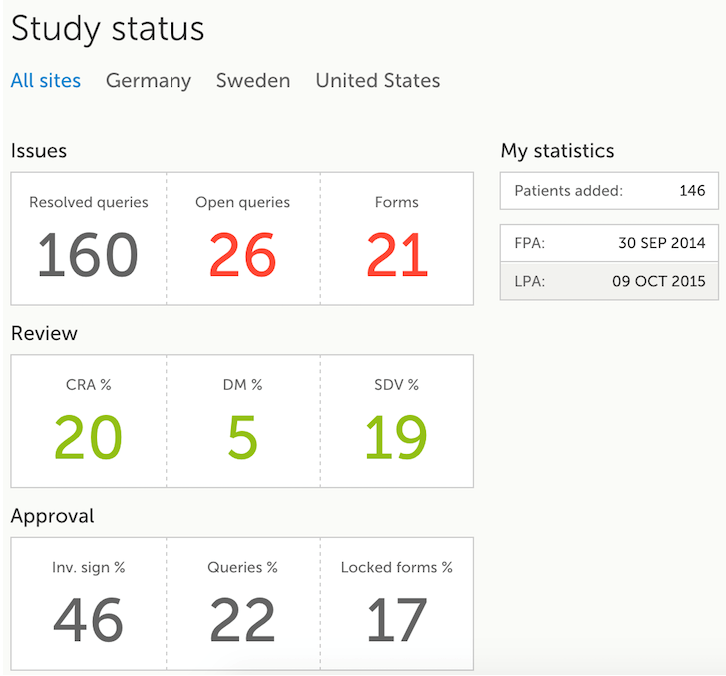
The Study status page is the first page that is shown when accessing a study, if you do not have any mandatory documentation and training material that needs to be signed. This page gives you an overview of the progress of the study - on study, country and/or site level (depending on which sites you have access to):
You can filter the displayed data for country or site by selecting the name of the country or site:
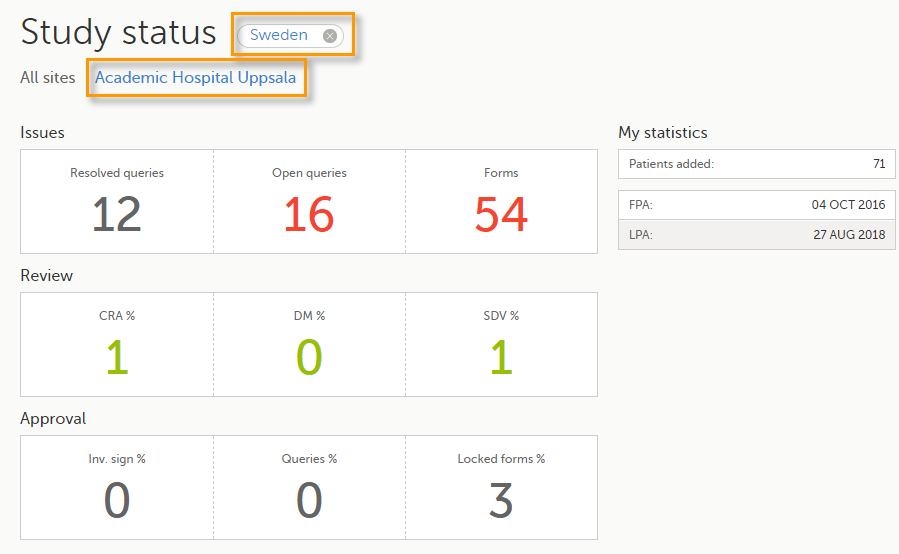
The following statistical information is provided, for the selected site(s):
Note! For resolved and open queries, this includes only manual and validation queries, not missing data queries. For resolved queries, the following statuses are included: Resolved, Rejected, Approved, and Closed.
Note! All the numbers reflect the data entered in the selected operation mode (demo or production), that is, if demo mode is selected, then the numbers reflect only the data entered in demo mode.
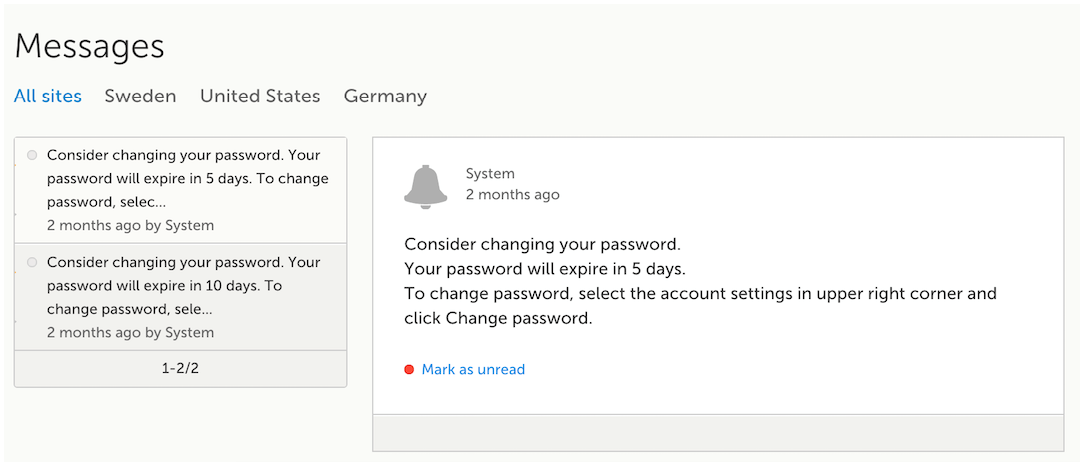
A message can either be a system message (such as notifications on password expiration), a study message (such as eCRF changes - for more information, see Approving eCRF changes, or other notifications according to the study configuration).
In the message window, a blue dot indicates a study-specific alert, a yellow dot indicates a form change requiring approval, and a red dot indicates an expiring password.
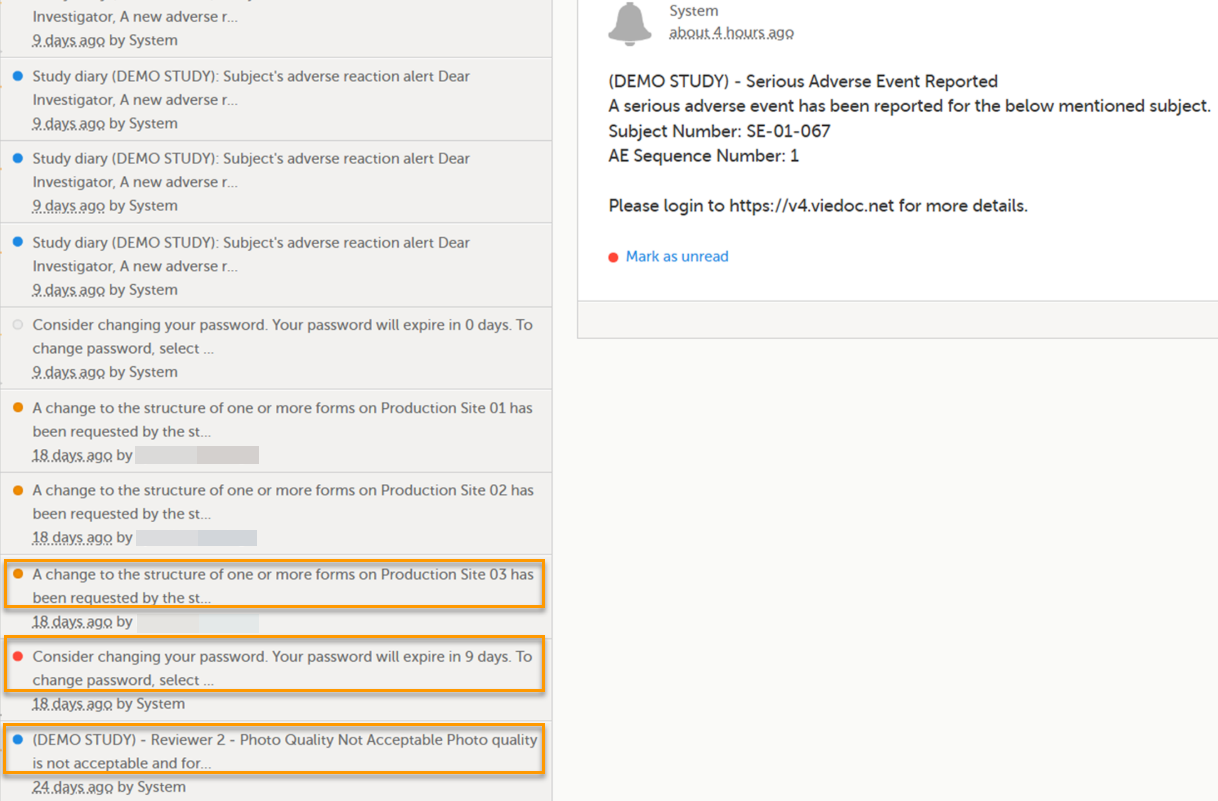
An indicator in the top bar of the application indicates whether you have unread messages.
 Alert messages
According to the study configuration, you can receive alert notifications about important occurrences in the data. (For example, in case of a Serious Adverse Event). Alert notifications can be received in the Messages page and as an email.
Depending on the configuration/study setup, the email might have the PDF of the form that triggered that alert as an attachment.
If the option to enable password protection for the alert email attachments has been selected for your study, you should receive a password to enter to open the attachments. The password is provided by your Study Manager.
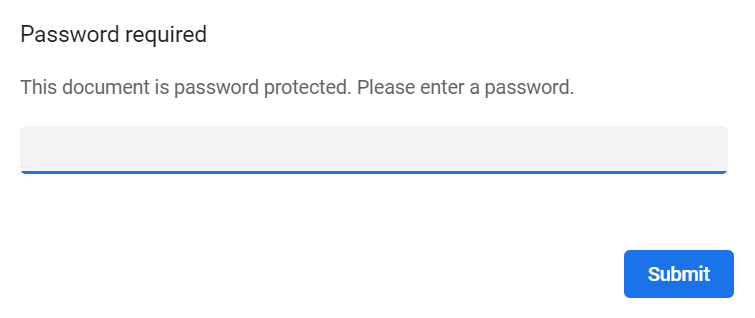
When you receive an email copy of the alert message with a password-protected attachment, when you open the file you will see the pop-up below where you can enter your password:
The Data export page enables you to review and download study data in the following formats:
Note! Data export might not be available to all users.
For more information about data export and preview, see Exporting data.
The Metrics page gives an overview of the quality of data in terms of open queries and missing data.
Note! Metrics might not be available to all users.
For a detailed description, see Metrics.
If Viedoc Reports is included in the study license and enabled, it is accessed from the Metrics feature. For more information, see Launching Viedoc Reports.
Note! The Roles page is only available for users with special permission to view roles, as per the study design.
The Roles page provides information on:
Under My roles you can see the roles that you have in the respective study:
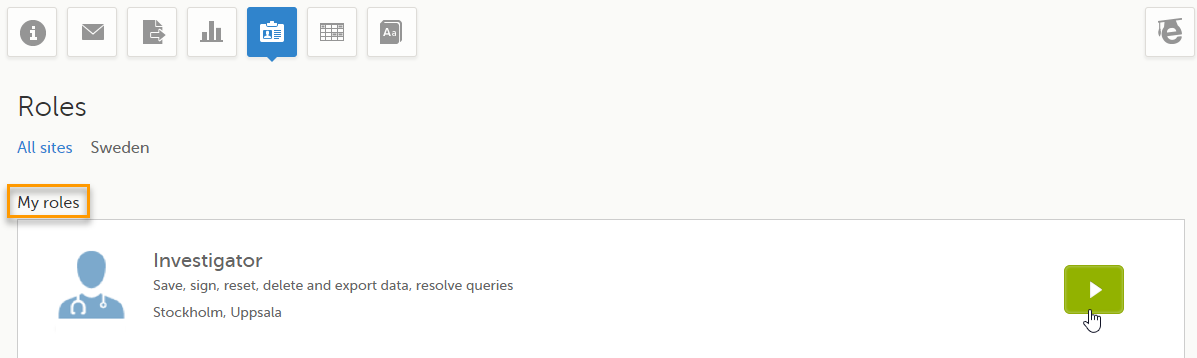
The following information is displayed (with examples):
By selecting the green arrow button to the right, you will be directed to the Selection page. This is equivalent to selecting the Launch button.
Here you can see a list of all the roles and the respective user(s) for the site(s) you have access to:
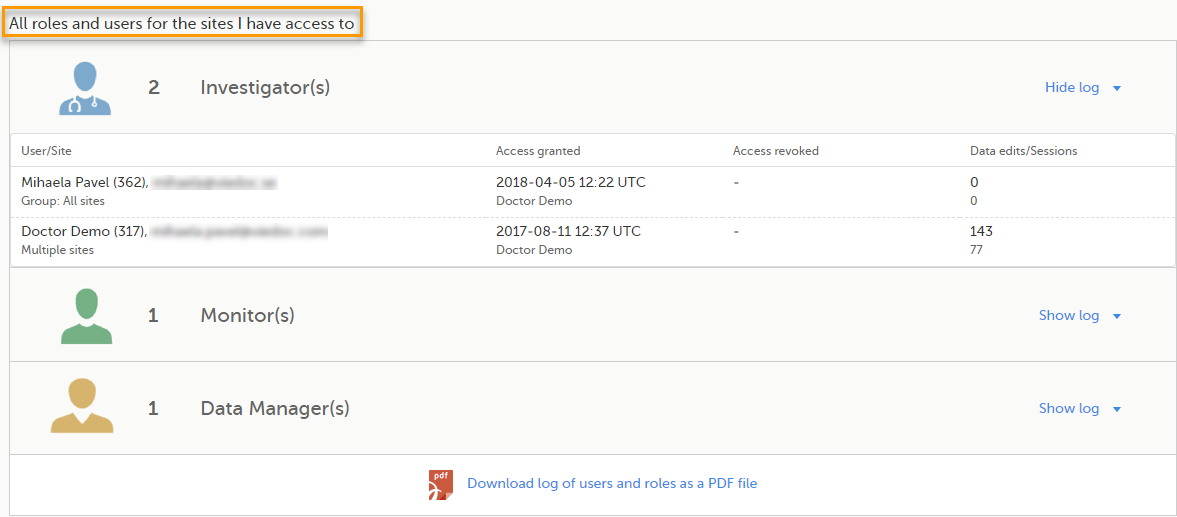
To see user details of each role, select Show log. The log displays:
*date and time in Coordinated Universal Time (UTC) time zone
For each study, you can download user logs in PDF and Excel format with information about all users and roles for the sites you have access to.The generated file reflects the country/site selection in the language you have currently set in Viedoc.
Notes!
You can generate the log for the country/site selection in your current Viedoc language by selecting Generate a PDF file / Generate an Excel file at the bottom of the study start page:

Once the user log is generated you can:

The Log of users and roles PDF contains the following chapters:
The User administration log contains information about all users and roles for the sites you have access to, with the following sheets:
When you select the reference data icon, the list of available reference data source-scope combinations is displayed. From here you can open the reference data editor. For details see Working with reference data.
Note! Reference data might not be available to all users.
The medical coding feature allows you to code reported events like Adverse Events, Medical History and Concomitant Medications. When you select the medical coding icon, the page displays metrics regarding medical coding. There is one set of metrics for each medical coding scope available.
Note! Medical coding might not be available to all users.
For more information about medical coding, see Medical coding.
Viedoc Logistics is the interface for managing the supply of your study. A valid license is required to use Viedoc Logistics.
For more information about Viedoc Logistics, see Viedoc Logistics User Guide.
Viedoc eTMF is a digital repository for capturing, managing, sharing, and storing essential documents.
For more information about Viedoc eTMF, see Viedoc eTMF User Guide.
Viedoc SDV Manager is an application that allows you to define Source Data Verification (SDV) requirements and plans and apply them selectively across study sites based on risk.
For more information, see Viedoc SDV Manager.
If enabled, a study can operate in demo mode. You can easily switch between demo mode and production mode using the DEMO MODE switch:

The DEMO MODE switch is only visible when you have access to both production and demo mode.
The demo mode is clearly indicated with demo icons. Make sure you do not enter any real data in demo mode!
See also the video tutorial Activate demo mode.
Select the Launch button to access the patient data and electronic Case Report Forms (eCRFs). The button is only visible when you have access to the study in Viedoc Clinic.
If multiple roles are assigned to you in this study, you are first prompted to select the role you would like to use to access the study.
If you have mandatory documentation pending to be read and signed, this is the first page that is displayed when you access the study.
Under this section, you have access to several eLearning programs and various documentation, depending on the roles that have been assigned to you. For details about the user documentation and certificates, see Documentation & Training.
The Viedoc Clinic User Guides are available in the following languages:
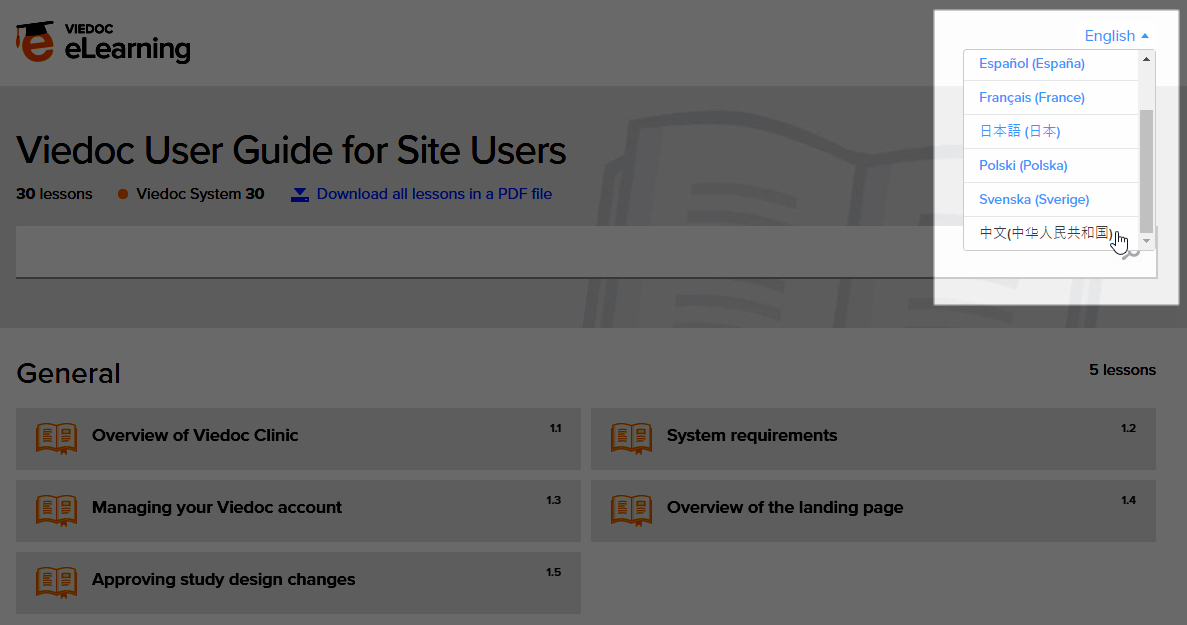
To change the language of the Viedoc User Guide, once opened, select the language from the upper right corner, as illustrated below:
Tip! The various lessons in the Viedoc eLearning can easily be compiled into a PDF and printed if you need to store them in the investigator binder.
Select the support icon to open a pop-up with contact details to the users that can help you in case you need support. Normally you will find the contact details of the Monitor here, as the Monitor typically is the first point of contact to the site.
Depending on the study settings and on the role(s) you have within a study, you might have access to various user documentation. This lesson describes the scenario when, under the eLearning section, you get access to the Documentation & Training page, with mandatory and/or optional documentation section(s), as illustrated in the following image:
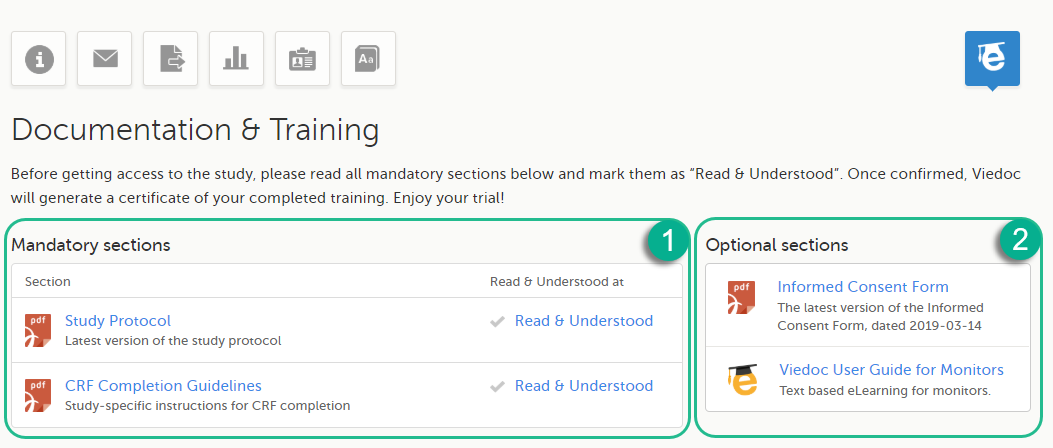
The available documentation and training materials are split in two main categories:
1. Mandatory sections - contains all the materials that are mandatory for you to read, understand and sign before starting to work.
If you have mandatory documentation pending to be read and signed, then the first page that opens when you access the study is the Documentation and Training.
| Important! All the materials under Mandatory sections must be "Read & Understood" and signed before you can launch the study. You might be able to launch the study in demo mode, depending on the study settings performed by the Study Manager. |
2. Optional sections - contains additional educational and reference materials that you have access to. Simply click on the link to open each of the available documents/links.
To work within a study for which mandatory training sections were assigned, you need to read, understand and sign all the sections listed as mandatory.
To obtain the user certificate:
| 1 | Click the link to open the section. Read through and, when you're done, go back to the Documentation and Training page and click Read & Understood. A date and time stamp in Coordinated Universal Time (UTC) will be shown in the Read & Understood at column: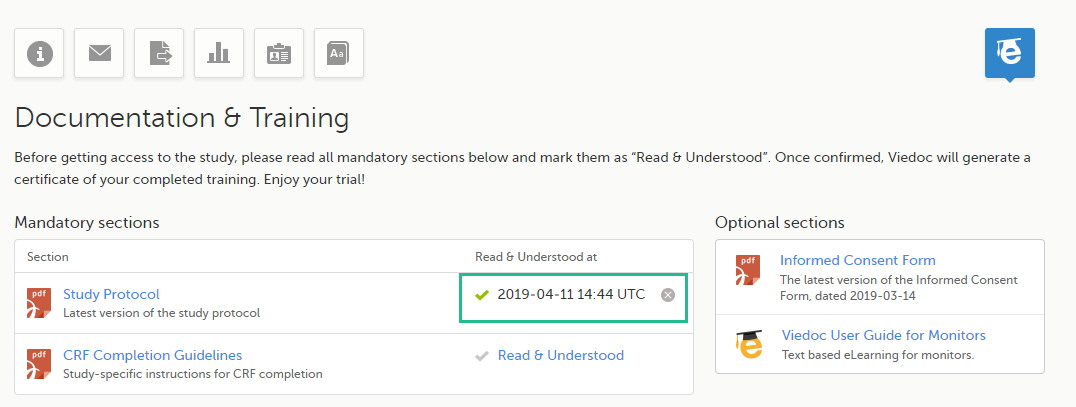 |
| 2 | Repeat step 1 for each of the mandatory sections. When all the mandatory sections are marked as "Read & Understood", a Confirm 'Read & Understood' link becomes available: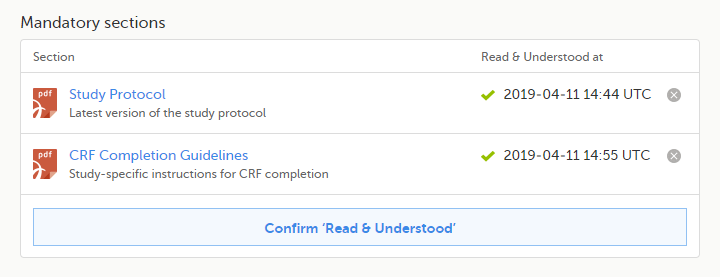 |
| 3 | Click Confirm 'Read & Understood'. A confirmation pop-up opens: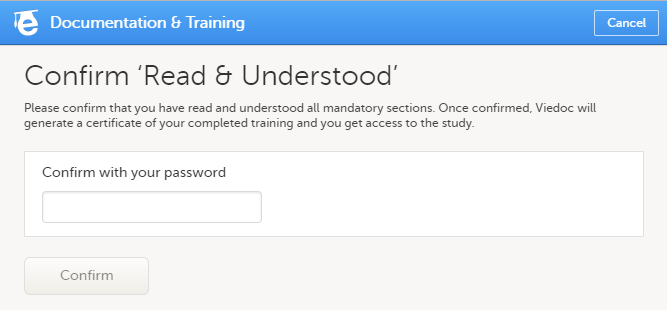 |
| 4 | Enter your Viedoc account password and click Confirm. A confirmation message together with the date and time stamp (UTC) is displayed at the bottom of Mandatory sections. Also, a link to Download your User Certificate becomes available: |
| 5 |
Now you got your certification and are able to access the study. The Launch button is now available. You can also Download your User Certificate. For details, see Downloading your user certificate. The mandatory sections are still available for your further reference, you can at any time go back and open any of those by clicking the section link. |
After you have completed all your mandatory readings and have signed and confirmed, as described in the previous section, you can download your user certificate in PDF format by clicking Download your User Certificate in the bottom of Mandatory sections.
The following information is provided on the certificate:
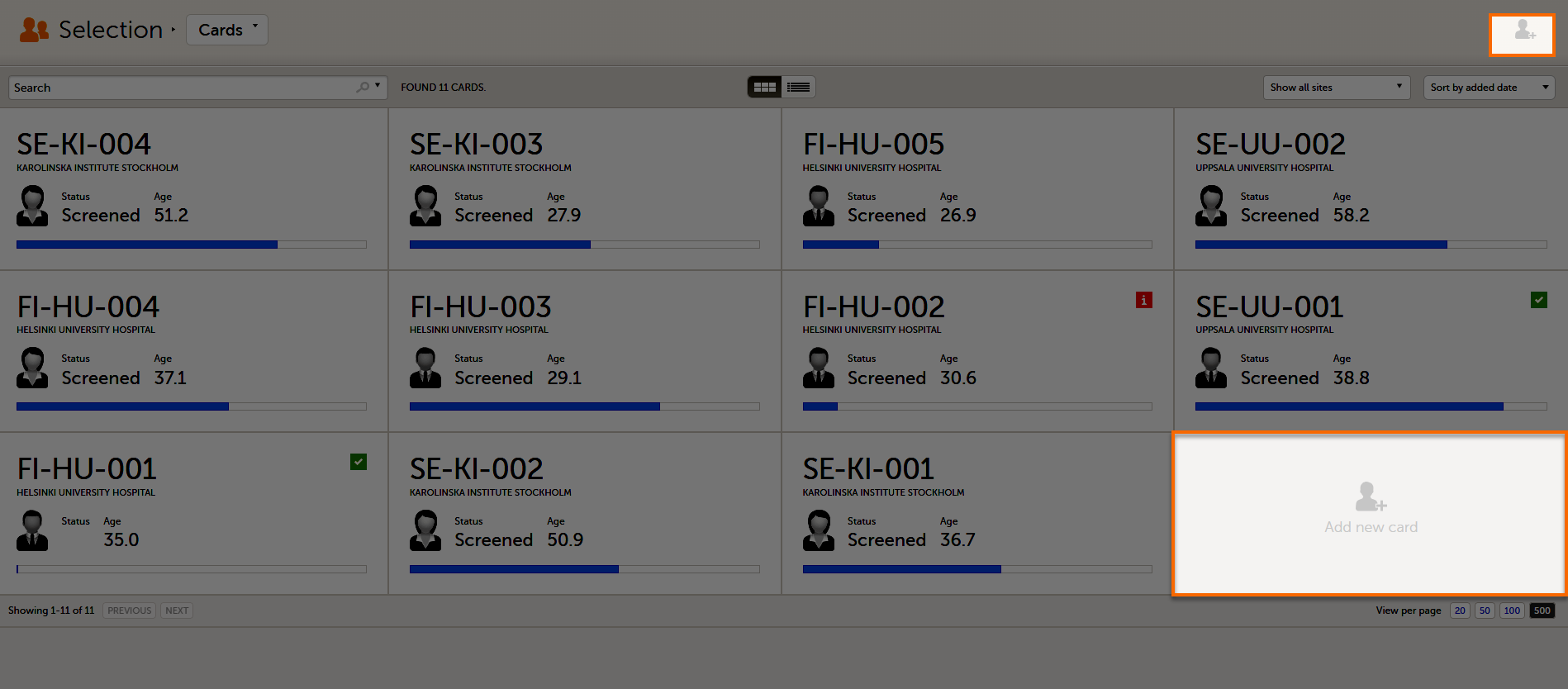
The Selection page displays all the subjects from all the sites you have access to:
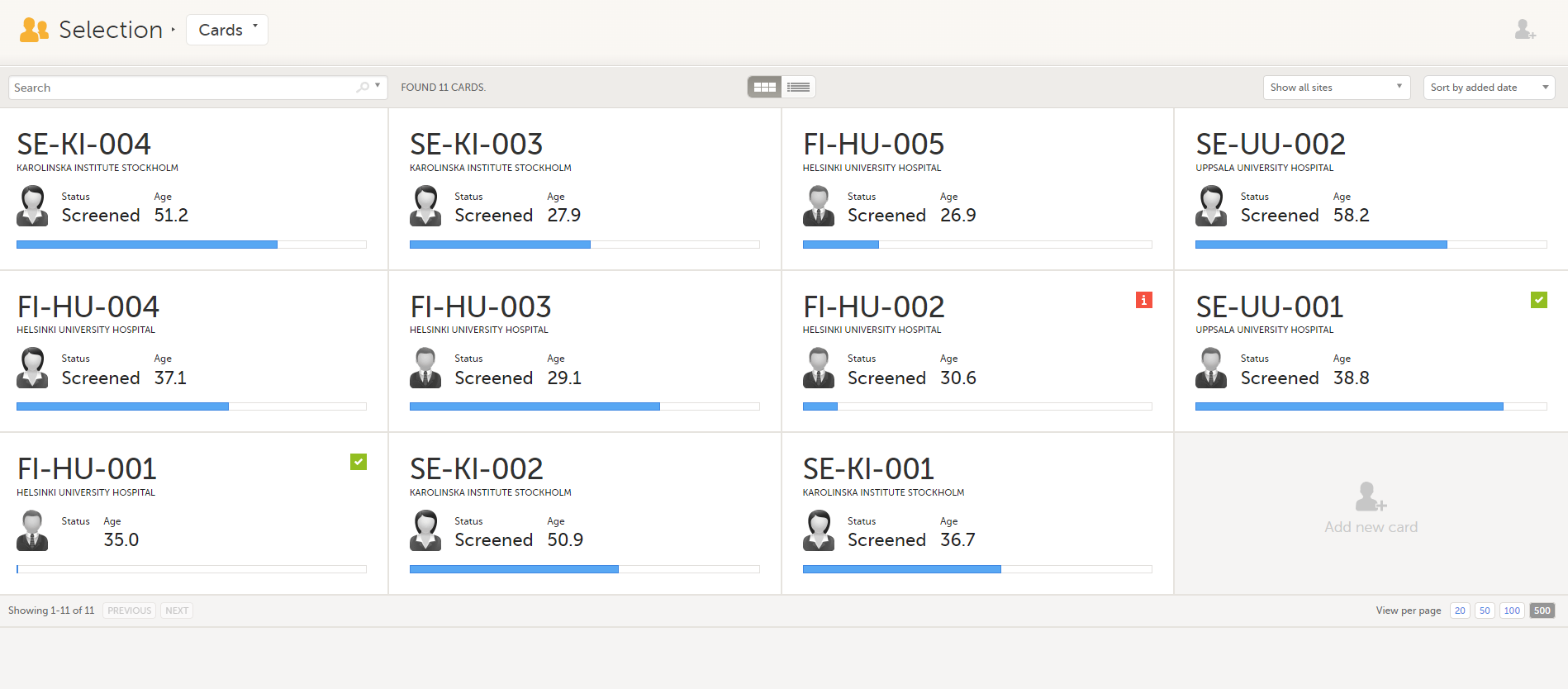
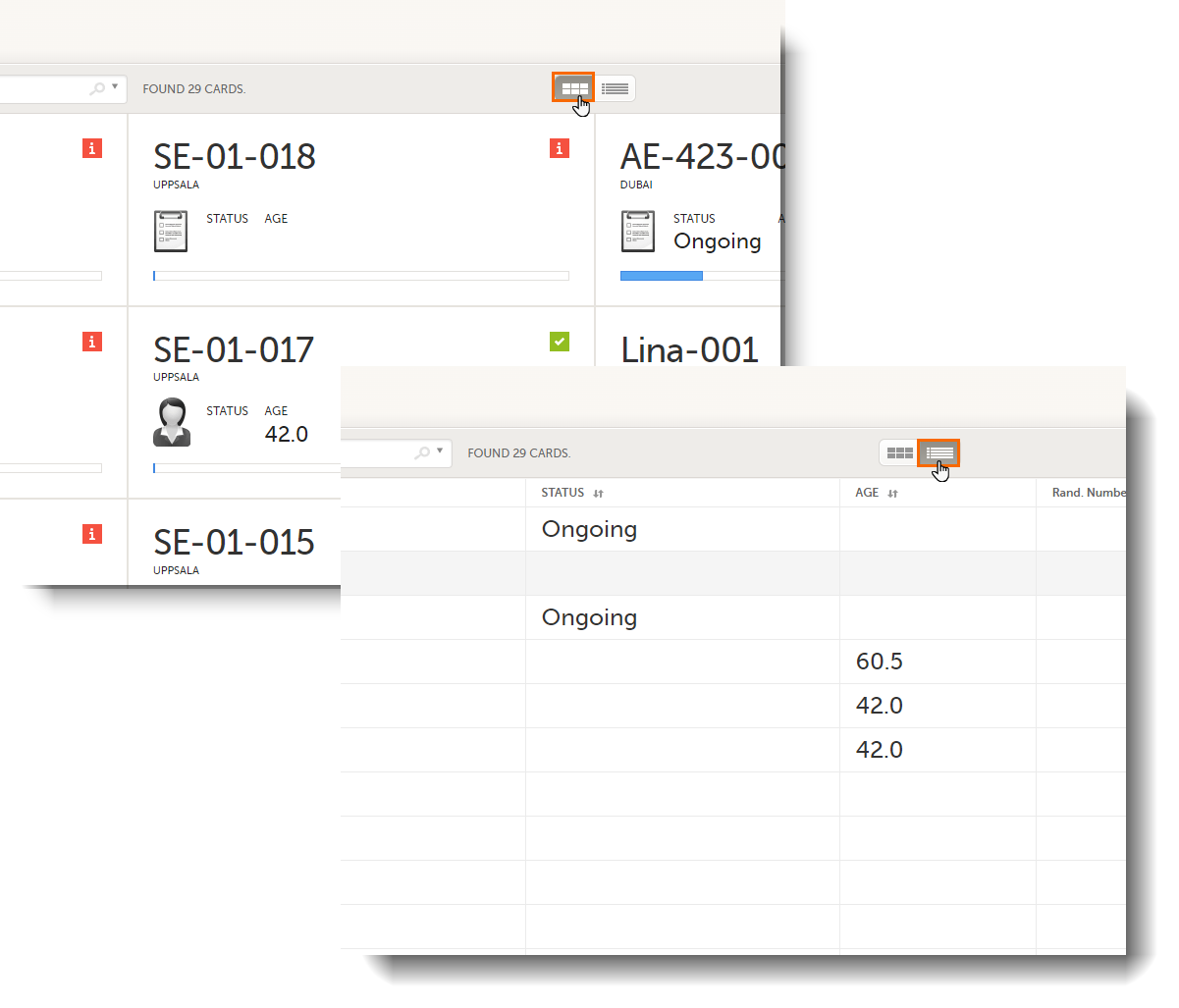
In the default view, each subject is represented by a card. Depending on your study setup, the Selection page can be displayed in several ways. See Views of the Selection page.
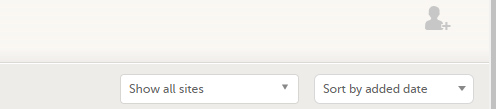
In the top right corner of the Selection page, you have dropdown menus to sort and filter the view. The options depend on the selected view. The selected sorting will be kept throughout your session.
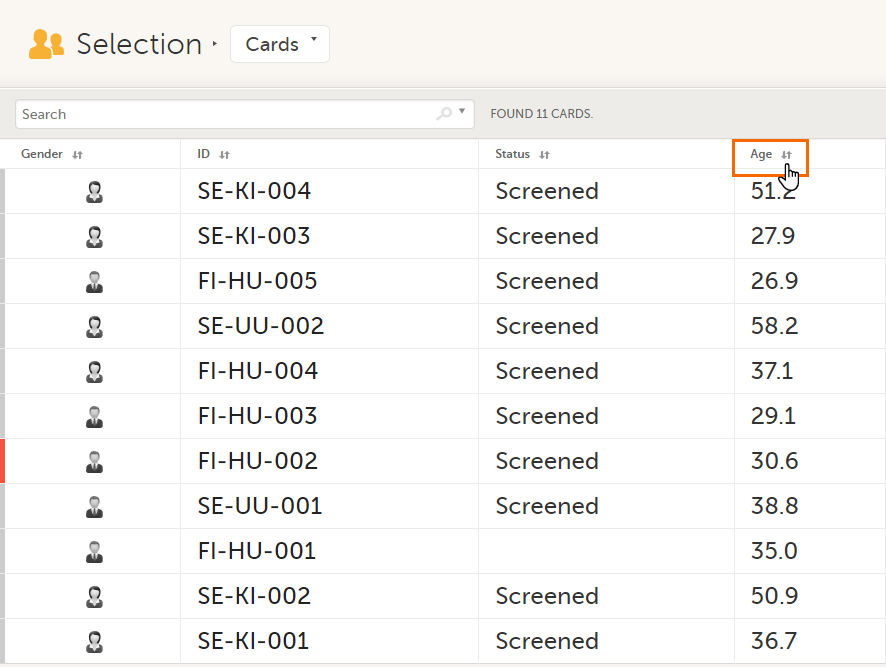
In the table view of the Selection page, you can also sort by column in descending or ascending order by selecting a column header with the arrow symbol. Lit-up arrows indicate the selected sorting in orange:
Notes!
To search for a specific subject or any other information collected for a subject, you can type the text you are looking for in the search field:
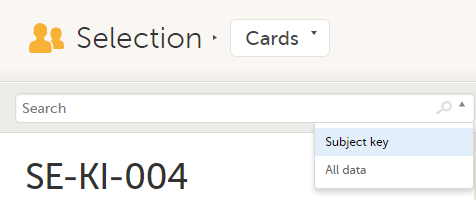
The system will return the subjects with the information sought that has been entered in the Case Report Form (CRF).
Subject key and All data are two filters that can be applied to the search.
Note! For faster searches, we recommend that you select the Subject key filter.
| Important! If your search returns nothing, it could indicate a problem with your study design. Please contact your Professional Services representative to assist you. |
The Selection page displays a number of icons explained in the following table:
| Icon | Description |
|---|---|
 |
Issue - at least one open query and/or missing data |
 |
Task - there are tasks to be completed, the number indicates the number of tasks |
 |
Complete - all initiated events have been completely filled in |
 |
Signed - all data that is possible to sign has been signed |
 |
Read-only - the card is being open for edit by another user. Note that the subject card can still be accessed for review or SDV by a user without edit permissions, for example a monitor or a data manager. |
 |
In progress - the event is initiated but not completed This icon is only shown when none of the other status icons apply |
 |
Locked - the data in all forms of the event is locked |
Note! The icons showing depend on your user role permissions.
Depending on the study setup, the Selection page looks a bit different.
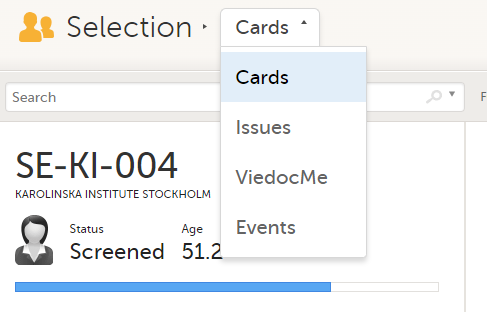
In the Cards view, you can see all the subjects from all the sites you have access to. Select to display the subject cards side-by-side (default) or in a table:
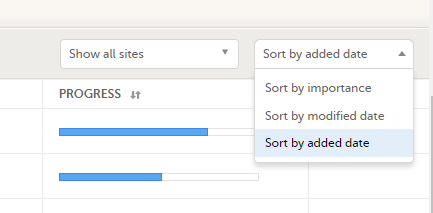
The subjects are sorted by added date, where the most recently added subject is displayed first. You can sort the subject cards by selecting an option in the upper right corner:
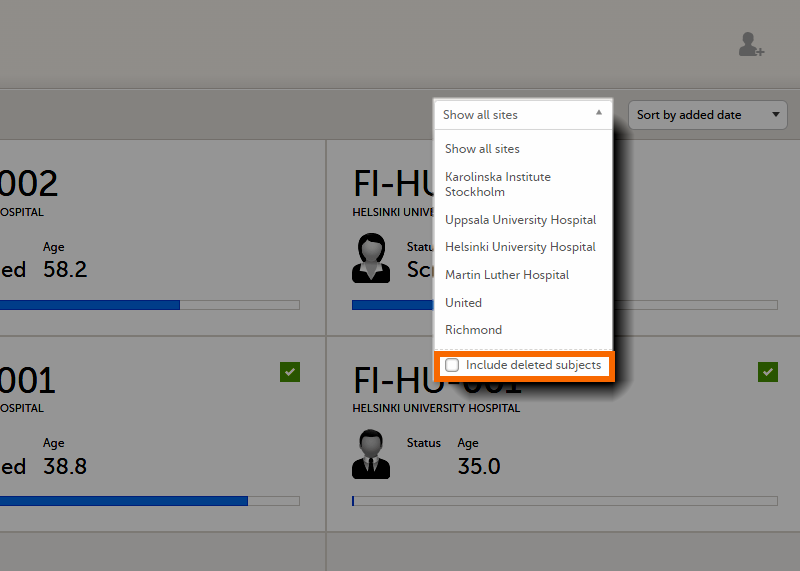
To display only the subjects for a particular site, select the site from the dropdown list. Click Include deleted subjects at the bottom of the dropdown menu to display deleted subjects:
Each card provides subject information as per the respective study design:
If all the forms were locked (typically by the Monitor), this is shown with a padlock icon on the respective subject card:
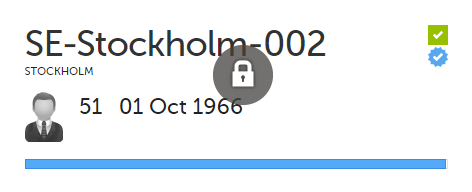
Note! The Selection page does not consider the role visibility except for task count; therefore, the subject status reflects the general status of the subject in the study, regardless of the user who has work to be performed. The subject details view reflects the subject status considering the role visibility. This could result in a subject status where a subject could have a green check mark or be locked, while in the Selection page it is not (due to some other user role having unfinished work or forms to complete on the respective subject). See Entering and Editing data for more information on the subject details view.
In the Issues view, you can see the existing issues listed in a table:
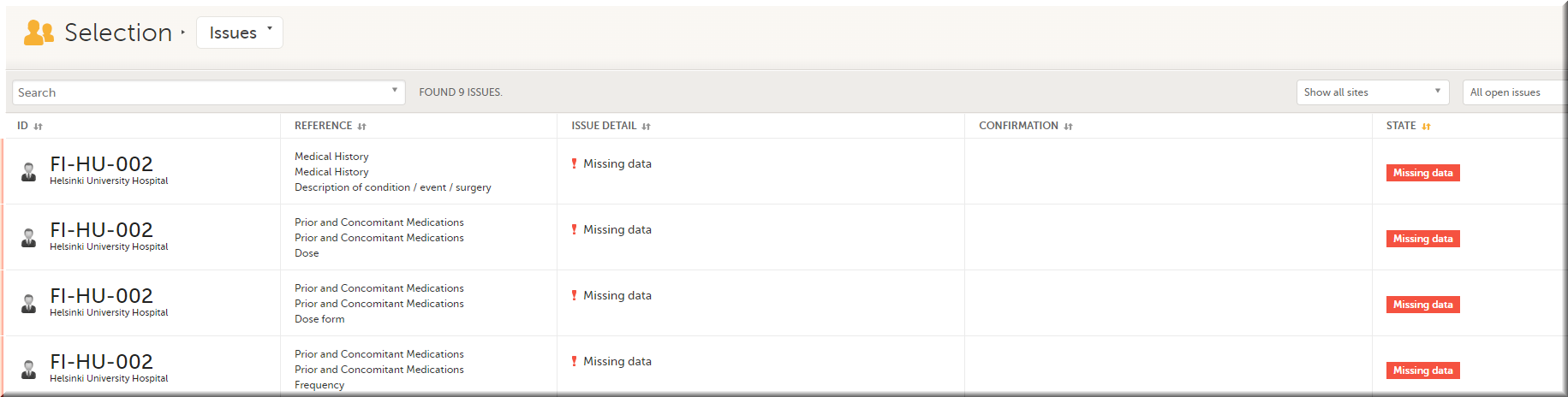
Click any row to open the form where the issue was raised:
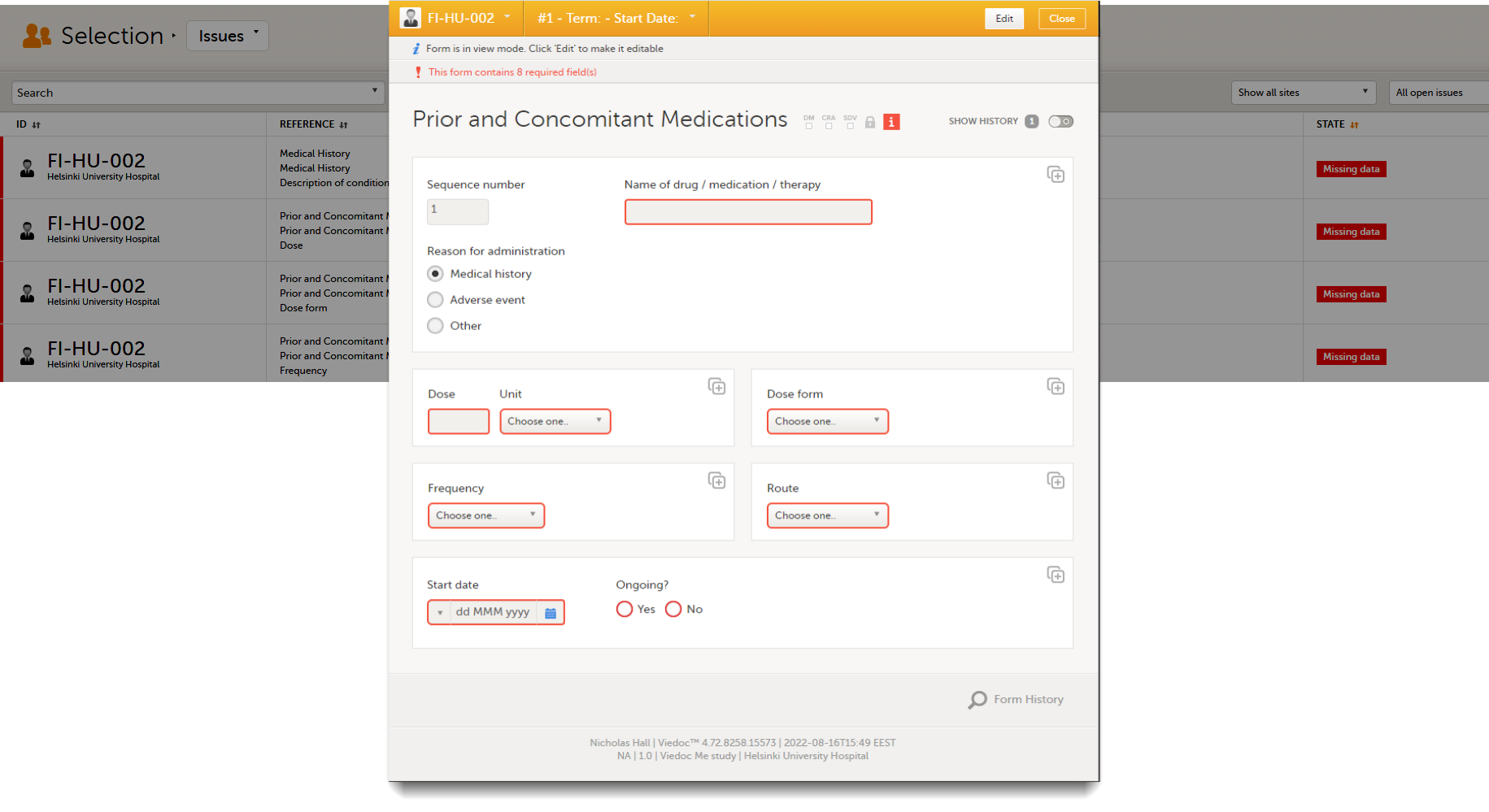
Close the form to go back to the Issues list.
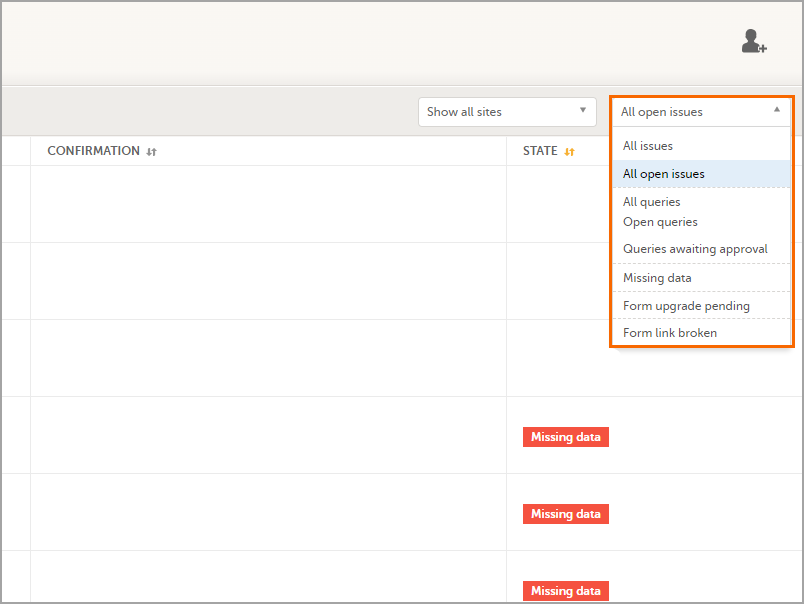
You can filter the Issues list using the dropdown lists in the upper right corner of the page:
In the Viedoc Me account view, you can monitor and follow up on the subjects' expected Viedoc Me event submissions.
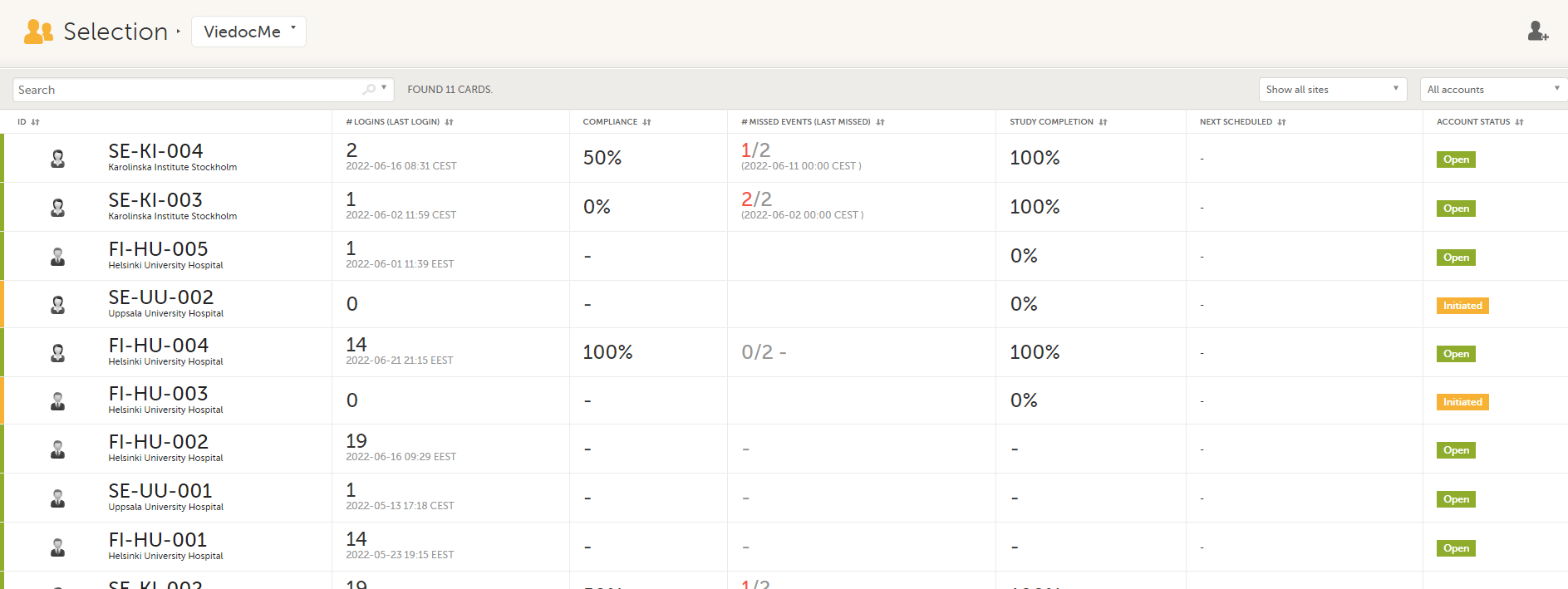
For each subject, the following information is listed:
In the Events view, you can see the status of each event for each subject listed in a table.
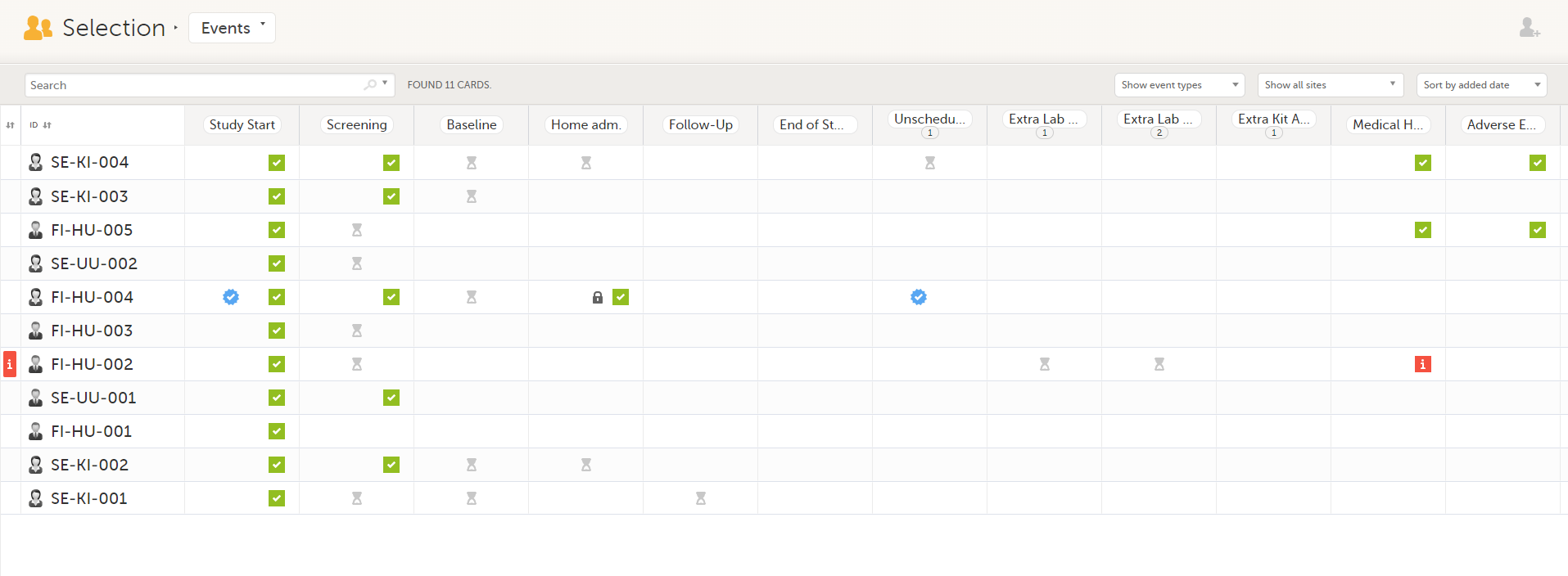
The first column indicates if there are issues/tasks in any of the subjects' events. If there are both issues and tasks for a subject, then issues [ i ] are shown in the column.
Select any cell to go to the event in the Details page:
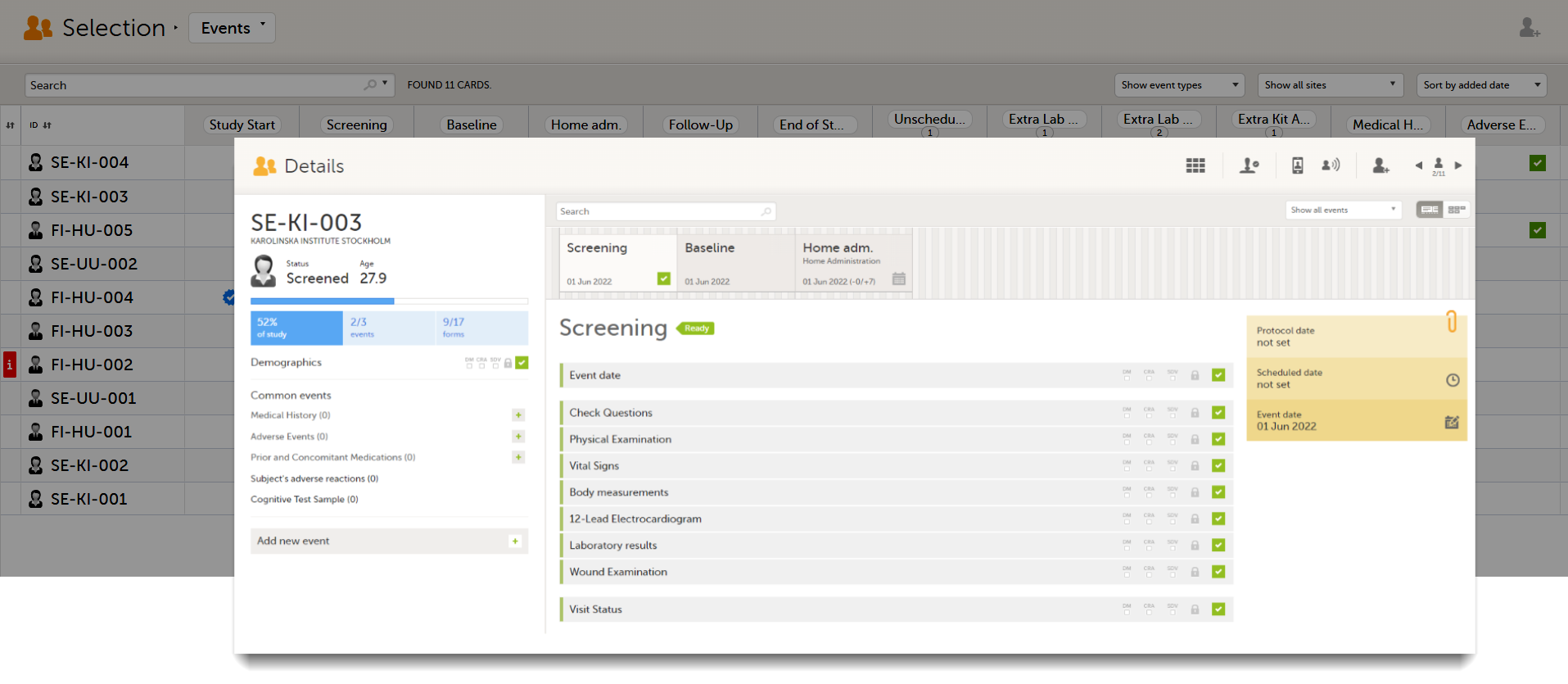
Click back in the browser to return to the Events view.
Select an empty cell to view the subject's latest event.
The list of subjects can be filtered using the dropdown lists in the upper right corner of the page:
Note! On the selection page, in the Events view, the event name (as set in the Study event settings in the study design) is displayed. If there is a recurring event, a counter is shown under the event name, for example: Follow up 1, Follow up 2.
To add a new subject:
| 1 |
Make sure that you have selected a site (center) from the sites dropdown list.
|
| 2 |
Complete the form and select Save changes on the top right side of the page. A new subject is now added. |
Note! Only user roles with editing permissions for the study start event form can add a new subject. If you do not have editing permissions, you cannot select Add new card and no icon is visible in the top right side of the page.
See also the video tutorial Add and select subjects.
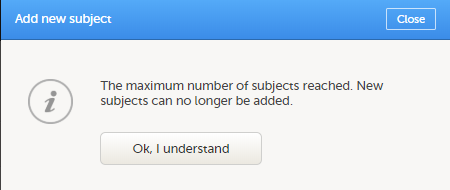
If you receive the following message, the maximum number of subjects that is configured for your site has been reached, and you cannot add new subjects. If you need to add a new subject anyway, contact your Study Manager.
Note! As a Viedoc Clinic user, you need a special permission to view the metrics.
The metrics feature gives an overview of the quality of data in terms of open queries, missing data and overall site performance. You can filter the displayed data by country and site.
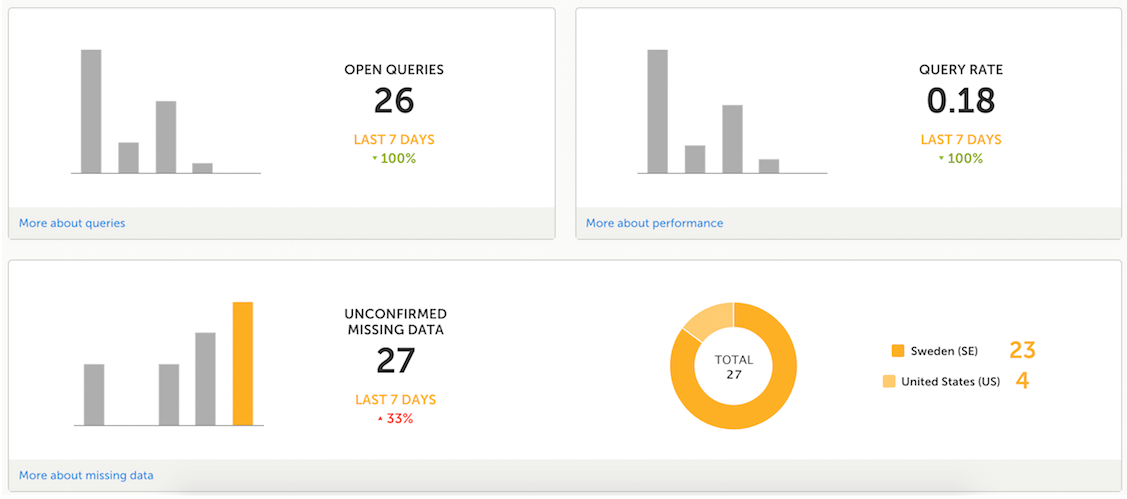
The metrics graphs depict:
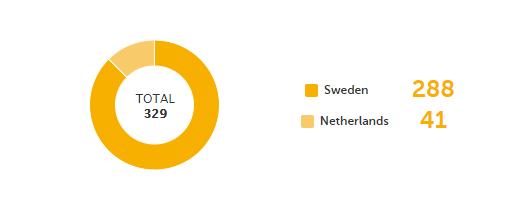
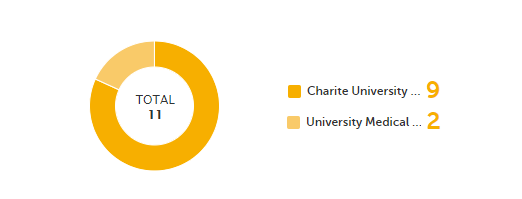

Click More about [...] to open a page with detailed metrics about queries, performance or missing data. All detailed metrics pages include filtering possibilities and a bar to show the review status.
Note! The number of open queries differs between the Queries page and the Performance page. The Performance page also includes queries with the state Removed.
If you have access to Viedoc Reports, you can open it from the Metrics feature.
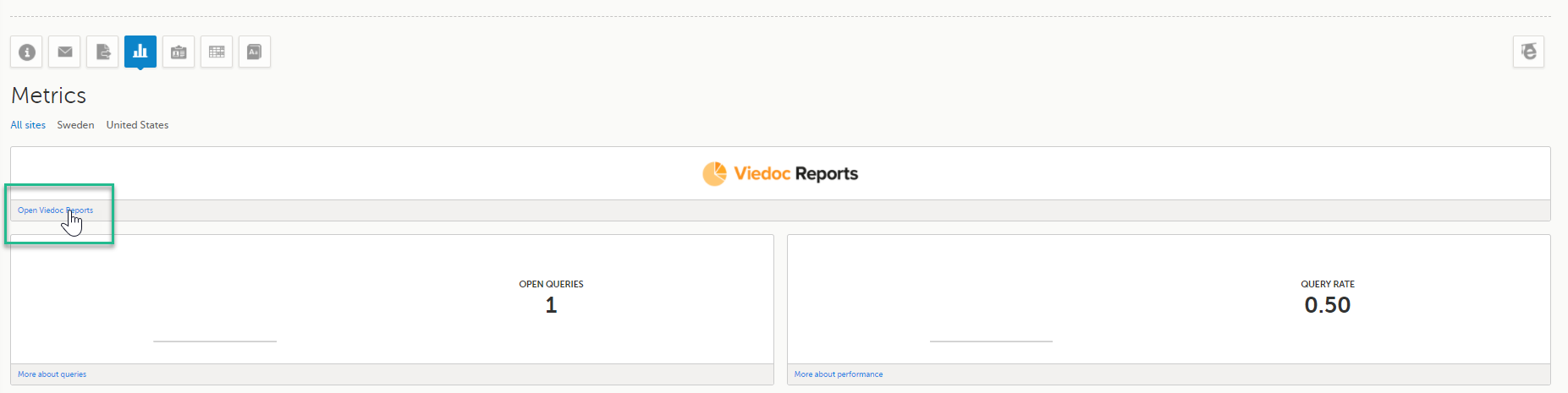
The Queries page includes filtering possibilities and a bar to show the review status for the entire study.
For detailed information about the query process in Viedoc, see Queries overview.
You can filter the data by selecting from the drop-down lists in the top of the page:

Based on the selected filter, the following information is provided:
Queries - a diagram that shows the graphical distribution, the total number as well as the percentage of:
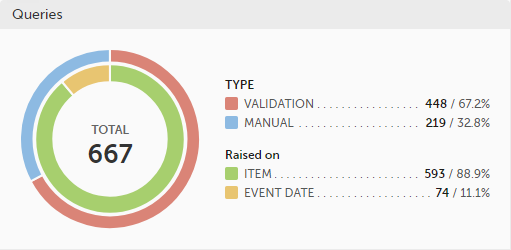
The number in the center of the circle shows the total number of queries.
Note!
For detailed information about query states and pro, see Queries overview.
Query state - a pie chart shows the queries distribution based on the query state:
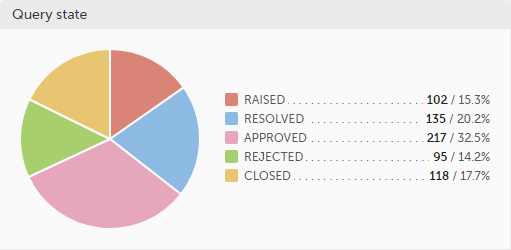
For detailed information about query states and process, see Queries overview.
Top 5 events - a column bar shows the top five events with the highest number of raised queries (numeric and percentage). The legend of the graph displays the event name.
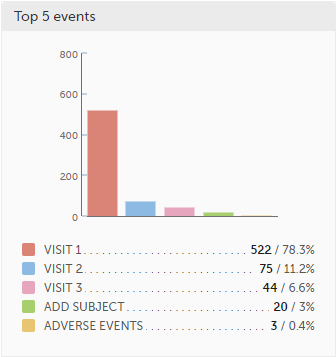
Top 5 forms - a column bar shows the top five forms with the highest number of raised queries (numeric and percentage). The legend of the graph displays the form name.
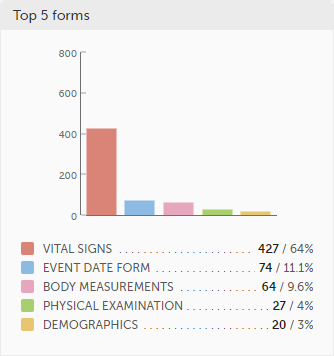
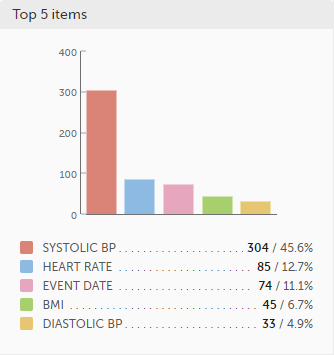
Top 5 items - a column bar shows the top five items with the highest number of raised queries (numeric and percentage). The legend of the graph displays the item name.
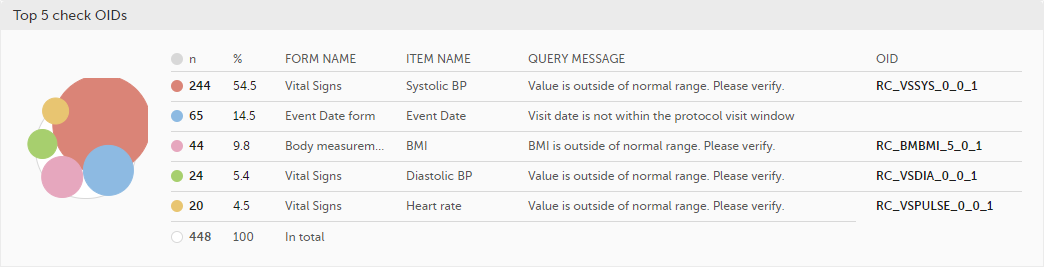
Top 5 check OIDs - top five most triggered edit checks are displayed in a table including the actual number, percentage, Object Identifier (OID), form name as well as the query message.
The last row of the table shows the total number of queries.
Top 5 subjects (raised queries) - top five subjects that have the highest number of queries with current status raised are displayed in a table including the actual number, percentage, subject ID, study progress, site name as well as date of when the latest query was raised, name of who raised the query as well as the actual query message.
The last row of the table shows the total number of subjects.

For detailed information about query states and process, see Queries overview.
In the bottom of the Queries details page you have the options to:
The Performance page allows you to compare data from:
With data in one of the following:

Based on the comparison selection the graphs will show statistics about:

Subjects - detailed data on the subjects on the selected site(s) (in orange) and compared site(s) (in gray):
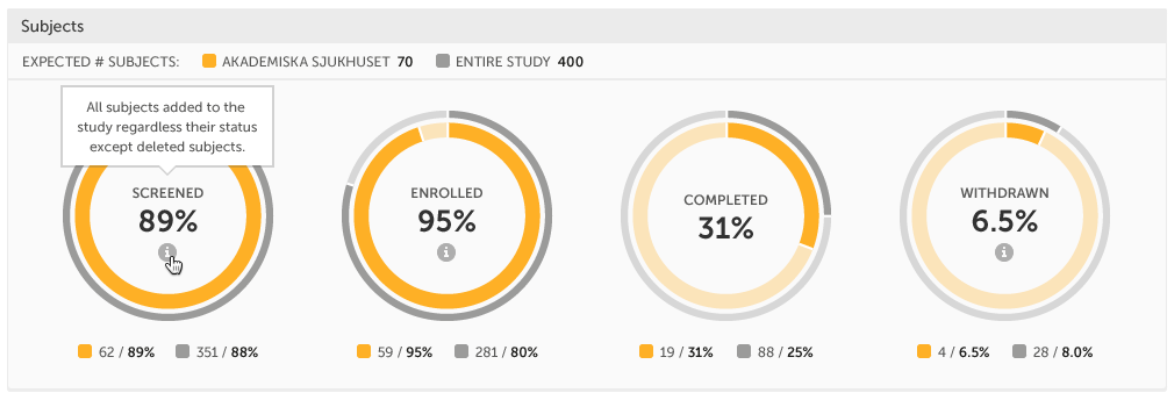
The conditions for the following subject statuses are defined in the study design (in Viedoc Designer under Study Settings > Subject status):
Tip! If there is an i symbol inside of a ring graph, you can hover over it to see a description of the status.
Queries - detailed data on queries on the selected site(s) (in orange) and compared site(s) (in gray):
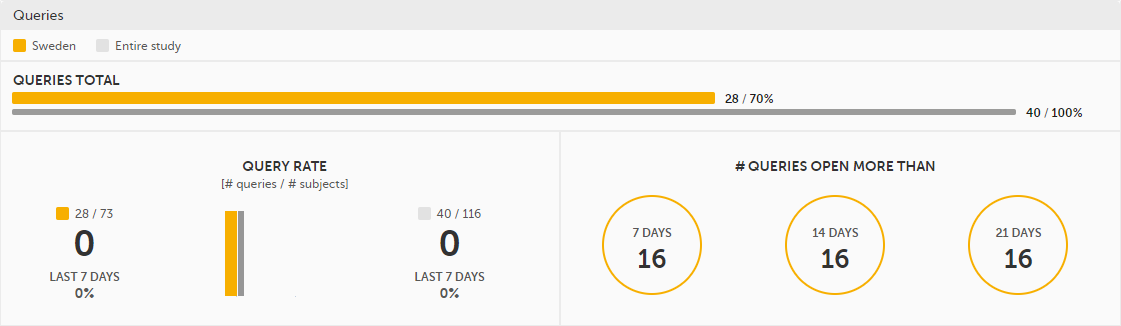
For detailed information about query states and process, see Queries overview.
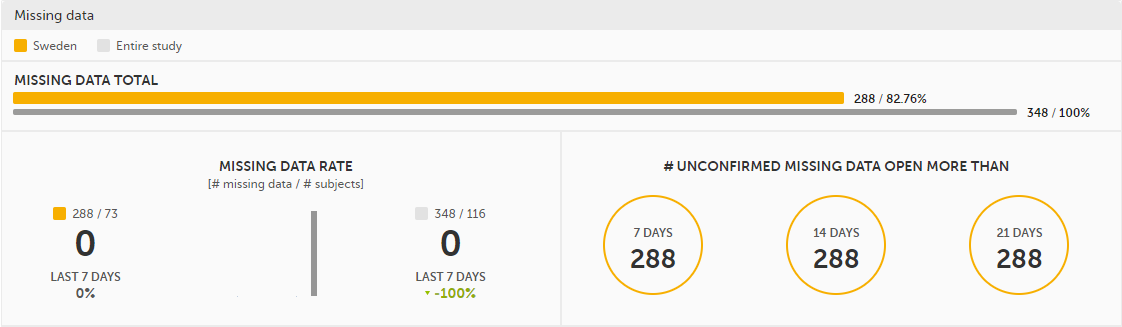
Missing data - detailed information on missing data (both confirmed and unconfirmed data) on the selected site(s) (in orange) and compared site(s) (in gray):
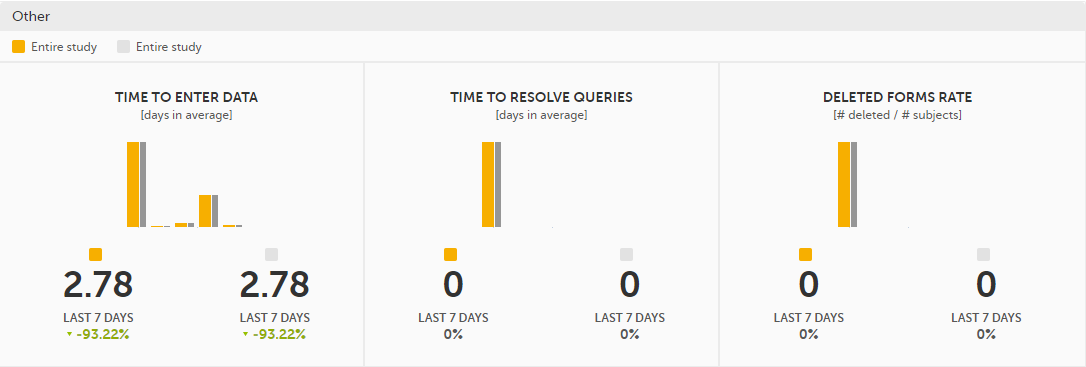
Other - miscellaneous detailed data on the selected site(s) (in orange) and compared site(s) (in gray):
In the bottom of the Performance details page you have the options to:
The Missing data page includes filtering possibilities and a bar to show the review status for the entire study.
You can filter the data by selecting from the drop-down lists in the top of the page:

Based on the selected filter the graphs will show statistics about:
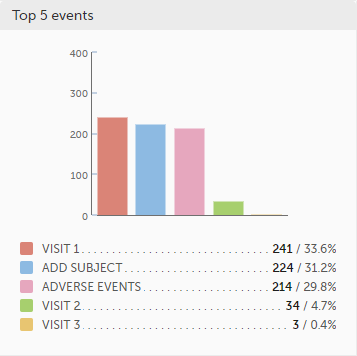
Top 5 events - a column bar shows the top five events with the highest number of items with missing data (confirmed and unconfirmed), both numeric and percentage. The legend of the graph displays the event name.
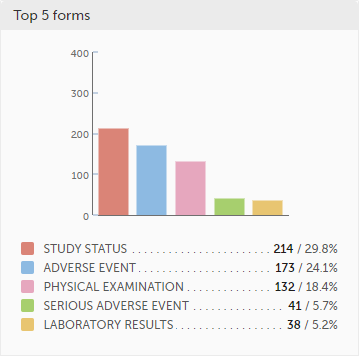
Top 5 forms - a column bar shows the top five forms with the highest number of items with missing data (confirmed and unconfirmed), both numeric and percentage. The legend of the graph displays the form name.
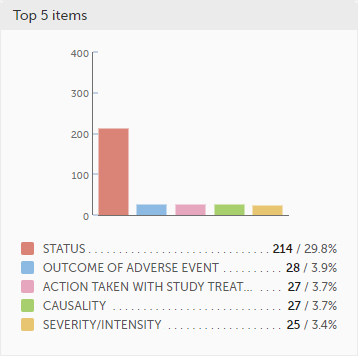
Top 5 items - a column bar shows the top five items with missing data (confirmed and unconfirmed), both numeric and percentage. The legend of the graph displays the item name.
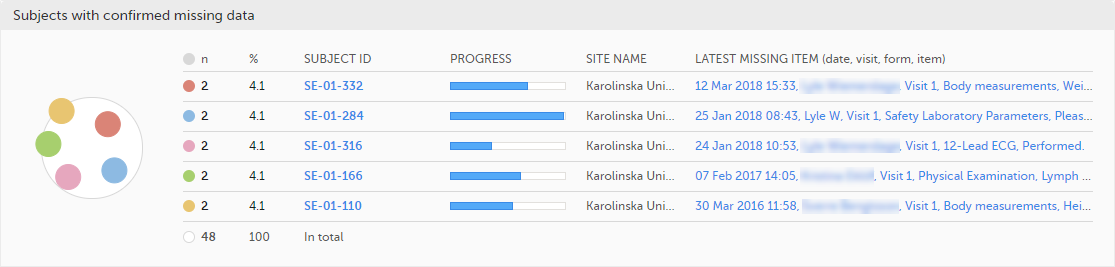
The top 5 subjects that have the highest level of confirmed missing data are displayed in a table including:
The last row of the table shows the total number of subjects with confirmed missing data.
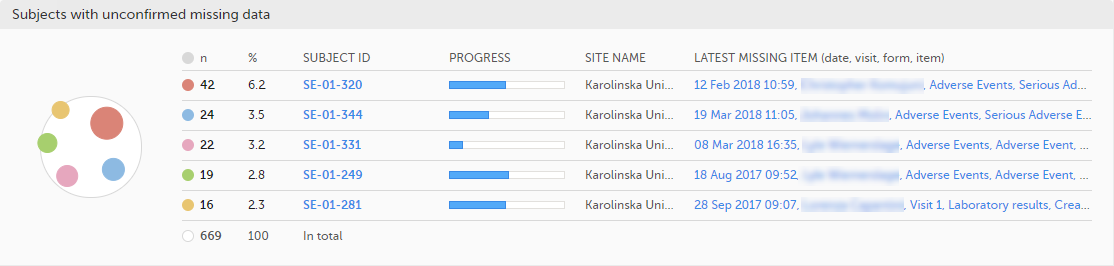
The top 5 subjects that have the highest level of unconfirmed missing data are displayed in a table including:
The last row of the table shows the total number of subjects with unconfirmed missing data.
In the bottom of the Missing data details page you have the options to:
The Data Export page can be accessed by selecting the Data Export icon in the study start page:

The Data Export page enables you to preview and download study data:Layout option
You can filter the data that you want to preview/export, as described in the following sections.
If you have access to multiple sites, you can filter the data for a specific country or site.
To filter data for a specific country, select the name of the country. The selected country appears in blue letters besides the Data Export header, while the site(s) for the selected country are listed below:
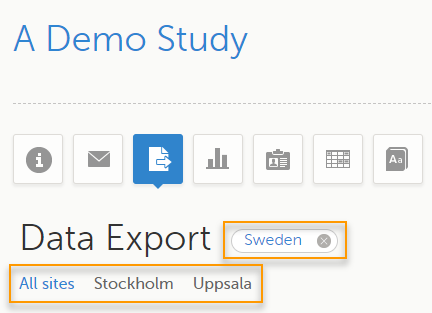
For a specific country, you can choose to export the data for:
To undo the selection of the site, select All sites.
To undo the selection of a country, select the cross x icon beside the name of that country.
While filtering for country or site, the number of subjects depicted in between brackets in the Subjects to include field is updated accordingly.
You can choose to include all subjects in the data preview or export, or include a selection of subjects.
To select which subjects to include:
| 1 | Select Include single subject(s). |
| 2 |
Select the Repeat this step for each subject you want to include in the data preview/export. |
To undo the selection of certain subjects, select the - icon, or select the cross x icon next to the subject ID:
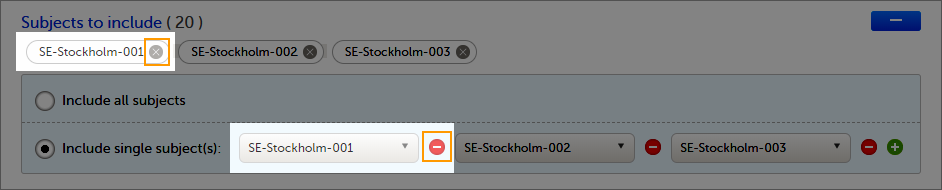
You can choose to include all the data or only for certain events. You can also filter the data added or edited during a certain time period.
Note! The available events are the ones existing in the latest design version applied on the first of the selected sites to be included in the export. If there are multiple design versions running for different of the selected sites, you have to select one site at a time in order to get the available events for the respective site.
You can choose to:
To select which events to include:
| 1 | Select Single event(s). |
| 2 |
Select the |
To undo the selection of certain events, select the - icon, or select the cross x icon next to the event:
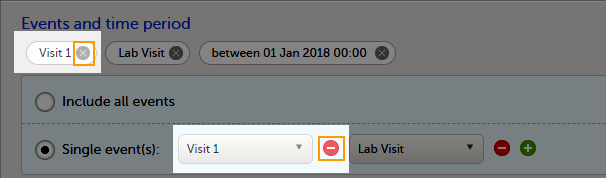
To include data from a specific time period:
| 1 | Select the Time period checkbox: |
| 2 | Select one of the following options from the first drop-down list:
|
| 3 | Select whether to define the time period until a certain date, from a certain date, or between two dates. |
| 4 | Select the date(s). |
Tip! Filtering for data that were added or edited since a specific date is especially useful if you want to see all new and changed data since for example your last monitoring visit.
To undo the selection of a certain time period, select the cross x icon next to it:

You can choose which forms and items to be included in the export output:
Note! Only data belonging to forms and items that exist in the latest effective design applied to the first of the selected sites will be included in the export. Also note that the forms and fields available to choose from are determined by the visibility settings for your user role.
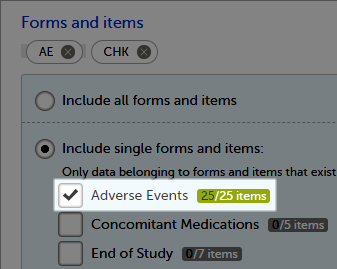
To include data from specific form(s):
| 1 | Select Include single forms and items. |
| 2 | Select the forms and items to be included, in one of the following ways:
|
To undo the selection of a certain form, select the cross x icon next to it:
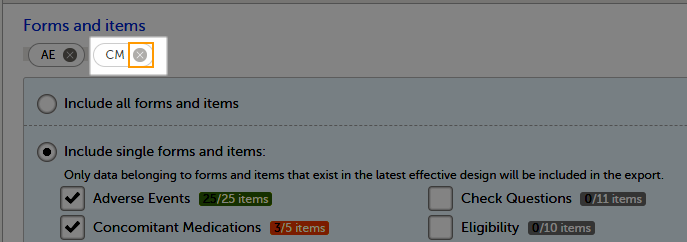
You can filter the data to be included in the export by the review status, as follows:
You can select to include additional information, depending on the export output format, as described in the following sections.
For PMS studies, there is an option to include booklet status and booklet status history in the export.
When selecting to include Booklet status, the Booklet status history option becomes available.
Depending on if the booklet status is included in the export or not, the export contains the following information:
Booklets in submitted status are not included in exports triggered by users on the sponsor side. The booklets are included to those users when they are received.
Note! Clinic actions to submit/recall back and forth are not available on the sponsor side. Only the latest submit of the booklet that was received by the sponsor is included.
If the Booklet Status is selected and the following options: Require Responsible Investigator for booklet submission, and Require Contract for booklet submission, are enabled for the study, two columns are added to the export.
If Booklet history is selected at export, the historically selected Contract and Responsible Investigator are included in the respective booklet status. The most recent contract information shall be shown, regardless of the booklet status.
Note! If the contract linked to a booklet is edited, the contract information is updated in the existing row for that booklet in the export performed after the information was updated.
The booklet status can be exported to the following export output formats:
When selecting to include Booklet status in the Excel export, a separate Booklet status sheet is created that lists all the forms with the following information:
| Column name | Description |
|---|---|
| Site sequence number | A counter that identifies the site globally within the study |
| Site name | The site name, as set in Viedoc Admin |
| Site code | The site code, as set in Viedoc Admin |
| Subject sequence number | A counter that identifies the subject within the site |
| Subject Id | The Subject ID, in the format configured in Viedoc Designer. The Subject ID is the subject identifier displayed in Viedoc Clinic on the subject card, subject details page, and so on. |
| Booklet sequence number | A counter that identifies the booklet within the sequence of booklets for the same subject |
| Booklet Id | The booklet ID, as set in the study design (in Viedoc Designer) |
| Booklet name | The booklet name, as set in the study design (in Viedoc Designer) and displayed in Viedoc Clinic |
| Booklet status | One of Not initiated, Initiated, Submitted, Received, Returned, or Frozen |
| Booklet activity | Initiated, Submitted, Recalled, Received, Frozen, Unfrozen, or Returned |
| Date & time (UTC) | The date and time of the status change |
| User name (ID) | The name (ID) of the user who changed the booklet status |
| Contract number | The number of the selected contract for the specific booklet. Note! This column is present in the export only if the option to link the booklet to a contract is enabled for the study. |
| Responsible Investigator | User name (internal userID ) of the user selected as Responsible Investigator for the specific booklet. Note! This column is present in the export only if the option to link the booklet to a contract is enabled for the study. |
When selecting to include Queries, the Query history option becomes available.
The Queries can be exported to the following export output formats:
See also:
The review status can be exported to the following export output formats:
See also:
The event dates can be exported to the following export output formats:
When selecting to include Event dates in the Excel export, a separate Event dates sheet is created that lists all the events with the following information:
| Column name | Description |
|---|---|
| Site sequence number | A counter that identifies the site globally within the study |
| Site name | The site name, as set in Viedoc Admin |
| Site code | The site code, as set in Viedoc Admin |
| Subject sequence number | A counter that identifies the subject within the site |
| Subject Id | The Subject ID, in the format configured in Viedoc Designer. The Subject ID is the subject identifier displayed in Viedoc Clinic on the subject card, subject details page, and so on. |
| Event Id | The event ID, as set in the study design (in Viedoc Designer) |
| Event name | The event name, as set in the study design (in Viedoc Designer) and displayed in Viedoc Clinic |
| Event repeat key | For recurring events, the counter that identifies different occurrences of the same event (identified by the Event ID). Available for output versions Viedoc 4.39 and onward. |
| Event status | The current status of the event. It can be one of the following:
|
| Event date | The event date, as set in Viedoc Clinic when the event is initiated |
| Planned date | The event planned date, as set in Viedoc Clinic when the event is planned |
| Proposed date | The proposed date for the event, if set in the study design |
| Window start date | The event time window start date, if set in the study design. |
| Window end date | The event time window end date, if set in the study design |
| Initiated by | The name and ID of the user who initiated the event |
| Initiated date (UTC) | The date and time (UTC) when the event was initiated |
| Last edited by | The name and ID of the user who last edited the event |
| Last edited date (UTC) | The date and time (UTC) when the event was last edited |
| Design version | The design version/revision that is active for the event |
When selecting the Uploaded files option, the uploaded file together with the thumbnail (if it exists) are part of the Excel, CSV and PDF export output:
The folder structure obtained when you unzip the file is as follows:
|
- SponsorCode_YYYYMMDD_HHmmss (date and time in UTC format) - FileData - StudySite (SiteCode) - SubjectKey - StudyEventOID - EventRepeatKey - ActivityOID - ActivityRepeatKey - FormOID - FormRepeatKey (if any) - ItemGroupOID - ItemGroupRepeatKey (if any) - ItemDefOID - FileName.extension (original filename) - FileName_tn.extension (thumbnail filename) |
The export output (Excel, PDF, CSV, ODM) as well as the Data preview provides the following information about uploaded files:
The following information on the uploaded file is available in the full history:
The pending forms can be exported to the following export output formats:
Forms are considered pending when they are uninitiated in initiated events. This applies to all types of events, including subject-initiated events. For repeating forms, if the first instance of the form is uninitiated, the form is considered pending. Resetting a form results in that form being pending.
When selecting to include Pending forms in the Excel export, a separate Pending forms sheet is created that lists all the forms with the following information:
| Column name | Description |
|---|---|
| Site sequence number | A counter that identifies the site globally within the study |
| Site name | The site name, as set in Viedoc Admin |
| Site code | The site code, as set in Viedoc Admin |
| Subject sequence number | A counter that identifies the subject within the site |
| Subject Id | The Subject ID, in the format configured in Viedoc Designer. The Subject ID is the subject identifier displayed in Viedoc Clinic on the subject card, subject details page, and so on. |
| Event sequence number | A counter that identifies the event within the sequence of events for the same subject |
| Event Id | The event ID, as set in the study design (in Viedoc Designer) |
| Event name | The event name, as set in the study design (in Viedoc Designer) and displayed in Viedoc Clinic |
| Event repeat key | For recurring events, the counter that identifies different occurrences of the same event (identified by the Event ID). Available for output versions Viedoc 4.39 and onward. |
| Activity Id | The activity ID, as set in the study design (in Viedoc Designer) |
| Activity name | The activity name, as set in the study design (in Viedoc Designer) and displayed in Viedoc Clinic |
| Form Id | The form ID, as set in the study design (in Viedoc Designer) |
| Form name | The form name, as set in the study design (in Viedoc Designer) and displayed in Viedoc Clinic |
| Event date | The event date, as set in Viedoc Clinic when the event is initiated |
| Pending since |
The date and time since when the form has been pending This is not always the date when the event was initiated. For a form that has been hidden due to a visibility condition, the pending since date is the date when the form is made available. |
The medical coding can be exported to the following export output formats:
Note! When exporting medical coding data to Excel or CSV format in studies using Viedoc Coder, Medical coding history is available. This export includes the full audit trail for each coded item.
Medical coding history can also be included in CSV exports through the Viedoc Web API and the Viedoc WCF API.
For more information, see Medical coding in Excel export.
The edit status can be exported to the following export output formats:
The subject status can be exported to the following export output formats:
The sheet Calculated subject status contains the following columns:
Select the export output format of the data under Output format > Output to:
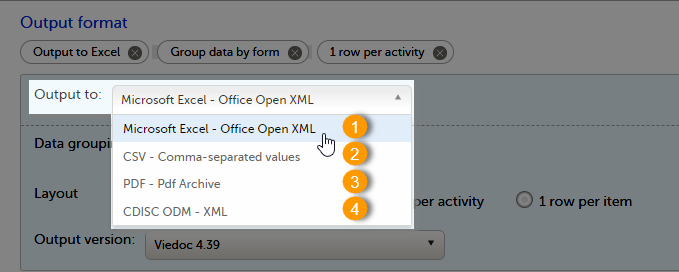
You can export the data to one of the following formats:
1. Microsoft Excel - Office Open XML
2. CSV
3. PDF - PDF/A
4. ODM
Viedoc uses Microsoft Excel Open XML format which is compatible with Excel version 2007 and later.
For details about the Excel export options and the format/structure of the output file, see Excel export.
The output of the CSV export is similar to the Excel export output. The CSV export output consists of a zip archive containing one CSV file that corresponds to each sheet from the Excel export. For details about the Excel export options and the format/structure of the output file, see Excel export.
For the CSV export and the one row per activity selected layout, there is also the option to Include corresponding SAS script. For details, see Exporting for SAS.
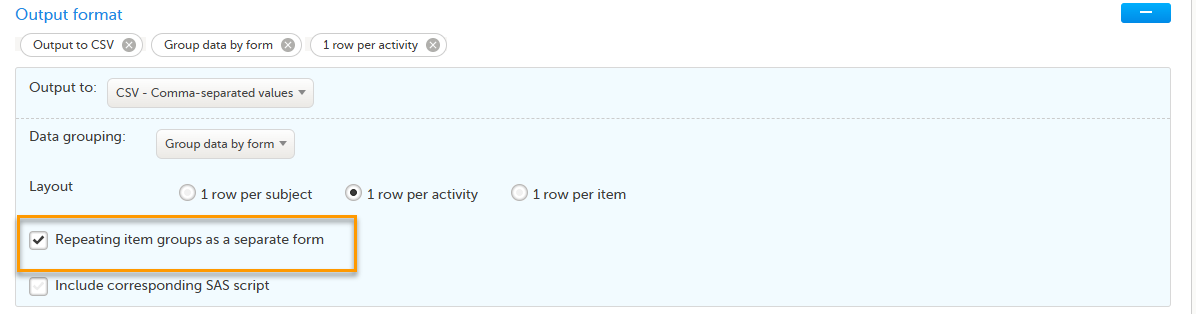
For the CSV export, for study designs which include repeating item groups, when the one row per activity and group data by form options are selected, there is also the option to export Repeating item groups as a separate form. This option is selected by default. For details, see Excel export.
Notes! The export to CSV fails if the same OID was used in Viedoc Designer in different design versions with different casing (for example, an OID defined as AE in design version 1 and AE in design version 2).
Labels are truncated to 200 characters when CSV data is imported to SAS using the CSV2SAS macro.
The Excel/CSV export does not include items set to “Hide Always" in visibility conditions when a singleform is selected for export.
For details about the PDF export and the format/structure of the output file, see PDF export output.
The Clinical Data Interchange Standards Consortium (CDISC) Operational Data Model (ODM) is a vendor neutral, platform independent format for interchange and archive of clinical trials data. The format includes the clinical data along with its associated metadata, administrative data, reference data and audit information. All of the information that needs to be shared among different software systems during the setup, operation, analysis, submission or for long-term retention as part of an archive is included in the model.
This is used for exporting the data to an ODM file, with or without Viedoc extensions. To include the Viedoc extensions in the exported file, select the Include extensions checkbox. Viedoc extensions are Viedoc-specific settings that cannot be described as part of the CDISC standards. If the exported file is to be imported to Viedoc at a future time, the checkbox should be selected.
Select SAS compliant XML to automatically populate the SAS field name and the SAS dataset name.
The ODM export file is built up as follows:
Study tag contains the information on the study settings, study design, workflow.AdminData contains data about the user and site settings.ClinicalData tag contains the data that was filled in in Viedoc Clinic.Association tag contains information about the performed actions such as SDV, raising and approving queries, medical coding, lock, CRA and DM reviews.The ODM export also supports repeating item groups in both the standard CDISC ODM and SAS-compliant formats. Repeating item group data is exported with ItemGroupRepeatKey attributes, which identifies each instance of a repeating item group.
This ensures ODM exports are compliant with the CDISC ODM standard for repeating item groups.
See also:
It is possible to select the Viedoc version that the exported file should be compatible with. This option enables you to export files that have the same format as files exported from previous Viedoc versions.
Note! This functionality is optional and set in the study settings in Viedoc Admin. It might not be activated for your study.
If activated for your study, you can select the Viedoc version that you wish the exported file to be compatible with under Output format and export, from the Output version drop-down menu. If you wish to create an export file according to the latest Viedoc version, select Latest Viedoc version:
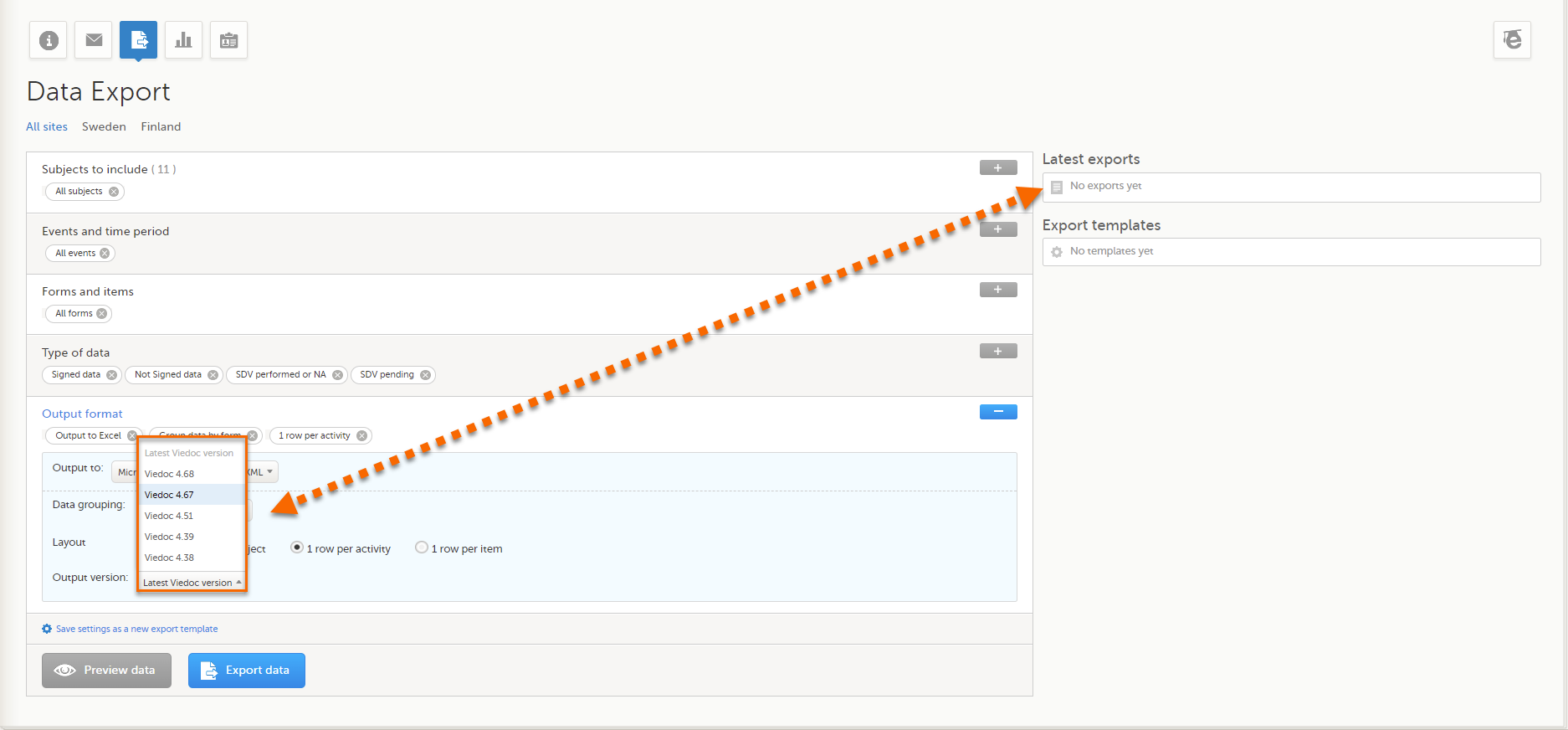
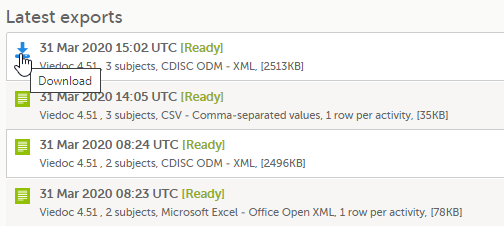
The Viedoc version used for data export is listed in the Latest exports area on the right side of the export page.
The exported file contains information about which Viedoc version was used to create it. You can find information about the Viedoc version in the following places:
The Viedoc versions available in the Output version dropdown menu are only those versions in which changes to the data structure were introduced.
As of Viedoc release 4.79, the following output versions are available:
| Output version | Changes in data structure |
|---|---|
| Latest Viedoc version | When choosing Latest Viedoc version, the exported data will automatically follow the structure of the latest Viedoc release in which changes to the data structure were introduced. |
| Viedoc 4.79 | Introduction of a number of changes to the ODM data export. See the table below for details. |
| Viedoc 4.77 | For studies where item-level SDV is enabled, when exporting review status, the SDV sheet in the CSV and Excel data exports will include only the items that require SDV and are visible to the user. On the Review status sheet, items that do not require SDV are indicated with N/A. |
| Viedoc 4.68 |
Introduction of pdf archive export system check which splits the archive into one pdf file per subject and stores resultant PDF in a zip file. |
| Viedoc 4.67 | Introduction of two new columns for approving medical coding: "approved by" and "approved on date". |
| Viedoc 4.51 | Introduction of three new form repeat keys and the table of contents in the PDF export, see the table below for details |
| Viedoc 4.39 | Introduction of repeating forms and recurring events, see the table below for details. |
| Viedoc 4.38 | Original output format (Viedoc versions 4.38 or older). |
In Viedoc 4.79, the following changes to the export output were introduced:
| File type | Changes in the export output format |
|---|---|
| ODM |
Introduction of support for partial datetime, date, and time. This is now the default type when exporting designs and data in ODM format. Partial dates as per the ISO 6801 standard are written up to the most detailed value available. This makes the export compliant with CDISC ODM. |
| ODM |
When exporting a design to ODM, multi-selection code lists are handled as follows: Checkbox item definitions are split by code list items.
For example, when splitting a checkbox ItemDef with OID="CHK" and code list IDs "Yes" and "No", the split checkbox ItemDefs will have the OIDs "__CHK__Yes" and "__CHK__No", respectively. That is, the original OIDs and the code list IDs are prefixed with two underscore characters and separated by two underscore characters. In Viedoc Designer, checkbox items are exported as multiple ItemDefs - one for each selection value. In Viedoc Clinic and the Viedoc API: In the latest export version, checkboxes are exported as separate items for metadata and clinical data. In previous export versions, checkboxes are exported as one item. This has been introduced to be compliant with CDISC ODM. |
| ODM |
Bug fix: In the ODM data export, the content of the Question element for study event items and booklet forms was not complete. According to the CDISC standard, the element should include one of the TranslatedText attributes. This is now solved, and the Question element is populated with a string related to the corresponding OID. This is applied to all export versions. |
| ODM |
Bug fix: In the ODM data export, the MeasuremetUnit.Name contained HTML code, making it non-compliant with the CDISC standard. This is now solved, and the HTML code is removed from the name. This is applied to all export versions. |
| ODM |
Bug fix: In the ODM data export, the translated text was missing for meta.Protocol.Description.TranslatedText. This is now solved, and the body is populated with the protocol name, as visible on the design overview page. This is applied to all export versions. |
| ODM |
Bug fix: In the ODM data export, the Length attribute was incorrect, making it non-compliant with the CDISC standard. This is now solved, and Length is populated as per the ItemDef data type. This is applied to all export versions. |
| ODM |
Bug fix: In the ODM data export, there was a mismatch between the item data type and the code list data type for checkboxes. This is now solved, and the checkbox data is split into different items, in the same way as for CSV and Excel exports. This is implemented in a new export version, version 4.79. |
| ODM |
Bug fix: In the ODM data export, the study OID and ClinicalData didn't respect the Production/Demo mode for sites. This is now solved, and the study OID and ClinicalData are populated based on the Production/Demo mode of the exported study. This is applied without a new export version. |
| ODM |
Bug fix: In the ODM data export, non-repeating forms included a repeat key, making the ODM data export non-compliant with the CDISC standard. This is now solved. This is implemented in a new export version, version 4.79. |
| ODM |
Bug fix: In the ODM data export, the KeySet elements had an unregistered value for the ItemOID attribute, making the ODM data export non-compliant with the CDISC standard. This is now solved, and the KeySet elements reference items within the same MetaDataVersion. This is implemented in a new export version, version 4.79. |
| ODM |
Bug fix: In the ODM data export, the attribute OrderNumber of the element StudyEventRef was not valid with respect to its type, integer. This is now solved, and StudyEventRef elements have unique and non-empty consecutive order numbers. This is applied to all export versions. |
| ODM |
Bug fix: In the ODM data export, there was a data type mismatch between CodeList and ItemDef, making the ODM data export non-compliant with the CDISC standard. This is now solved by always having a matching data type between ItemDef and CodeList. This is applied to all export versions. |
| ODM |
Bug fix: In the ODM data export, the element MeasurementUnitRef had an unregistered value for the MeasurementUnitOID attribute, making the ODM data export non-compliant with the CDISC standard. This is now solved, and measurement units not referenced in any MetaDataVersion are not included in the ODM data export. This is applied to all export versions. |
| ODM |
Bug fix: In the ODM data export, the Alias names were not correctly populated. This is now solved, and any code list item aliases with empty names are removed at import and export - and the Alias names are populated with the context values. This is applied to all export versions. |
| ODM |
Bug fix: In the ODM data export, the SAS field name and the SAS dataset name were not populated. This is now solved, and the SAS field name is populated based on the ItemDef OID, and the SAS dataset name is populated based on the FormDefOID, which means that the OIDs are SAS-compliant. There is an option for this in the data export. This is applied to all export versions. |
| ODM |
Bug fix: In the ODM data export, revisions linked to study events and revisions linked to forms requiring approval of the new design revision were not included. This is now solved. This is applied to all export versions. |
| ODM |
Bug fix: In the ODM data export, alerts had repeating order numbers. This is now solved, and the order numbers for all study settings alerts in Viedoc Designer are removed. This is applied to all export versions. |
| ODM |
Bug fix: In the ODM data export, the item group containing the reference data items was not added to the MetaDataVersion. This is now solved. This is applied to all export versions. |
In Viedoc 4.51, the following changes to the export output were introduced:
| File type | Changes in the export output format |
|---|---|
| Excel | Addition of three columns for the new form sequence numbers introduced:
|
| ODM | Three new form sequence numbers were introduced, as Viedoc extensions: v4:SubjectFormSeqNo, v4:OriginSubjectFormSeqNo and v4:SourceSubjectFormSeqNo, within the FormData, right after the FormRepeatKey. |
| A table of contents was added to the PDF archive, starting on page 2 of the file. |
In Viedoc 4.39, the following changes to the export output were introduced:
| File type | Changes in the export output format |
| Excel | Addition of a column for Form sequence number (FormSeq) that contains the FormRepeatKey. |
| ODM | The FormRepeatKey now contains the activity ID as well, in the following format: FormRepeatKey$ActivityId. The ExportVersion attribute has been added to the ODM. |
| The summary formats are used to display the event and form names. |
When exporting data from Viedoc, the system determines the available events, forms, and data points based on the study design version applied to the first selected site. Understanding how this works is important when a study includes sites with different study designs or multiple design versions.
What happens when study designs differ?
If a study contains multiple study designs or different versions across sites, the exported data is structured based on the design of the first selected site. This means:
What does "first selected site" mean?
The first selected site is the first site in the study that is chosen for export. The exact determination depends on:
Example: If a study has sites in Germany, Sweden, United States, and Japan, and Germany is the first selected site, the export will be based on the latest design version applied to the first site in Germany.
Selecting multiple sites with different study designs
If multiple sites are selected and they have different design versions, users must:
Best practices to ensure accurate exports:
Note! User visibility settings affect data exports. If an item is missing, check that your user role has the necessary permissions, and that the item exists in the latest design version applied to the first selected site.
Example scenario: How study design affects data export
Scenario: A study has Site A using Design Version 1.0, and Site B using Design Version 2.0. When exporting data:
The Preview data button is only available when you have selected Excel or CSV as output format for the export.
The preview is not available when you have selected 1 row per item.
On the data tab, you can preview the data in table format:
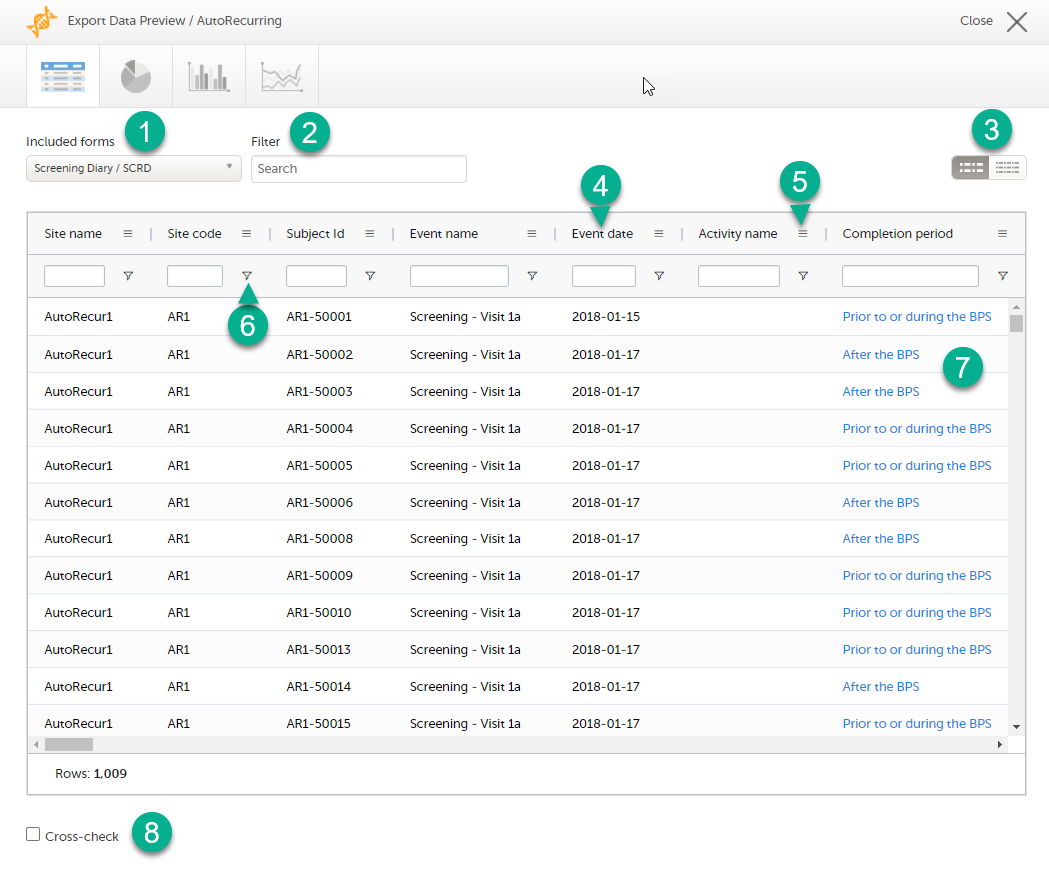
1. If you have selected Group data by form, you can select the form for which you want to display data.
2. Use the Filter text box to filter the preview data by any text in any field. The preview is filtered on all words in this field.
3. Toggle between spacious view and compact view.
4. Select a column header to sort the data in ascending order. Select again to sort in descending order. Selecting a third time removes the column sort order. To rearrange the order of the columns in the table, simply select a column header and drag the column sideways.
5. Select to open the column menu. For more information, see Column menu.
6. Select to access the column filter. For more information, see Column filter.
7. Select any hyperlink data point in the table to view the underlying form in read-only mode.
8. Select Cross-check to display a second data table. This lets you cross-check data between the two tables. Form selection and the filtering and sorting of data in the second table are independent of the settings in the first table.
The column menu contains:
|
 |
|
 |
|
 |
For more information, see the following sub-sections.
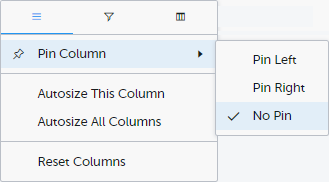
Pin Left/Right makes a column remain visible in the leftmost or rightmost position when you scroll sideways. Select No Pin to unpin the column.
Autosize adjusts the column width to the width of the text in the column.
Reset Columns resets the pinning, sizing, and order of columns to the initial state.
Use the column filters to narrow down the selection of preview data.

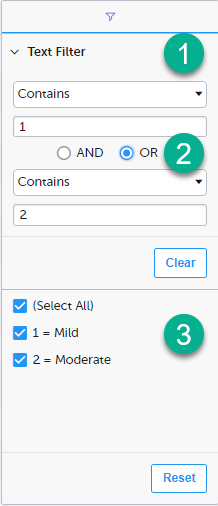
1. Depending on the type of item in the column, you can specify one of these types of filters:
Form items that are radio buttons, drop-down menus, checkboxes, dates, or date/time items are treated as text.
Note! The text filters are case-insensitive.
2. Once you have specified a filter, you can specify another one for the same column, either as an AND filter or an OR filter.
3. Predefined filter options based on the data available in the column.
Select the columns to be displayed in the preview table.
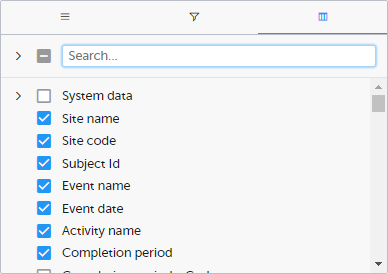
Use the Search field to search for columns.
By default, system data is excluded from the table. To include system data, select the column(s) to include from the System data category. Note that some system data columns are only available when you have selected 1 row per activity. For more information, see Excel export.
When you right-click in a cell in the data table, this context menu is displayed:
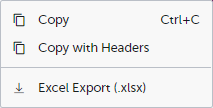
Copy: Copies the cell value to your clipboard.
Copy with Headers: Copies the cell value and its column header to your clipboard.
Excel Export: Exports the preview data on the data tab. The resulting Excel file will have the same sorting and filtering of data and order of columns as the preview.
Select the data set you wish to plot in a chart, and select Draw:
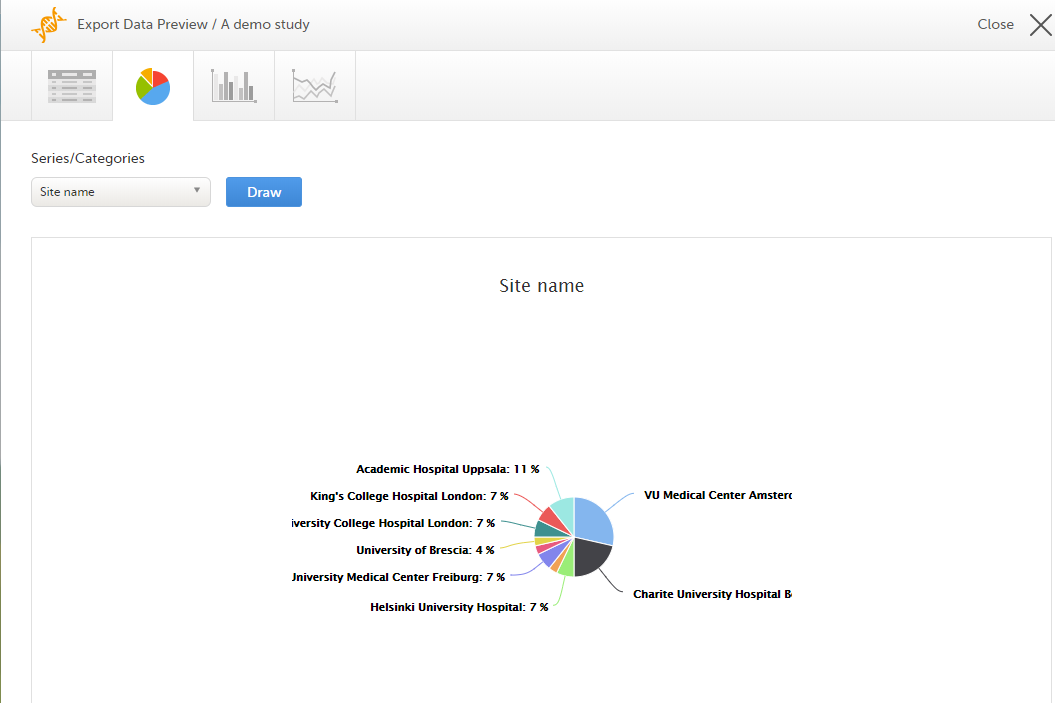
If you have selected Group data by form, you can only choose data sets from the form you have selected on the data table tab.
Select any data point to view its details.
Note! The pie chart has access to the same data as the data tab. That means that if you applied filters on the data tab, only the filtered data will be available in the pie chart.
Select which data you would like to plot on the X-axis and Y-axis, which series should be created, and select Draw:
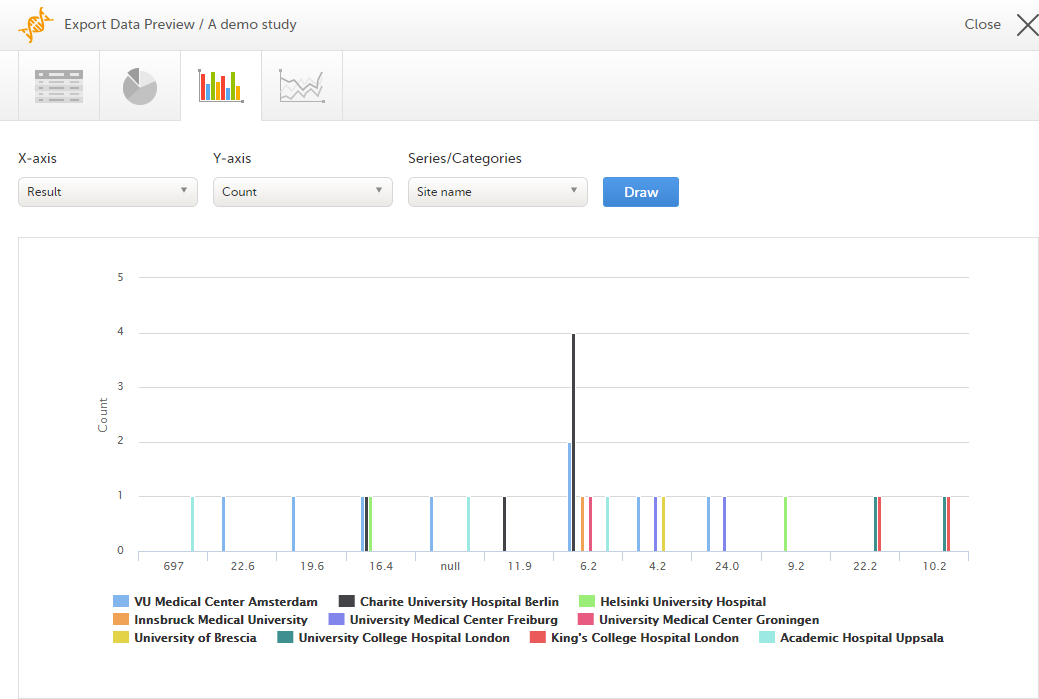
If you have selected Group data by form, you can only choose data sets from the form you have selected on the data table tab.
Select any column to view details of the data.
Note! The column chart has access to the same data as the data tab. That means that if you applied filters on the data tab, only the filtered data will be available in the column chart.
Select which data you would like to plot on the X-axis and Y-axis, which series should be created, and select Draw:
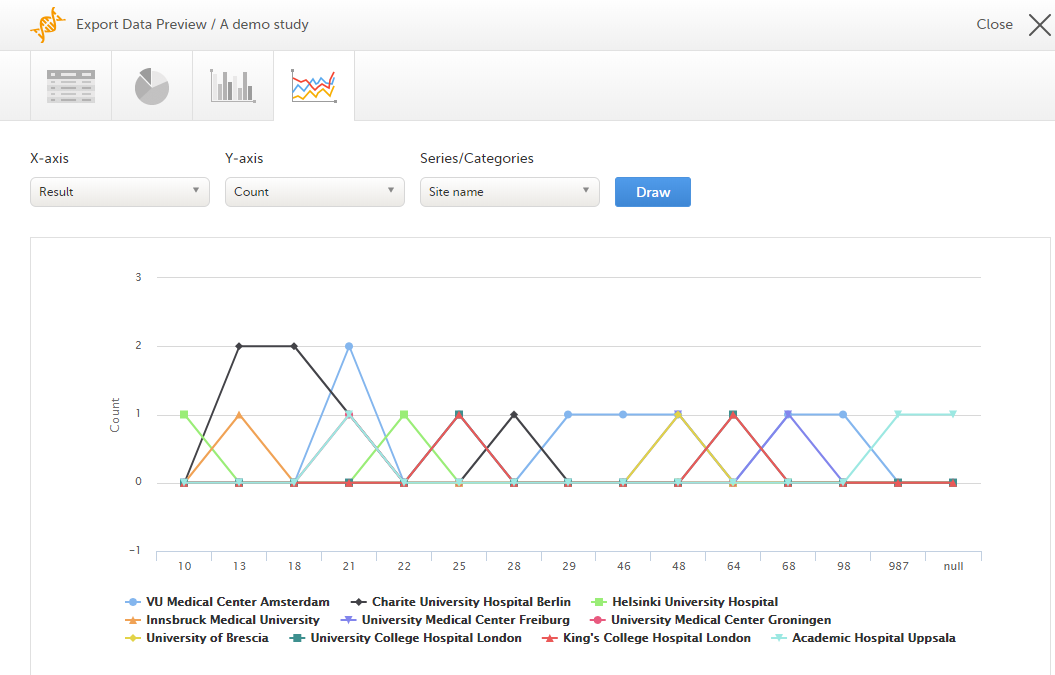
If you have selected Group data by form, you can only choose data sets from the form you have selected on the data table tab.
Note! The line chart has access to the same data as the data tab. That means that if you applied filters on the data tab, only the filtered data will be available in the line chart.
When you have made settings for an export, you can save them as a template. Then you, and optionally others, can use the template to easily make new exports with the same settings.
To save your settings as a template:
| 1 |
Select Save settings as a new export template. 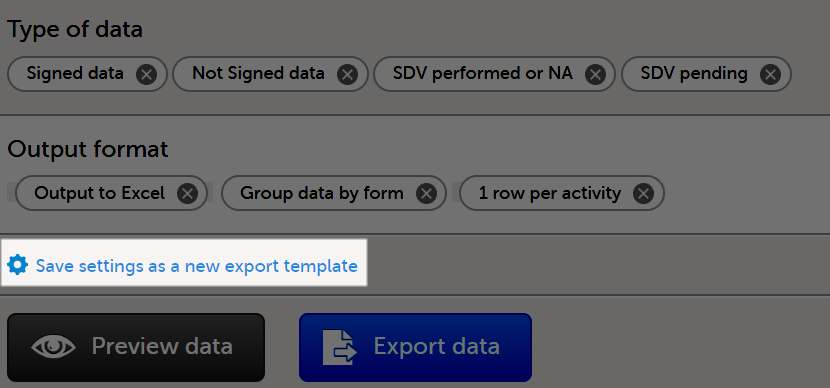
|
| 2 |
In the pop-up that is displayed, enter a name for the template and select whether it should be private or shared. If you select Shared, you are prompted to also select the roles that will be able to use the template. The roles available in the drop-down list are the ones with export permissions for the latest effective design of the study in question. 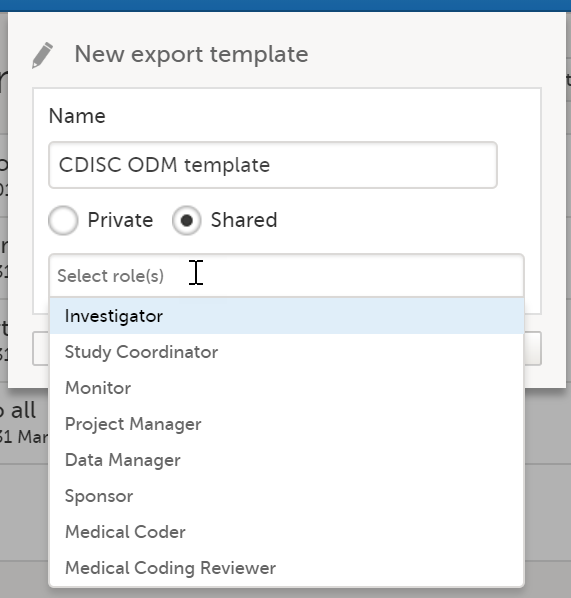
|
| 3 |
Select Save. Now the Export templates list is displayed, with your newly created template at the top of the list: 
|
To apply a data export template:
| 1 |
Select View all templates in the Export templates area of the Data export page. 
|
| 2 |
Select the apply icon for the template that you want to apply. 
|
| 3 | Select Export data to perform an export with the settings in the template. |
Tip! Alternatively, you can use the quick access apply, available in the Export templates area:
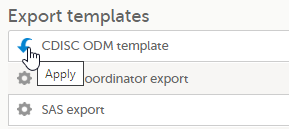
To edit a data export template:
| 1 |
Select View all templates in the Export templates area of the Data export page.
|
| 2 |
The Export templates list is displayed. Select the edit icon for the template that you want to edit. 
|
| 3 |
In the pop-up that is displayed, you can edit the name of the export template and the settings for Private/Shared. Note! You can only edit a template that you created yourself. |
To delete a data export template:
| 1 |
Select View all templates in the Export templates area of the Data export page.
|
| 2 |
The Export templates list is displayed. Select the trash can icon for the template that you want to delete. 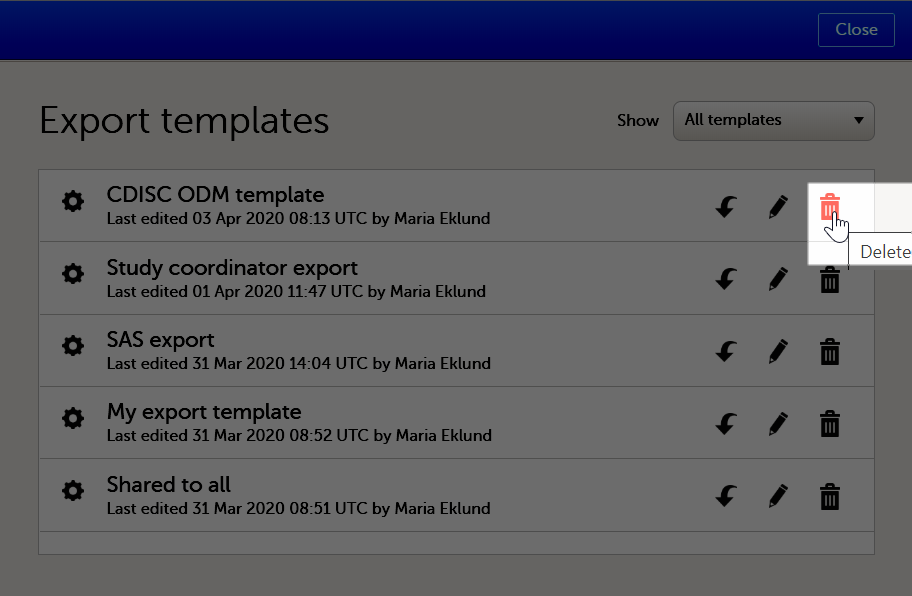
|
| 3 |
In the pop-up that is displayed, select Delete. 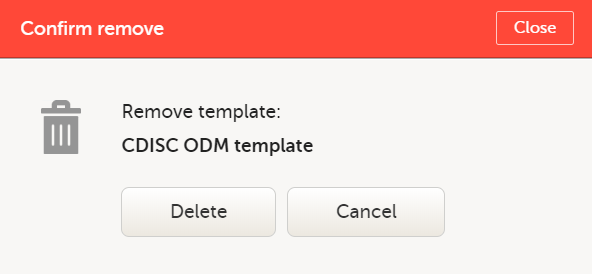
Note: You can only delete a data export template that you created yourself. |
To perform a data export:
| 1 | Filter the data to be exported. See Filtering the data to be exported. |
| 2 | Select the Output format. |
| 3 | Optionally, select the Output version. |
| 4 | Optionally, preview the data to be exported. |
| 5 |
Select Export data. The status of the export is displayed in the Latest exports area, on the top of the list. When the export is completed, you can download the exported file: The exported file is downloaded locally. The filename is generated as follows: SponsorCode_CountryCode_SiteCode_Date_Time, where:
Note! If any of the characters that are invalid for a filename in Windows are used within any of the SponsorCode or SiteCode, these characters will be automatically replaced with - within the exported filename. |
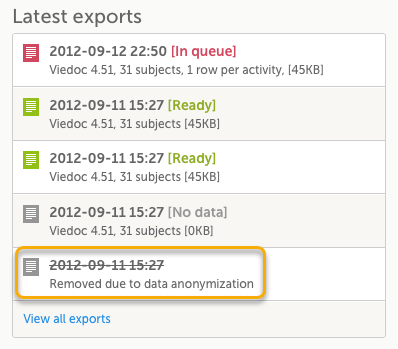
You can see a log of the requested exports in the Latest exports area, where you can download the exported files or delete the logs.
Note! The list of the latest exports is user-specific, that is, you can only see the exports made by yourself.
The latest five exports are shown in the list. To get the complete list of the initiated exports, select the View all exports link at the bottom of the list.
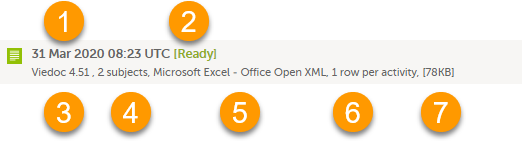
Each log entry provides the following information:
1. The date and time when the export was initiated.
2. The export status:
3. Viedoc output version - see Output versions.
4. The number of exported subjects.
5. The format of the output file.
6. The selected layout, if applicable.
7. File size
Note! If data has been masked after an export was made, it is not possible to download that export because it could include the data that was later masked.
The following are some frequently asked questions and answers about exporting data in Viedoc:
Q: How do I export the audit trail (history)?
A: Any PDF data export will include the audit trail (history) by default. You can also get an Excel or CSV version by changing the layout to one row per item and including the history. See the Include history section in the Excel Export lesson for more information.
Q: Is there a size limit to exports?
A: No, there are no size limits to exports.
Q: Can I schedule exports automatically?
A: Yes, you can configure customized automatic exports using Viedoc's web API. Please see the Exporting data via Viedoc's web API for more information.
Q: How is missing data handled?
A: Viedoc's approach to missing data is to leave it blank. The system does not use "N/A" or "missing." Both unconfirmed and confirmed missing data are included when exporting queries and query history.
Q: Why does the export seem stuck at a certain percent?
A. Sometimes exports (especially PDF exports of large studies) can take a take a longer time to complete and appear "stuck". If you log out, the export will continue in the background. Please do not make multiple requests for the same export. If the export fails with an error message, please contact Viedoc for assistance.
Viedoc uses Microsoft Excel Open Extensible Markup Language (XML) format which is compatible with Excel version 2007 and later.
When selecting Microsoft Excel as Output format in the Data export page, you have different options for grouping data and for the layout, as described in the following sections.
For general information about data export in Viedoc, see Exporting data.
Note! Since the maximum number of rows supported for Excel is 1048576, in case data in a sheet exceeds this number, data will be split into multiple sheets.
The Excel export contains the following sheets:
Note! If the Output IDs (OID) and Output labels have been defined in the study design, these are shown in the Excel/CSV/SAS export. If the Output IDs (OID) and Output labels are left undefined (blank) in the study design, then the configured Item ID and label is used. For more information about the item settings in the study design, see Outputs and Validation.
The table below lists which sheets are included in the Excel file, depending on the selected Grouping and Layout:
| Group data by form | Do not group data | |
|---|---|---|
| one row per subject |
|
|
| one row per activity |
|
|
| one row per item |
|
|
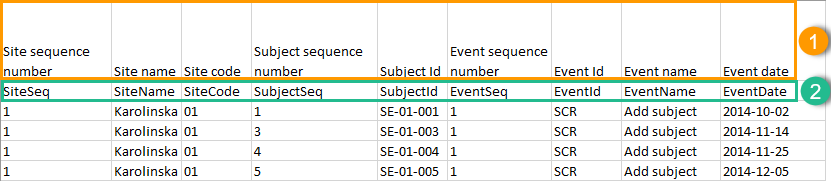
The headers are always represented by the first two rows in a sheet, as illustrated in the following image:
1. Human-readable format
2. Machine-readable format
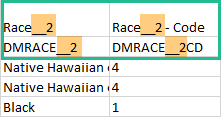
An item that was changed within a new/revised study design version will have a "__n" suffix added, where n is incremented for each study design version where the respective item was changed:
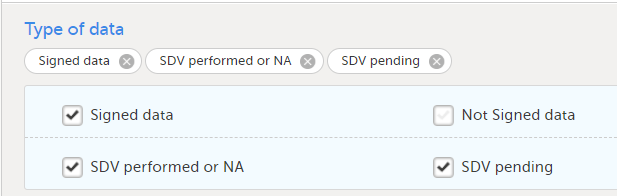
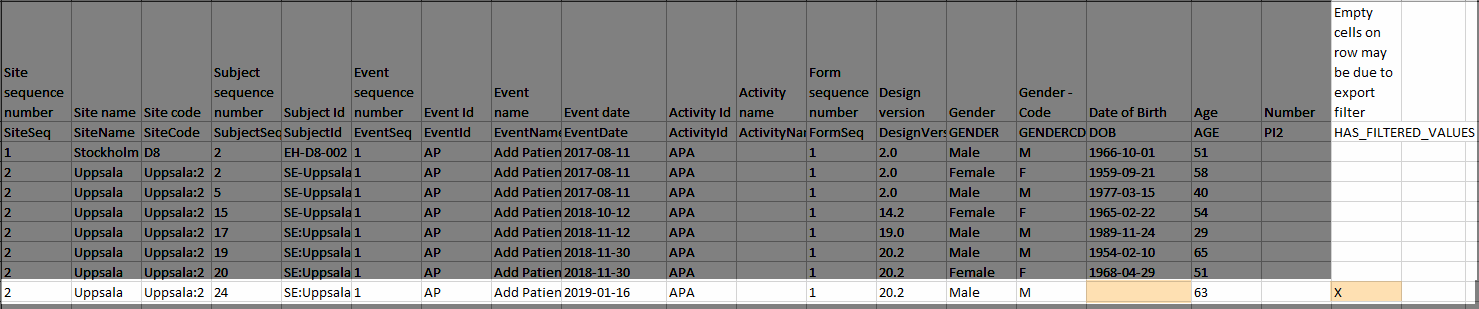
Under Type of data, you can filter the data to be exported. If you filter data for Signed data, Not signed data, SDV performed or NA, or SDV pending, certain cells in the data sheets in the exported Excel file may appear empty. The data rows that contain empty cells due to the filtering are marked by an “X” in the last column of the data sheets that is named Empty cells on row may be due to export filter.
For example, let's say that we have an Add Patient event, and the Date of Birth is one of the data entered during this event. For a particular subject, this data was entered, signed by the Investigator, and afterwards modified, but not signed after the change. We perform an export that includes only the signed data, as illustrated in the image below:
The value of the Date of birth field that was recently changed and not signed is not included in the export (the cell appears empty). The data row containing the empty cell is marked by a "X" the Empty cells on row may be due to export filter, as shown below:
You can select whether the data should be grouped by form or not, from the Data grouping dropdown list.
Note! The data grouping is available only for the Excel/Comma-Separated Values (CSV) output.
When grouping the data by form, a separate sheet is created for each form. The sheet name is the Form ID, as set in the study design (in Viedoc Designer).
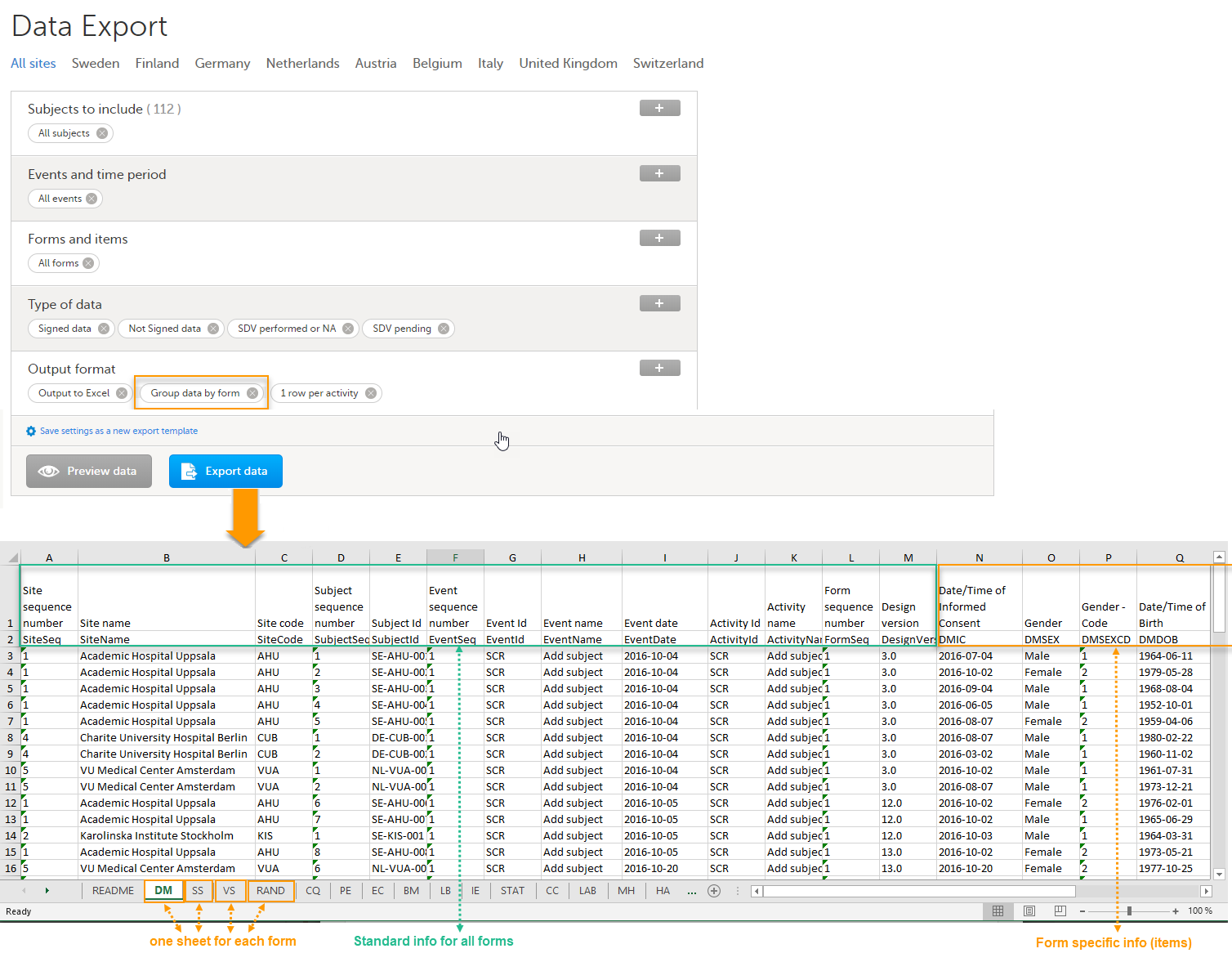
In each form sheet, the first columns (to the left) are the same for all the forms and provide information about the site, subject, event, activity and design version:
| Column | Description |
|---|---|
| Site Sequence number | Counter that identifies the site globally within the study. |
| Site name | The site name, as set in Viedoc Admin. |
| Site code | The site code, as set in Viedoc Admin. |
| Subject sequence number | Counter that identifies the subject within the site. |
| Subject Id | The Subject ID, in the format configured in Viedoc Designer. The Subject ID is the subject identifier displayed in Viedoc Clinic on the subject card, subject details page, and so on. |
| Event sequence number | Counter that identifies the event within the sequence of events for the same subject. |
| Event Id | The event ID, as set in the study design (in Viedoc Designer). |
| Event name | The event name, as set in the study design (in Viedoc Designer) and displayed in Viedoc Clinic. |
| Event date | The event date, as set in Viedoc Clinic when the event is initiated. |
| Activity Id | The activity ID, as set in the study design (in Viedoc Designer). |
| Activity name | The activity name, as set in the study design (in Viedoc Designer) and displayed in Viedoc Clinic. |
| Form sequence number |
Counter that identifies the instance of the respective form within the respective activity. This is mostly used for repeating forms. For non-repeating forms, this is "1". If a form is reset and then saved again the new form has sequence number "2", and so on. Form sequence number increases one step every time reset/initiate occurs. |
| Subject form sequence number | Counter that uniquely identifies the instance of a specific form on a subject level, that is, it starts with 1 and it is incremented each time a new instance of the form is created for that subject. |
| Origin Subject form sequence number | For a copied form instance, it identifies the form instance from which data was copied for the first time. For the first instance of the form (that is, not copied) it gets the value of the SubjectFormSeqNo. |
| Source Subject form sequence number | For a copied form instance, a counter that identifies the source of a copied form instance (the form instance the data was copied from). It gets the value of the SubjectFormSeqNo from which the form instance was copied. For the first instance of the form (not copied) it is empty (null). |
| Design version | The design version used at the time of data edit for the respective form. |
| Item Group sequence number | For study designs with repeating item groups: Counter that uniquely identifies the instance of a specific form item group on a subject level, that is, it starts with 1 and it is incremented each time a new instance of the form item group is created for that subject. |
The example in the image below shows an export with the default settings for the Layout, that is, 1 row per activity.
The following columns are specific to each form, one column for each item in the respective form. Each column has the <Item name>, as set in the study design (in Viedoc Designer) as column header.
For study designs which include repeating item groups, when the group data by form and one row per activity layout options are selected, there is also the option to export repeating item groups as a separate form/file for the Excel/CSV export. This layout option is selected by default:
CSV export for repeating item groups uses the same format as the Excel export, so that each repeating item group is generated as a separate CSV file.When multiple CSV files are generated, they are bundled into a ZIP archive.
For the CSV export, the repeating item group structure is supported in the option to Include corresponding SAS script. For more information about exporting data from Viedoc that is formatted for SAS, see Exporting for SAS.
If you choose not to group the data, then all data from all forms will be exported in the same sheet (Data) of the output file.
The example in the image below shows an export with the default settings for the Layout, that is, 1 row per activity.
In the Data sheet, the first columns (to the left, marked in green) are the common for all the forms and provide information about the site, subject, event and activity.
The following columns (to the right, marked in orange) contain form-specific information for all the forms within the event. For each of the forms, the following columns are added:
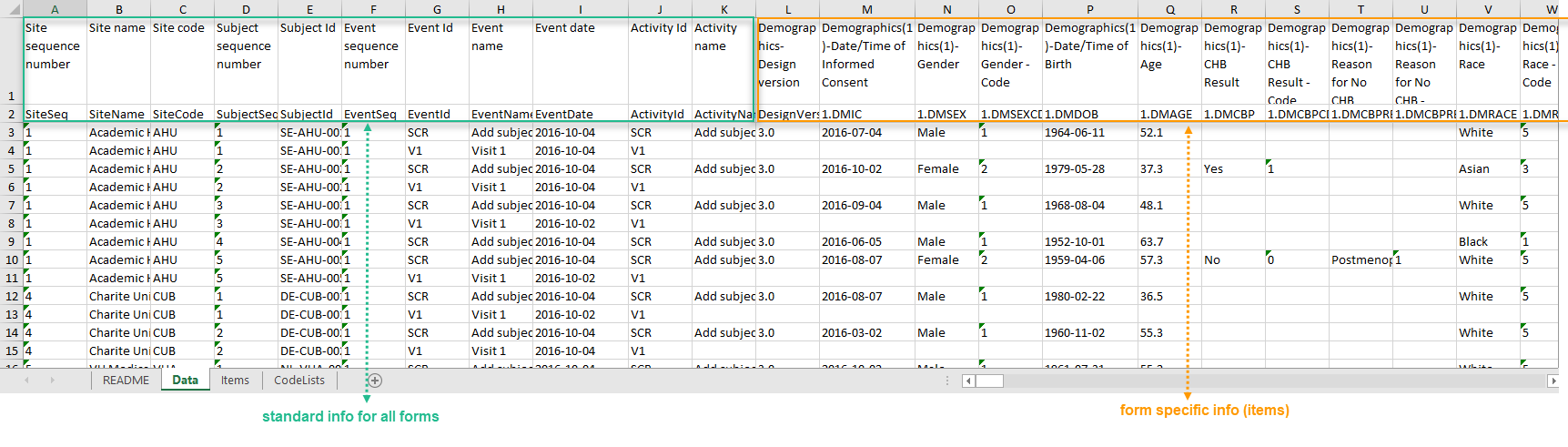
In the Layout section, you can select whether the data should be organized in the output file as:
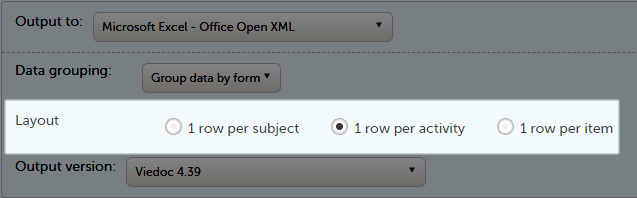
The output in this case will look as shown in the below image. The example shows an export performed with all the default settings except for the Layout which is set to 1 row per subject.
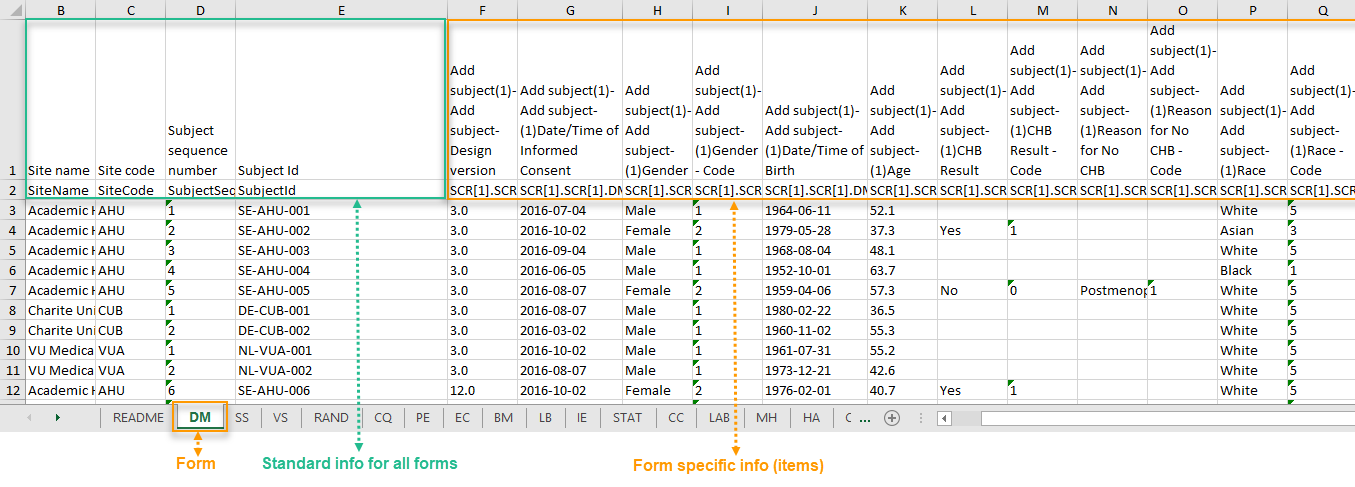
There is one sheet for each form, as the default setting is to Group data by form.
There is one row per subject, that is, one row for each SubjectID (that uniquely identifies the subject).
The first columns provide information on the site and subject:
| Column | Description |
|---|---|
| Site name | The site name, as set in Viedoc Admin. |
| Site code | The site code, as set in Viedoc Admin. |
| Subject sequence number | Counter that identifies the subject within the site. |
| Subject Id | The Subject ID, in the format configured in Viedoc Designer. The Subject ID is the subject identifier displayed in Viedoc Clinic on the subject card, subject details page, and so on. |
The following columns are the item-specific values, one set as described below for each item in the exported data. The order of the items is by event, as set in the study workflow.
Note! The columns Event sequence number, Event Id, Activity Id, Form sequence number, Subject form sequence number, Origin Subject form sequence number, and Source Subject form sequence number are not included when you have selected 1 row per subject.
The output in this case will look as shown in the below image. The example shows an export performed with all the default settings except for the Layout which is set to 1 row per activity.
There is one sheet for each form, as the default setting is to Group data by form.
The data is grouped so that, for each subject (1), there is one row for each activity (2).
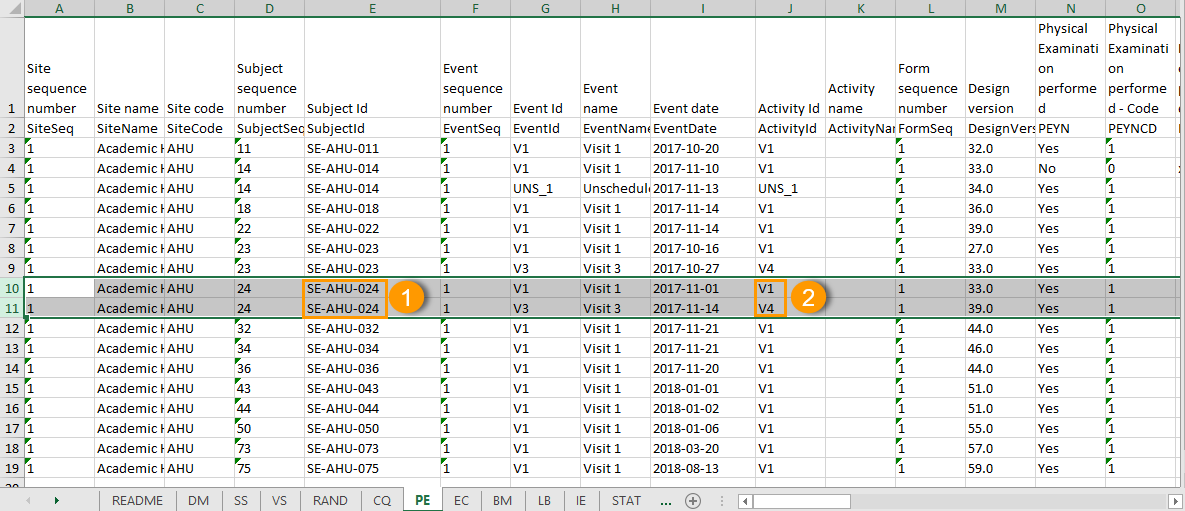
All checkbox responses for an activity are exported within a single row, with each code list option occupying distinct columns. The items that have a code list assigned are output to an additional row with the ID suffixed with "CD", for the code.
For each code list option, two columns are included: one for the label and one for the code value. Column headers use the item's OID and Export Label, each suffixed with a 1-based index (for example, CHECKBOXOID_LABEL1, CHECKBOXOID_LABEL1CD). Only the selected code list values are populated in the corresponding columns. Unselected options are left empty.
The output in this case will look as shown in the below image. The example shows an export performed with all the default settings except for the Layout which is set to 1 row per item.
There is one sheet for each form, as the default setting is to Group data by form.
The data is grouped so that there is one row for each item (3) within an activity (2) for a subject (1).
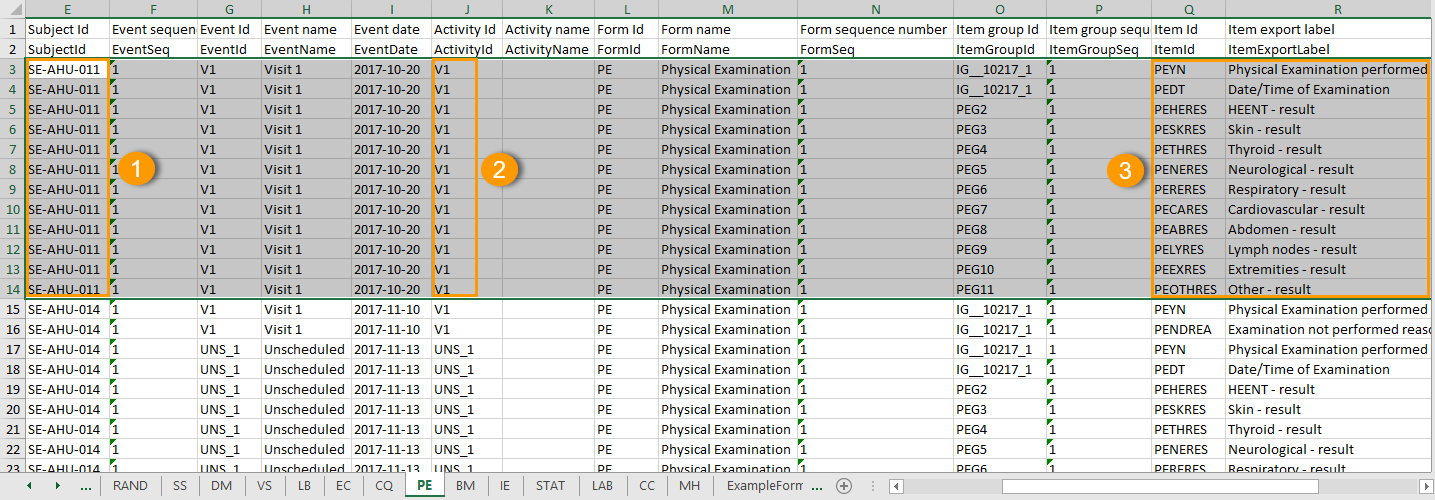
The data is sorted by: site, subject, event date, event repeat key, form repeat key, form ID, item group ID, item ID.
If the Include history option is selected (see following section), the data is ordered from the oldest to the current item data (that is, by the Edit sequence number).
When selecting 1 row per item, the option to Include history becomes available. If selected, the edit history information (audit trail) will be included in the exported output (that is, the information shown in Viedoc Clinic on form level when selecting Show history).
The following information (columns) is added for each entry in the output file:
The items belonging to a reset or deleted form/event/subject are included as well in the export, together with a full history that gives the reason for resetting or deleting the form/event/subject.
Checkbox items are output as one row per code list item. The items that have a code list assigned are output to an additional row with the ID suffixed with "CD", for the code.
All code list items are included in the output, regardless of whether they were selected or not.
The Item Id column contains the item's Object Identifier (OID) with a 1-based index appended, as illustrated in the following image:
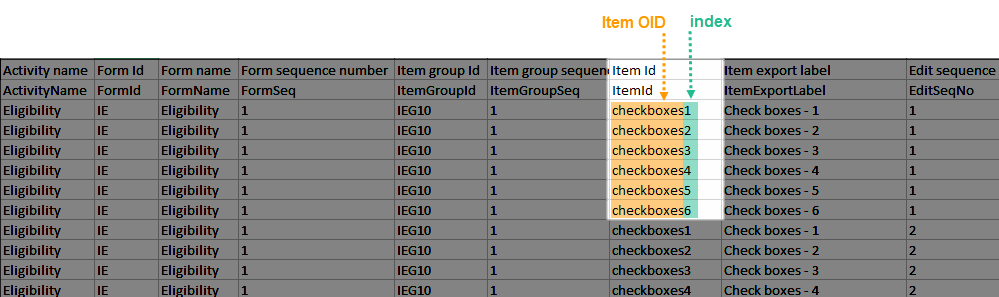
The Item Export Label column similarly includes the Export Label with the same 1-based index.
Two columns are generated per code list item: one for the code label and one for the code value. If a code list value is selected, its corresponding value appears in these columns. Otherwise, they may remain empty.
If the option to Include history is selected, then the code list items are ordered by the time of data entry (that is, by the Edit sequence number).
When reference ranges are used for a laboratory form, the laboratory name and the laboratory code are included and the following two columns are added:
SCOPE_XXX and SCOPE_XXXCD (where XXX is the numeric value)
Form link items can be organized in the Output format as:
Selecting 1 row per activity generates the output as shown in the image below. The exported file contains two columns per linked form instance, the Data column and the Identifier column, (the header is labelled Identifier).
In the example below:
 There are also two header rows in the output:
| Header rows, one row per activity | |
|---|---|
| Row 1: Data column | Item Label, Counter of the selected link starting at one |
| Row 1: Identifier column | Item Label, Counter of the selected link starting at one, Identifier |
| Row 2: Data column | Item ID, Counter of the selected link starting at one |
| Row 2: Identifier column | Item ID, Counter of the selected link starting at one, ID |
Selecting 1 row per item generates the output as shown in the image below. The exported file contains two additional columns with the headers Item value and Item code, and one row per linked form instance.
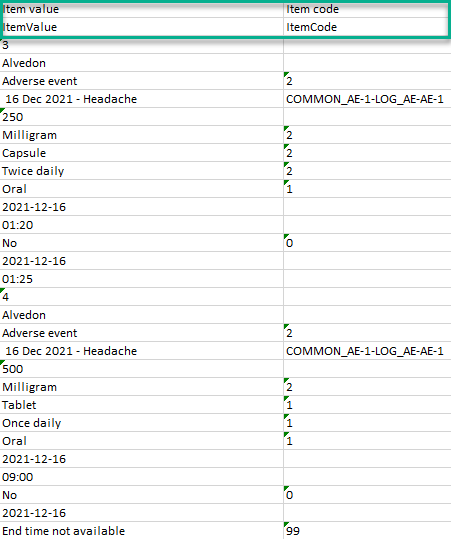
Note! In the export preview the form identifier column is excluded by default. The order the form link item was added (time of data entry) is followed in the export.
Selecting 1 row per subject generates the output as shown in the image below. The exported file adds two columns per linked form instance to the exported file, the Data column and the Identifier column:

There are also two header rows in the output:
| Header rows, one row per subject | |
|---|---|
| Row 1: Data column | Event Label (event counter), Activity label (activity counter), Item label (counter of the selected link.) |
| Row 1: Identifier column | Event Label (event counter), Activity label (activity counter), Item label (counter of the selected link), Identifier |
| Row 2: Data column | Event ID (event counter), Activity ID (activity counter), Item ID (counter of the selected link.) |
| Row 2: Identifier column | Event ID (event counter), Activity ID (activity counter), Item ID, (counter of the selected link), ID |
Recurring events are identified in the export output by the StudyEventRepeatKey.
The image illustrates the form Vital Signs in the Excel export output. The form is used in three events (Visit 1, Visit 2 and Visit 3), of which Visit 3 is a recurring event. The four instances of Visit 3 are identified by the StudyEventRepeatKey that is listed in the Event sequence number (EventSeq) column:
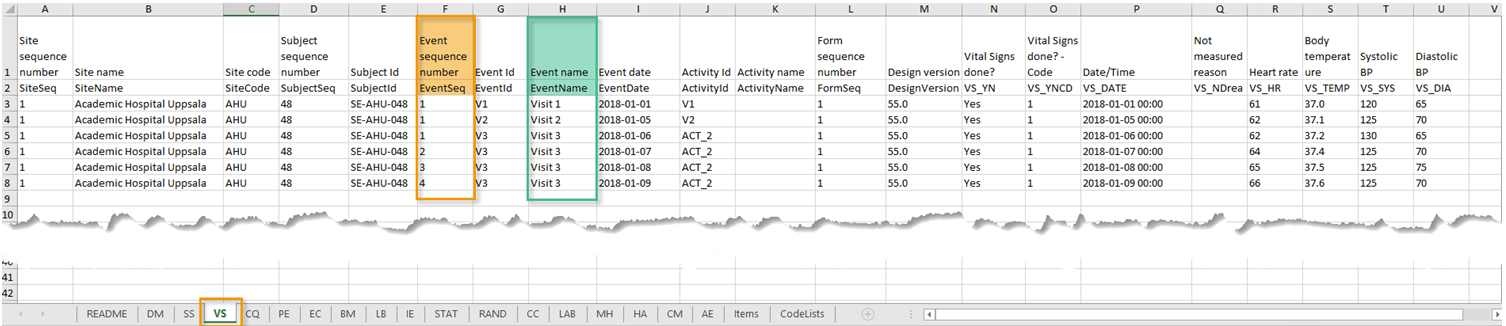
Note! Support for recurring events has been added in Viedoc release 4.39. That means that if you would like to export recurring events, you should select Viedoc version 4.39 or later in the Output version dropdown menu under Output format.
Repeating forms are identified in the export output by the FormRepeatKey.
The image illustrates the repeating form Lab in the export to Excel. The instances of the form are identified by the FormRepeatKey that is listed in the Form sequence number (FormSeq) column:

Note! Support for repeating forms has been added in Viedoc release 4.39. That means that if you would like to export repeating forms, you should select Viedoc version 4.39 or later in the Output version dropdown menu under Output format.
Repeating item groups are identified in the export output by the ItemGroupSeq . The instances of the repeating item group are identified by the ItemGroupSeq number that is listed in the Item group sequence number column:
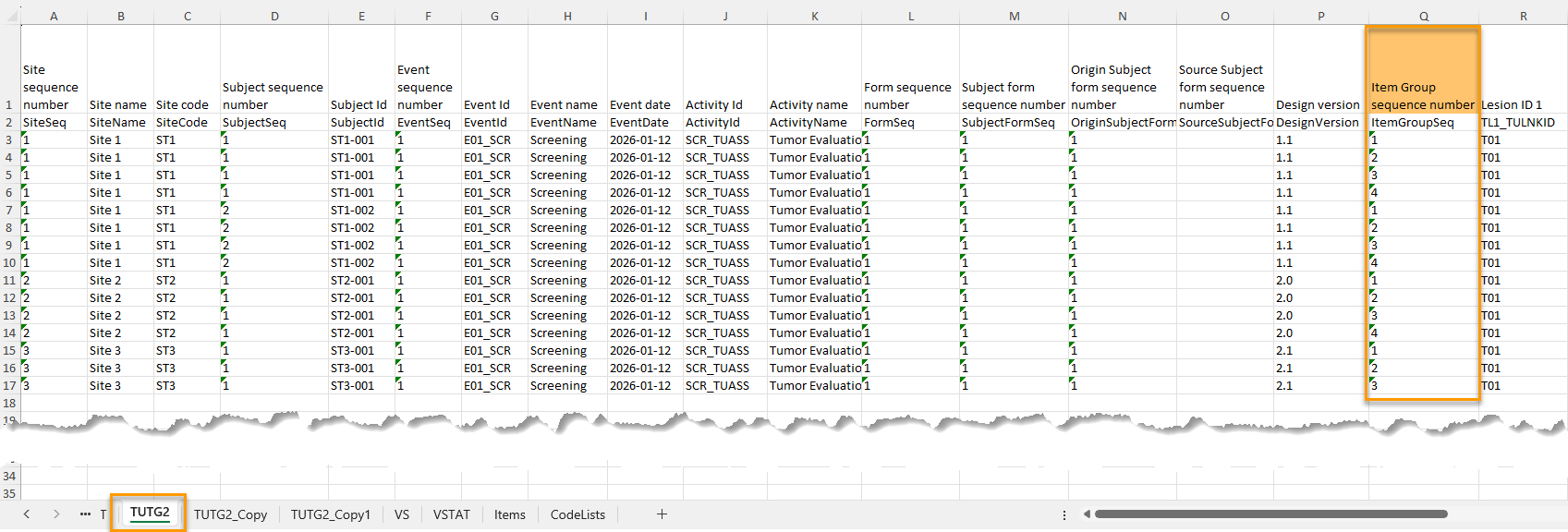
The following form sequence numbers are used to make it easier to track different form instances at subject level, which are useful especially for the form instances initiated by copying the data from previous event.
FormRepeatKey: Counter that identifies the specific instance of a repeating form within a specific activity. This is available in the export output for Viedoc output version 4.39 and onwards.SubjectFormSeqNo: Counter that uniquely identifies the instance of a specific form on a subject level, that is, it starts with 1 and it is incremented each time a new instance of the form is created for that subject. This is available in the export output for Viedoc output version 4.51 and onwards.OriginSubjectFormSeqNo: For a copied form instance, it identifies the form instance from which data was copied for the first time. For the first instance of the form (that is, not copied) it gets the value of the SubjectFormSeqNo. This is available in the export output for Viedoc output version 4.51 and onwards.SourceSubjectFormSeqNo: For a copied form instance, a counter that identifies the source of a copied form instance (the form instance the data was copied from). It gets the value of the SubjectFormSeqNo from which the form instance was copied. For the first instance of the form (that is, not copied) it is empty, that is, null. This is available in the export output for Viedoc output version 4.51 and onwards.The example below illustrates how the values for these sequence numbers are assigned. The demo form used is set as repeatable and copyable and is included in Visit 1, Visit 2 and Visit 3.
We perform the following actions in Viedoc Clinic:
| 1 | Initiate Visit 1 and fill in three instances of the Demo form, these instances will get the sequence numbers as illustrated below: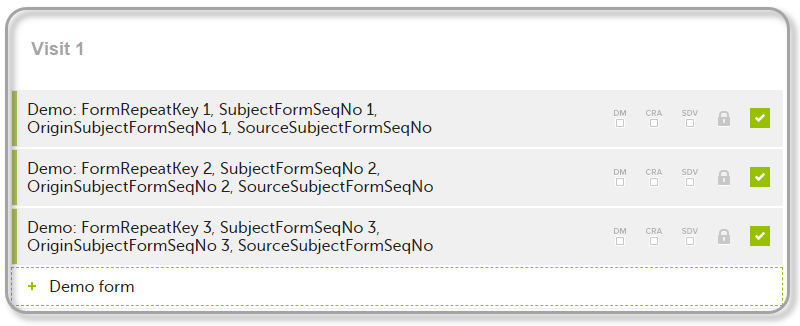 |
| 2 | Initiate Visit 2. Demo form will be available to be initiated by copying data from one of the previously filled-in form instances within Visit 1, so all the three instances will be shown as ghost forms: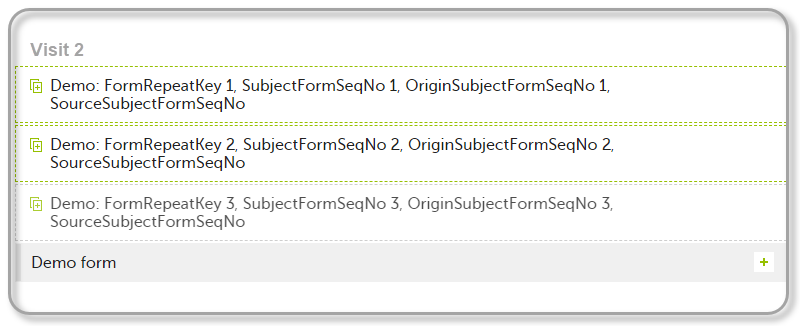 |
| 3 | Create an instance of Demo form within Visit 2 by copying the data from the third instance of the form filled in within Visit 1. This will result in the new form instance getting the sequence numbers as illustrated below: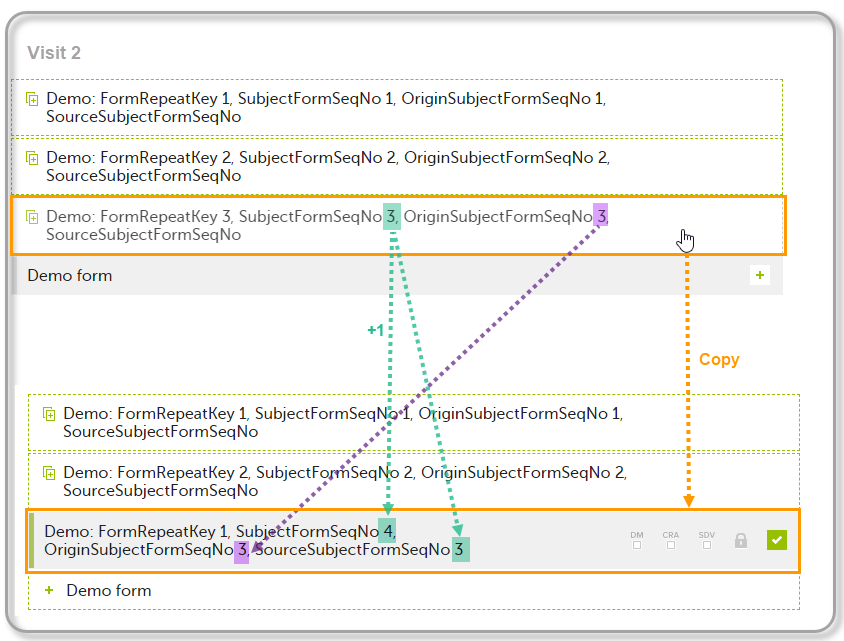 |
| 4 | Initiate Visit 3. Demo form will be available to be initiated by copying data from one of the previously filled-in form instances within Visit 1 and Visit 2, as below: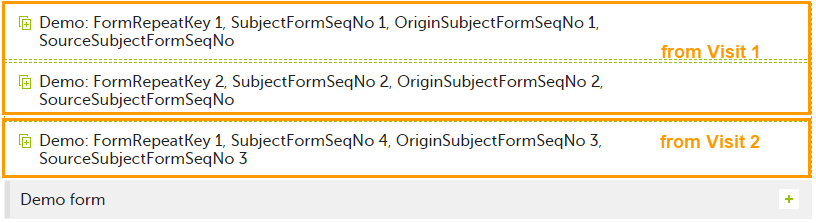 |
| 5 | Create an instance of Demo form within Visit 3 by copying the data from the form filled in within Visit 2. This will result in the new form instance getting the sequence numbers as illustrated below: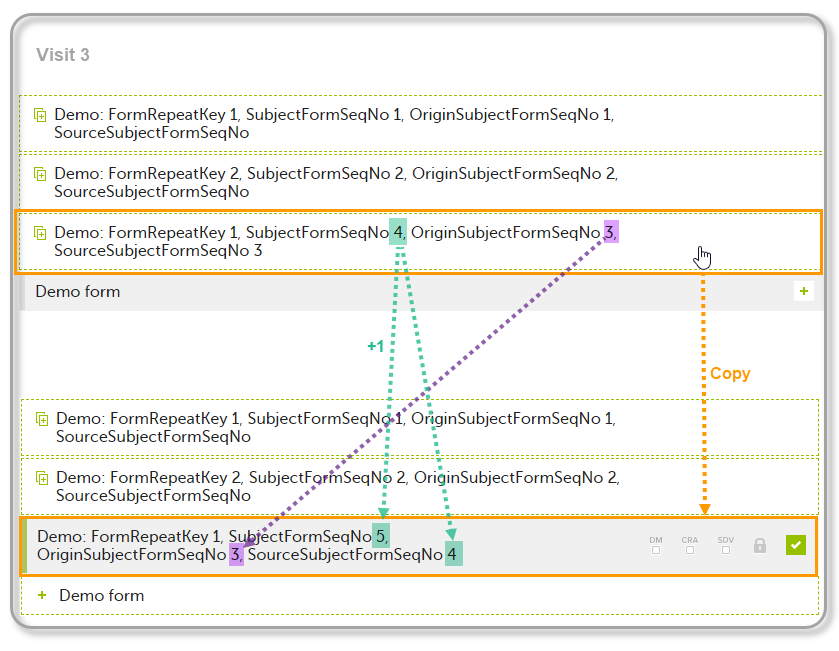 |
These sequence numbers are available to be used within expressions only to get the value of the sequence number for a specific form instance, that is, by using {SubjectFormSeqNo}, {OriginFormSeqNo}, {SourceFormSeqNo}.
In the above example, the form Summary format was configured by using these sequence numbers as below:
Form Repeat Key {FormRepeatKey}, SubjectFormSeqNo {SubjectFormSeqNo}, OriginFormSeqNo {OriginFormSeqNo}, SourceFormSeqNo {SourceFormSeqNo}
Notes!
In the excel export output, these form sequence numbers allows to track, for the form instances that were initiated by copying data from previous events, where the data originates from, as below:
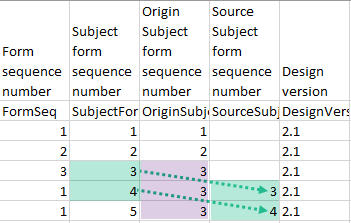
Analyzing the values of the form sequence numbers, only the form instances that were initiated by copying the data from previous visits have values populated in the Source Subject form sequence number column, that is, the last two rows in the example. The data was copied from the form instance having the same Subject form sequence number value, highlighted in green in the above image. The form instance that the data was copied for the first time is identified by the value of the Origin Subject form sequence number, that is, "3" in our example.
When choosing PDF as output format, you have the following options:
Notes!
One .zip file is downloaded for each PDF export performed.
This section describes the structure of the exported PDF file.
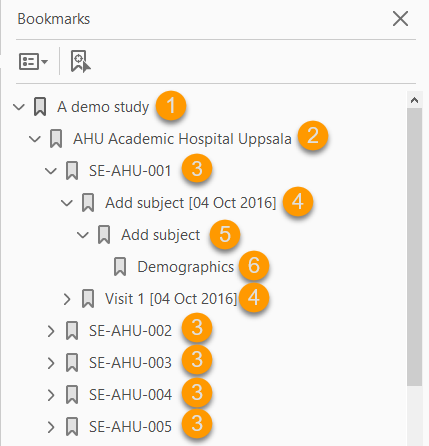
The file is structured as follows:
1. A study summary on the first page.
2. A site summary page.
3. One separate sub-section for each subject in the respective site.
4. For each subject, one sub-section for each event.
5. For each event, one sub-section for each activity.
6. For each activity, one sub-section for each form. The latest version of the form PDFs are included here. See also Audit trail and Form History section in Entering/editing data.
The meaning of the signature in Viedoc is included on the last page.
Note! If the number of forms for a site exceeds 1000, the system splits the archive into one PDF file per subject and stores them in a zip file.
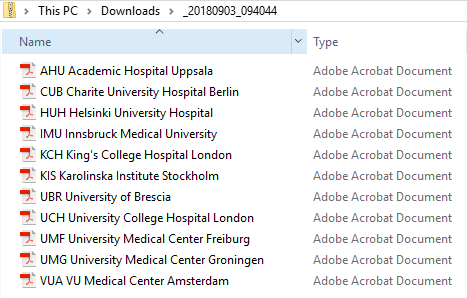
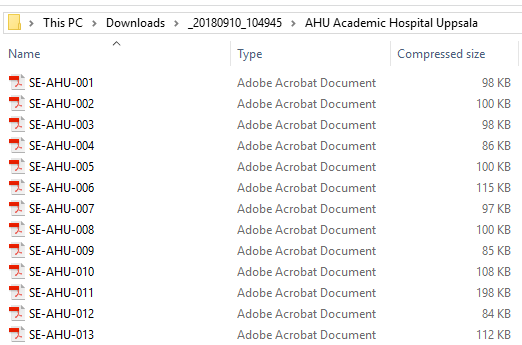
The first page provides a short summary, as illustrated in the image and explained below:
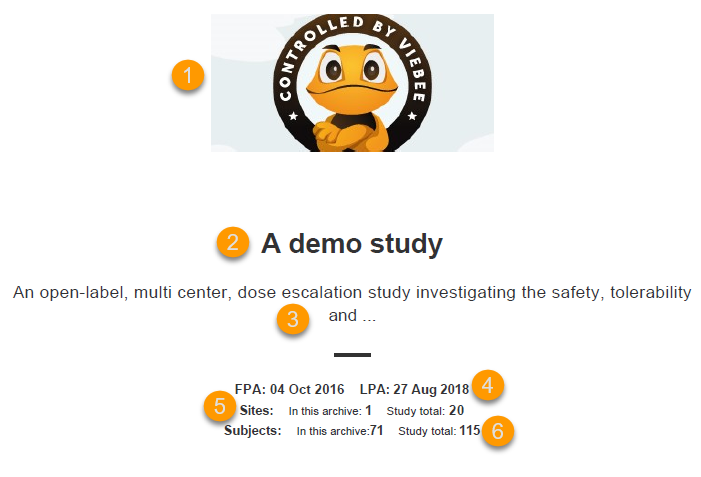
1. The study logo image, if any, as set in Viedoc Admin, under Study Settings.
2. Study name, as set in Viedoc Admin, under Study Settings.
3. Study description, as set in Viedoc Designer.
4. The dates for:
5. The number of sites:
6. The number of subjects:
The site summary page provides a summary of the site, as illustrated in the image and explained below:
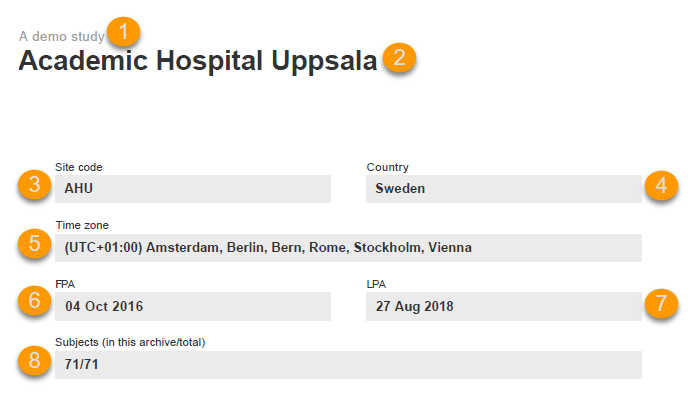
1. The study name, as set in Viedoc Admin.
2. The site name, as set in Viedoc Admin.
3. The site code, as set in Viedoc Admin.
4. The country for the respective site, as set in Viedoc Admin.
5. The site time zone, as set in Viedoc Admin.
6. Date of First Patient Added (FPA) to the site, in the site timezone.
7. Date of Last Patient Added (LPA) to the site, in the site timezone.
8. Number of subjects from the site included in the export / total number of subjects in the site (this number will exclude deleted subjects if Exclude deleted subjects/events/forms is checked).
Following the site summary page, comes a Contents list of the subjects included in the export for the respective site, with the Subject ID and corresponding pages. After that, comes one sub-section for each subject, described in the next topic.
The subject summary page provides the following information:
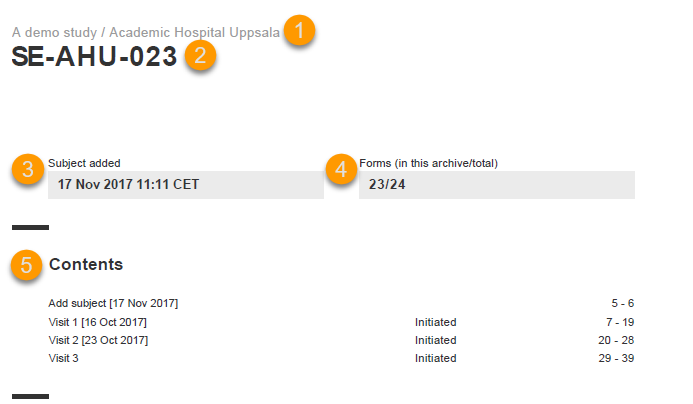
1. The study name and site name, as set in Viedoc Admin.
2. Subject ID in the format set in Viedoc Designer.
3. The date and time the subject was added.
4. The number of Forms filled in / the total number of forms for that subject.
5. A table of Contents with a list of all the events that contain data for the respective subject, the event status and the page numbers where the data related to the respective event can be found.
The event summary page provides the following information:
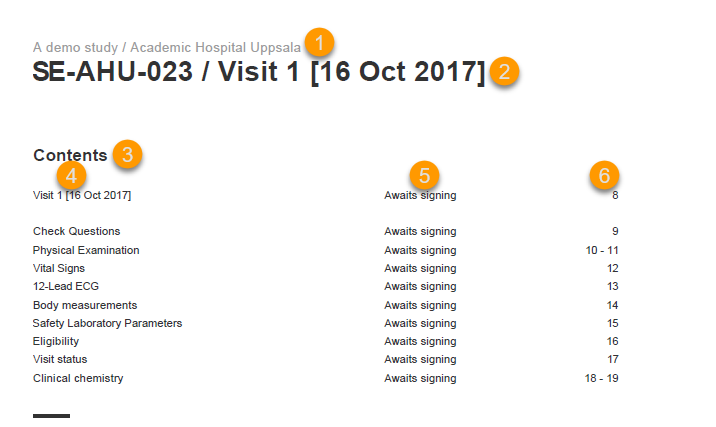
1. The study name and site name, as set in Viedoc Admin.
2. Subject ID in the format set in Viedoc Designer and the event name together with the date when it was initiated.
3. A table of Contents with a list of all the forms within the respective event for Scheduled and Unscheduled events, providing the following information:
For Common Events, each entry will have its own Event summary page.
For each form, the form PDF is included, in the same format as for the form history pdf file. For details, see Form history PDF in Entering/editing data.
The forms in the PDF are sorted by these characteristics:
The following example illustrates the sort order.
Suppose the study design looks like this:
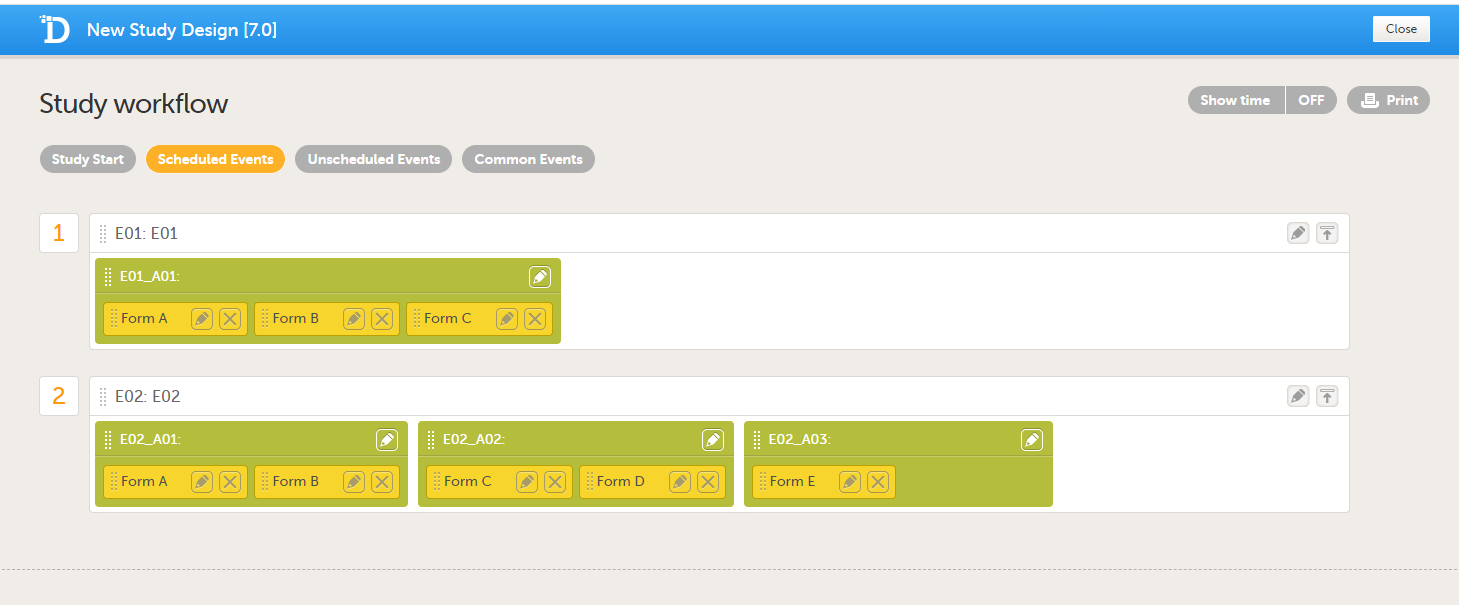
For the event E01, all forms belong to the same activity. This means that the order of the forms in the PDF will always be like this:
For the event E02, there are three activities. This means that if any form from A02 gets saved first, then any form from A01 gets saved second, and then any form from A03 gets saved third, the order of the forms will be:
In other words, the order of forms for event E02 for this specific example will be like this:
The Queries can be exported to the following export output formats:
To include the query information in the exported file, you need to select Queries under Type of data in the Data export page. When selecting to include Queries, the Query history option becomes available.
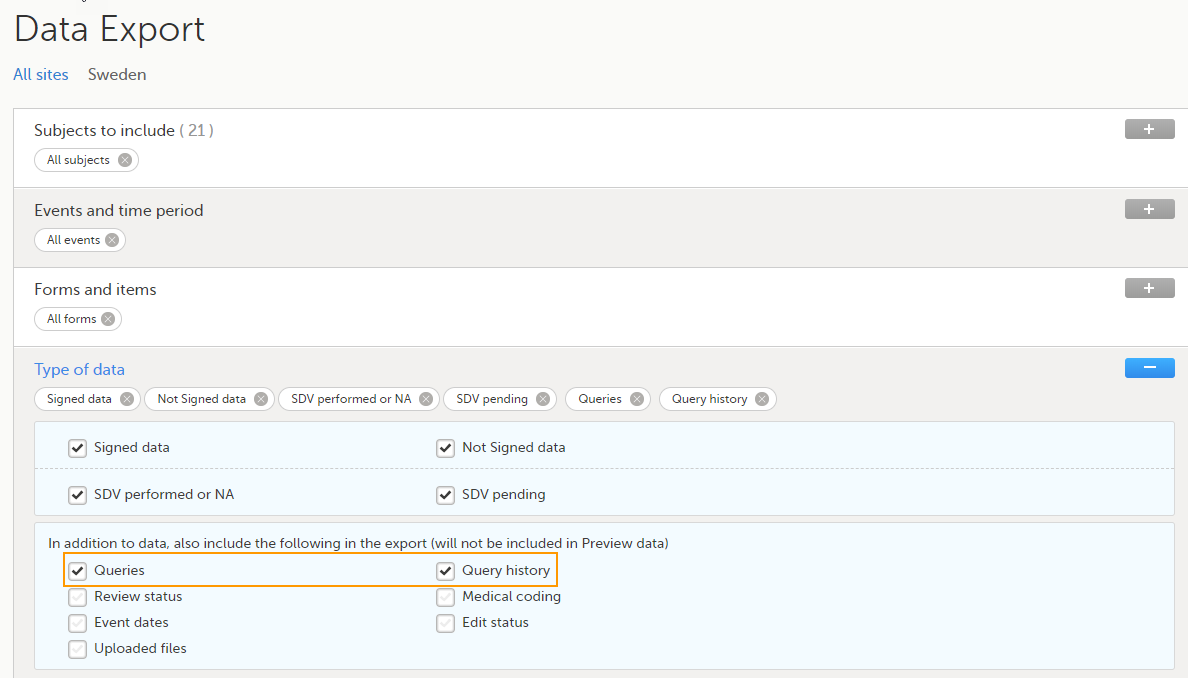
Depending on if the Query history is included in the export or not, the information in the export output file is grouped as follows:
In the Excel export output, considering as an example the default settings under Output format:
...the query information is grouped in a separate sheet of the excel file, called Queries.
The columns provide information on the item that the query was raised on, followed by the query specific information, as illustrated in the image (the image shows the query-specific information only) and listed in the following table:

| Column name | Description |
|---|---|
| Query study sequence number |
Counter that identifies the query globally within the whole study. This field is empty for the Unconfirmed missing data. |
| Columns that identify the item | |
| Site sequence number | Counter that identifies the site globally within the study. |
| Site name | The site name, as set in Viedoc Admin. |
| Site code | The site code, as set in Viedoc Admin. |
| Subject sequence number | Counter that identifies the subject within the site. |
| Subject Id | The Subject ID, in the format configured in Viedoc Designer. The Subject ID is the subject identifier displayed in Viedoc Clinic on the subject card, subject details page, and so on. |
| Event sequence number | Counter that identifies the event within the sequence of events for the same subject. |
| Event Id | The event ID, as set in the study design (in Viedoc Designer). |
| Event name | The event name, as set in the study design (in Viedoc Designer) and displayed in Viedoc Clinic. |
| Event date | The event date, as set in Viedoc Clinic when the event is initiated. |
| Activity Id | The activity ID, as set in the study design (in Viedoc Designer). |
| Activity name | The activity name, as set in the study design (in Viedoc Designer) and displayed in Viedoc Clinic. |
| Form Id | The form ID, as set in the study design (in Viedoc Designer). |
| Form name | The form name, as set in the study design (in Viedoc Designer) and displayed in Viedoc Clinic. |
| Form sequence number | Counter that identifies the instance of the respective form within the respective activity. This is used for the repeating forms. For non-repeating forms, this is always "1". |
| Item Id | The item ID, as set in the study design (in Viedoc Designer). |
| Item Name | The item name, as set in the study design (in Viedoc Designer) and displayed in Viedoc Clinic. |
| Query specific information | |
| Query item sequence number | Counter that identifies the query within a sequence of queries for the same item. |
| Raised on |
Specifies if the query was raised on an item or on the event date:
|
| Query type |
Specifies the query type, depending on how it was raised:
|
| Range check OID | Only for automatically raised item queries (i.e. Query type = Validation and Raised on = Item). The unique Object Identifier (OID) of the edit check that generated the query, as set in Viedoc Designer. |
| Query text | The text of the query. |
| Query state |
Can be one of the following (see also Query overview):
Note! The queries that were automatically closed due to form reset/delete (with status Query Closed) are not included in the export. |
| Query resolution | The resolution text entered when resolving (answering) the query. Not applicable for those changes performed by the system (i.e. User name = System (0)) |
| User name | The name of the user who performed the changes, followed by the user ID in parentheses. Note! For those changes performed by the system (such as validation queries, that are automatically raised by the system) the User name = System (0). |
| Date & time (UTC) | The date and time when the change was performed. |
| User role |
The role of the user who performed the action on the query |
| Query raised by role | The role of the user who raised the query |
This lesson describes how the medical coding information is structured within an Excel file exported from Viedoc.
Viedoc Clinic provides two export options related to medical coding: Medical coding and Medical coding history.
To include the medical coding information in the exported file, select Medical coding under Type of data in the Data Export page:
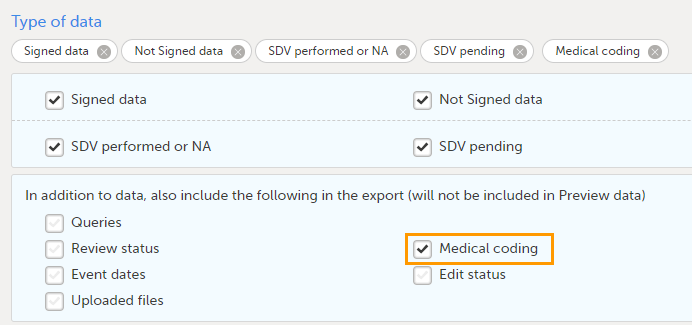
The Medical coding export shows the current coding status.
When you select Medical coding, the Medical coding history option is shown:
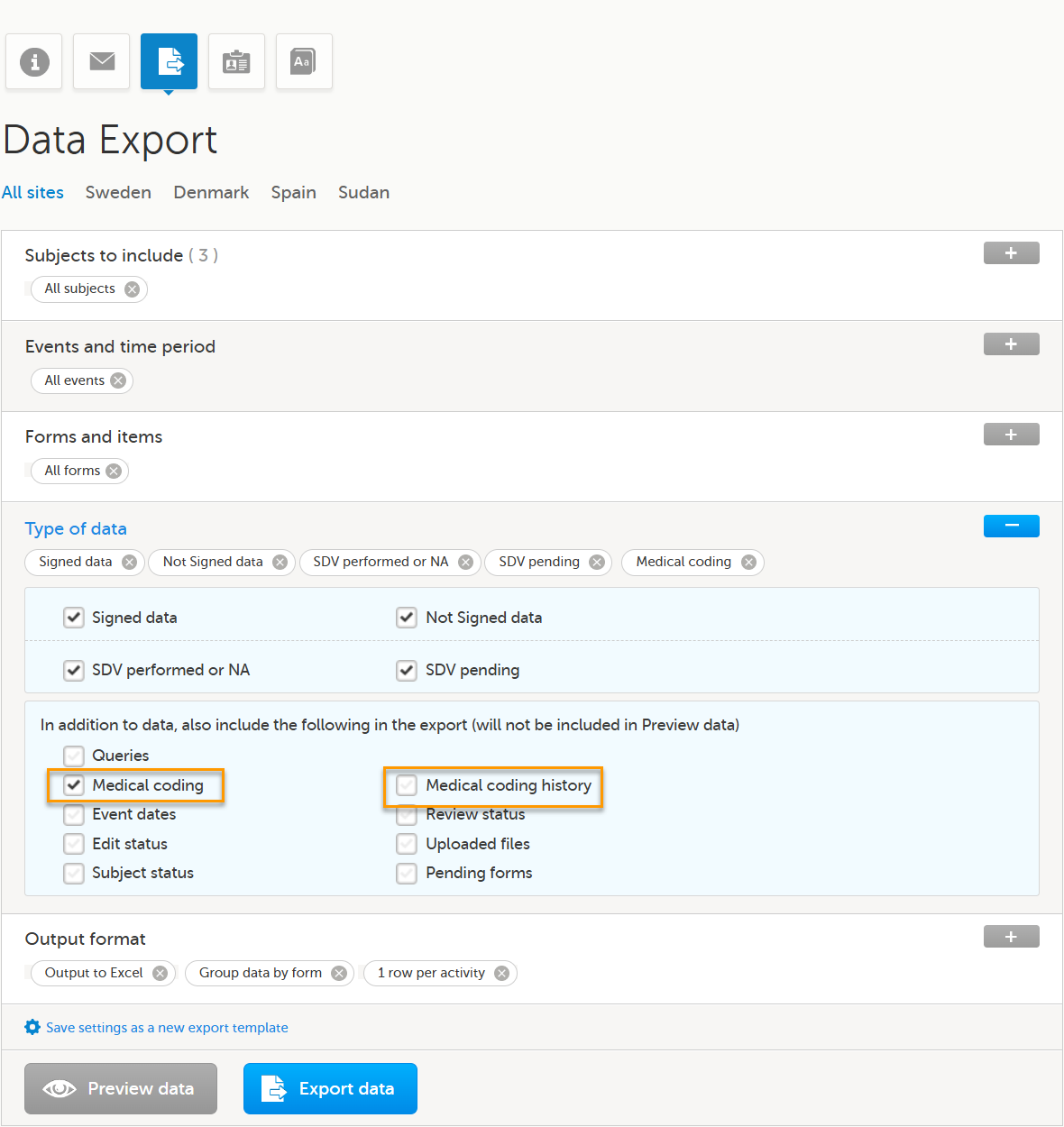
Select the Medical coding history checkbox to include the full audit trail for each coded item in the export.
For general details about data export, see Exporting data.
For more information about medical coding exports, see Exporting the medical coding.
For medical coding, in the Excel export output file, there is one sheet for each dictionary. Only values that have been coded will be present in the export:
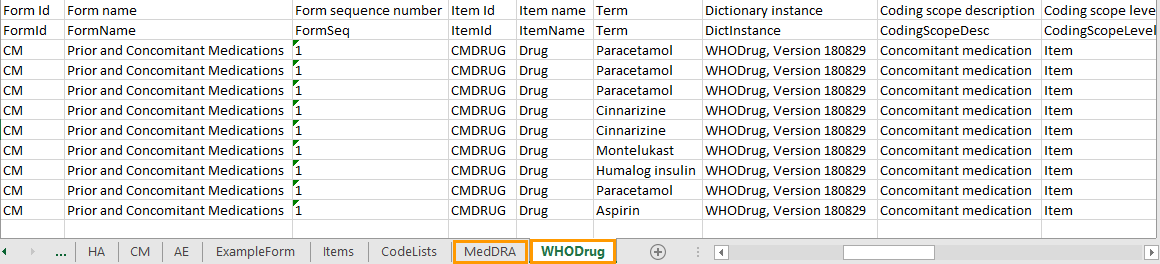
The columns provide information on the item that was coded, followed by the medical coding specific information, as listed in the following table:
| Column name | Description | ||
|---|---|---|---|
| Columns that identify the item | |||
| Site sequence number | A counter that identifies the site globally within the study | ||
| Site name | The site name, as set in Viedoc Admin | ||
| Site code | The site code, as set in Viedoc Admin | ||
| Subject sequence number | A counter that identifies the subject within the site | ||
| Subject Id | The Subject ID, in the format configured in Viedoc Designer. The Subject ID is the subject identifier displayed in Viedoc Clinic on the subject card, subject details page, and so on. | ||
| Event sequence number | A counter that identifies the event within the sequence of events for the same subject | ||
| Event Id | The event ID, as set in the study design (in Viedoc Designer) | ||
| Event name | The event name, as set in the study design (in Viedoc Designer) and displayed in Viedoc Clinic | ||
| Event date | The event date, as set in Viedoc Clinic when the event is initiated | ||
| Activity Id | The activity ID, as set in the study design (in Viedoc Designer) | ||
| Activity name | The activity name, as set in the study design (in Viedoc Designer) and displayed in Viedoc Clinic | ||
| Form Id | The form ID, as set in the study design (in Viedoc Designer) | ||
| Form name | The form name, as set in the study design (in Viedoc Designer) and displayed in Viedoc Clinic | ||
| Form sequence number |
Counter that identifies the instance of the respective form within the respective activity. This is mostly used for repeating forms. For non-repeating forms, this is 1. If a form is reset and then saved again the new form has sequence number 2, and so on. Form sequence number increases one step every time reset/initiate occurs. |
||
| Subject form sequence number | Counter that uniquely identifies the instance of a specific form on a subject level, that is, it starts with 1 and it is incremented each time a new instance of the form is created for that subject. | ||
| Origin Subject form sequence number | For a copied form instance, it identifies the form instance from which data was copied for the first time. For the first instance of the form (that is, not copied) it gets the value of the SubjectFormSeqNo. |
||
| Source Subject form sequence number |
For a copied form instance, a counter that identifies the source of a copied form instance (the form instance the data was copied from). It gets the value of the |
||
| Item Id | The item ID, as set in the study design (in Viedoc Designer) | ||
| Item Name | The item name, as set in the study design (in Viedoc Designer) and displayed in Viedoc Clinic | ||
| Medical coding-specific information | |||
| Term | The coded term | ||
| Dictionary instance | The description of the dictionary instance, as set in Viedoc Admin when uploading the dictionary | ||
| Version | The dictionary version. | ||
| Coding scope description | The coding scope description, as defined in Viedoc Designer | ||
| Coding scope level | The coding scope level, as defined in Viedoc Designer, can be one of the following:
|
||
| Code sequence number | A counter that identifies the code for those values with more than one code | ||
| Dictionary-specific information | |||
|
WHODrug: Note! To align with WHODrug terminology changes planned for 2026, labels in exports containing medical coding have been updated. These updates are available from Viedoc version 4.91.
|
MedDRA:
|
ATC without DDD:
|
IDF:
|
| Interpretation | The medical coder's interpretation of the applied coding value | ||
| Coding operation | Shows the coding operation for each item, for example whether it was coded manually or automatically. | ||
| Coded by user | The name of the user who performed the coding, followed by the user ID in parentheses | ||
| Coded on date (UTC) | The date and time (UTC) when the coding was performed | ||
| Approved by user | The name and ID of the user who approved the items | ||
| Approved on date (UTC) | The date and time (UTC) when the item was approved | ||
|
Medical coding history additional columns |
|||
| In addition to the columns available for Medical coding, the Medical coding history export includes the following columns: | |||
| Audit sequence number (AuditSeqNo) | Indicates the order of audit records for a specific item. The oldest audit record for the item has sequence number 1. The value is not unique within the item. An item with multiple codes will have multiple rows, with one row per code which have the same audit sequence number. | ||
| Audit User (AuditUser) | The name of the user who performed the coding or review action. | ||
| Audit date (UTC) (AuditDate) | The date and time (UTC) when the coding or review action was performed. | ||
| Item status (ItemStatus) |
Indicates the status of the item after the coding action was performed. |
||
| Reason for change (ReasonForChange) | The reason provided when a coding or review decision was changed. | ||
This section illustrates an example of how the data coded using the World Health Organization Drug Dictionary (WHO DD) dictionary looks in the Excel export output.
There are two different use cases, depending on the which level of granularity is selected when applying the code in Viedoc Clinic:
1. Drug (default)
2. Subst
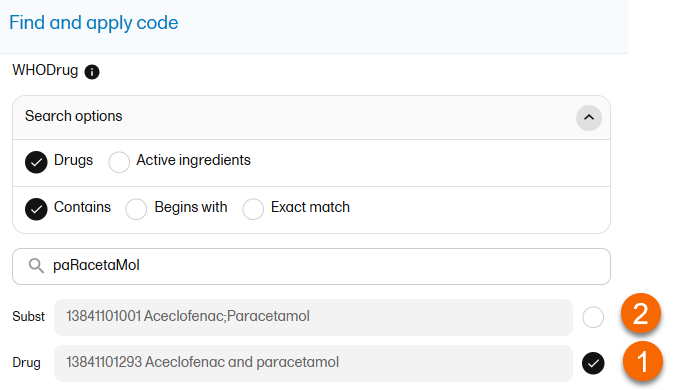
The image below illustrates how the coded data looks in the export output, if the Drug is selected when applying the code in Viedoc Clinic.
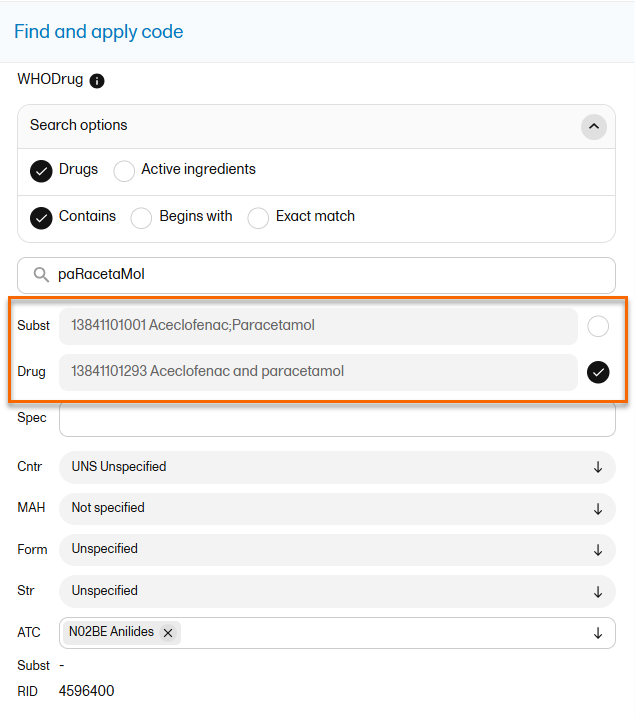
When Drug is selected, the Substance code and Substance name are shown in the export as well, in the last columns, as illustrated in the image.
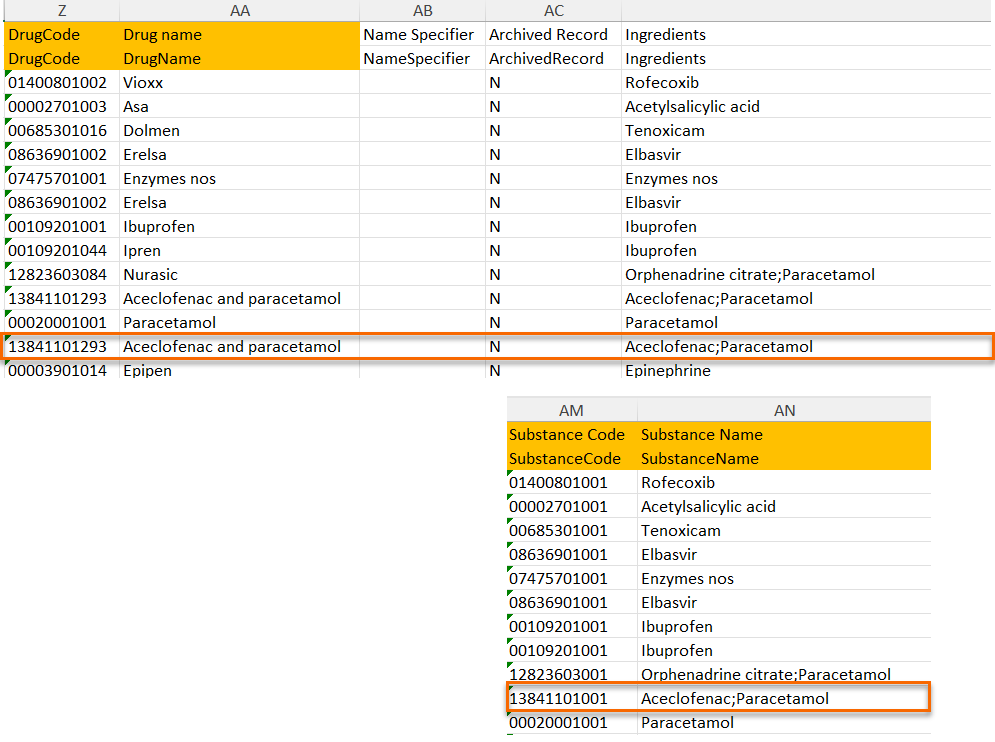
The image below illustrates how the coded data looks in the export output, if substance (Subst) is selected when applying the code in Viedoc Clinic.
After Subst is selected and the code is applied, for the respective coded item, the value of the substance is shown in in both Subst and Drug fields, Viedoc Clinic, as well as in the exported output.
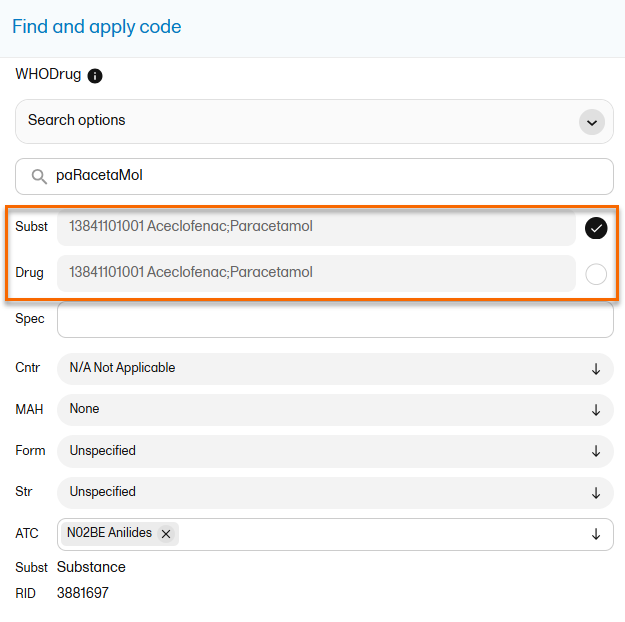
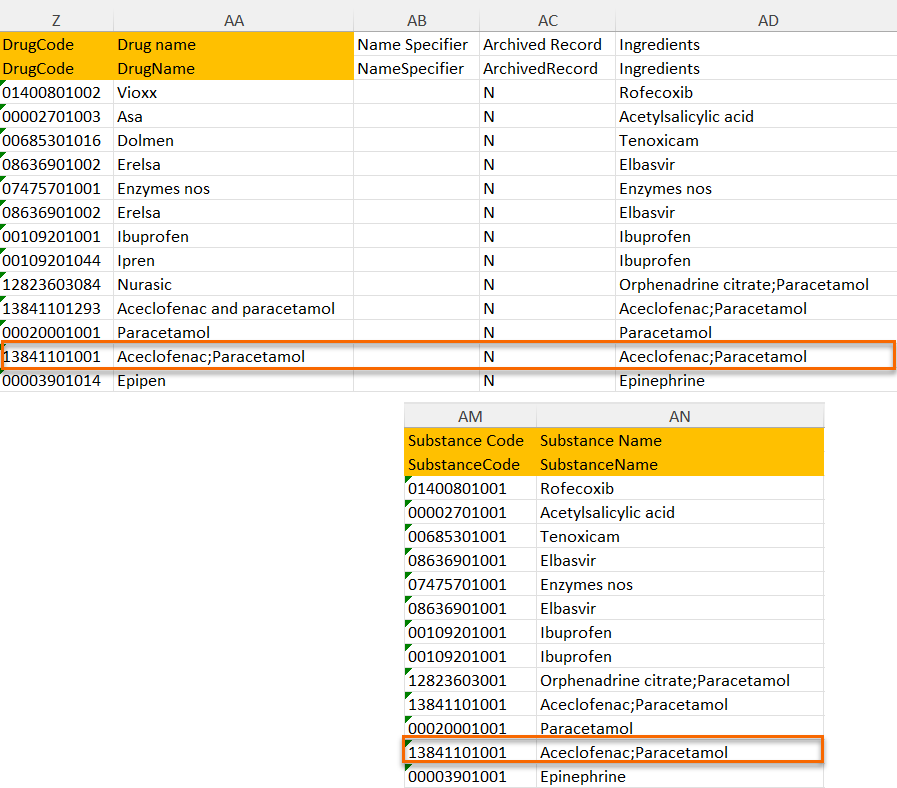
This lesson describes how the review status information is structured within an Excel file exported from Viedoc.
For general details about data export, see Exporting data.
Note! When selecting one row per item as Layout, the review status is not included in the export.
In the Excel export output file, there is one separate sheet for the Review status:

The first columns provide information for identifying the form that was reviewed, followed by the review information, as listed in the following table:
| Column name | Description |
|---|---|
| Columns that identify the form | |
| Site sequence number | Counter that identifies the site globally within the study. |
| Site name | The site name, as set in Viedoc Admin. |
| Site code | The site code, as set in Viedoc Admin. |
| Subject sequence number | Counter that identifies the subject within the site. |
| Subject Id | The Subject ID, in the format configured in Viedoc Designer. The Subject ID is the subject identifier displayed in Viedoc Clinic on the subject card, subject details page, and so on. |
| Event sequence number | Counter that identifies the event within the sequence of events for the same subject. |
| Event Id | The event ID, as set in the study design (in Viedoc Designer). |
| Event name | The event name, as set in the study design (in Viedoc Designer) and displayed in Viedoc Clinic. |
| Event date | The event date, as set in Viedoc Clinic when the event is initiated. |
| Activity Id | The activity ID, as set in the study design (in Viedoc Designer). |
| Activity name | The activity name, as set in the study design (in Viedoc Designer) and displayed in Viedoc Clinic. |
| Form Id | The form ID, as set in the study design (in Viedoc Designer). |
| Form name | The form name, as set in the study design (in Viedoc Designer) and displayed in Viedoc Clinic. |
| Form sequence number |
Counter that identifies the instance of the respective form within the respective activity. This is mostly used for repeating forms. For non-repeating forms, this is 1. If a form is reset and then saved again the new form has sequence number 2, and so on. Form sequence number increases one step every time reset/initiate occurs. |
| Review status information | |
| Reviewed item |
Can be one of the following:
|
| Clinical review by | User name and user ID of the user that performed the clinical review. |
| Clinical review date (UTC) | The date and time in Coordinated Universal Time (UTC) when the clinical review was performed |
| Data review by | User name and user ID of the user that performed the data review (marked by the DM review flag). |
| Data review date (UTC) | The date and time (UTC) when the data review was performed. |
| SDV by | User name and user ID of the user that performed the Source Data Verification (SDV) (marked by the SDV review flag). For studies where SDV is performed on item level, this column will contain N/A for items that do not require SDV. |
| SDV date (UTC) | The date and time (UTC) when the SDV was performed. For studies where SDV is performed on item level, this column will contain N/A for items that do not require SDV. |
| Signed by | User name and user ID of the user that signed the form. |
| Signed date (UTC) | The date and time (UTC) when the form was signed by investigator. |
| Lock by | User name and user ID of the user that locked the form. |
| Lock date (UTC) | The date and time (UTC) when the form was locked. |
If, on the Data Export page, the SDV information checkbox was selected, there is a separate sheet for the SDV information in the Excel export output file:

Note! For studies where SDV is performed on item level, this sheet will include only the items that require SDV and are visible to the user.
The first columns provide information for identifying the item that was SDV-ed, followed by the review information, as listed in the following table:
| Column name | Description |
|---|---|
| Columns that identify the item | |
| Site sequence number | Counter that identifies the site globally within the study. |
| Site name | The site name, as set in Viedoc Admin. |
| Site code | The site code, as set in Viedoc Admin. |
| Subject sequence number | Counter that identifies the subject within the site. |
| Subject Id | The Subject ID, in the format configured in Viedoc Designer. The Subject ID is the subject identifier displayed in Viedoc Clinic on the subject card, subject details page, and so on. |
| Event sequence number | Counter that identifies the event within the sequence of events for the same subject. |
| Event Id | The event ID, as set in the study design (in Viedoc Designer). |
| Event name | The event name, as set in the study design (in Viedoc Designer) and displayed in Viedoc Clinic. |
| Event date | The event date, as set in Viedoc Clinic when the event is initiated. |
| Activity Id | The activity ID, as set in the study design (in Viedoc Designer). |
| Activity name | The activity name, as set in the study design (in Viedoc Designer) and displayed in Viedoc Clinic. |
| Form Id | The form ID, as set in the study design (in Viedoc Designer). |
| Form name | The form name, as set in the study design (in Viedoc Designer) and displayed in Viedoc Clinic. |
| Form sequence number |
Counter that identifies the instance of the respective form within the respective activity. This is mostly used for repeating forms. For non-repeating forms, this is 1. If a form is reset and then saved again the new form has sequence number 2, and so on. Form sequence number increases one step every time reset/initiate occurs. |
| Item ID | The item ID, as set in the study design (in Viedoc Designer) |
| Item name | The item name, as set in the study design (in Viedoc Designer) and displayed in Viedoc Clinic. |
| SDV information | |
| Reviewed item |
Can be one of the following:
|
| SDV by | User name and user ID of the user that performed the SDV. |
| SDV date (UTC) | The date and time (UTC) when the SDV was performed. |
If, on the Data Export page, the SDV information checkbox and Review status was selected, when Viedoc SDV Manager is enabled for your study, the SDV sheet in the Excel export file includes three additional columns:
The SDV sheet contains one row per item, and per subject.
| Column name | Description |
| Item SDV requirement | The SDV requirement for the item as determined by the assigned SDV plan: Required, Optional, or Not Required. |
| SDV plan | The name of the SDV plan assigned to the site at the time the item was exported. |
| SDV rule | The name of the rule within the SDV plan that determined the SDV requirement for the item. |
This lesson describes the types of roles that are supported by Viedoc, how to assign roles to users and where to view the users that have access to a study, and their user details. The instructions are intended for Study Managers (STM) and Site Managers (SIM).
This content is shared by the lessons in the following user guides
Admin: "Managing users (for Org Admin)"
Monitors & Project Managers: "Managing users"
Clinic: Signing data
The Study Manager should, in cooperation with the Site Manager(s), ensure that all users of Viedoc are informed, and certify that all electronic signatures created in the system are intended to be the legally binding equivalent of a traditional handwritten signature.
In Viedoc, the purpose/meaning of a signature is always “responsibility” as used in Sec. 11.50 of Food and Drug Administration (FDA) 21 Code of Federal Regulations (CFR) part 11. The signer is thereby acknowledging his/her responsibility for the entered data. Viedoc keeps account of what was signed, who signed it, and when the signature was performed.
http://help.viedoc.net/l/1648/This content is shared by the lessons in the following user guides
Admin: "Managing users (for Org Admin)"
Monitors & Project Managers: "Managing users"
Viedoc supports two different types of roles.
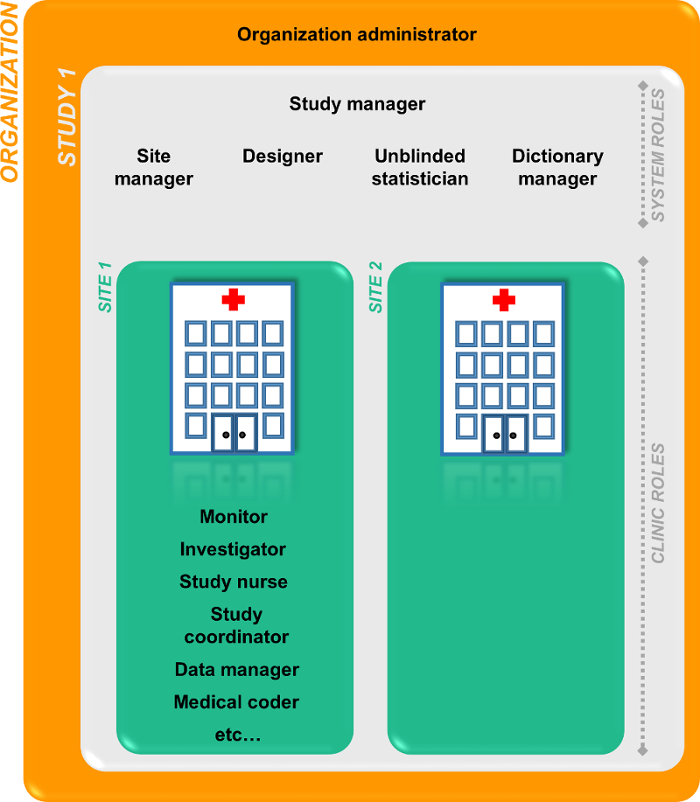
The Organization Administrator invites the Study Manager. The Study Manager can assign users to system roles and clinic roles. The Study Manager can also delegate the management of clinic roles to the Site Manager.
The system roles are predefined in Viedoc, they cannot be adjusted for your study. The system roles give access to various features in Viedoc Admin or Viedoc Designer.
The following system roles are available.
| Role | Description |
|---|---|
| Organization Administrator | The Organization Administrator is responsible for all projects within the organization. The Organization Administrator initiates projects, and assigns Study Managers to every project in Viedoc Admin. |
| Study Manager |
The Study Manager assigns roles to users, adds sites to the study and applies study designs to the sites in Viedoc Admin. For a typical clinical trial, the role of Study Manager in Viedoc is assigned to the project manager. Some Study Manager responsibilities can be delegated to the Study Crew Manager and Study Configuration Manager Note!
Note! In SDV Manager, Monitor-driven Risk Assessment Categorization Tool (MRACT) templates can be made available for all sites, therefore you can invite a user to a single site with a role that has a Monitor-driven Risk Assessment Categorization Tool template permission (View risk assessment template or Edit risk assessment template) and the user can then view or edit risk assessment templates for the entire study. |
| Study Crew Manager |
The Study Crew Manager can access Viedoc Admin to manage users and their roles in a study and can perform the following actions:
This role cannot:
|
| Study Configuration Manager | The Study Configuration Manager can access Viedoc Admin and can manage sites, study settings, and design version assignments and can perform the following actions:
This role cannot:
|
| Designer | The Designer builds the study in Viedoc Designer. |
| Read-only Designer |
The Read-only Designer role allows users to access Viedoc Designer and view the study design. Users with this role cannot edit the study design. Users with the Read-only Designer role can:
This role cannot:
|
| Site Manager | The Site Managers are appointed by the Study Manager and use Viedoc Admin to assign clinic roles to site users. For a typical clinical trial, the role of Site Manager in Viedoc is assigned to the Clinical Research Associate (CRA). |
| Unblinded Statistician | The Unblinded Statistician manages the randomization lists in Viedoc Admin. This role is only used for randomized studies, when it is necessary to have control over who has access to and can manage the randomization lists. |
| Dictionary Manager | The Dictionary Manager uploads medical coding dictionaries. |
| Reference Data Source Manager | The Reference Data Source Manager manages the reference data sources at study level. The Reference Data Source Manager can also delegate the management of data sources at site level to the Site manager. |
| API Manager | The Application Programming Interface (API) Manager has access to the API settings and performs the API configurations. Complete instructions on how to configure the API are provided in Viedoc API. |
| eTMF Manager | The eTMF Manager manages the eTMF application in Viedoc Admin. The eTMF Manager maps Viedoc Clinic roles to eTMF roles. The eTMF Manager also has permission to manage the eTMF structure in Viedoc eTMF. |
| Design Impact Analyst |
The Design Impact Analyst can run an impact analysis in Viedoc Admin. A user with the role can see what impact a new design revision will have on existing form instances before applying the revision. Note! Before you invite a user with this role, read Design revision impact analysis to understand in which scenarios the design revision impact analysis report might reveal blinded information. |
Note!
The clinic roles, and the rights that belong to these roles, can be set up in the study design in Viedoc Designer. They are study-specific and give access to Viedoc Clinic. Clinic roles are assigned to site users by the Study Manager or the Site Manager. Each study can have an unlimited number of clinic roles.
Examples of clinic roles are:
Note!
For example: The Publish SDV Plans permission is enabled for the Data Manager role.
User A is invited as a Data Manager to the Uppsala site. The high-level SDV plan is in use on 10 sites in the study.
User A reviews the edits made to the high-level SDV plan and publishes it. The updated plan will now take effect on all of the 10 sites in the study.
For more information about SDV Manager and MRACT, see Viedoc SDV Manager.
http://help.viedoc.net/l/829deb/A list of users can be viewed at the following three places:
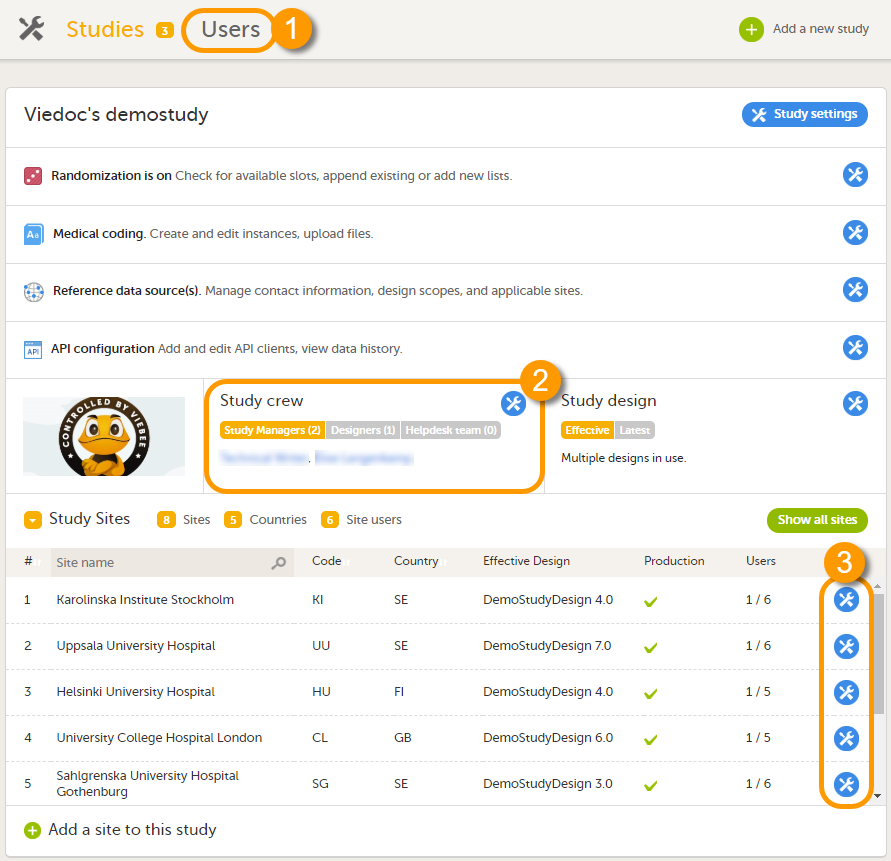
1. On the Users page. This page displays a list of users assigned to any role in any study within the organization.
2. In the Study crew window. This window displays a list of all users assigned to a system role in the study.
3. On the Site users tab of the site settings window. This tab displays a list of all users assigned to a clinic role within that specific site.
Note! All three user lists only display the users and roles you have permission to manage (invite or remove). If you are a Study Manager, you can also see the Organization Administrator. If you are a Site Manager, you can also see the Study Manager. However, in both cases you cannot invite users to these roles or remove these roles from users.
The Users page lists all users within the organization, and displays the following information:
If a user has no approved roles, because the invitation is still pending or rejected, or because the roles have been removed, only the user's e-mail address is displayed and all the other fields remain empty.
On this page, you can (see image):
1. Search for a specific user among all users within the organization by entering the user’s name or e-mail address in the search field
2. Sort the list of users by name, status or date of creation
3. Group the list of users by study by selecting Studies in the Group by field
4. Invite organization users (only available for the Organization Administrator)
The Study crew window lists all users in the study that are assigned to a system role, and displays the following information:
*If the user has multiple roles, the date and time of invitation or acceptance of the first role that gives access to that site is displayed.
You can sort the users by name, role, date of (accepted) invitation and status. To sort the users, click on the column headers, or click on the arrows to the right of the column header. You can sort the users in ascending and descending order.
The Site users tab in the Site settings window lists all users with clinic roles that have access to that site, and displays the following information:
*If the user has multiple roles, the date and time of invitation or acceptance of the first role that gives access to that site is displayed.
You can sort the users by name, role, date of (accepted) invitation and status. To sort the users, click on the column headers, or click on the arrows to the right of the column header. You can sort the users in ascending and descending order.
The Viedoc skill level gives an indication of how experienced the user is in using Viedoc. It is based on the number of logins by that user.
| Skill level | Icon | Description |
|---|---|---|
| Rookie | |
≤ 20 logins |
| Semi-pro | |
21-100 logins |
| Pro | |
101-1000 logins |
| Legend | |
> 1000 logins |
The status of the users is displayed in the status column:
| Status | Icon | Description |
|---|---|---|
| Online |  |
The user is currently logged in to Viedoc, and has no pending invitations. |
| Offline |  |
The user is currently not logged in to Viedoc, and had no pending invitations. |
| Pending |  |
The user has at least one pending invitation to a role. The question mark is displayed even if the user has accepted invitations to other roles. |
| Pending certification |  |
The user has mandatory documentation assigned that was not confirmed as read & understood. |
| Rejected |  |
The user has rejected all invitations to roles. The user has never had access to the study. |
| Locked out |  |
The user is locked out from Viedoc (the user has entered the wrong password three times in a row). |
| Removed |  |
The user has had roles in the study before, but has currently no roles left. |
For the Users page (see Users), the following applies:
If the users are not grouped by study, the user's status symbol will reflect the overall status in all studies you have access to. That means, if the user has one pending invitation in one of the studies, the status will be pending and a red question mark will appear. If the users are grouped by study, the status symbol will reflect the status per study. That means that a user's status can be pending in one study, and logged in in another study.
To view the details of a specific user, click the toolbox icon behind the name of that user in any of the previously described user lists. The User Settings window opens:
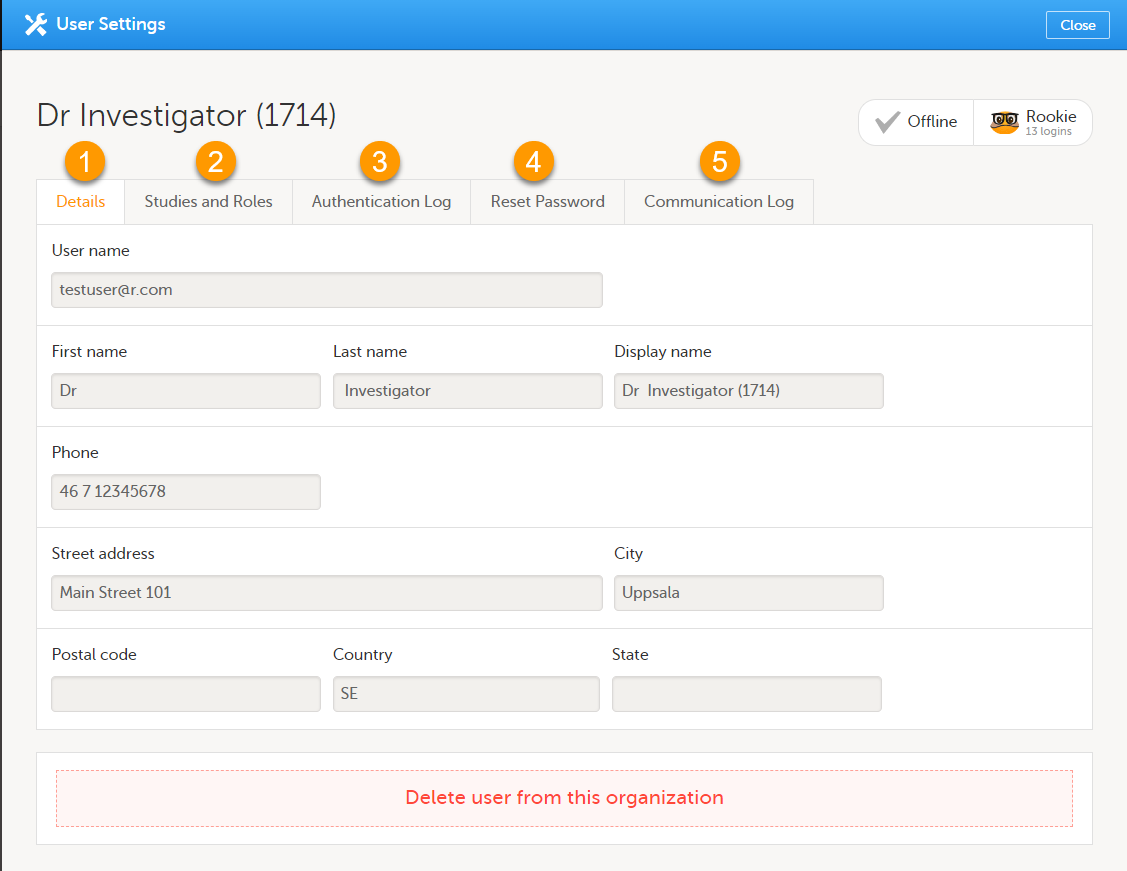
The User Settings window displays the name and email address of the user, the user ID (in parentheses), the status and the skill level. You can perform the following actions:
1. On the Details tab, you can view the user's name and contact details.
2. On the Studies and Roles tab, you can view a list of all roles and sites the user has access to, including the date and time of invitation/acceptance of that role. The roles are grouped per study. You can delete roles by clicking the trash can icon next to the role.
3. On the Authentication log tab, you can view a list of logins by the user, including date and time, the IP address, and the browser that was used. The number of displayed entries is limited to the latest 100 logins.
4. On the Reset Password tab, you can reset the password for that user, if the user has forgotten their password and does not have their mobile number or a secondary email address. Viedoc will send a notification to the user with a link to create a new password.
Note! The authentication code will be required if the user wants to reset their password using the Forgot your password? link on the login page. The authentication code is sent to the user's verified mobile number or to the user's secondary email address. If neither of these options are selected, the user needs to contact their Study Manager to receive a link to reset their password.
5. On the Communication Log tab, you can view the latest 20 communication logs for a user and download an Excel file with the complete user-specific Communication Log containing information about email and SMS communication to study users. All users with access permissions (Study/Site Managers) to the User settings in Viedoc Admin can access the Communication Log.
Note! Email and SMS communication logs before the Viedoc 4.70 release are available, however these do not have the same level of detail.
https://help.viedoc.net/processwire/page/edit/?id=2007The content is shared by the lessons 'Managing Users (OA)" and "Managing Users (STM and SIM)"
For each study, you can download user logs in PDF and Excel format with information about all users and roles for the sites you have access to. See Downloading the user logs for instructions.
Notes!
The content of the logs depends on the system role that you have, as follows:
| If you are a... | ... then the logs contain: |
|---|---|
| Organization Administrator |
The system roles Application Programming Interface (API) Manager, Dictionary Manager, Unblinded Statistician, Reference Data Source Manager, and eTMF Manager. |
| Study Manager | The system roles API Manager, Dictionary Manager, Unblinded Statistician and Reference Data Source Manager, eTMF Manager, and all sites and site users in the study. |
| Site Manager | The system roles API Manager, Dictionary Manager, Unblinded Statistician and Reference Data Source Manager, eTMF Manager, and all sites you have access to, together with their site users. |
The Log of users and roles PDF contains information about all users and roles for the sites you have access to, grouped in the following chapters:
The User administration log contains information about all users and roles for the sites you have access to, with the following sheets:
There are two different Communication logs. One contains user-specific and one contains study-specific communication information.
Note!
The user-specific Communication log contains information about email and SMS communication to the study users.
All users with access permissions (study/site managers) for the User Settings in Viedoc Admin can view the Communication Log for a specific user. The Communication Log tab has the following columns:
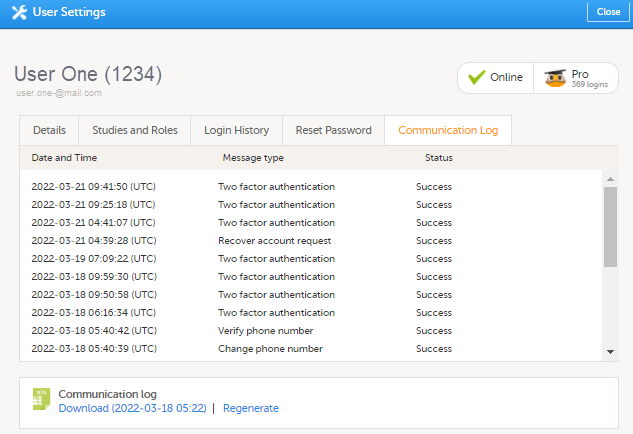
The Excel file contains a sheet named User Communication Logs and includes all email and text message (SMS) communications to the study user on the same Excel sheet.
Note! Users must have activated the Viedoc account and accepted at least one invitation in order to have their communication included in the Communication Log tab in the User Settings window.
The User Communication Logs sheet in the Excel file contains information about user-specific communication – this is the user activity in Viedoc that is unrelated to a specific study:
The file name format is: UserCommunicationLog-UserID-YYYYMMDDhhmmss. (Using UTC)
All the logs are included in the same Excel sheet. The excel sheet has the following columns:
| Column | Description |
|---|---|
| Message ID | GUID: A unique identifier for the message |
| Type of Communication | SMS/email |
| Datetime (UTC) | Date and time for the communication |
| Message Type |
The action that the communication is related to:
|
| To | The email address the message is sent to. For SMS messages, this column is empty. |
| Status | Success/Failed |
| Provider | Provider name - the provider that was used to send the message to the recipient |
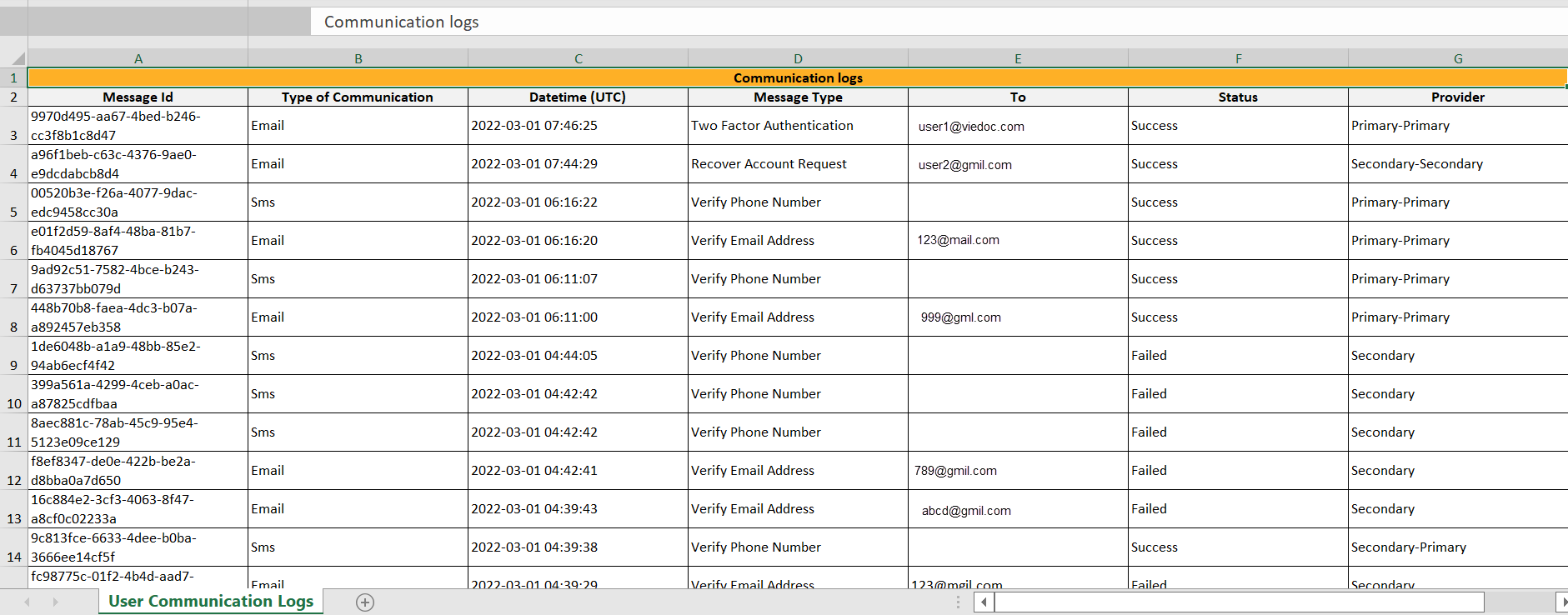
In Admin, under Users - Group by Studies, in the User Logs dropdown list, a separate file called User communication log is available containing the information listed below.
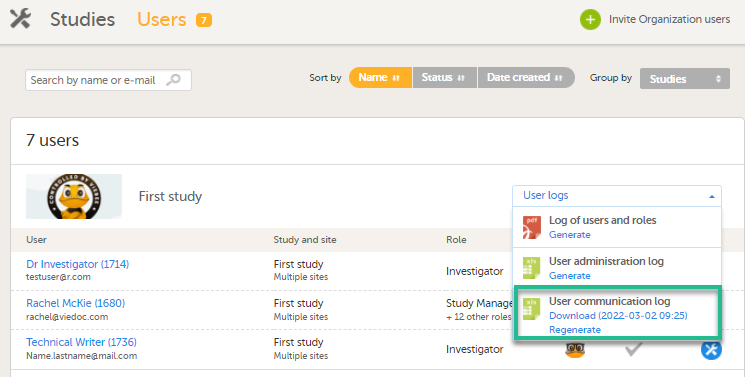
This log contains information about study-specific communication and emails only, related to:
The Excel file contains a sheet named Study Communication Logs.
The file name format is: UserCommunicationLog-YYYYMMDDhhmmss. (Using UTC)
The Excel sheet has the following columns:
| Column | Description |
|---|---|
| Message ID | GUID: A unique identifier for the message |
| Communication Type | |
| Date time (UTC) | Date and time for the communication |
| Message Type |
The action that the communication is related to:
|
| Site Type | Training/Production (For the message types Invitation and Invitation rejected, this column is empty.) |
| To | Email address(es) (For SMS messages, this column is empty.) |
| CC | The email address(es) of the recipients of a copy |
| BCC | The email address(es) of the recipients of a blind copy |
| Status | Success/Failed |
| Provider | Provider name - The provider that was used to send the email to the recipient |

Note!
The content is shared by the lessons 'Managing Users- Org Admin and "Managing Users -system lessons and is called User logs in the single source file"
The Study Manager can give users access to individual sites, or to a groups of sites at once. These groups of sites are called system site groups and are automatically created by the system when sites are added to the study. The following systems site groups are created by the system:
When you invite users to a system site group, the users will automatically receive instant access to all sites in that group, including all future sites that will be added to that group at a later time. For example, if you invite a user to the country 'Hungary', that user will receive access to all sites in Hungary. Similarly, users that were invited to a system site group will automatically lose access to a site if that site is removed from the group. For more information about system site groups, see Managing study sites.
http://help.viedoc.net/l/81e4bd/Only the Study Manager can invite users to system roles. The Study Manager can also invite users to clinic roles, or he/she can delegate the management of (some of the) clinic roles to the Site Manager, see Delegating user management to the Site Manager for instructions. Once the management of clinic roles is delegated to the Site Manager, the Study Manager cannot invite users to these roles anymore.
If a user should receive access to multiple sites, the quickest way to invite the user is through the study crew window (described in this section). If a user should receive access to only one site, you can also invite the user through the site settings window of that site (see Assigning users to clinic roles for instructions).
To invite users:
| 1 | In Viedoc Admin, open the study to which you would like to invite users. |
| 2 | Click the toolbox icon in the Study crew field. The Study crew pop-up opens. |
| 3 | On the Add study users tab, enter the e-mail address of the user you would like to invite. Click Continue. Tip! You can invite multiple users at once by adding multiple e-mail addresses in the field. Separate the e-mail addresses with a semi-colon or comma. |
| 4 |
Select the role to which you would like to invite the user. Note! If any of the clinic roles are delegated to the Site Manager (see Delegating user management to the Site Managers), the delegated roles do not appear in the dropdown list. |
| 5 |
If you selected the role Site Manager or a clinic role, select the system site group or the individual sites to which the user should get access. To select a system site group, click on the name of the group (displayed in bold). To select an individual site, click on the name of the site.
|
| 6 | Click Send invite. An invitation e-mail will be sent to the e-mail address(es) you specified. |
It is possible to re-invite a user to those roles that are in state pending, i.e. to resend the invitation email to the user for that role.
To resend an invitation:
| 1 | On the Users page, scroll to the user whom you would like to re-invite. Click the toolbox icon behind the name of the user: The User Settings pop-up opens. The User Settings pop-up opens. |
| 2 | In the User Settings pop-up, click the Resend invitation icon for the pending role:
A new invitation email is sent and:

|
It is possible to remove a user's access to a role. This can only be done by the Study Manager. If the Study Manager has delegated the management of clinic roles to the Site Managers, only the Site Managers can remove access to these roles and sites.
To remove the access from users:
| 1 | On the Users page, scroll to the user whose access you would like to remove. Click the toolbox icon behind the name of the user.
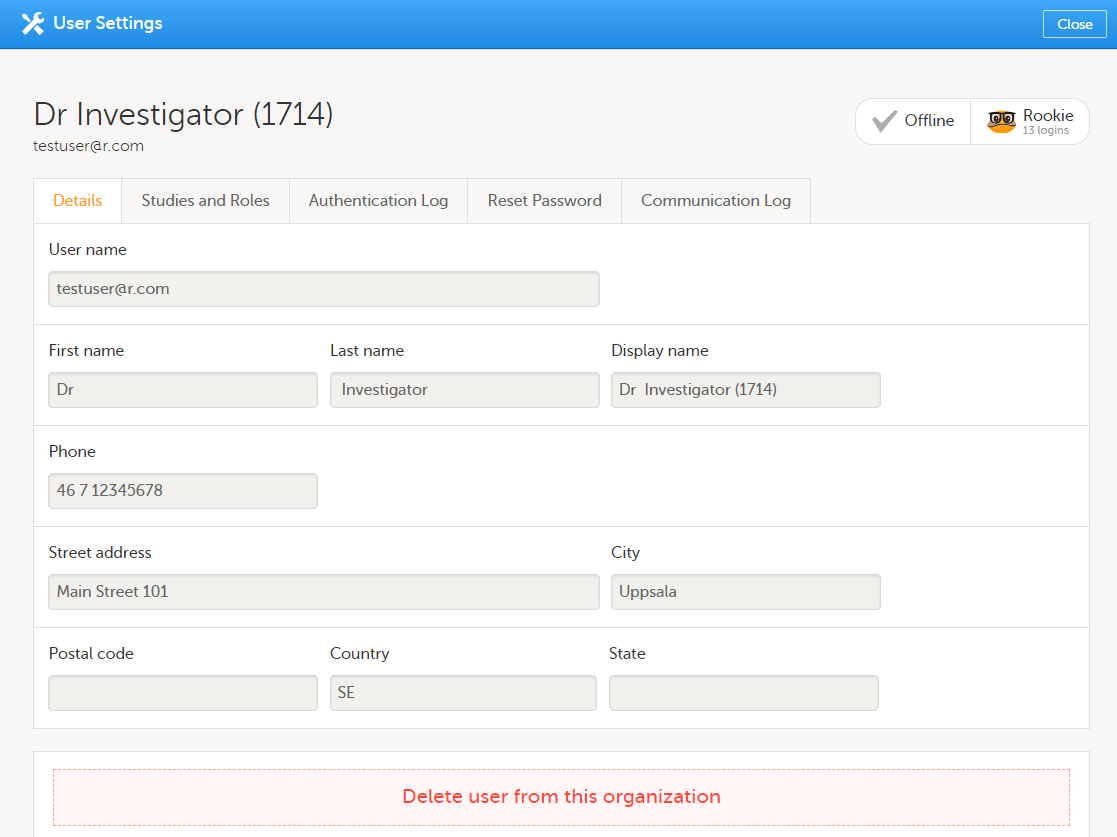
|
| 2 |
On the Studies and Roles tab, scroll to the study, site and role for which the access should be removed. Click the trash can icon. 
A pop up appears. |
| 3 |
Click Delete to confirm that the access should be removed, or click Cancel to cancel. |
Any records generated by the user are stored in the audit trail even when the user has been removed.
If a user has typed in the wrong password more than three times, and do not have a secondary email address or mobile number with text messaging enabled – and therefore cannot use the Forgot your password link – the account will be locked. The Study Manager or Site Manager can unlock a locked account so the user can reset their password without having to provide an authentication code.
To unlock a user account:
| 1 | On the Users page, scroll to the user whose account you would like to unlock. Click the toolbox icon behind the name of the user.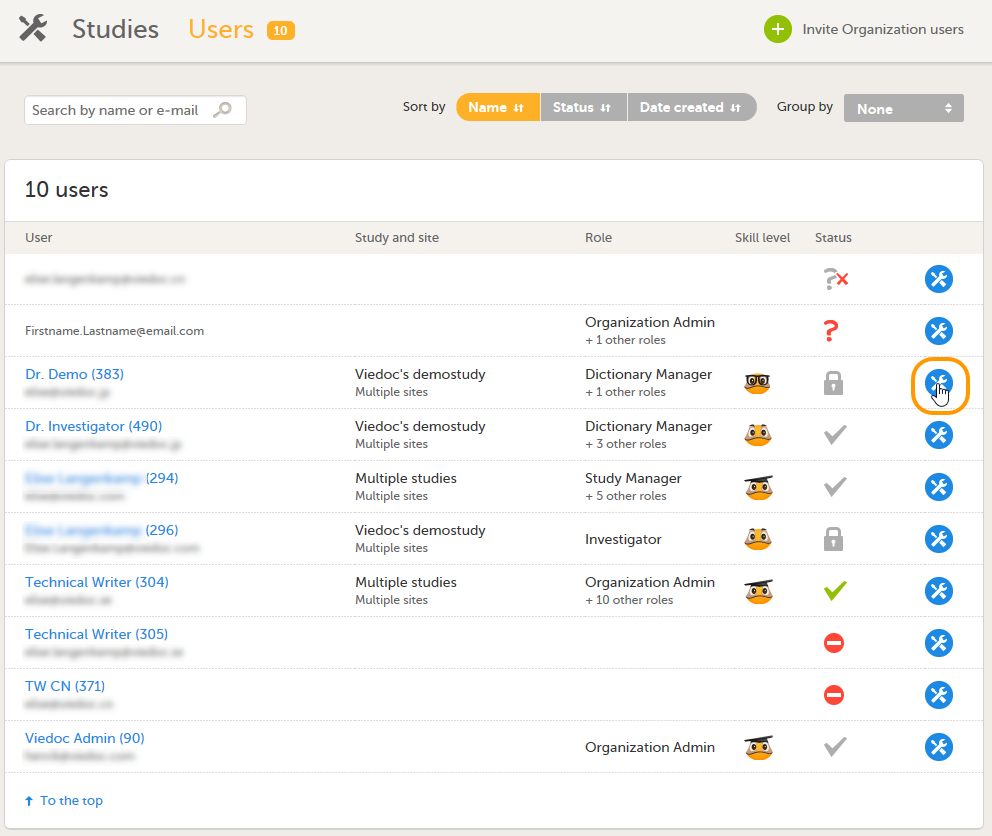 The User Settings pop-up opens. |
| 2 |
On the Reset Password tab, click Reset Password. 
The user will receive an e-mail with a link to reset the password. The user can then reset their password without having to provide an authentication code. |
Note! The authentication code will be required if the user wants to reset their password using the Forgot your password? link on the login page. The authentication code is sent to the mobile number the user set to receive text messages or to the user's secondary email address. If neither of these options are selected, the user needs to contact their Study Manager to receive a link to reset their password.
Note! The email with the link to reset the password is only valid for twelve hours. If the user has not reset the password within twelve hours, a new e-mail needs to be sent.
The Study Manager can delegate the management of clinic roles to the Site Manager.
To select the roles that should be managed by the Site Manager:
| 1 | In Viedoc Admin, click Study settings. The study settings window opens. |
| 2 | On the Settings tab, in the field Clinic roles to be administered by Site Manager, select which roles should be assigned by the site manager. The roles that can be selected here are the clinic roles that are defined in the study design. |
| 3 | Click Save changes, and click Close. |
Note! These settings apply to all sites and all Site Managers involved in the study. When the assignment of (some of the) clinic roles is delegated to the Site Manager, these clinic roles can no longer be managed by the Study Manager.
To download the user logs:
| 1 | On the Users page, select to group the users by Studies. |
| 2 |
Scroll to the study from which you would like to download the user log and click User logs to open the dropdown menu. 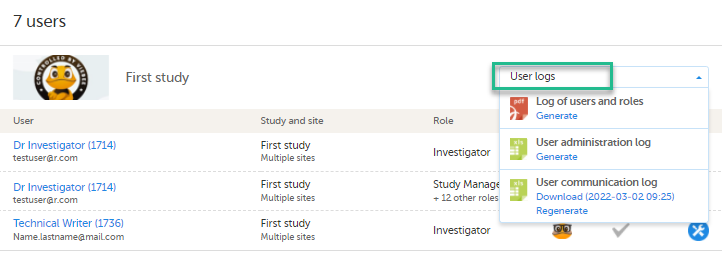
If the log was not previously generated, click Generate a PDF file or Generate an Excel file. If the log was previously generated, the most recent version is stored on the server, shown with a date and time stamp. You can download it by clicking the link, or, generate an updated version by clicking Regenerate. Note! The user logs are generated in the language set by the user who is generating the log. Therefore, the previously generated file is available for download only if it was generated in the language you have currently set in Viedoc. |
The Site Manager can invite users to (some of the) clinic roles, if the study manager has delegated the management of these clinic roles to the site manager.
To invite users to a specific site:
| 1 | In Viedoc Admin, click the toolbox icon behind the site to which you would like to invite users. The site settings pop-up opens. |
| 2 | On the Add study users tab, enter the e-mail address of the user you would like to invite. Click Continue.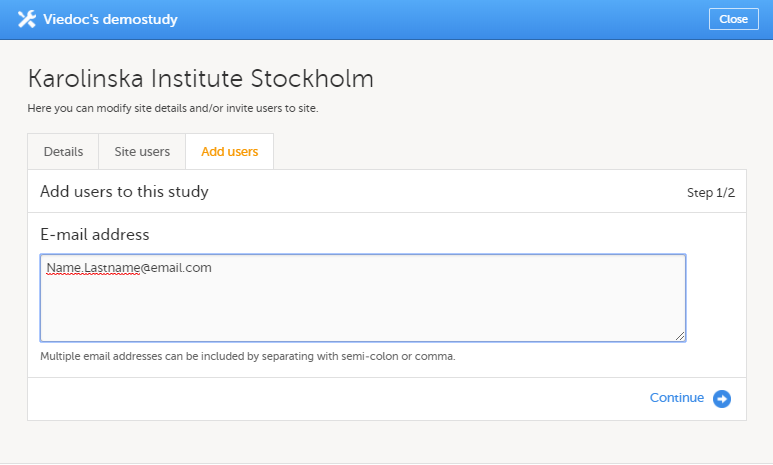 Tip! You can invite multiple users at once by adding multiple e-mail addresses in the field. Separate the e-mail addresses with a semi-colon or comma. |
| 3 | Select the role to which you would like to invite the user.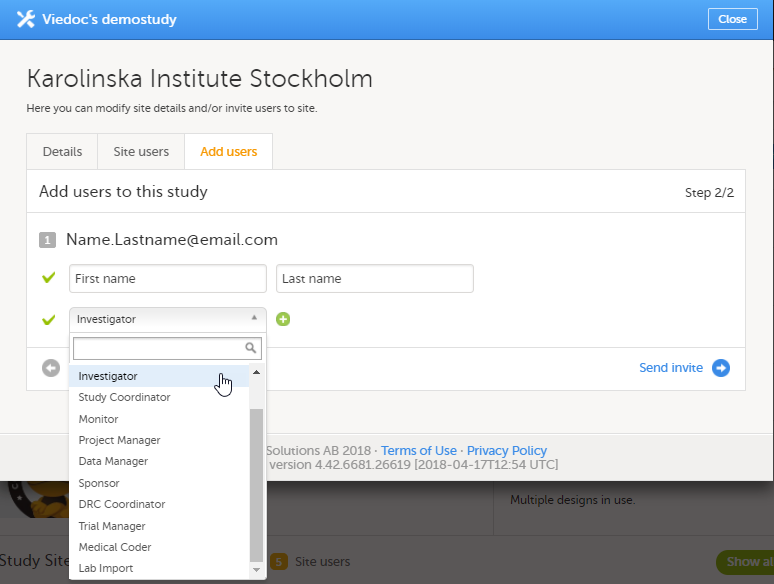 You can add multiple roles by clicking the + icon. Newly added roles can be removed by clicking the - icon. |
| 4 | Click Send invite. An invitation e-mail will be sent to the e-mail address or e-mail addresses you specified. |
Click here for instructions on how to remove a user.
Click here for instructions on how to unlock a user account.
This video shows how to log in/log out to/from Viedoc and how to reset your password.
If you have difficulties in viewing the video, click here.
This video provides a quick overview of the landing page as well as of the study start page.
If you have difficulties in viewing this video, click here.
This video demonstrates how to switch between demo and production mode within a study.
If you have difficulties in viewing this video, click here.
This video demonstrates how to manage users in Viedoc Admin.
If you encounter difficulties in viewing this video click here.
Our Working Smarter webinar series is designed to help Viedoc users get the most out of the platform, from practical tips and feature deep dives to best practices and expert insights. Each session addresses topics for our users including highlighting new features, sharing useful tips, best practices, or deeper insights into specific areas of Viedoc.
Whether you're new to the system or an experienced user, these webinars are here to help you work smarter.
The full list of webinars in Viedoc’s Working Smarter Series, including recordings and Q&A, is provided below.
October 2024
https://help.viedoc.net/l/a29eab/en/
November 2024
https://help.viedoc.net/l/04c262/en/
January 2025
https://help.viedoc.net/l/893419/en/
February 2025
https://help.viedoc.net/l/bb2d9a/en/
March 2025
https://help.viedoc.net/l/027d45/en/
April 2025
https://help.viedoc.net/l/f94362/en/
June 2025
https://help.viedoc.net/l/227838/en/
September 2025
https://help.viedoc.net/l/b01136/en/
November 2025
https://help.viedoc.net/l/f914f3/en/
February 2026
https://help.viedoc.net/l/6c61f9/en/
June 2026
https://help.viedoc.net/l/53c7fb/en/