
How to Complete and Sign Your Consent Document
The consent application includes several features to help you complete the informed consent process.
Step-by-step instructions on how to provide consent:
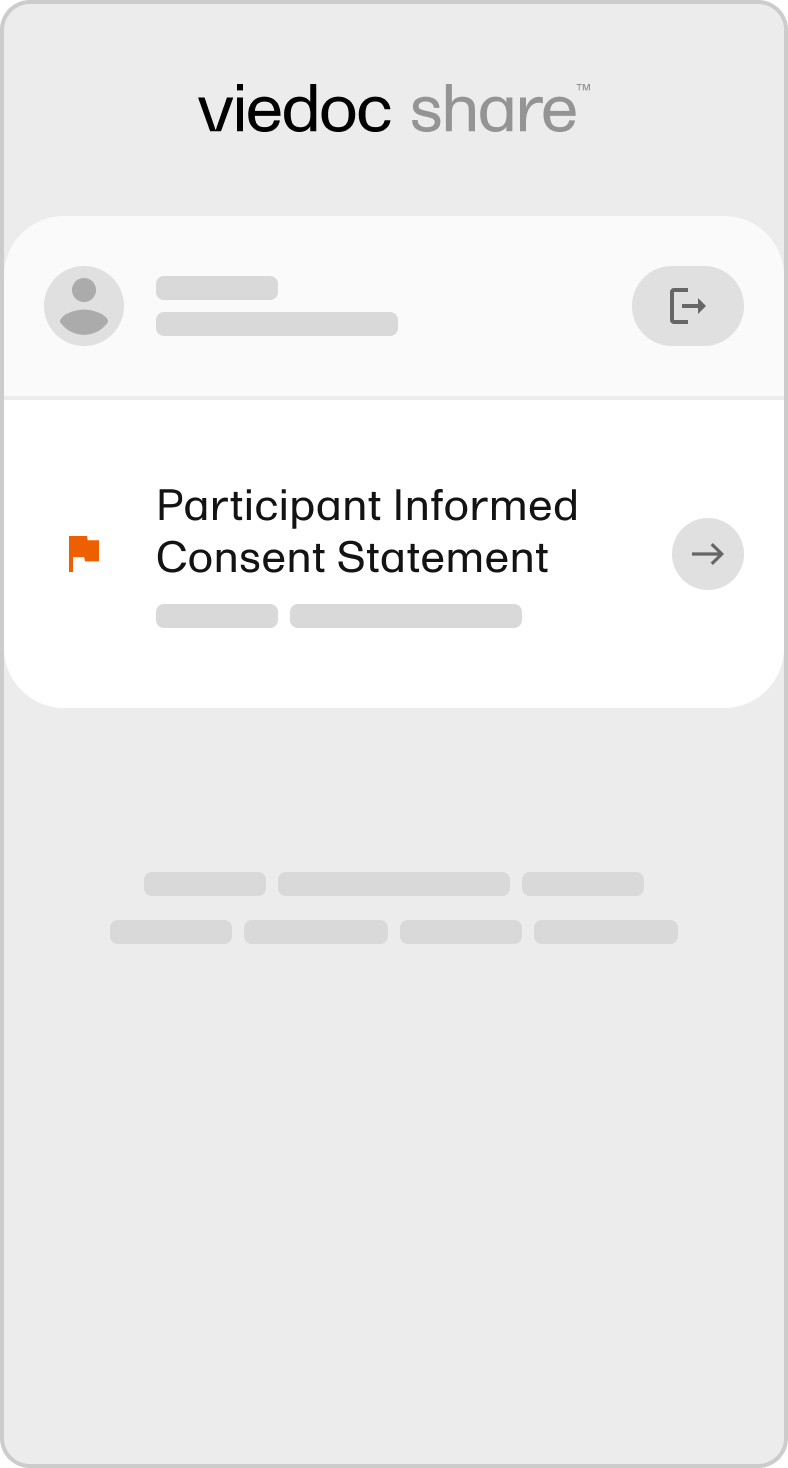
1. The first screen in the consent application displays your documents. This study requires you to sign only one consent document. Click on the document name to open the document.
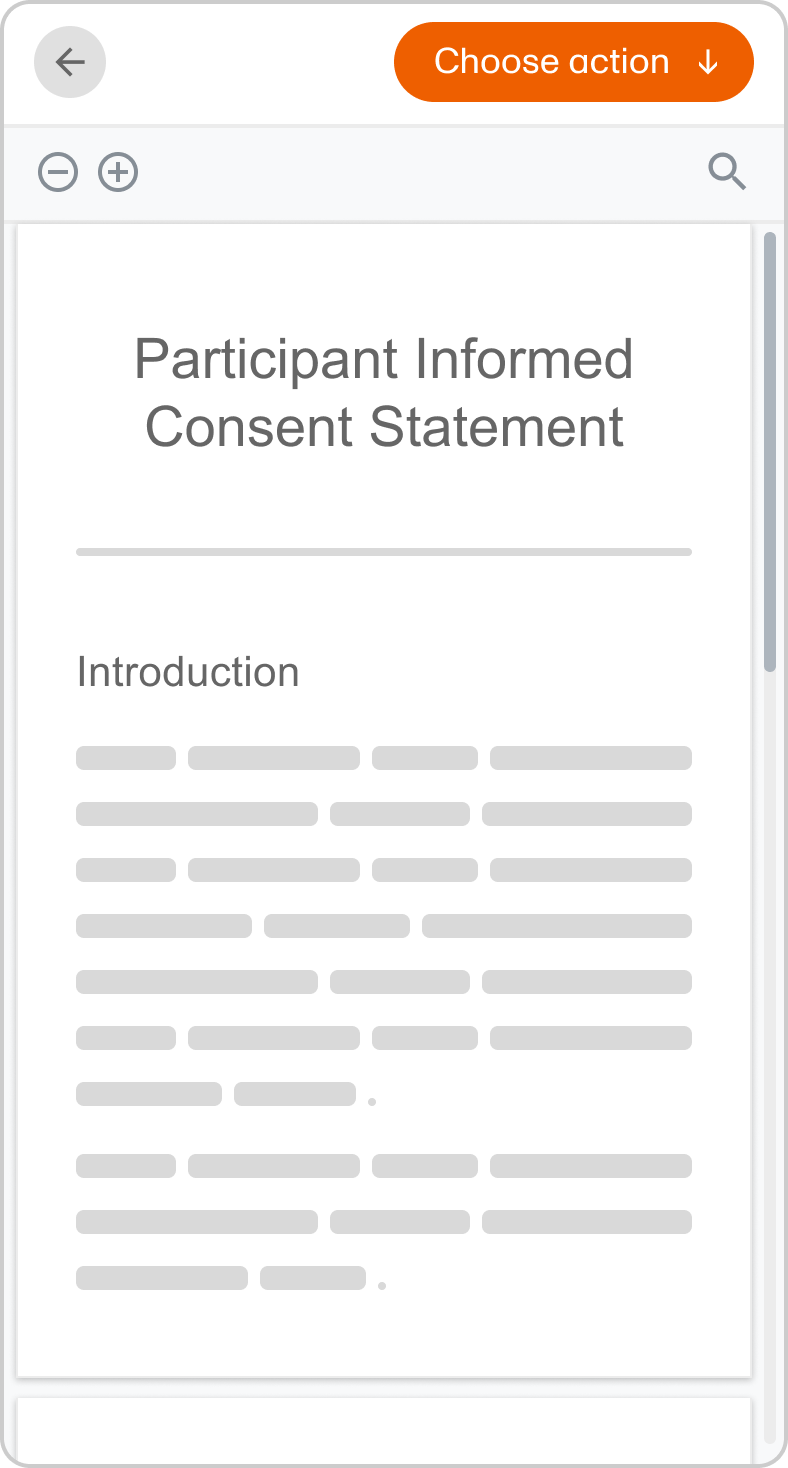
2. Read the document carefully. The document spans multiple pages. Please scroll to view all content. For optimal readability, zoom in as needed. On desktop, adjust the text size using the -/+ icons.
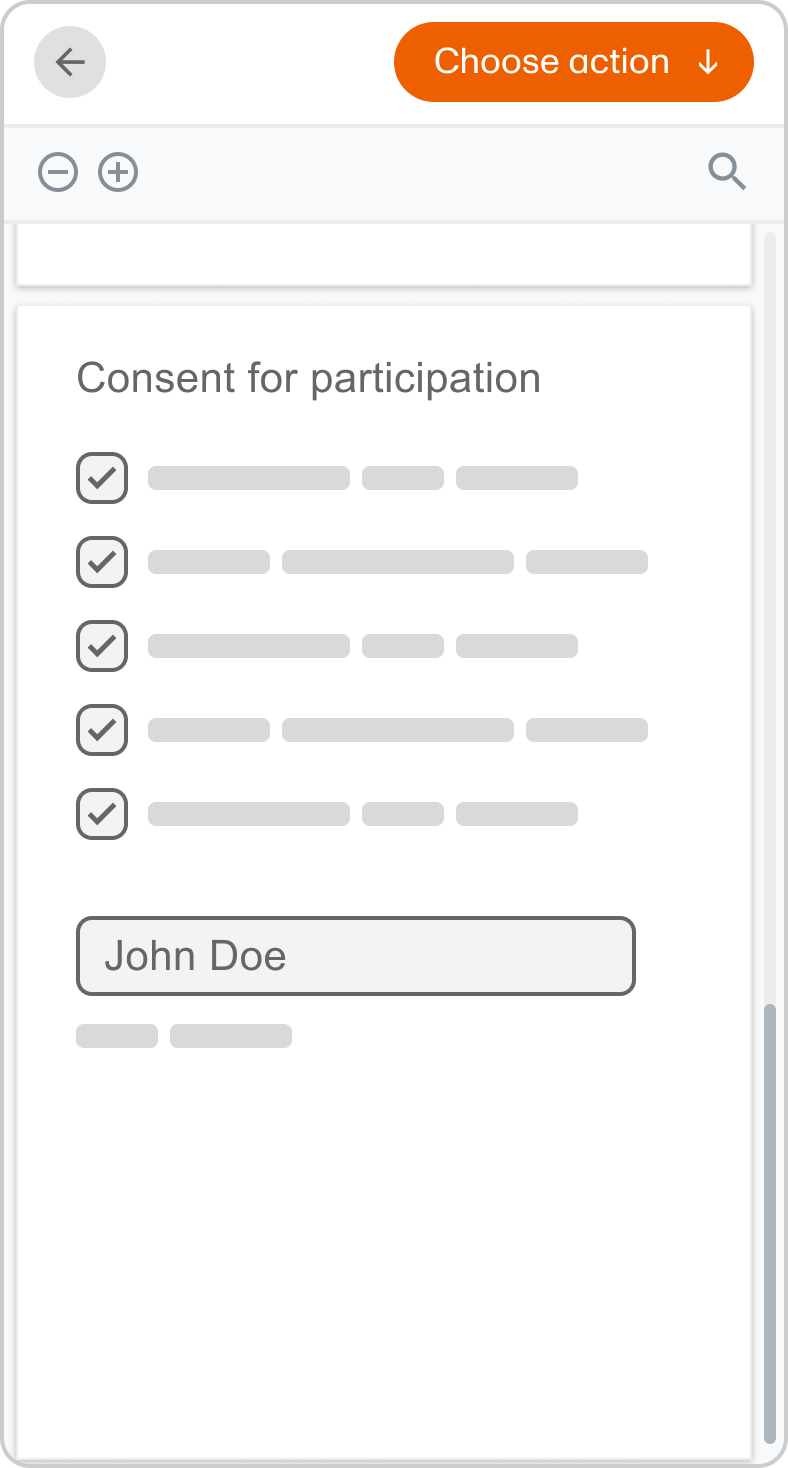
3. At the end of the document, check the checkbox for each question and enter your name.
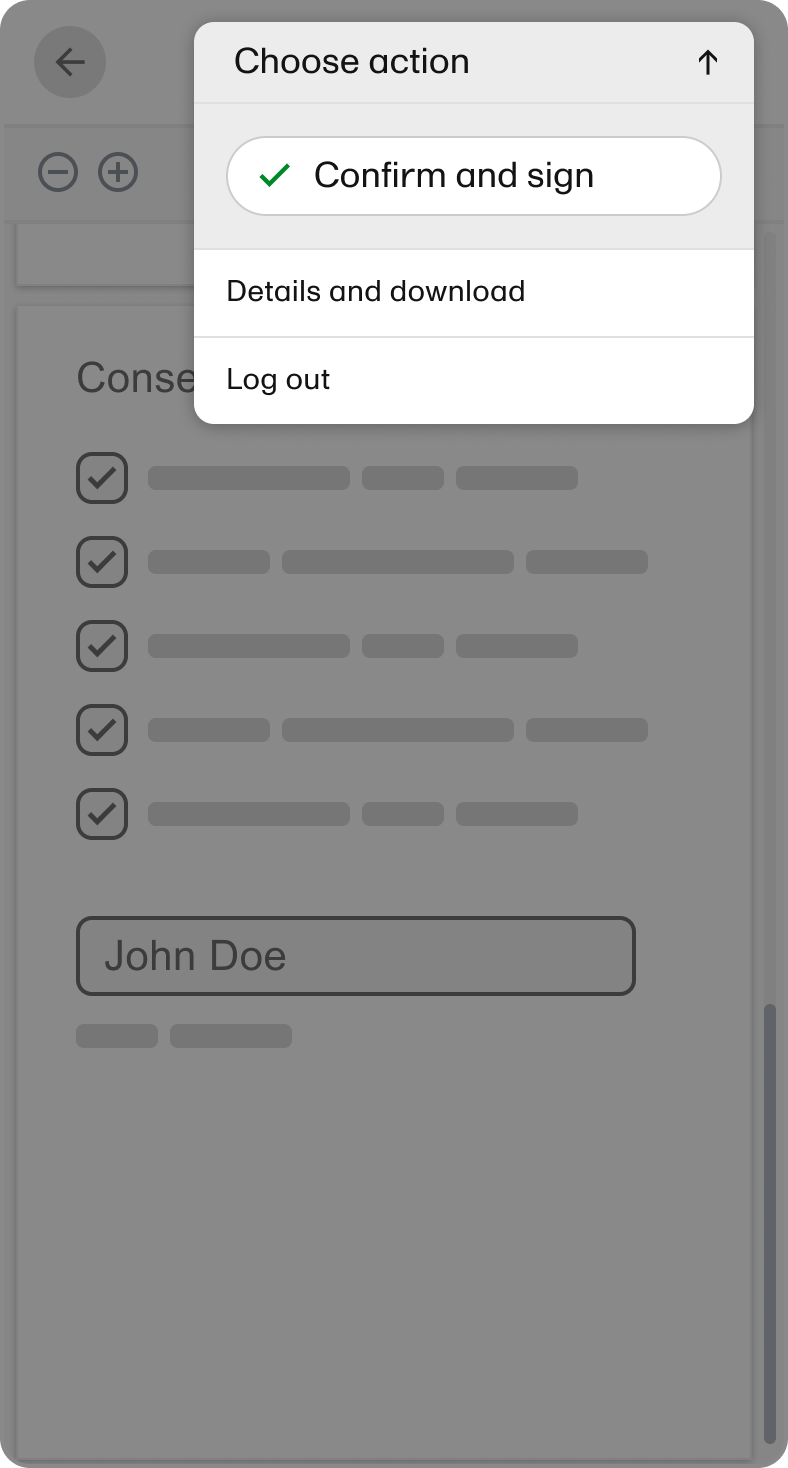
4. In the top right corner, click the orange 'Choose action' button and click 'Confirm and sign'.
5. Check the box that says “I confirm that I have read…” and click 'Sign using one-time code'.
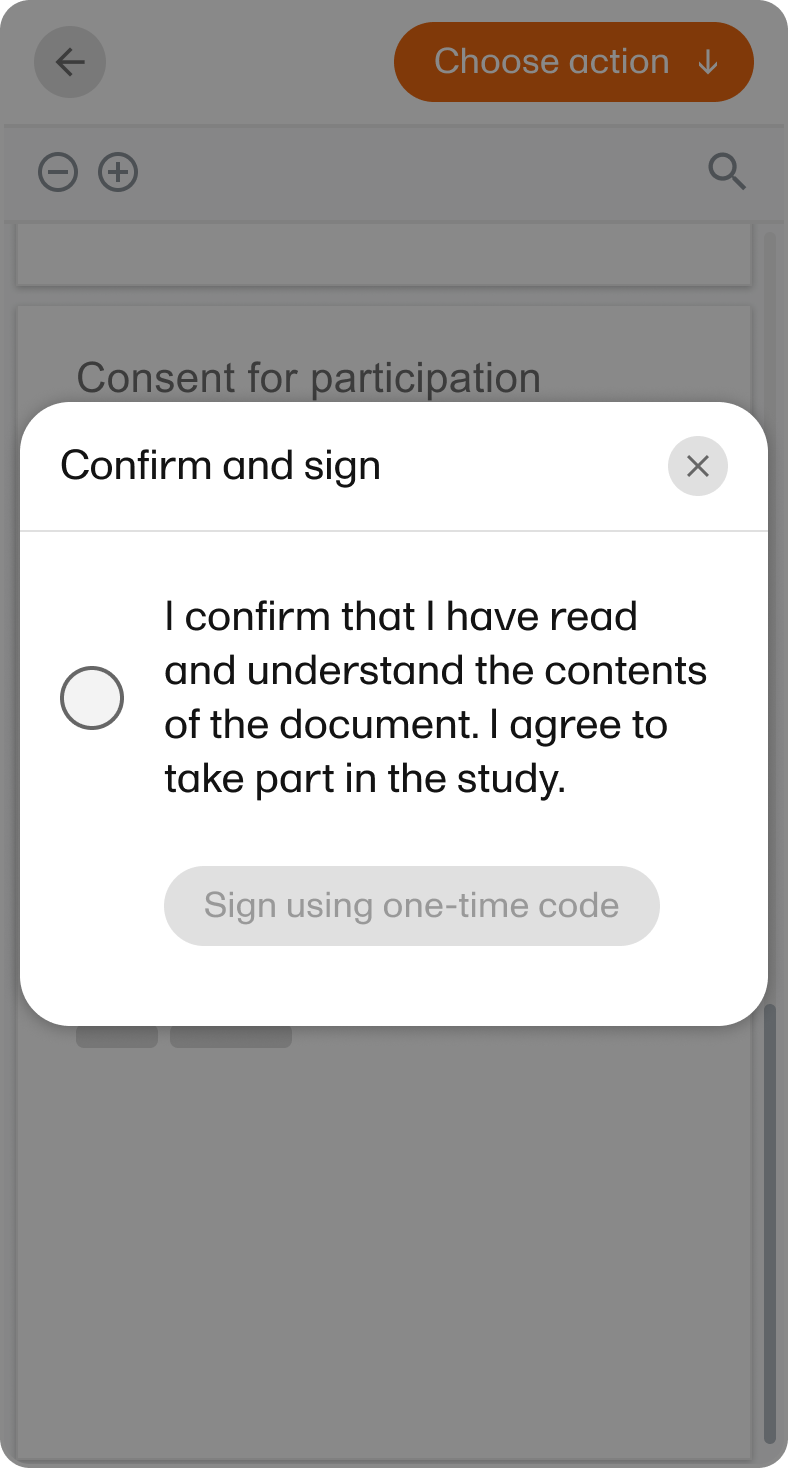
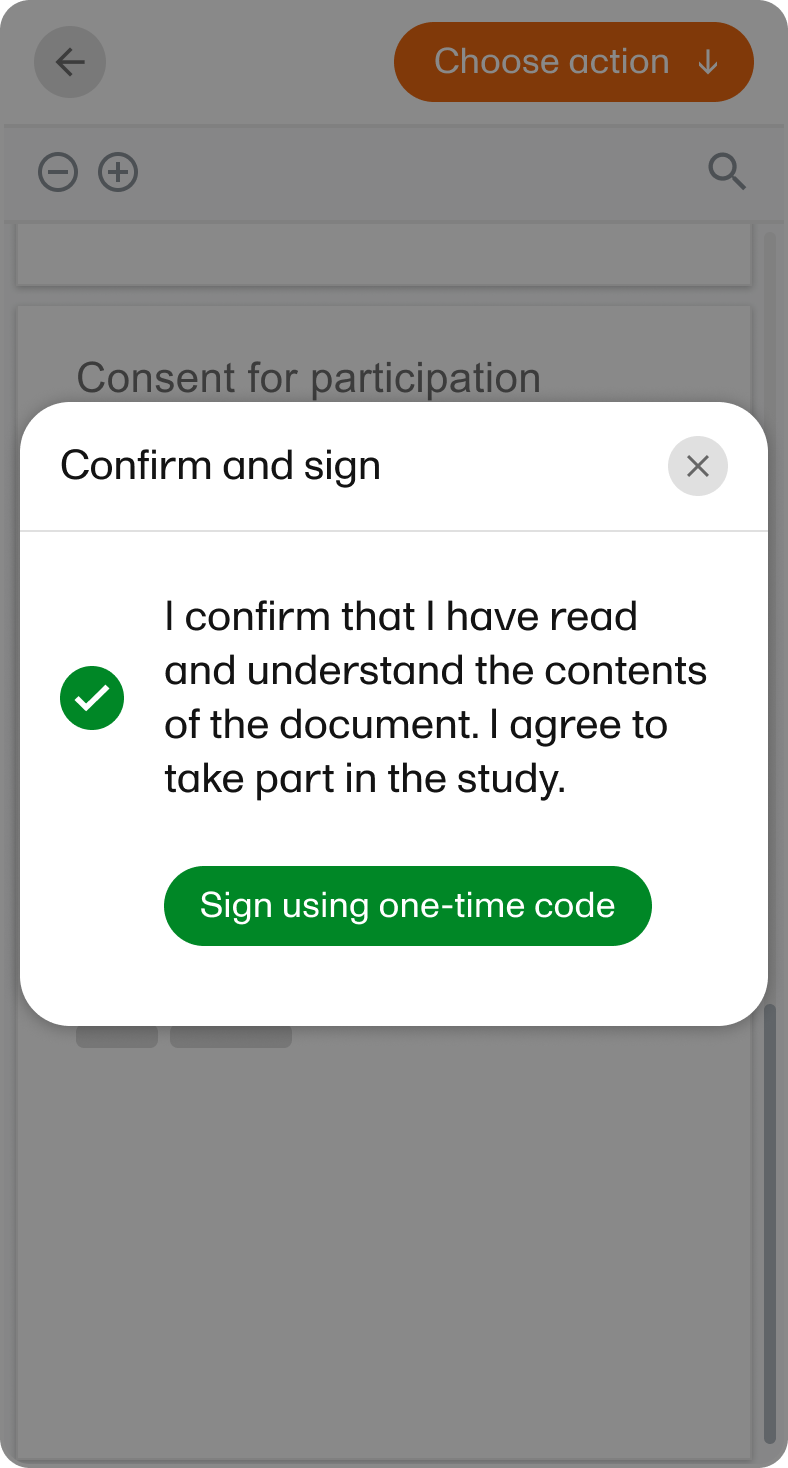
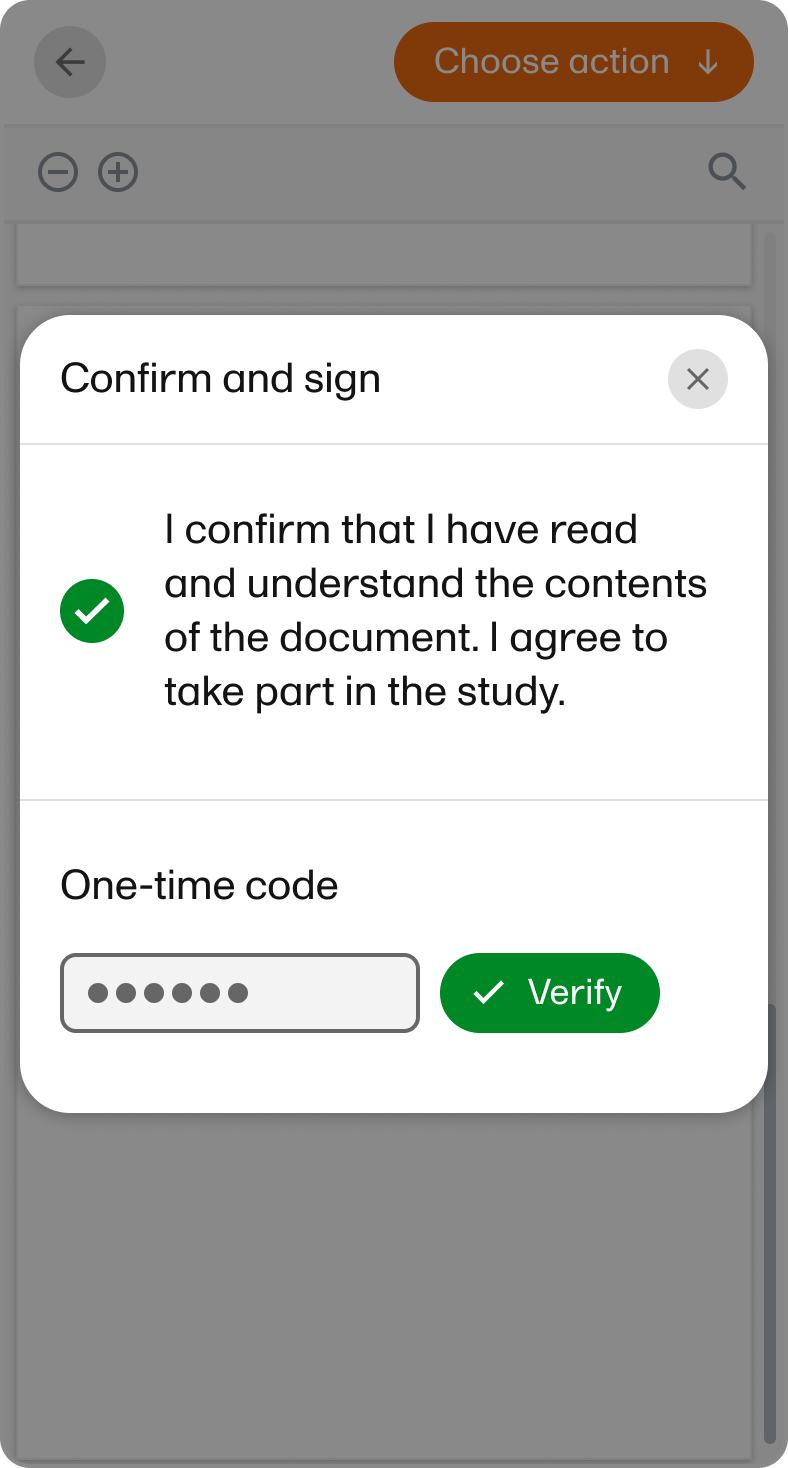
6. Check your phone for a text message that will appear shortly and enter the code received in the text message in the 'One-time code' field, then click 'Verify'.
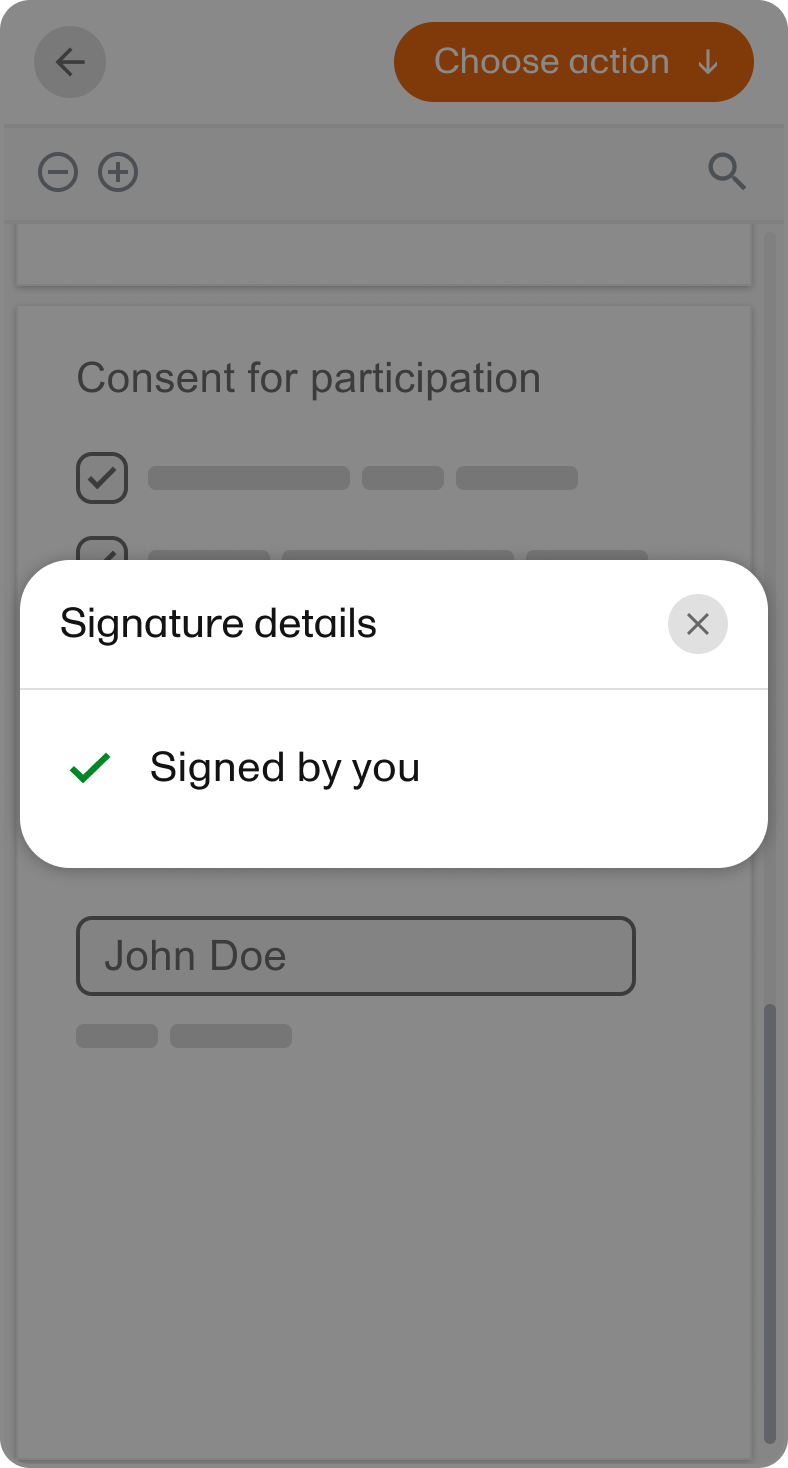
7. Wait for the confirmation message: After a few seconds, a message will appear that the document was signed. You are now ready with the signing process and you can exit the application. Click on the "X" to close this pop-up window, and then 'Choose action', followed by 'Log out'.
Note: If you have any questions about the content in the consent form, or any other inquiries, please feel free to send a message to the study team via the 'Message center' on the landing page. We aim to respond to your question within 1 or 2 working days. Please note some questions may take a bit longer for us to answer.