
Quick guide for setting up Viedoc TMF
Note! This page contains information and instructions for the new TMF user interface. If you are using the old interface, please go to the relevant user guides:
- Viedoc eTMF User Guide (old interface)
- Viedoc User Guide for eTMF Managers (old interface)
Want to browse more information for the new interface? Please go to the new TMF user guides:
Overview
To set up Viedoc TMF, please follow the quick guide below. For detailed instructions, see the sections below and referenced links.
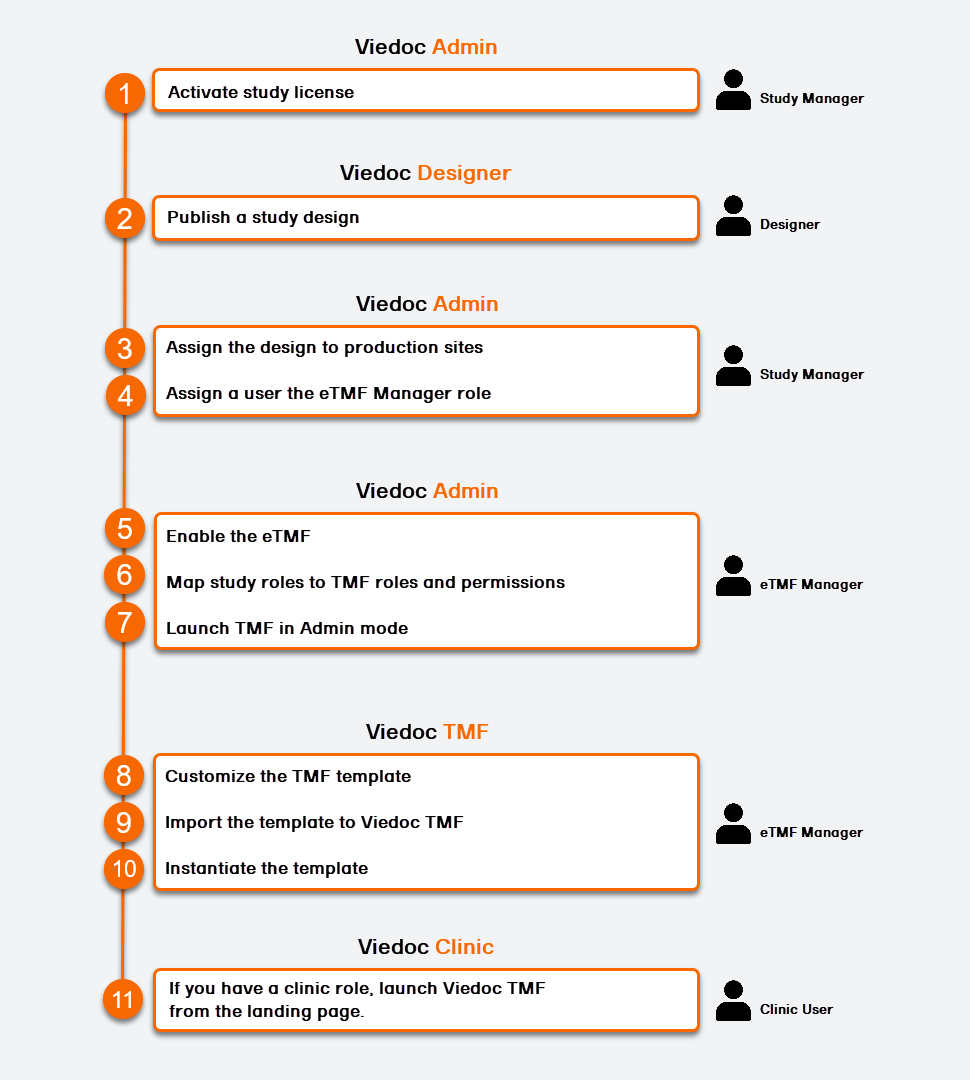
Activate your study license
This step is performed by the Study Manager in Viedoc Admin.
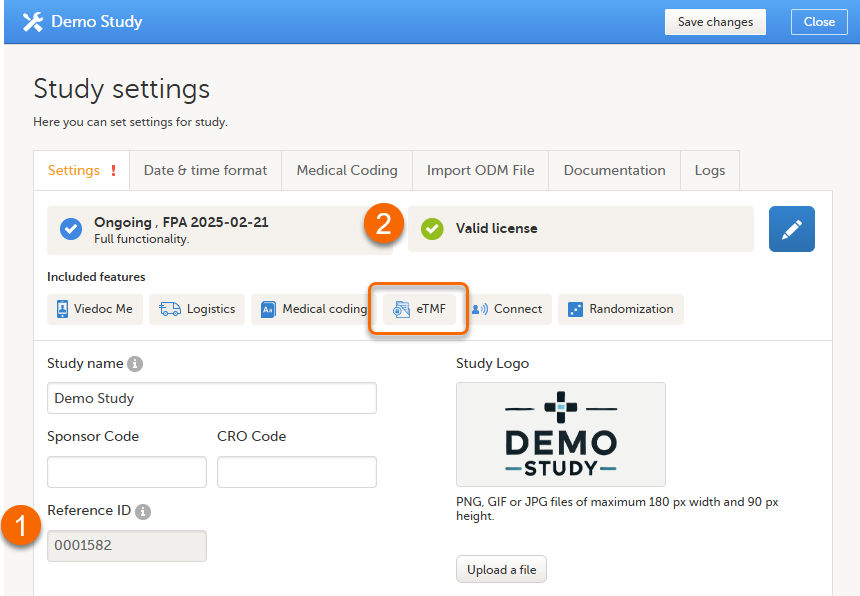
To set up Viedoc TMF, you must have an activated valid study license, with eTMF listed as an included feature.
- If your study license has not been activated, the Study Manager will need to perform this step in order to set up Viedoc TMF. To do this, fill in your license number in the Reference ID field in Study Settings in Viedoc Admin, then select Save Changes.
- Once your study license is activated, open Study Settings again, and confirm the license is valid and the eTMF icon displays under features.
Publish a study design
This step is performed by the Designer in Viedoc Designer.
Note! To publish the CRF design, you only need to have the roles configured and enabled, and a form added to the start event in your workflow (the form can be without any items at this stage). The actual CRF design can be added in subsequent versions.
See Publishing a study design.
Assign the design to production sites
This step is performed by the Study Manager in Viedoc Admin.
Note! At lease one production site must be added to the study before assigning a design. See Adding a study site for instructions.
Assign an eTMF Manager
This step is performed by the Study Manager in Viedoc Admin.
Assign the eTMF Manager system role to a user.
See Assigning users to system roles and/or clinic roles.
Enable the TMF
This step is performed by the eTMF Manager in Viedoc Admin.
| 1 |
In Viedoc Admin, select Show studies, then open the study details page:  |
| 2 |
In the study details page, select the tools symbol in the eTMF area: 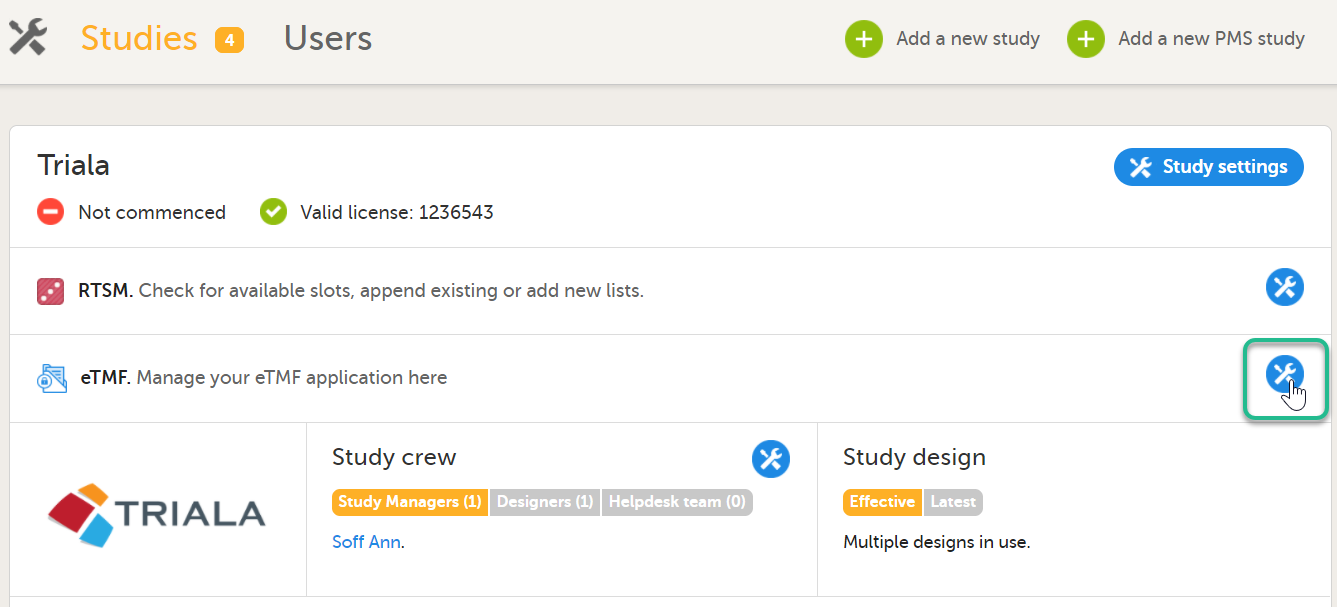 |
| 3 |
Toggle the Enable switch to ON in the TMF settings window: 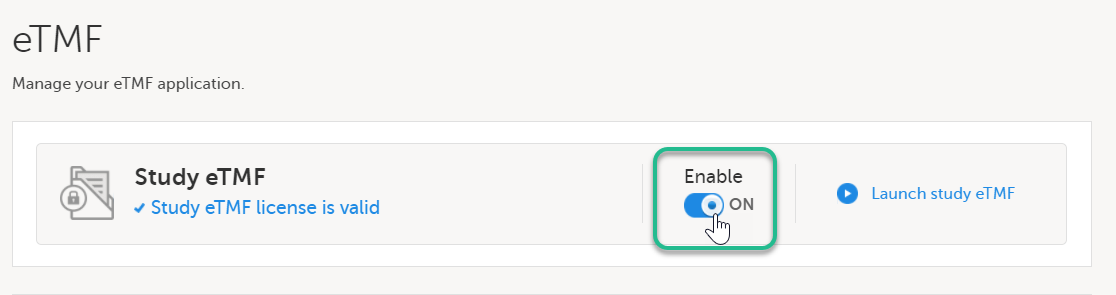
|
Map study roles to TMF roles and permissions
This step is performed by the eTMF Manager in Viedoc Admin.
| 1 |
In the eTMF roles mapping area, select the TMF roles and permissions that you want to map to the Viedoc study roles: 
|
| 2 | Select Save changes. |
Note! To launch Viedoc TMF from the study landing page in the future, the user will need to be assigned a Clinic role that is mapped to a TMF role.
Launch TMF in Admin mode
This step is performed by the eTMF Manager in Viedoc Admin.
| 1 |
On the study details page, select the tools symbol in the TMF area: |
| 2 | Select Launch study eTMF: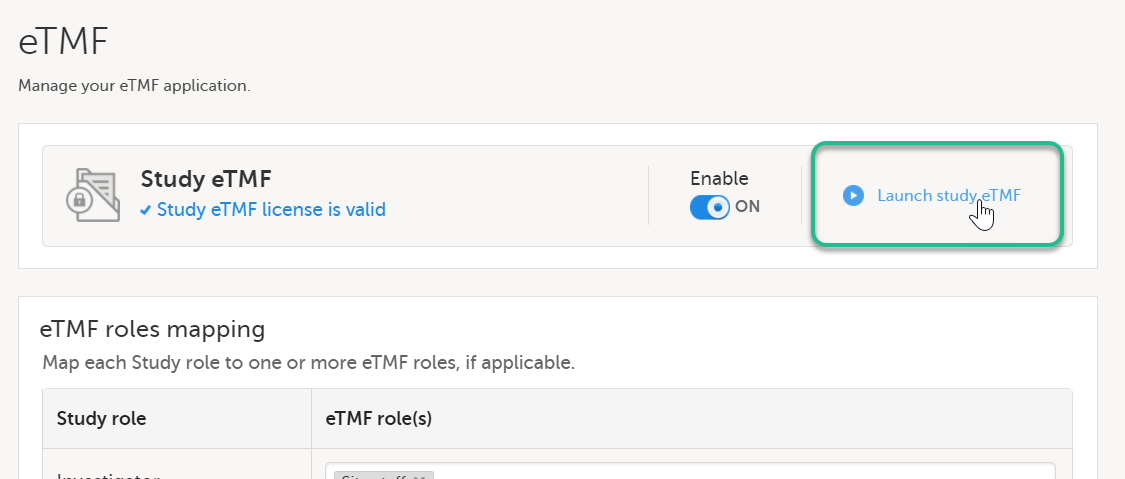 |
Customize and import the TMF template
All the steps in this section are performed by the eTMF Manager in Viedoc TMF.
Download the baseline template
The first time you set up your Viedoc TMF, you begin with a baseline template provided by Viedoc. It is recommended that the TMF template is customized to your specific documentation needs.
See Viedoc-provided templates to download the template.
Customize the template
The template can be customized for your study or organization's specific needs. For example, you can edit, add, or delete zones, sections, and artifacts. See Customizing a template for more information.
Exporting and customizing an existing template
If there is a template that was previously imported, it can be exported in order to customize it, then imported again.
See Exporting a template for more information.
Import the template
This step is performed by the eTMF Manager in Viedoc TMF.
Once customized, import the template to TMF. See Importing a template for more information.
Instantiate the structure
This step is performed by the eTMF Manager in Viedoc TMF.
See Instantiating a structure for more information.
The template is now applied to the trial and the TMF structure is available for end users to work with.
Note! Once a structure is instantiated, it can not be uninstantiated.
Launch TMF in production mode
This step is performed by a Clinic user with a mapped TMF role in Viedoc Clinic.
Select a study from the landing page. Select the eTMF icon:
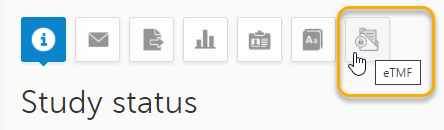
The TMF application opens.