
Signing data
Introduction
The Investigator signs the data. Signing for a subject can be done on an individual form, event, or across a study using the signing console.
Signature definition
This content is shared by the lessons in the following user guides
Admin: "Managing users (for Org Admin)"
Monitors & Project Managers: "Managing users"
Clinic: Signing data
The Study Manager should, in cooperation with the Site Manager(s), ensure that all users of Viedoc are informed, and certify that all electronic signatures created in the system are intended to be the legally binding equivalent of a traditional handwritten signature.
In Viedoc, the purpose/meaning of a signature is always “responsibility” as used in Sec. 11.50 of Food and Drug Administration (FDA) 21 Code of Federal Regulations (CFR) part 11. The signer is thereby acknowledging his/her responsibility for the entered data. Viedoc keeps account of what was signed, who signed it, and when the signature was performed.
Signing console
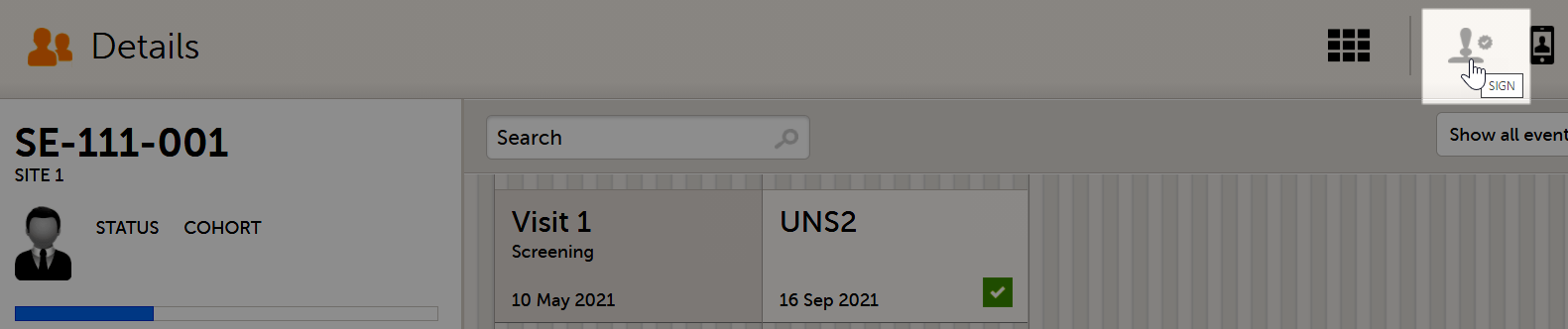
To access the signing console, go to the Details page and select the SIGN icon:
The signing console opens:
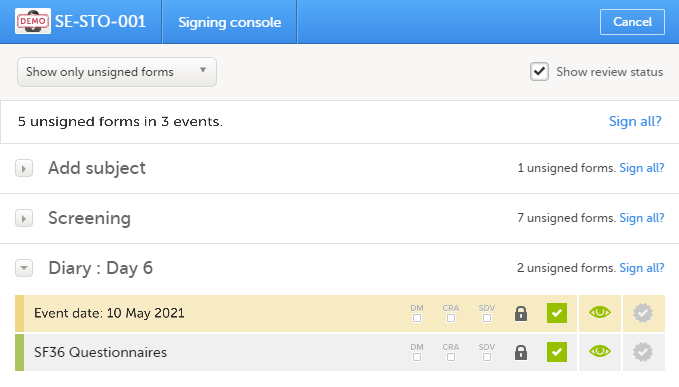
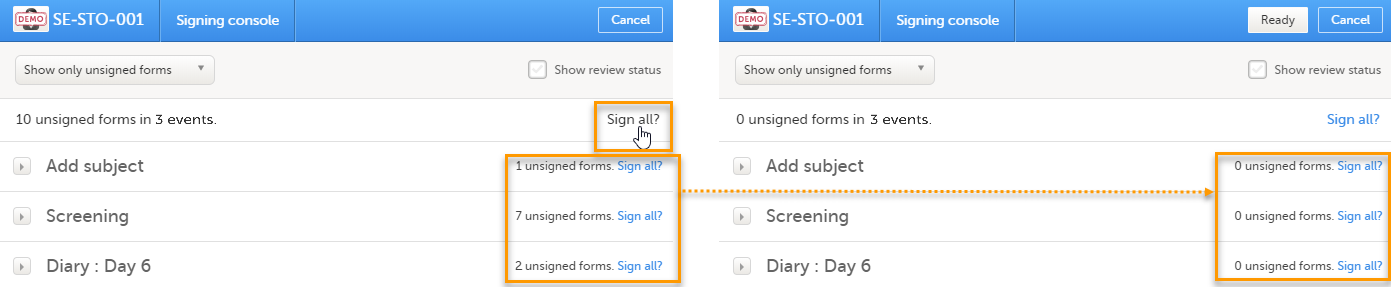
The signing console lists all of the initiated forms with no issues for the selected subject, grouped by event.
You can use the filter in the top of the page to:
- Show all forms
- Show only unsigned forms
The eye icons help you identify which forms you have visited (the most recent version of the form):
- The green eye icon means that you have visited the last version of the form.
- The grey eye icon means that you have not visited the latest version of the form.
To review a form, select the form bar. Closing the form takes you back to the signing console.
To view the review status of:
- CRA - reviewed by Clinical Research Associate (CRA) or another role with review permission
- DM - reviewed by Data Manager (DM) or another role with review permission
- SDV - performed Source Data Verification (SDV)
...for each form, check the Show review status checkbox in the top right corner of the page.
To sign the data:
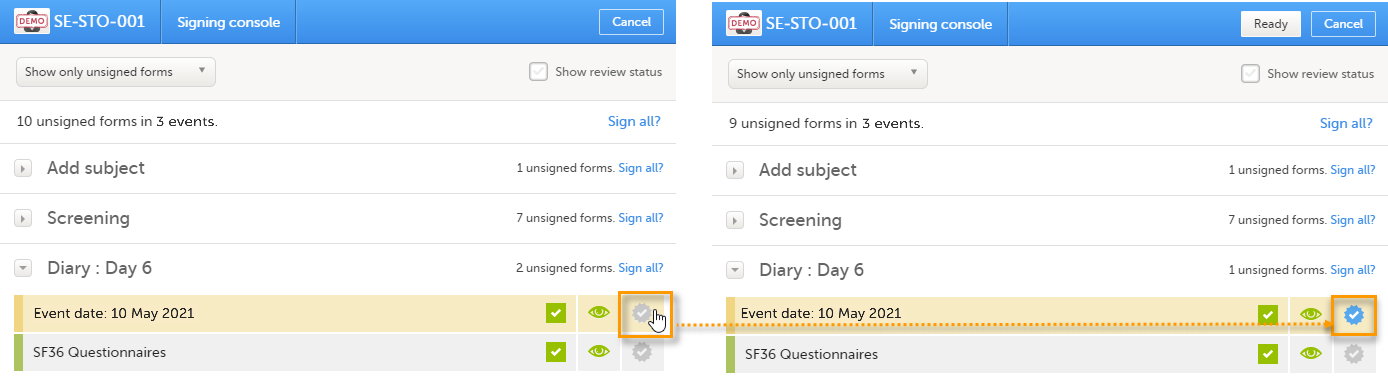
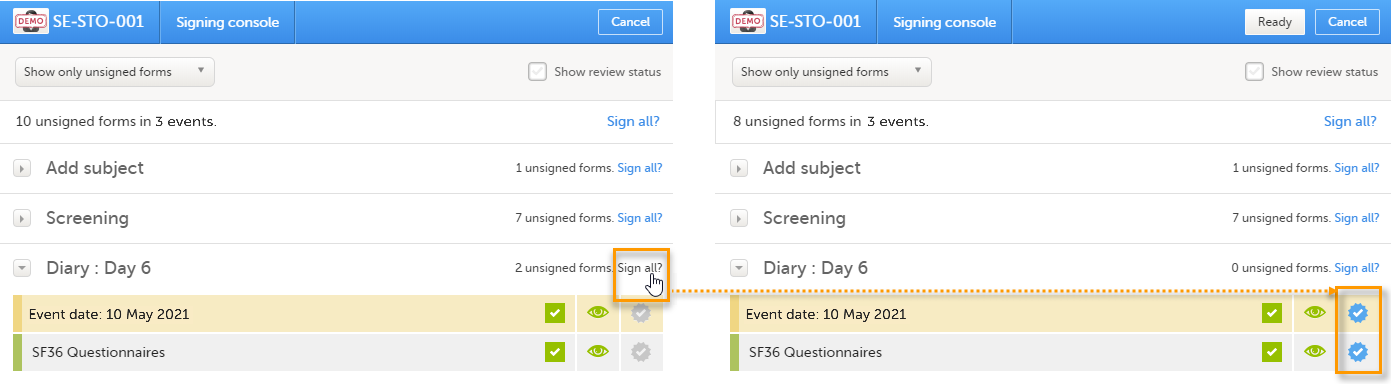
| 1 | Mark the form(s) to be signed in one of the following ways:
|
|
| 2 |
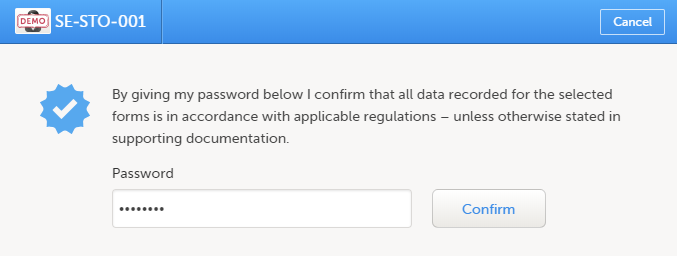
Select Ready on the top bar of the page. A confirmation pop-up appears: |
|
| 3 |
Type in your password and select Confirm.
|
Note! For scheduled and unscheduled events, the event date form ($EVENT) still counts, even when it is excluded when you use automatic event dates.
- In the signing console, the counter (number of forms) for a event includes the
$EVENTform. This cannot be selected to be signed but can be signed if you select Sign all (for subject or event). - If you sign forms on an event individually, you will not be able to sign the
$EVENTform. As a result, the sign symbol for the event is not visible, even though it looks as though all forms have been signed.
See also the video tutorial: Sign data.