
Note! This page contains information and instructions for the new TMF user interface. If you are using the old interface, please go to the relevant user guides:
Want to browse more information for the new interface? Please go to the new TMF user guides:
Viedoc TMF is a digital repository for capturing, managing, sharing, and storing essential documents (records) for your clinical trial.
Viedoc TMF is based on the TMF Reference Model by the Clinical Data Interchange Standards Consortium (CDISC). The TMF Reference Model is an industry consensus catalog of all TMF records. Using the TMF Reference Model ensures compatibility and interoperability with other clinical trial parties, such as CROs.
The TMF Reference Model includes records in all different phases of a clinical trial:
The TMF Reference Model categorizes records in zones, sections, and artifacts in a hierarchical structure:
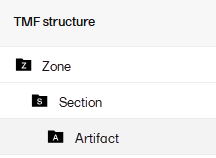
The set of zones, sections, and artifacts included is defined in a template file that is maintained by the eTMF Manager.
The TMF can include both the Investigator Site File (ISF) and the sponsor TMF.
For portability reasons, the TMF Reference Model is defined in an Excel file.
Viedoc TMF also uses Excel files as templates for the TMF structure.
For detailed information please see Roles and permissions in Viedoc TMF.
The following image shows the record version statuses and the actions that change the status of a record version. The initial status of a record when it is uploaded to Viedoc TMF is Unpublished.
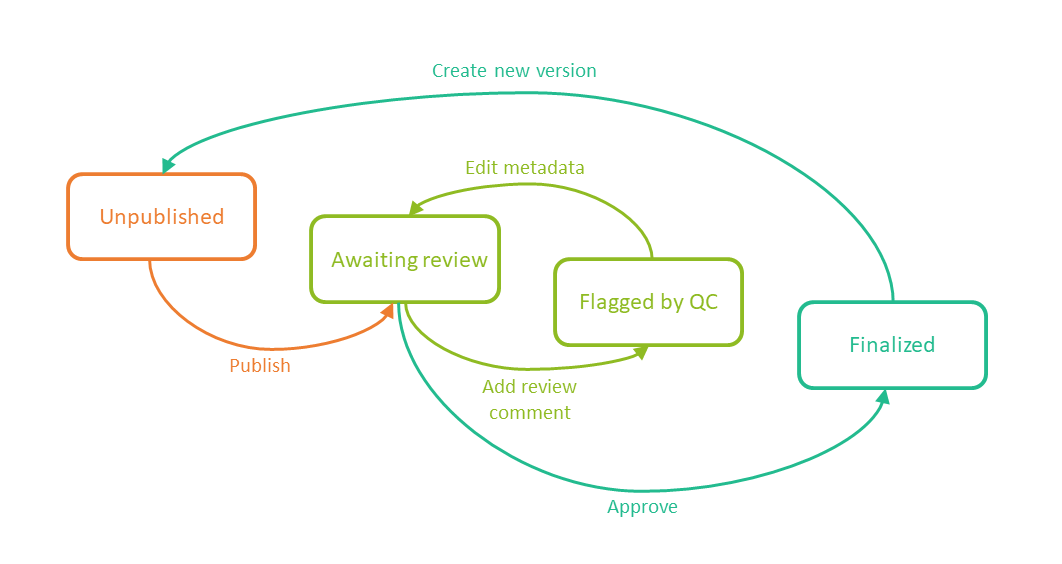
If you edit the metadata for a record version that is Unpublished or Awaiting review, the record version status is not changed.
It is not possible to edit the metadata of a Finalized record. To make changes, a new version needs to be created.
Note! Different actions require different permissions, which means that they are performed by users with different roles.
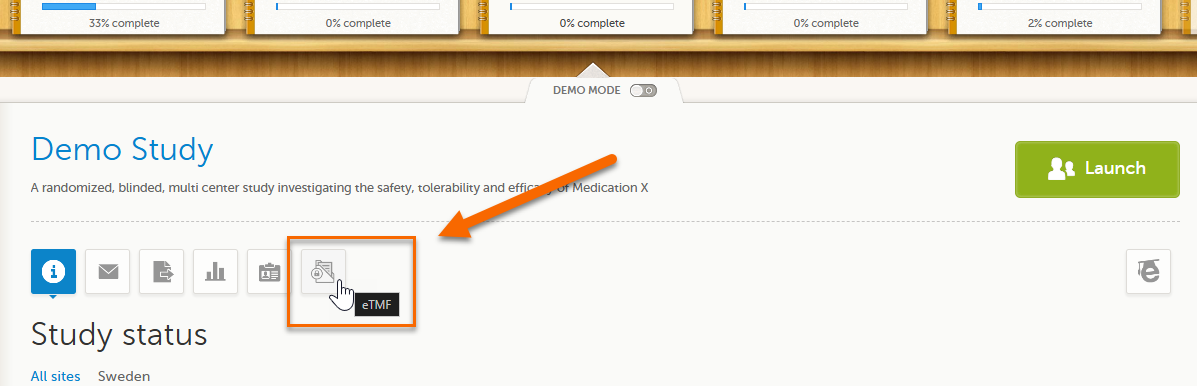
To launch Viedoc TMF for a study log in to Viedoc, select the study from the study slider, and select the eTMF icon:
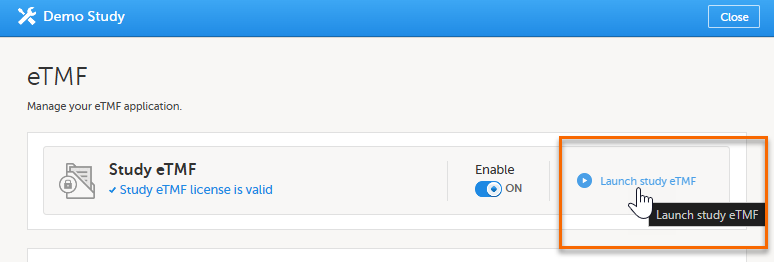
Alternatively, if you have been assigned an eTMF Manager role, you can also launch Viedoc TMF by logging into Viedoc, navigating to Viedoc Admin, selecting the study, opening the eTMF settings and selecting Launch study eTMF:
In the left navigation menu, there are three main areas or views in Viedoc TMF:
1. Trial Master File
2. TMF Admin
3. TMF Archive
Access to these are determined by a user's role and permissions. They are described briefly in the sections below.
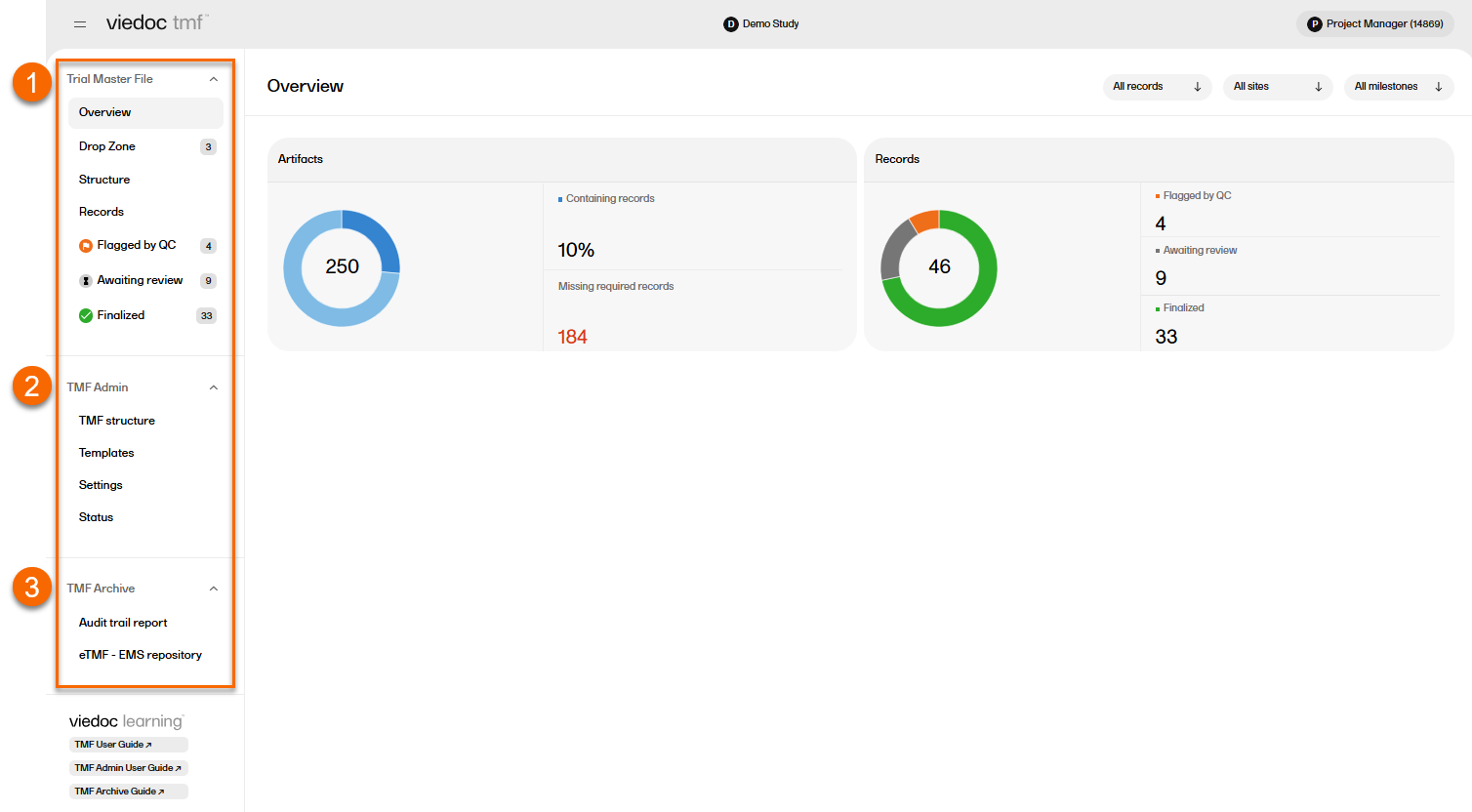
Users with a Viedoc Clinic role that is mapped to a TMF role have access to the Trial Master File area. In the left navigation menu, select to expand Trial Master File to see the four pages for managing records in the TMF:
| The Overview page |
Shows metrics for artifacts and records in the TMF. Allows the user to filter the metrics by level, site, and milestones. |
| The Drop Zone page |
Allows users to upload or "drop" files to a public or private folder (called a "drop zone") and move them into the TMF structure later. Please see TMF Drop Zone for more information. |
| The Structure page |
Allows users to manage records in the TMF structure. Please see Managing records for more information. |
| The Records page |
Provides an table containing the records that you have access to with their metadata. Please see TMF Records page for more information. |
A user with an eTMF Manager role or the Read-only eTMF Admin permission, has access to TMF Admin. In the left navigation menu, select to expand TMF Admin to see the four pages for managing the TMF:
| The TMF structure page |
The eTMF Manager can manage the TMF structure on this page. Please see Editing a structure for more information. |
| The Templates page |
The eTMF Manager can manage, import and export TMF templates on this page. Please see the TMF Admin User Guide to find several lessons about templates. |
| The Settings page |
Contains settings for Viedoc TMF. Please see TMF settings for more information. |
| The Status page |
Shows the status of the TMF, which can be one of the following:
|
A user with permission to Download audit trail report have access to TMF Archive. In the left navigation menu, select to expand TMF Archive to see the two pages for generating archive reports:
| The Audit Trail Report page |
Allows users to generate and download a complete audit trail report. |
| The eTMF-EMS Repository page |
Allows users to generate the eTMF - EMS Repository. |
Please see TMF Archive for more information.
In the left navigation menu below the TMF views, users can find links to relevant user guides based on their roles and permissions including:
Note! This page contains information and instructions for the new TMF user interface. If you are using the old interface, please go to the relevant user guides:
Want to browse more information for the new interface? Please go to the new TMF user guides:
In Viedoc TMF, roles and permissions determine what a user can or can't see in the application, which actions they can perform, and which records they can access. Proper role assignment ensures secure and efficient record management while maintaining compliance with regulatory requirements.
In Viedoc, there are two types of roles:
See About roles in Viedoc for more information about system and clinic roles in Viedoc.
TMF roles, which are different from Viedoc system and clinic roles, are described in the next section.
The user access to Viedoc TMF is determined by the assigned roles and permissions. TMF roles and permissions can work in combination or independently.
Depending on the permission associated with your user role, you can perform different actions on records. Your user role can have permission (no access, read, write, or review) on these TMF levels:
These levels and permissions need to be explained better
You can only see and access records if you have permissions for the artifact on the corresponding TMF level.
For example, if an artifact is linked to two sites, a user with write permission for the artifact for only one of the sites will be able to read but not edit the record. This is due to the fact that the user does not have write permissions for all sites that the record is linked to.
The eTMF Manager is a Viedoc system role (see above) and has permissions to manage the TMF application in Viedoc Admin and to manage templates in Viedoc TMF.
The user access to Viedoc TMF is determined by the assigned roles and permissions. The roles and permissions can work in combination or independently. These user roles are defined in the template, which is maintained by the eTMF Manager.
The TMF roles are:
The respective permissions for these TMF roles are specified in the Excel template file, on the Role sheets. For more information, see the Roles sheets section in the Customizing a template lesson.
These permissions are defined in Viedoc Admin and are assigned to users by the eTMF Manager. See Assigning roles and permissions in Viedoc Admin below for instructions on how to do this.
Permissions in Viedoc TMF can work in combination with roles or independently, providing granular control over user actions:
| Archive sponsor TMF |
Allows users to access the TMF Archive view and archive artifacts that are listed as Sponsor side. (This is set in the Edit artifact window or in the template file on the sheet V 3.1.0, column M Sponsor Document). |
| Archive investigator TMF |
Allows users to access the TMF Archive view and archive artifacts that are listed as Investigator side. (This is set in the Edit artifact window or in the template file on the sheet V 3.1.0, column N Investigator Document). |
| Read-only TMF Admin |
Allows user to inspect the structure, templates, and other settings in the TMF Admin view in read-only mode. A user with this permission can access the TMF Admin view and is able to:
|
| Read-only Trial Master File |
Provides users read-only access to the whole TMF structure and all the "available" records (published and unpublished records linked to a level the user has access to within their scope) in the TMF.
|
| Download audit trail | Allows users to access the TMF Archive view and generate and download the complete audit trail report. |
| Manage drop zone | Allows users to manage the files in the shared Drop Zone. |
| Manage record sharing for Viedoc Clinic users | Allows users to share records with Viedoc Clinic users. |
| Manage record sharing for Viedoc Me users | Allows users to share records with Viedoc Me users. |
For TMF access use cases and frequently asked questions, please see TMF access use cases.
Viedoc TMF user roles are assigned and managed in Viedoc Admin.
Only the eTMF Manager has permission to assign and manage TMF user roles for a specific study.
Note! If a role or permission is changed while the user is actively using Viedoc TMF, the user with the changed role/permissions will need to close and reopen Viedoc TMF for the changes to take affect.
To map the Viedoc clinic roles to TMF roles and permissions:
| 1 |
Go to Viedoc Admin, and select a study to open the study overview page: 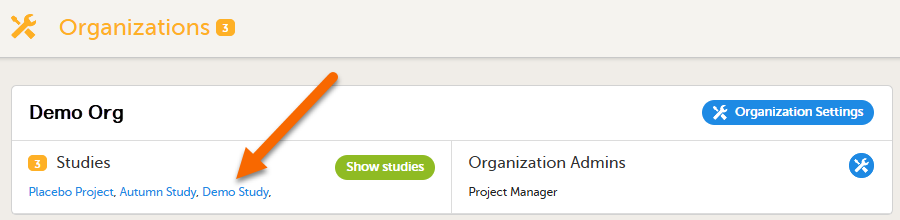
|
| 2 |
Select the eTMF settings button: 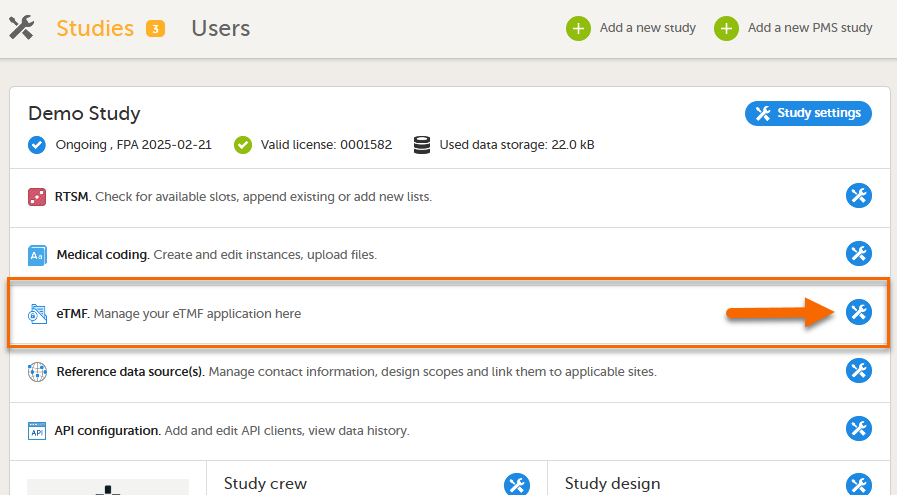
|
| 3 |
In the eTMF roles mapping area, select the TMF role(s) and/or permission(s) that you want to map to the Viedoc clinic (study) roles: 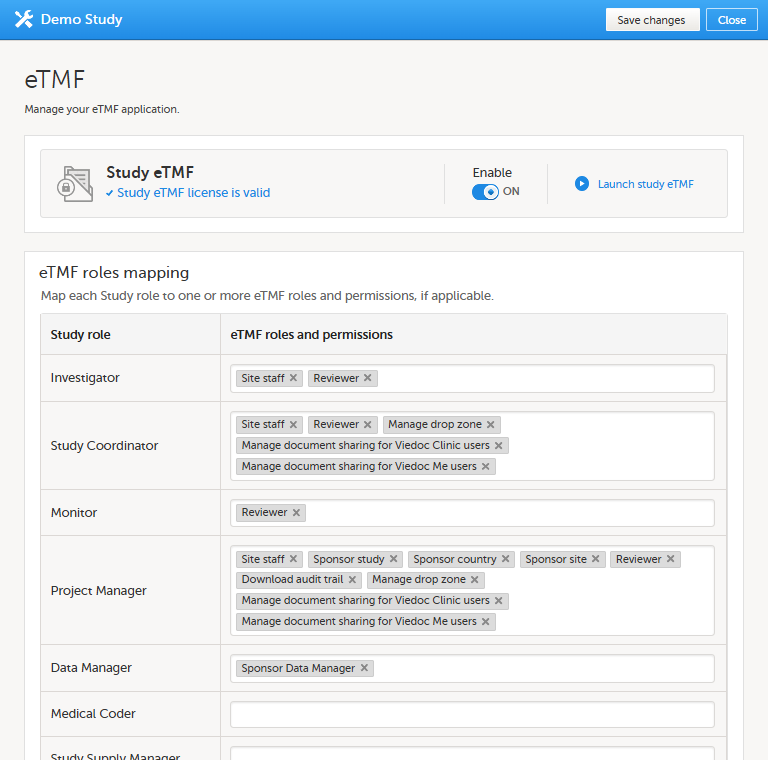
|
| 4 | Select Save changes. |
The following table lists several examples of tasks that study users can face, together with the TMF roles, the Viedoc Clinic site groups, and the TMF level access that they would need to perform the respective task.
For more information about site groups, see Managing users and Managing study sites in the Viedoc Admin User Guide.
| Study role | Task | TMF role | Viedoc Clinic site group | TMF level access | Permissions | Comments |
|---|---|---|---|---|---|---|
|
Study coordinator General site user |
Drop records in the shared drop zone | Site staff - customized with no access for all artifacts | Site | No access to all artifacts | None | |
|
Study coordinator General site user |
View, file, and classify site-level records, view some artifacts on country and study levels, archive the Investigator site TMF | Site staff | Site | Write access to pre-defined artifacts on site level, read access to pre-defined artifacts on study, site, and country levels | 1. Archive Investigator TMF | |
| Project manager | File study-level records, view all sponsor-side records, archive the sponsor TMF, download audit trail, and see TMF settings and structure | Sponsor study | All production sites* |
1. Download audit trail 2. Archive sponsor TMF 3. Read-only TMF Admin |
*Clinic access needs to be on study level and not every site one by one, otherwise the write permission will be translated to read permission. | |
| Monitor | File site-level records, view all records for the study, my country, and my site, manage drop zone records, review site level records |
Sponsor site Reviewer* |
Site** |
Write and review access on site level Read access on all levels |
1. Manage drop zone |
*Although the role sheet grants review rights for study and country level records too, the end user will only have read rights to those records, as long as they are not invited on study or country level for their clinic role. **Clinic access needs to be given to all applicable sites. |
|
Country manager Trial manager |
File country-level records, view all sponsor-side records at all levels and review all records |
Sponsor country Reviewer |
All production sites* | *Clinic access needs to be on study level and not every site one by one, otherwise the review permission will be translated to read permission. | ||
|
Read-only role Regulatory inspector |
Read-only access to all records* and settings Access to audit trail |
No role, permissions only | All production sites** |
1. Read-only Trial Master File* 2. Read-only TMF Admin 3. Download audit trail |
*If read-only Trial Master File permission is assigned, any NO ACCESS permission will be overridden by read access by the system. This means that all artifacts set as optional or required (including blinded and investigator-side artifacts) will be visible. These permissions should be reserved for a role that requires all access, such as a regulatory inspector. **Clinic access needs to be on study level and not every site one by one, otherwise the review permission will be translated to read permission. |
|
|
Unblinded role Sponsor or statistician |
View, file, and classify blinded records only on all levels | Sponsor unblinded | All production sites* |
Write access to blinded records on study level and site level (when applicable) No access to non-applicable records on all levels |
1. Download audit trail | *Clinic access needs to be on study level and not every site one by one, otherwise the review permission will be translated to read permission. |
For TMF access use cases and frequently asked questions, please see TMF access use cases.
Note! This page contains information and instructions for the new TMF user interface. If you are using the old interface, please go to the relevant user guides:
Want to browse more information for the new interface? Please go to the new TMF user guides:
The Overview page displays metrics and graphs for the TMF. On this page you can:
To open the Overview page, select to expand Trial Master File in the left navigation menu and select the Overview page.
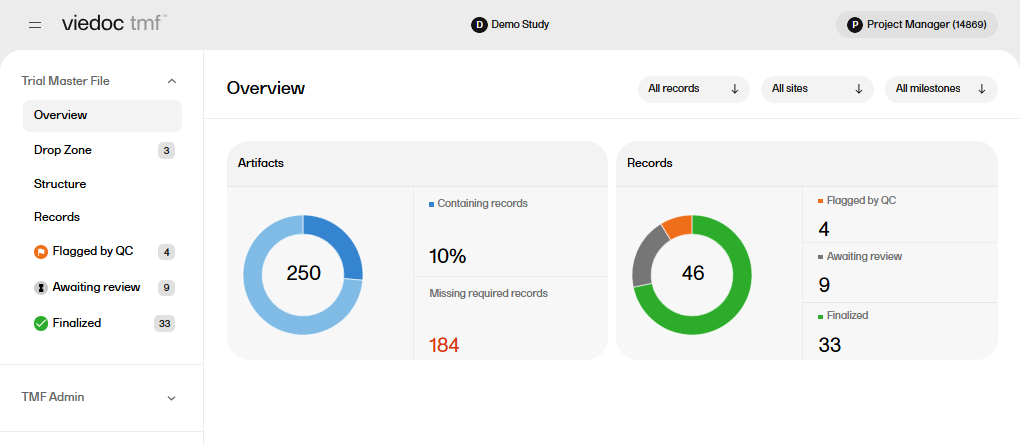
There are artifact-level and record-level metrics available on the Overview page.
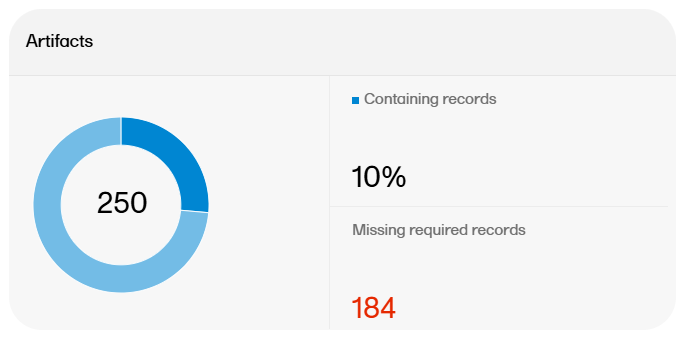
The artifact metrics available on the Overview page are as follows:
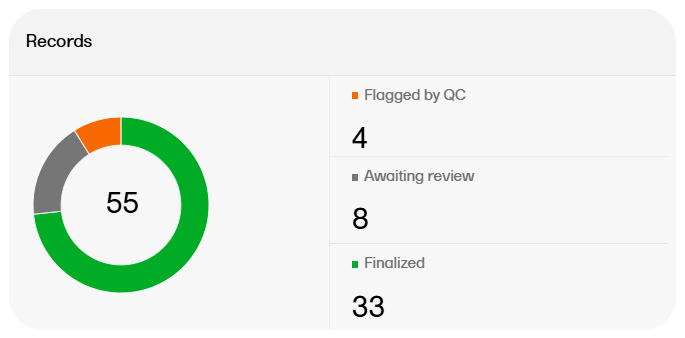
The records metrics on the Overview page are as follows:
It is possible to filter the records metrics that are displayed by TMF level, sites, and milestones. To filter the records metrics, select one or more of the filters at the top of the page to open the dropdown, and select the options you would like to filter by. The records metrics will be updated with each filter that is applied.

Note! This page contains information and instructions for the new TMF user interface. If you are using the old interface, please go to the relevant user guides:
Want to browse more information for the new interface? Please go to the new TMF user guides:
Drop zones are folders outside the TMF structure where you can upload files to manage them later. Files can only be moved from the drop zones to the structure and not the other way around.
Anyone who has any kind of access to the study TMF can upload files to the drop zones. However, moving files from the drop zones to the structure is similar to uploading records to artifacts in the structure, in the sense that both require that the user has write access to the artifact in question.
In the left navigation menu, select to expand Trial Master File, and select the Drop Zone page.
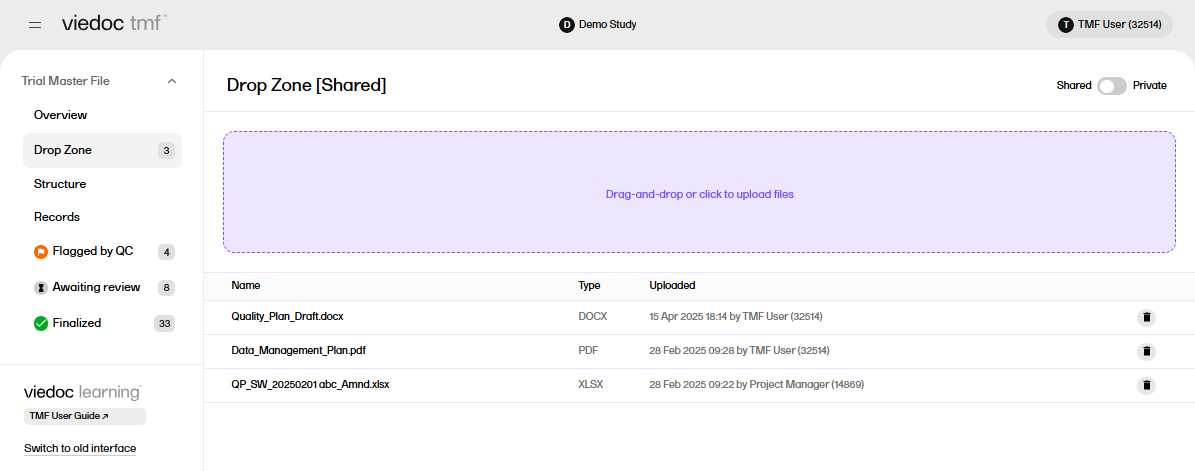
The shared and private drop zones can be enabled or disabled by a user with a TMF Admin role in TMF Settings.
If both shared and private drop zones are enabled in TMF Settings, select the toggle button in the top right of the page to switch between the two options.
To upload a file to a drop zone:
| 1 |
Select the Upload area on the Drop Zone page: 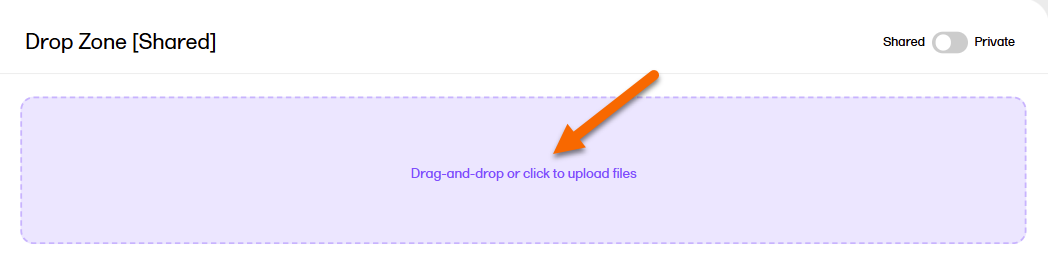
|
| 2 | Select the file(s) that you want to upload, and select Open. |
| 3 |
Alternatively, to upload file(s), drag them from your file explorer and drop them in the drop zone: 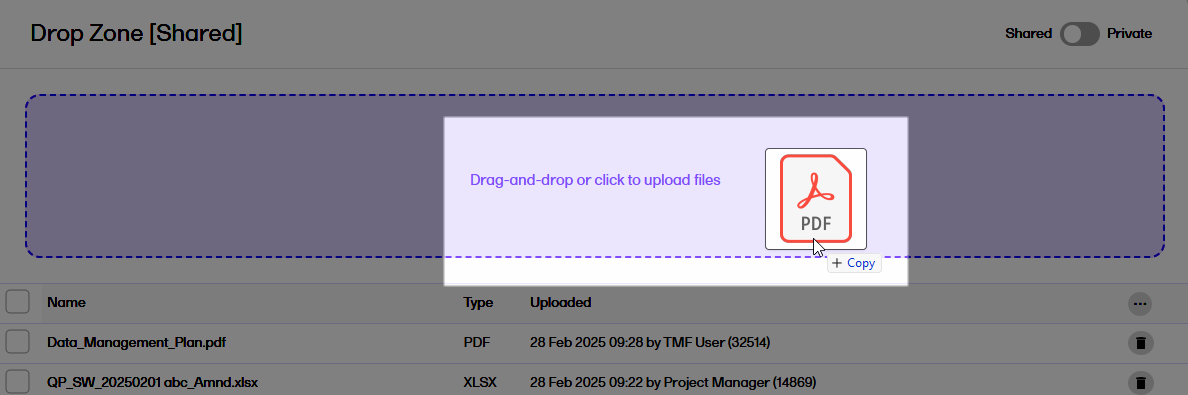
|
Note! When placing files from within a zipped folder into a drop zone, the system will not recognize the file. It will recognize the zipped folder and extract the files. Unzip the folder, and then select the files you want to drop into the the drop zone.
To delete a file from a drop zone:
| 1 |
Select the trash can icon on the row of the file that you want to delete. 
|
| 2 |
Alternatively, open the file by selecting it, and then select the trash can icon in the record properties window. 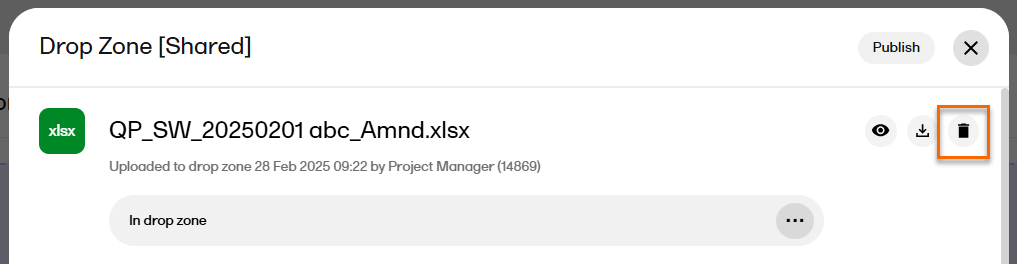
|
| 3 |
Confirm the deletion. 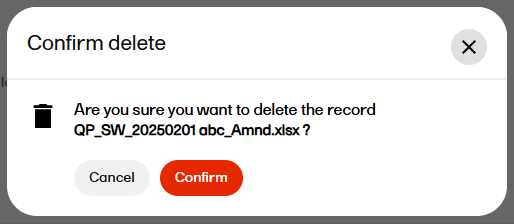 |
To download a file from a drop zone:
| 1 |
Select a record to open the record properties window. |
| 2 |
Select the download icon: 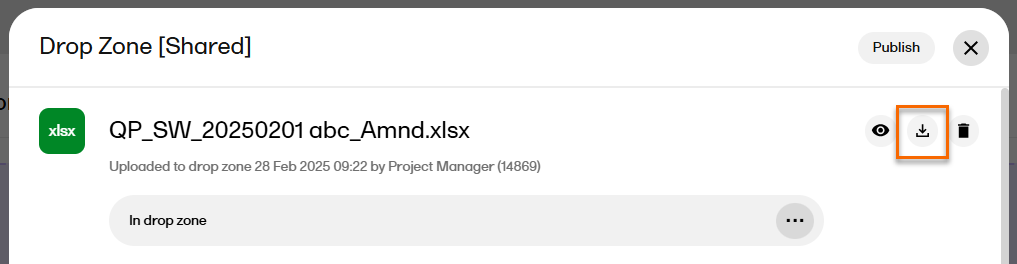
|
To move a file from a drop zone to the structure:
| 1 | Select a record to open the record properties window. |
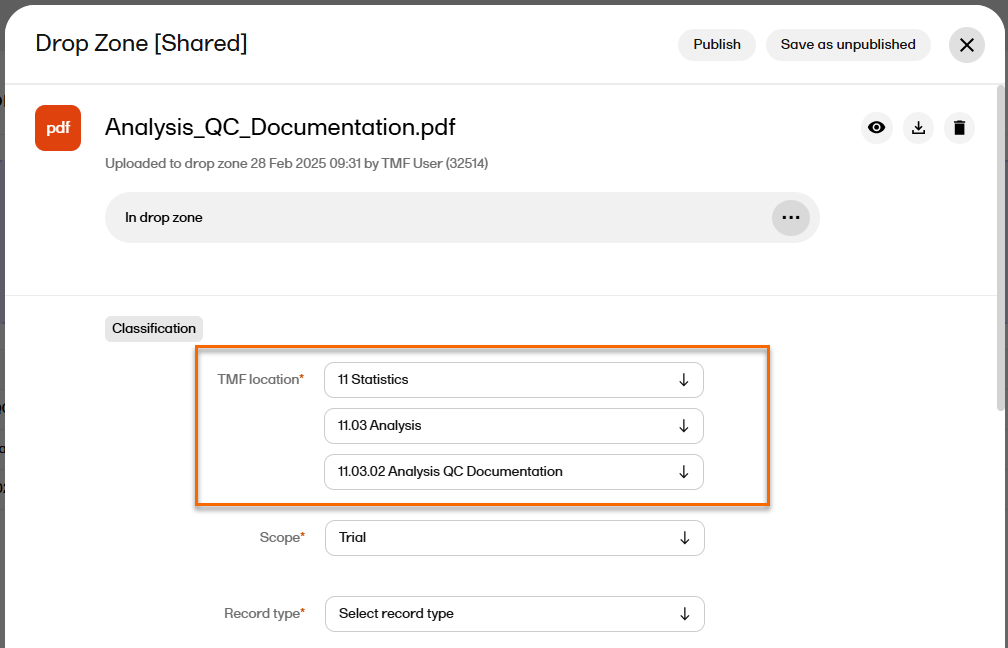
| 2 | Select the TMF location (Zone, Section, and Artifact) where you want to move the file.
The properties of that artifact will then be populated in the record properties window. You can either enter values for the metadata properties or leave them empty. |
| 3 |
Select Save as unpublished to create a new unpublished record in the selected location with the file that was moved from the drop zone. 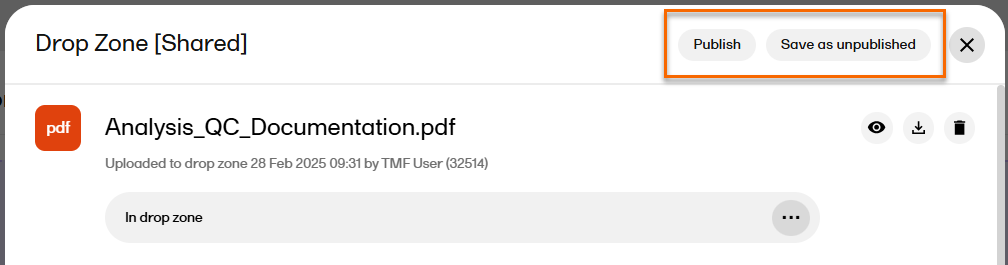
|
| 4 |
Alternatively, fill in all the mandatory fields and select Publish. A new record with the status Awaiting review will be created at the selected location with the file that was moved from the drop zone. |
Note! This page contains information and instructions for the new TMF user interface. If you are using the old interface, please go to the relevant user guides:
Want to browse more information for the new interface? Please go to the new TMF user guides:
The Structure page shows all of the records that you have access to, organized in the zones, sections, and artifacts defined in the TMF structure. On this page you can:
To open the Structure page, select to expand Trial Master File in the left navigation menu and select the Structure page.
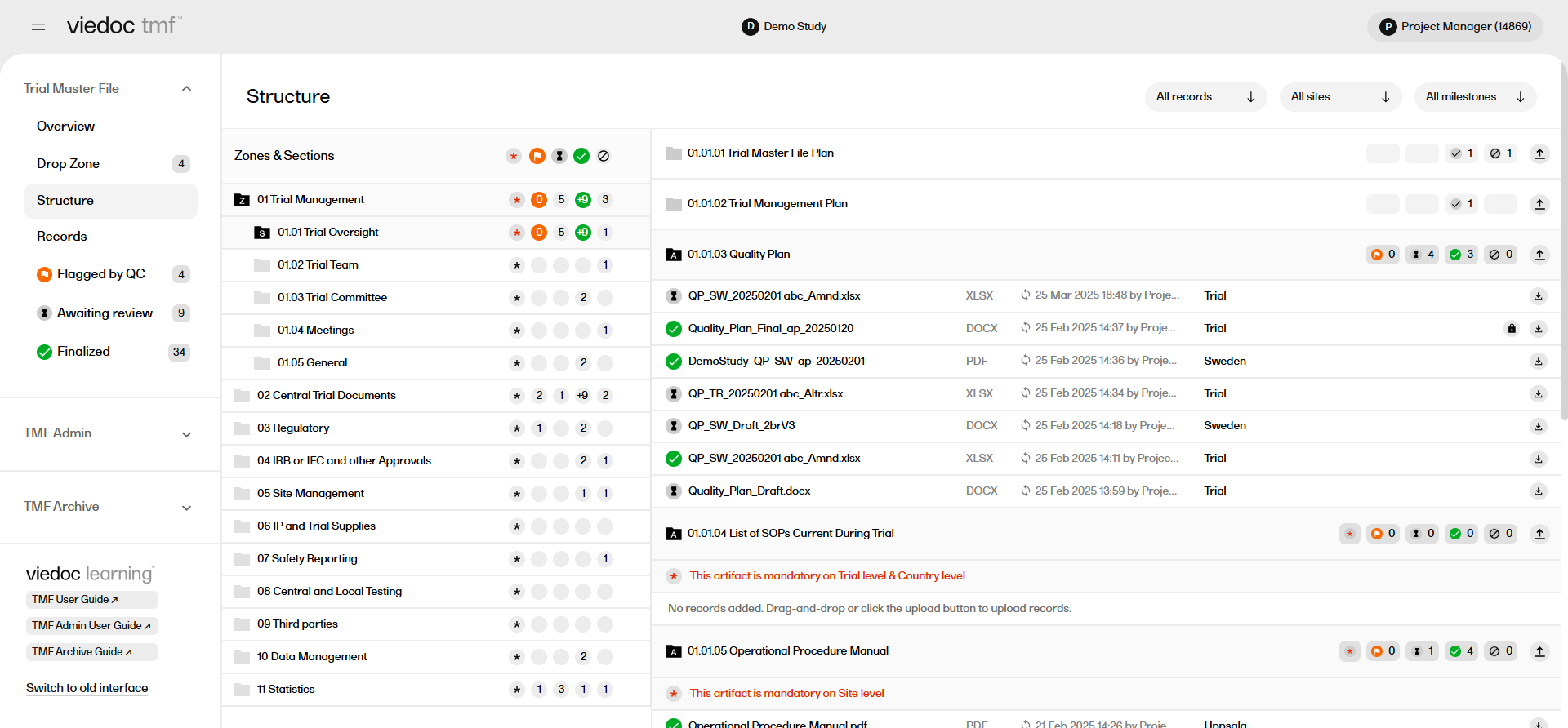
The zones, sections and artifacts are represented as folders which can be selected to expand or collapse them.
There are two main ways to find the record(s) you are looking for in the Structure page: navigating through the folders in the structure and using the filters.
If you know which zone, section or artifact a record has been uploaded to, simply select each folder to expand it, and navigate through the TMF structure to see the records uploaded into each artifact.
The same method can be used to browse the structure to determine if records are missing from specific artifacts.
The Structure page includes filters that allow you to sort the records by level, sites, or milestones.
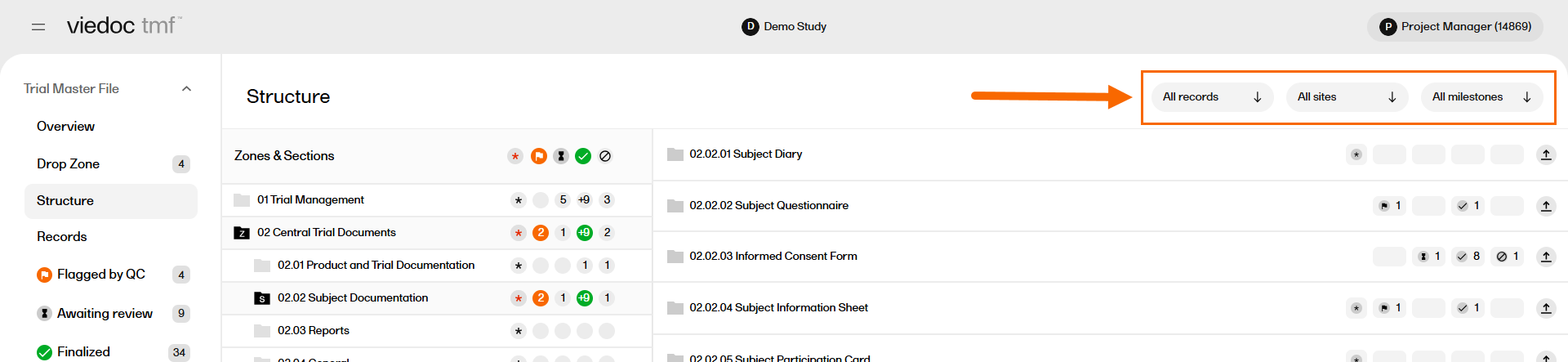
Select each filter to expand it, then select the options you would like to filter the records with.
There are icons on each row within the structure that represent the number of records with a certain status in each zone, section or artifact.
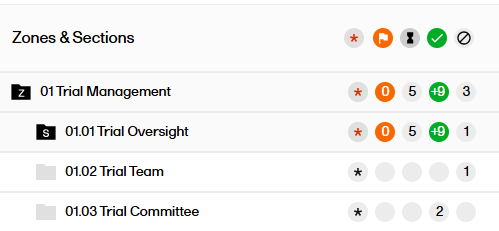
The icons represent records with the following statuses:
 |
Artifact missing required records. For artifacts that are mandatory at the site, country, or trial level, this icon indicates that the mandatory requirements have not been met. Once the required records have been uploaded to the artifact, this icon disappears. If an artifact does not have mandatory records, this icon will not be displayed. Note! if the artifact is mandatory at the site level, then a record(s) must be uploaded and assigned to all of the sites in the study. |
 |
The number of records that have been Flagged by QC. |
 |
The number of records that are Awaiting review. |
 |
The number of records that have been finalized. |
 |
The number of records that are unpublished. |
Uploading records to Viedoc TMF requires write permission for the artifact on the TMF level that the record is linked to. For more information about TMF permissions, see Roles and permissions in Viedoc TMF.
Files can be uploaded directly into a specific artifact. Alternatively, if you do not know which zone, section, or artifact to place the record in, you can use the drop zones. For more information, please see TMF Drop zone.
To upload a record:
| 1 |
In the Structure page, select the upload button for the artifact: 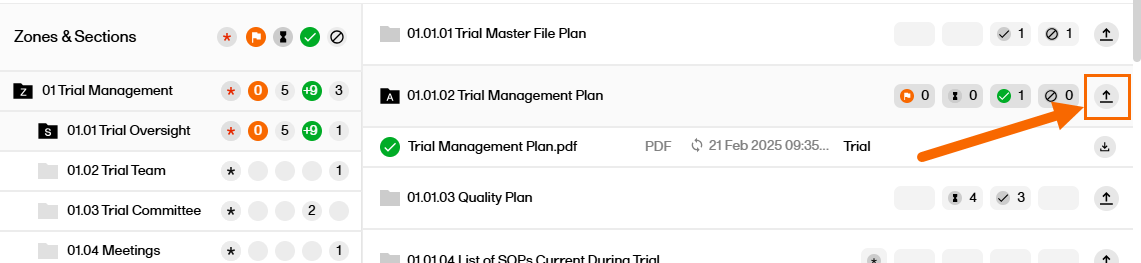
|
| 2 |
Browse to the file(s) that you want to upload and select Open. Note! An artifact might have restrictions on which file types are allowed. Some file formats are blacklisted. |
| 3 | Alternatively, drag the file from your file explorer and drop it directly in the TMF artifact. It is possible to upload multiple files at the same time. |
| 4 |
When the file has been successfully scanned for viruses, it is uploaded in an Unpublished status. 
Notes!
|
Note! It is not possible to upload files from inside a zipped folder.
Note! This page contains information and instructions for the new TMF user interface. If you are using the old interface, please go to the relevant user guides:
Want to browse more information for the new interface? Please go to the new TMF user guides:
The Records page provides an overview of the records that you have access to together with their metadata in a table or grid. On this page you can:
To open the Records page, select to expand Trial Master File in the left navigation menu and select the Records page.
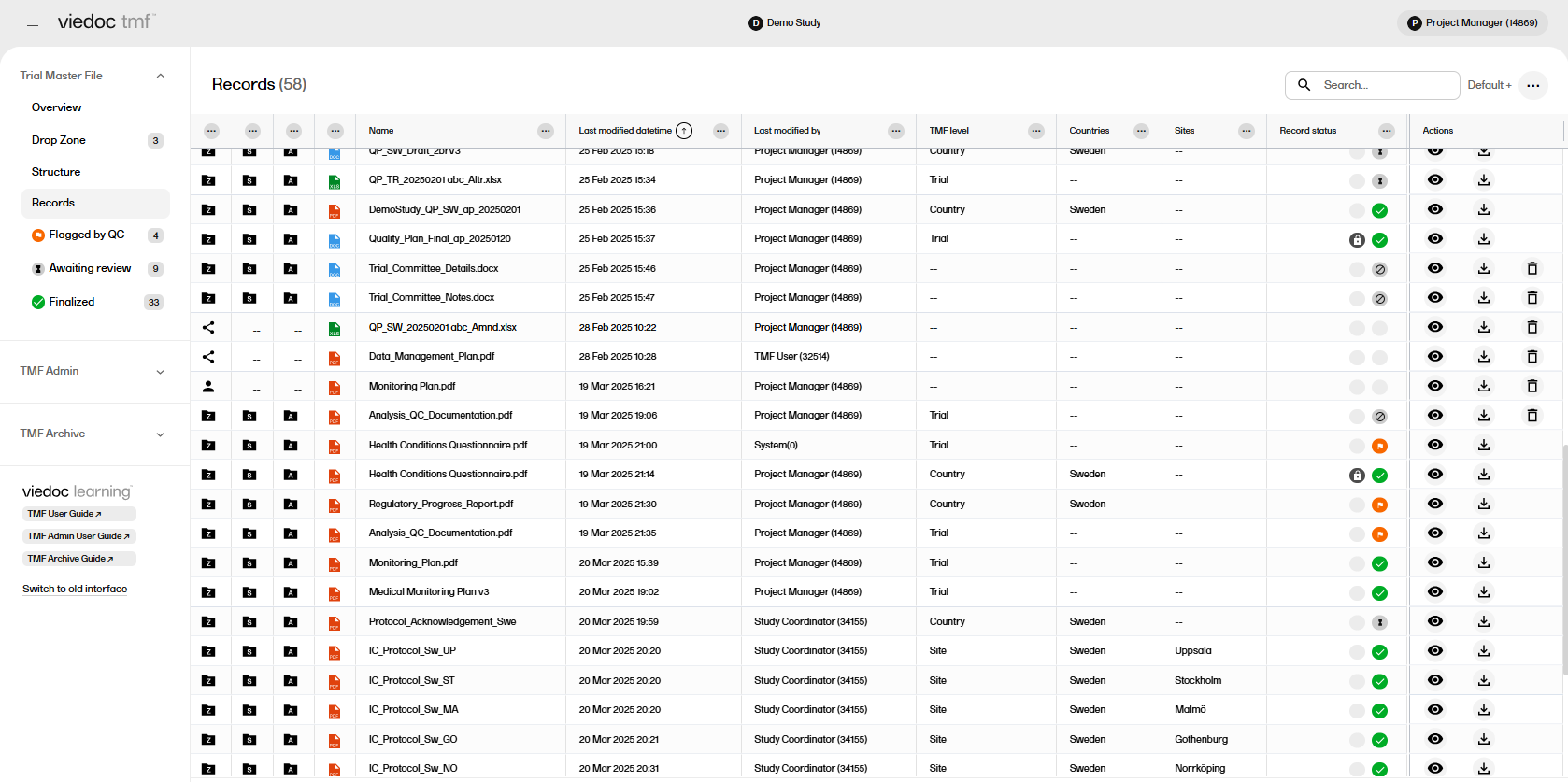
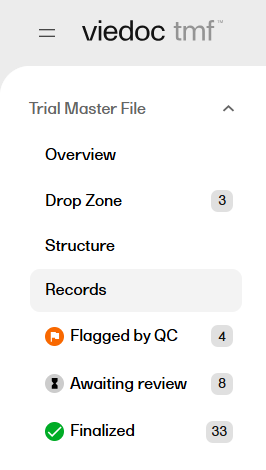
There are three filter pages in the left navigation menu under Records that allow users a quick way to see a list of records that have been Flagged by QC, Awaiting review, or Finalized.
There are several options to customize the columns in the Records page.
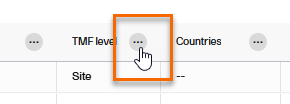
To view the options available for a column, select the icon with three dots at the top of the column:
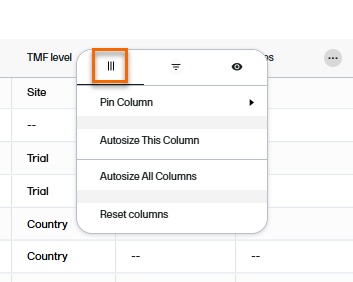
A menu with three tabs will be displayed, which are described in the next subsections:
The first tab in the column options menu allows you to:
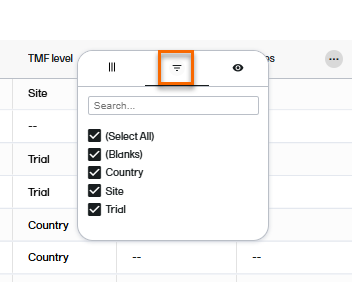
The second tab in the column options menu allows you to filter data in the selected column. Select the contents that you want included in the column, and deselect those that you want hidden. When a filter has been applied to a column, a filter icon is visible in the column header.
The third tab in the column options menu allows you to select which columns you want displayed or hidden.
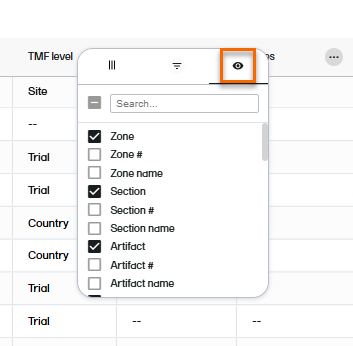
Note! A list of available columns is provided at the end of this lesson.
To sort the data by column contents in ascending order, select the column header. Select it again to sort in descending order. Selecting for a third time removes the column sort order.
To rearrange the order of the columns on the page, simply select a column header and drag the column sideways. To reset the order of the columns to the initial state, select Reset Columns on the column options menu, available from the column header.
A customized view of the Records page can be saved and displayed using the View menu. This can be useful if you have filtered, sorted, or sized the columns and want to be able to re-use your viewing preferences.
To open the View menu, select the menu icon in the top right of the Records page:
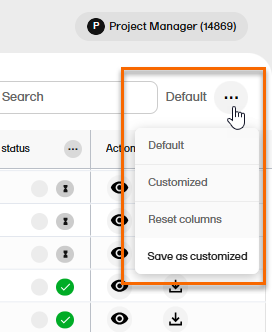
These are the available menu options:
| Menu option | Description |
|---|---|
| Default |
Displays the default view, as provided by the system. This view is displayed:
|
| Default+ |
Indicates that changes have been made to the default view, but the changes have not been saved as a customized view. To save the changes, select Save as customized. |
| Customized |
Displays the saved customized view. This view is retained between login sessions. If the page is reloaded, the customized view is shown if available, otherwise the default view is shown. Note! This option is not available if you haven't saved a customized view. |
| Customized+ | Indicates that changes have been made to the customized view, but the changes have not been saved. To save the changes, select Save as customized. |
| Reset columns | Resets the view to the latest used of the default or the customized views. |
| Save as customized |
Saves the current view as a user-specific customized view. Each user can save their own tailored viewing preferences. This option is not available when the TMF is locked. |
Note! If you perform any further search on the Records page, or switch between pages in the navigation menu, the system displays your last selected view.
To copy the data in a table cell on the Records page:
| 1 | Right-click in the cell |
| 2 | Select Copy to copy the contents of the table cell to your clipboard |
| 3 | Select Copy with Headers to copy the contents of the table cell and the column header to your clipboard |
To export the data that is displayed on the Records page:
| 1 | Right-click anywhere in the table and select Export and then CSV Export or Excel Export. |
| 2 | A file of the selected type is then available for download from your browser. |
There are several columns available to show or hide on the Records page:
| Column | Description |
|---|---|
| Zone | This column shows either the zone folder icon  , a shared drop zone icon , a shared drop zone icon  , or a private drop zone icon , or a private drop zone icon  . When you hover over the icon, a tooltip shows the zone number and the zone name. For drop zone icons, the tooltip shows shared or private drop zone. . When you hover over the icon, a tooltip shows the zone number and the zone name. For drop zone icons, the tooltip shows shared or private drop zone. |
| Zone # | The zone number. |
| Zone name | The name of the zone as set in the structure. |
| Section | This column shows the section folder icon  . When you hover over the icon, a tooltip shows the section number and the section name. . When you hover over the icon, a tooltip shows the section number and the section name. |
| Section # | The section number |
| Section name | The name of the section as set in the structure. |
| Artifact | This column shows the artifact folder icon  . When you hover over the icon, a tooltip shows the artifact number and the artifact name. . When you hover over the icon, a tooltip shows the artifact number and the artifact name. |
| Artifact # | The artifact number |
| Artifact name | The name of the artifact as set in the structure. |
| Filetype | The filetype icon  . When you hover over the icon a tooltip text shows the filetype. . When you hover over the icon a tooltip text shows the filetype. |
| Filetype name | The filetype name in text, for example pdf or xlsx. |
| Name |
This column shows:
|
| Display label | This label represents how the record is displayed on the Trial Master File view. |
| Record name | The name of the record as set by the user in the corresponding Record properties window. |
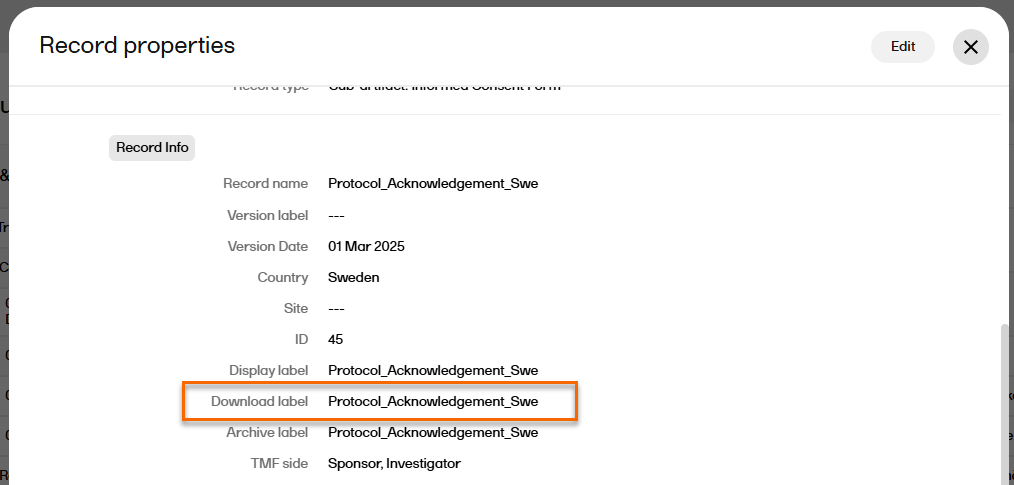
| Download label | The name of the latest version of the record when downloaded. |
| Archive label | The name of the record in the archive. |
| Dating convention | The dating convention label that is applicable to the record . |
| Dating convention value | The date value of the dating convention metadata in the format YYYY-mm-DD. |
| Last modified datetime | The date and time when the record was last modified, in the format YYYY-mm-DD HH:MM. |
| Last modified by | The user name of the user who last modified the record |
| Last reviewed datetime | The date and time when the record moved to the status Flagged by QC, in the format YYYY-mm-DD HH:MM. |
| Last reviewed by | The user name of the user who last commented on the record . |
| Uploaded to drop zone datetime | The date and time when the file was uploaded to a drop zone, in the format YYYY-mm-DD HH:MM. |
| Uploaded to TMF datetime | The date and time when the file was moved to the TMF structure, in the format YYYY-mm-DD HH:MM. |
| TMF level | One of Trial, Country, or Site. |
| Record type |
For main artifacts, the column shows the artifact name. For sub-artifacts, the column shows the sub-artifact name. For other types, the column shows the customized name. |
| Countries | The names of the countries that the record is linked to. |
| Country codes | The country codes of the countries that the record is linked to. |
| Sites | The names of the sites that the record is linked to. |
| Site codes | The site codes of the sites that the record is linked to. |
| Record version | The record version number as set by the user in the Record properties window. |
| Record system version | The system version of the record. |
| Record Id | The record's unique Id within the study TMF. |
| Original file name | The original name of the file when it was uploaded. |
| File size | The size of the file. |
| File date | The date and time when the latest version of the file was uploaded to the TMF structure, in the format YYYY-mm-DD HH:MM. |
| Milestone |
The milestone that the artifact is linked to. Milestones are assigned at the artifact level, however, different milestones can be assigned to different levels within the artifact (site, trial, country). The milestone in this column refers to the level that the record is filed in. |
| Milestone group |
The milestone group for the milestone that the artifact is linked to. |
| Record status |
This column shows the record status icon. It can be one of the following:
|
| Actions |
This column is pinned to the right and cannot be removed. It shows the action icons according to the actions that can be performed on the record according to the user permissions. Select the icons to:
|
| ICH code | The code according to the International Council for Harmonisation |
| Unresolved notes count | The number of unresolved notes for a record |
Want to browse more information for the new interface? Please go to the new TMF user guides:
There are three places to work with records in the Trial Master File: the Structure page, the Records page, and the Drop Zone. The following sections provide information on managing records in each area.
Uploading records to Viedoc TMF requires write permission for the artifact on the TMF level that the record is linked to. For more information, see Roles and permissions in Viedoc TMF.
There are two ways to upload records into the TMF:
To find records in the TMF you can search directly using the search field in the upper-right of the Records page, or use filters in both the Structure page and in the Records page.
For more information, go to Searching and filtering in the Structure page, or Filtering columns in the Records page.
Milestones and milestone groups are the tools used in the TMF for sorting and filtering records. Milestones are assigned at the artifact level in TMF Admin, and all records added to an artifact will be linked to the same milestone. An artifact can also have different milestones for each TMF level it is applicable to (trial, site, and/or country).
Milestones can be defined in any way that is appropriate for your study. In the Viedoc TMF template there are 12 milestones that are divided into four milestone groups (start up phase, conduct, close out and other). Assigning these to artifacts allows records to be linked to a specific timeline in the study or other categories.
Milestones may be used when searching for or filtering records in the Records page and also when filtering audit trail reports or EMS repositories.
Note! If no milestones are assigned to an artifact, records in this artifact will not be included in the audit trail report or the EMS repository when the milestones filter is applied. To extract these records, a separate report can be generated with the milestone filter removed. For more information see the TMF archive lesson.
The record preview feature allows you view the contents of a file without downloading it. The preview shows the latest version of files in each record version.
To preview a record:
| 1 |
From the Structure page, the Records page, or the Drop Zone, select a record to open the Record properties window. |
| 2 |
Select the eye icon to open the record preview: 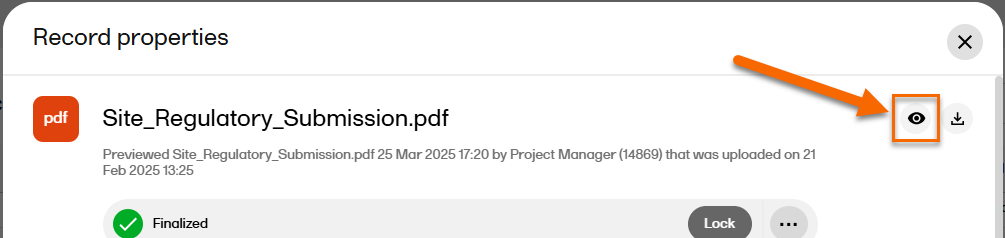
|
| 3 |
The preview opens to the left of the window: 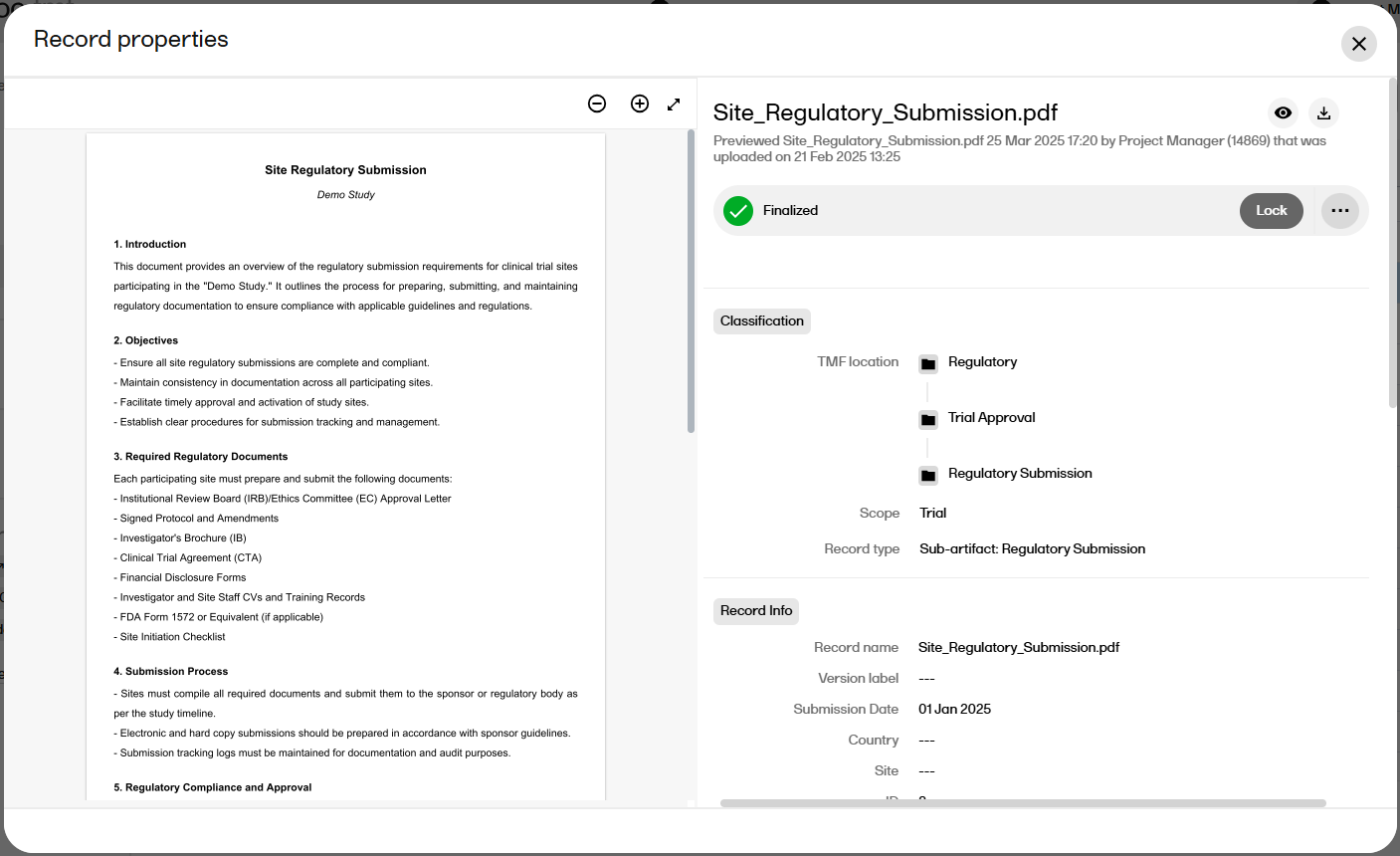
|
| 4 | To close the preview, select the Preview button again. |
Note! The preview does not support files larger than 2 GB.
Note! All preview actions are logged in the audit trail. For more information, see the TMF Archive lesson.
The record preview is supported for the following filetypes:
Editing record properties in Viedoc TMF requires write permission for the artifact on the TMF level that the record is linked to. For more information, see Roles and permissions in Viedoc TMF.
Tip! The upload button on artifact level indicates that you have write permission for the artifact.
Note! it is not possible to edit a finalized record. To make changes, a new record version must be created. For more information, see Creating a new version of a record below.
To edit the record properties:
| 1 |
From the Structure page, the Records page, or the Drop Zone, select a record to open the Record properties window. |
| 3 |
The Record properties window is displayed:
1. The Preview, delete, and download buttons 2. The record status (Unpublished, Awaiting review, Flagged by QC, or Finalized) 3. The notes section 4. The Record actions menu. Note! the available menu options depend on the record status and your permissions. 5. Classification
6. Record Info
Note! When using the custom name option, it is not necessary to add the file extension in the custom name, the system will add the file extension automatically. Including the file extension in the name will result in the file extension being displayed twice in the archive export. For example if the custom name you create is "file.pdf" then in the archive it will display as "file.pdf.pdf".
Note! If any of the three labels above are not configured by the eTMF Manager, the default is the record name as defined by the user. When the labels are configured to include metadata of the record, changes made to the metadata that affect these labels will be reflected on the labels dynamically in the Record properties window.
7. File Info: Contains information about the uploaded file. File date is the date and time when the file was uploaded. If the record is in edit mode, you can select the upload button to browse for a new version of the file. If you upload a new file, the record status will be changed to Awaiting review. 8. Record Sharing: Select to enable record sharing with Viedoc Clinic users or Viedoc Me users. 9. The History section is the audit trail for the selected record version. Changes to the record version are logged here together with information about the date and time they were made and by which user. Record note actions are not included in the history. Note! In this section, you can not see the name of a site that you do not have access to, but you can see the site ID. |
| 4 |
Make your edits, and then select Publish or Save as unpublished at the top of the window. When a record is published, the record status is changed to Awaiting review. It is now available for all TMF users with at least read permission for that artifact. Note! Before a record can be published, all required fields in the Record properties must be filled in. The required fields are marked with red. |
To create a new version of a finalized record:
| 1 | From the Structure page or the Records page, select a record to open the Record properties window. |
| 2 | At the top of the window, select ... to open the Record actions menu. |
| 3 |
From the menu, select Create new version. 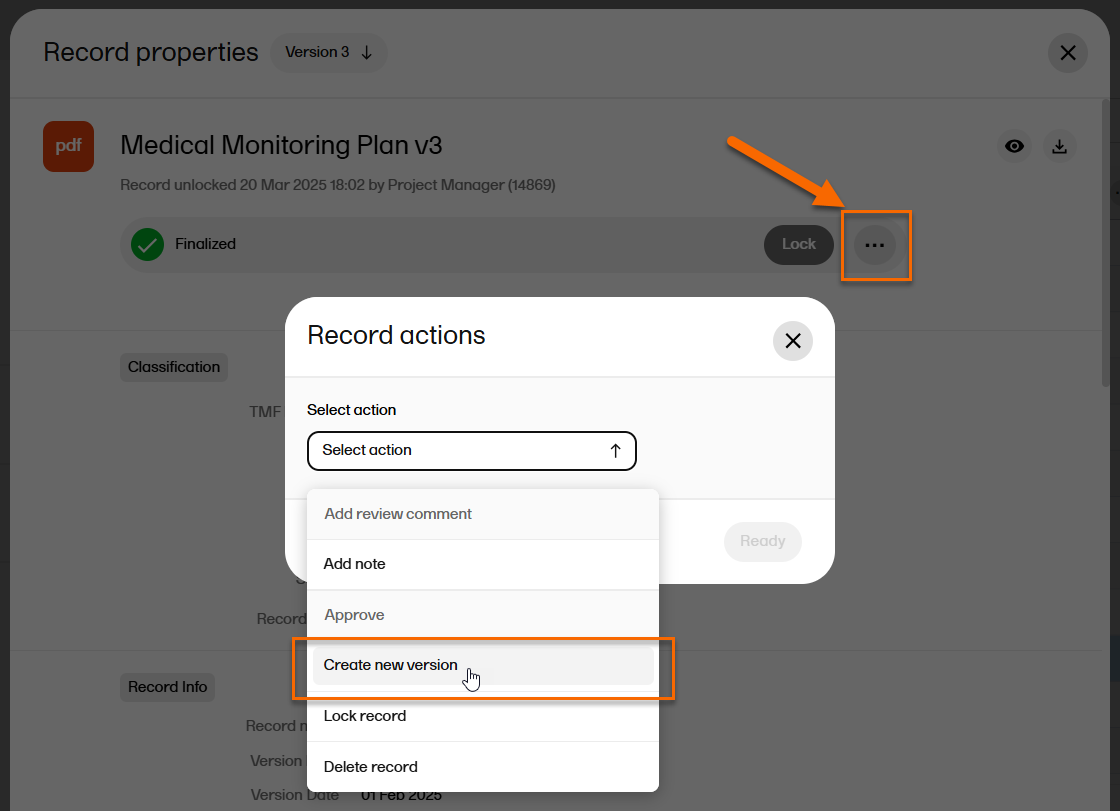
|
| 4 |
Select whether you want to copy the file from the previous version or upload a new file. 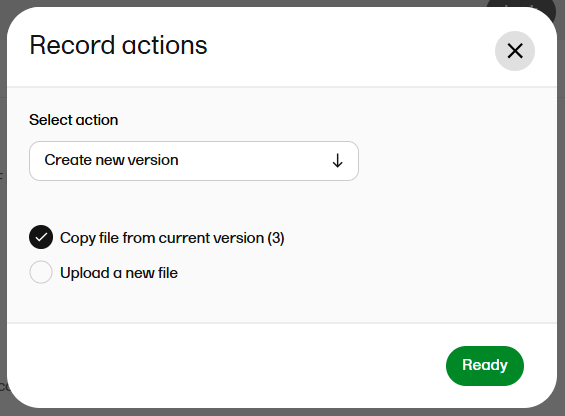
|
| 5 |
Select Ready. The new record version is saved in an unpublished status. |
When you open the Record properties window, the latest version of the record is displayed by default.
To navigate between record versions, use the version dropdown menu at the top of the Record properties window:
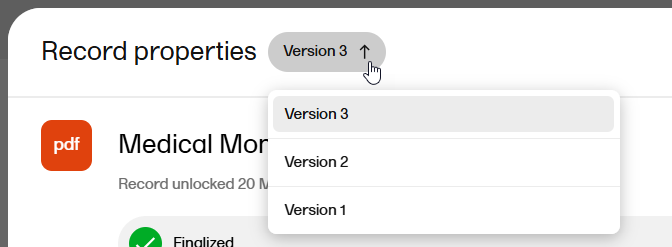
Record notes are a way to communicate with other users about records without affecting the record status. The notes actions are not recorded in the record history.
These are the permissions needed for adding or resolving notes:
To add a note to a record:
| 1 | From the Structure page, the Records page, or the Drop Zone, select a record to open the Record properties window. |
| 2 | At the top of the window, select ... to open the Record actions menu. |
| 3 |
Select Add note from the menu. 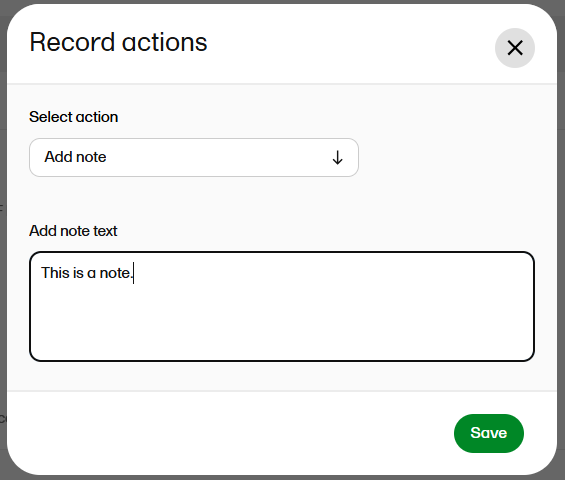
|
| 4 |
Enter your note text and select Save. |
| 5 |
The note is then displayed like this: 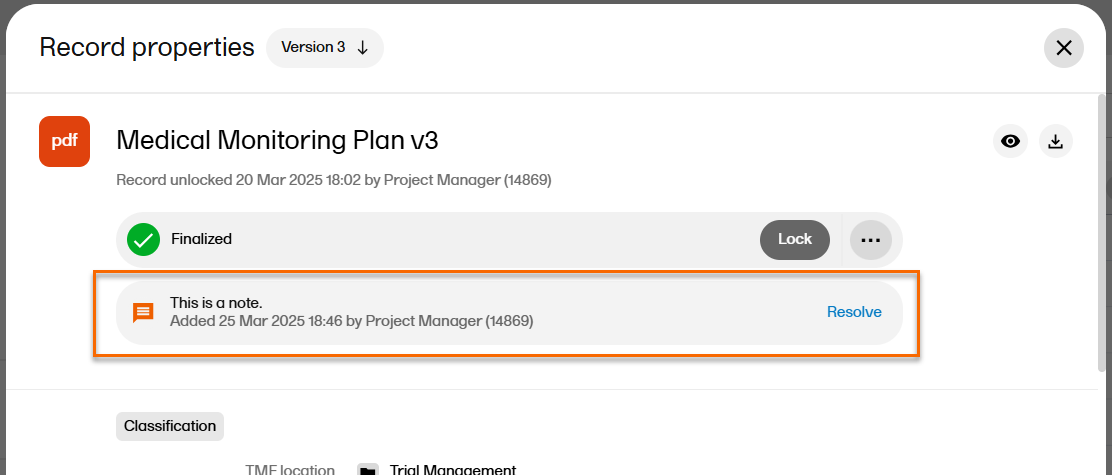
Note! The note is associated with the selected record version. |
To resolve a note in a record:
| 1 | From the Structure page, the Records page, or the Drop Zone, select a record to open the Record properties window. |
| 2 |
Select Resolve for the note that you want to resolve.
The note is then immediately removed. |
Publishing a record in Viedoc TMF requires write permission for the artifact on the TMF level that the record is linked to. For more information, see Roles and permissions in Viedoc TMF.
To publish a record:
| 1 | From the Structure page, the Records page, or the Drop Zone, select a record to open the Record properties window. |
| 2 | Make sure all mandatory fields (marked with red) are filled in. |
| 3 |
Select Publish at the top of the window: 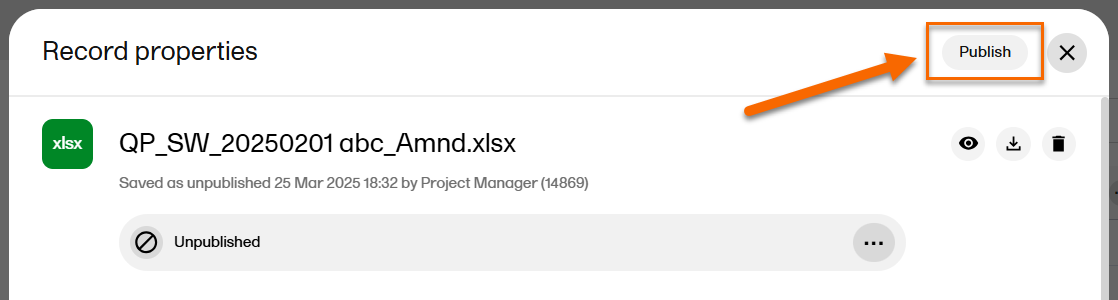
|
| 4 |
When the record is published, it is available for all TMF users with at least read permissions for that artifact and with access to the TMF level that the record is linked to. The record status is now Awaiting review: 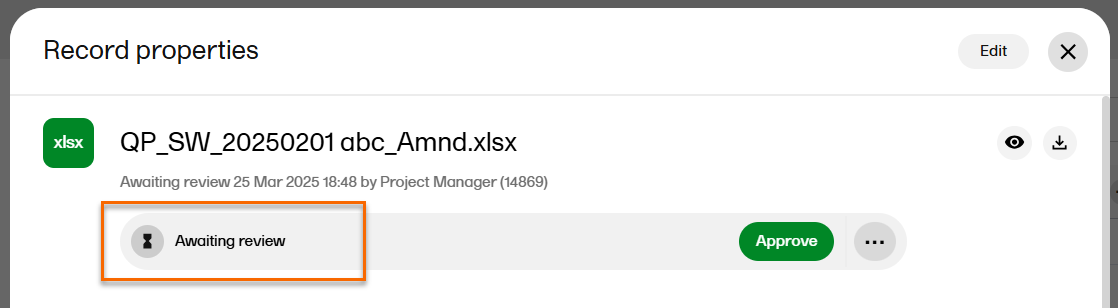
|
Deleting a record in Viedoc TMF requires write permission for the artifact on the TMF level that the record is linked to. For more information, see Roles and permissions in Viedoc TMF.
To delete an unpublished record:
| 1 |
From the Structure page, the Records page, or the Drop Zone, navigate to the record you want to delete, and select the delete icon on the same row as the record: 
|
Alternatively, select the record to open the Record properties window, select ... to open the Record actions menu, and select Delete record. |
|
| 2 |
Select Confirm to delete. |
To delete a published record:
| 1 | From the Structure page, the Records page, or the Drop Zone, select the record to open the Record properties window, select ... to open the Record actions menu, and select Delete record. |
| 2 | Enter a reason for deletion. |
| 3 | Select Delete record. |
Downloading a record from Viedoc TMF requires read, review, or write permission for the artifact on the TMF level that the record is linked to. For more information, see Roles and permissions in Viedoc TMF.
To download a record:
| 1 |
From the Structure page, the Records page, or the Drop Zone, navigate to the record you want to download, and select the download icon on the same row as the record: 
|
|
Alternatively, select the record to open the Record properties window, and select the download icon to download the record from there. |
|
| 2 | The record is then downloaded. |
Note! When downloaded, the name of the latest version of the record is according to the download label in the Record properties window:
Note! This page contains information and instructions for the new TMF user interface. If you are using the old interface, please go to the relevant user guides:
Want to browse more information for the new interface? Please go to the new TMF user guides:
Once an Unpublished record is edited and published, or a record Flagged for QC has been edited and published, the record status will change to Awaiting review. Reviewing and approving a record in Viedoc TMF requires review permission for the artifact in the same scope (trial, country, or site) that the record is assigned to. Once approved, the record status will change to Finalized.
For more information on statuses, please see Record statuses and actions.
For more information about permissions, please see Roles and permissions in Viedoc TMF.
In the Overview page, the records metrics area shows how many records are Awaiting review.
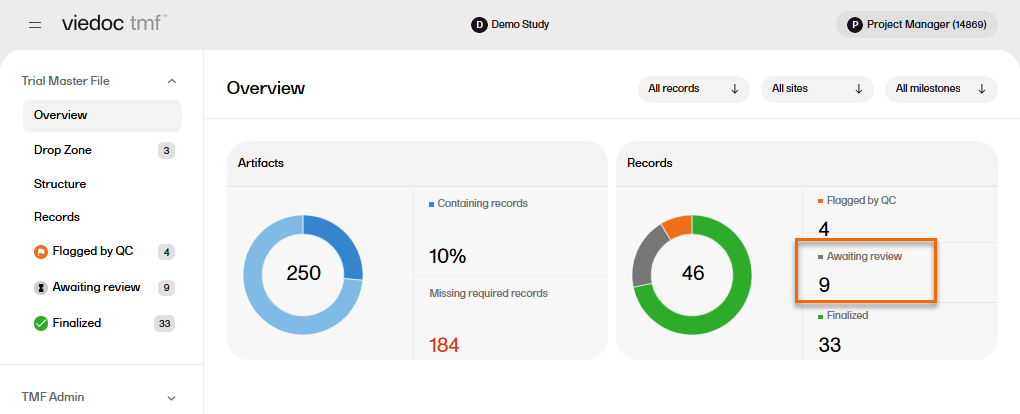
To locate the records that are Awaiting review:
| 1 |
In the left navigation menu, select to expand Trial Master File, and select the Records page. |
| 2 |
On the Records page, locate the column Record status, and select to open the column options menu. 
|
| 3 |
Select the filter tab, and then deselect all statuses except Awaiting review. 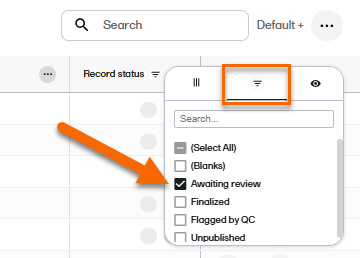
|
| 4 |
The Records page now shows a list of all the records that are Awaiting review. |
To review a record with the status Awaiting review:
| 1 |
Select a record on the Records page to open the Record properties window in read-only mode. |
| 2 |
Review the record and make sure all the metadata is correct. |
| 3 |
To view the the latest version of the uploaded file, select the Preview icon in the top right corner of the window. For more information, see previewing a record in the managing records lesson. 
|
| 4 |
To download the file, select the download icon in the top right corner of the window:  |
| 5 |
If the record has multiple versions, you can navigate between the different versions by selecting the Version dropdown menu at the top of the Record properties window. 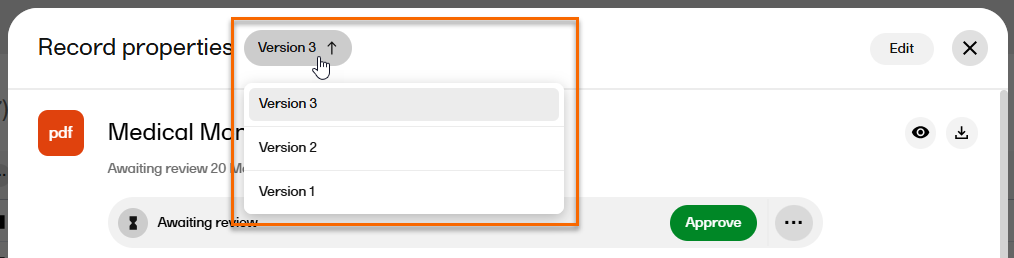
|
| 6 |
Select the Record actions menu to see several options that are available: 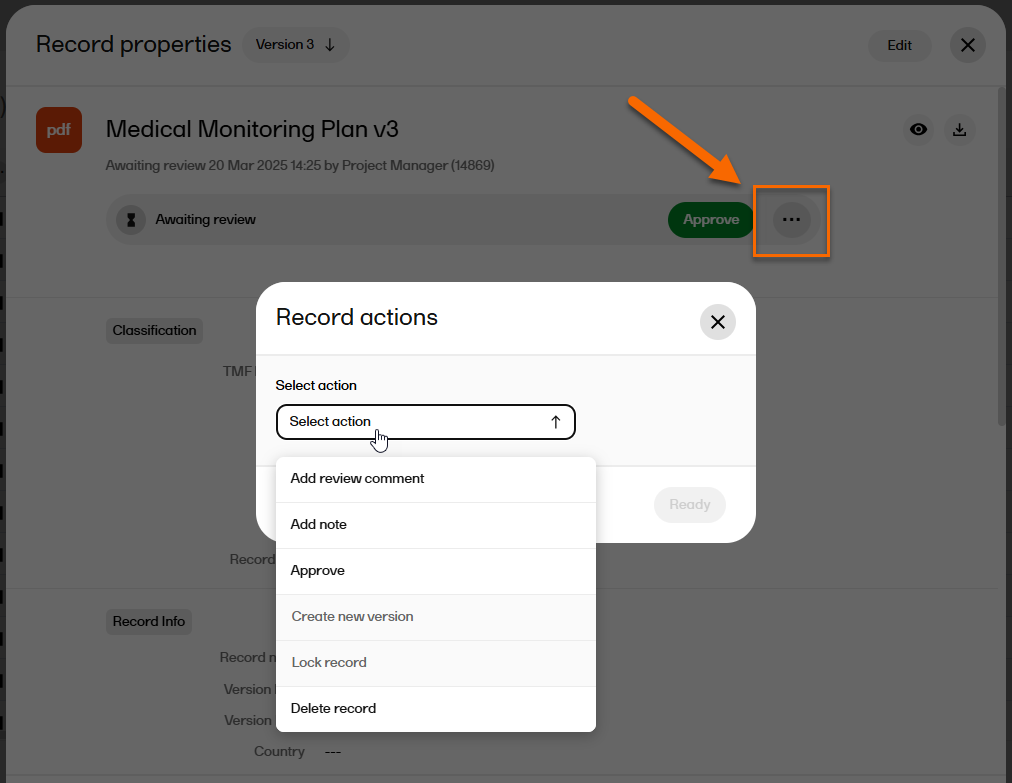
|
| 7 |
If you need to add a review comment, select Add review comment from the Record actions menu: 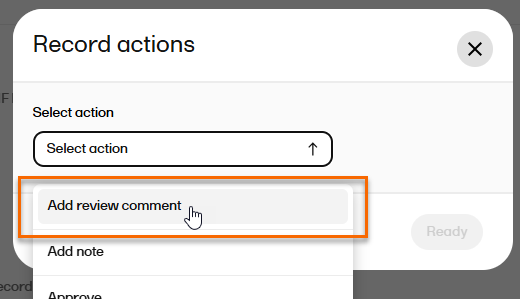
|
| 8 |
Write your comment and select Ready. 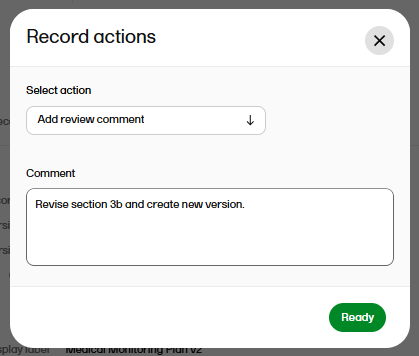
|
| 9 |
Note! If you add a review comment and save the record, the record status is changed to Flagged by QC: 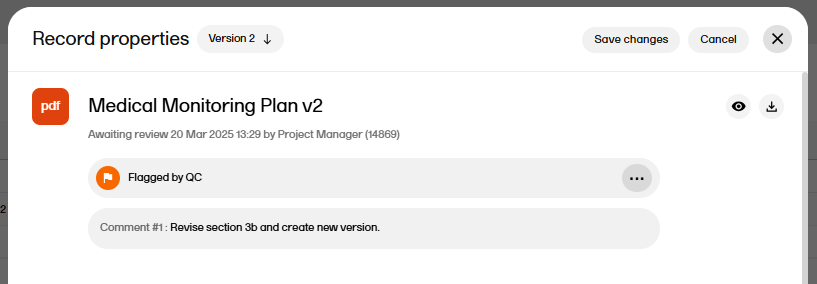
To change the status back to Awaiting review, a user with write permission needs to edit to the record metadata or upload another file. |
| 10 | If there is no need for a review comment, the record is ready to be approved (see next section). |
Approving a record in Viedoc TMF requires review permission for the artifact in the same scope (trial, country, or site) that the record is assigned to. For more information, see Roles and permissions in Viedoc TMF.
To approve a record with the status Awaiting review:
| 1 |
Select the record to open the Record properties window. |
| 2 |
In the Record properties window, select Approve: 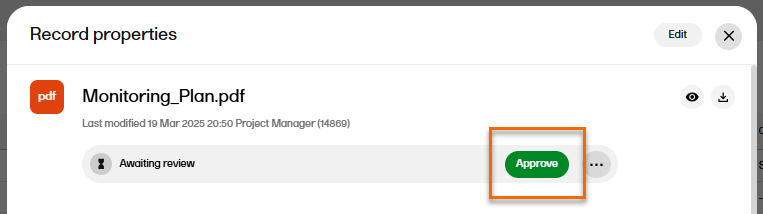
|
| 3 |
The record status is now Finalized. Note! Finalized records cannot be edited. To make changes, a new record version must be created. |
After a record has been approved and finalized, it can be locked so no more changes can be made.
Note! If the TMF is configured to Automatically lock records on approve (see TMF settings for more information), the record will automatically be locked when it is approved.
For more information please see Locking and unlocking records.
Note! This page contains information and instructions for the new TMF user interface. If you are using the old interface, please go to the relevant user guides:
Want to browse more information for the new interface? Please go to the new TMF user guides:
A record can be Flagged by QC to indicate that a change needs to happen before it can be finalized. Please see Record statuses and actions for more information.
The workflow and permissions for this are as follows:
For more information about permissions, please see Roles and permissions in Viedoc TMF.
In the Overview page, the records metrics area shows how many records are Flagged by QC.
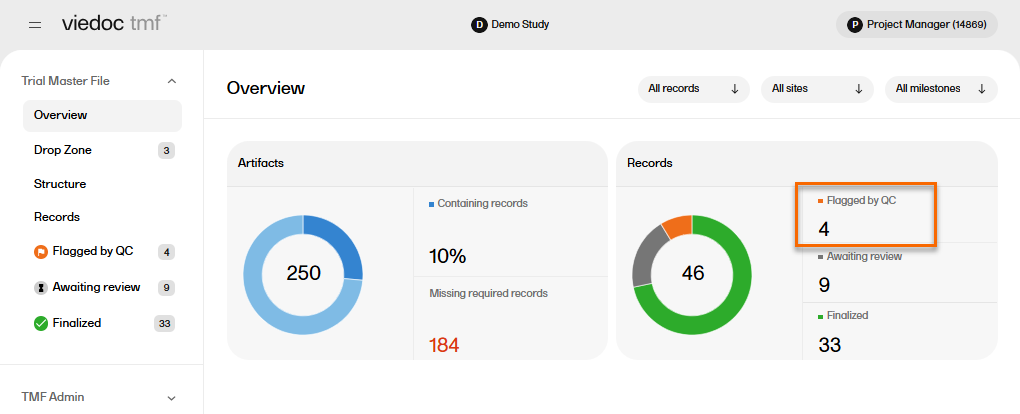
To locate the records that are Flagged by QC:
| 1 |
In the left navigation menu, select to expand Trial Master File, and select the Records page. |
| 2 |
On the Records page, locate the column Record status, and select to open the column options menu.
|
| 3 |
Select the filter tab, and then deselect all statuses except Flagged by QC. 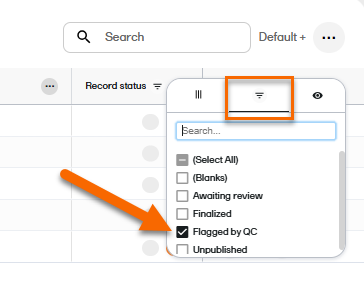
|
| 4 |
The Records page now shows a list of all the records that are Flagged by QC. |
To resolve issues for records that are Flagged by QC, you need to edit the record metadata.
To edit the record metadata:
| 1 | Select the record to open the Record properties. |
| 2 |
If there is a review comment, you can see it at the top of the Record properties window. 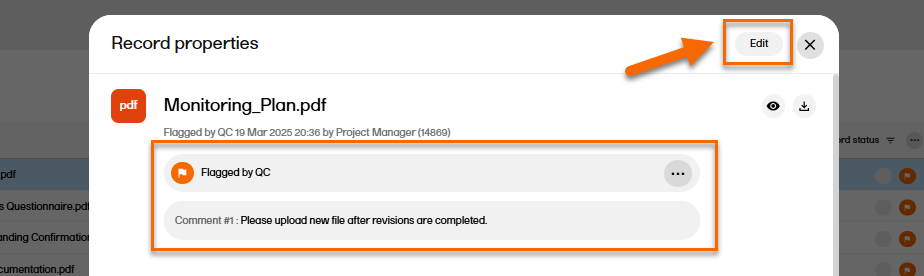
|
| 3 |
Select Edit in the top right corner of the window. |
| 4 |
In the Record properties window, edit the applicable record metadata. To upload another file, select the upload button in the File Info area. 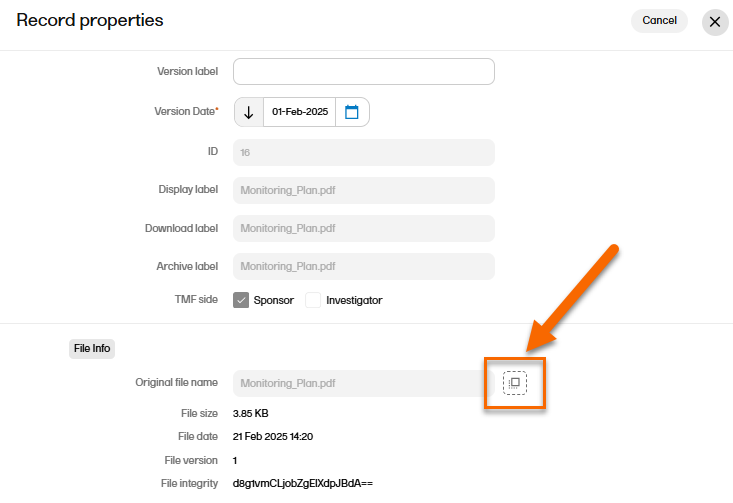
|
| 5 |
When you have made the necessary changes, select Save changes. 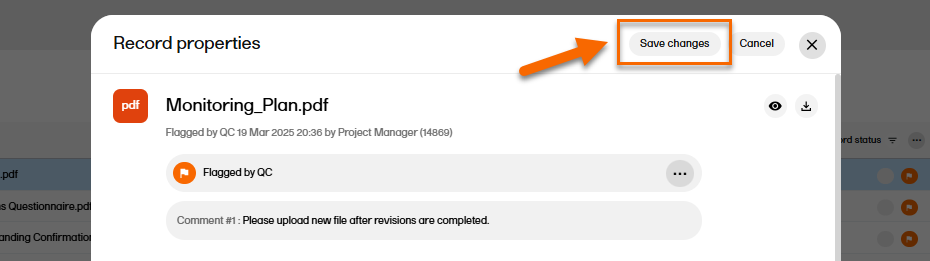
|
| 6 |
When the changes have been saved, the record status is changed to Awaiting review. 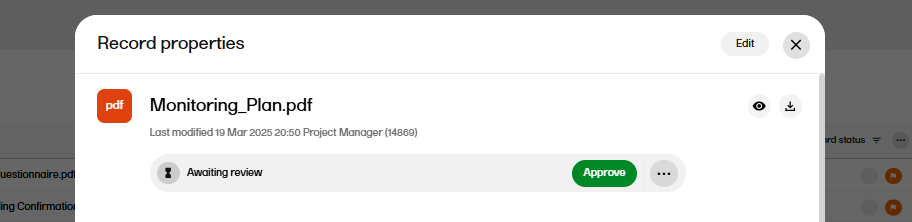
|
Note! This page contains information and instructions for the new TMF user interface. If you are using the old interface, please go to the relevant user guides:
Want to browse more information for the new interface? Please go to the new TMF user guides:
After a record has been finalized, you can lock it to prevent any further changes. It is also possible to unlock a record at any time.
Note! If the TMF is configured to Automatically lock records on approve (see TMF settings for more information), the record automatically locks when it is approved.
To lock a record:
| 1 |
Select a finalized record to open the Record properties window. |
| 2 |
In the Record properties window, select Lock. 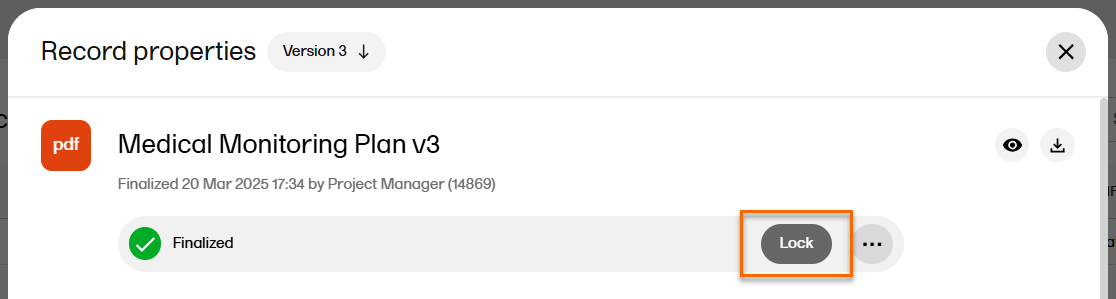
|
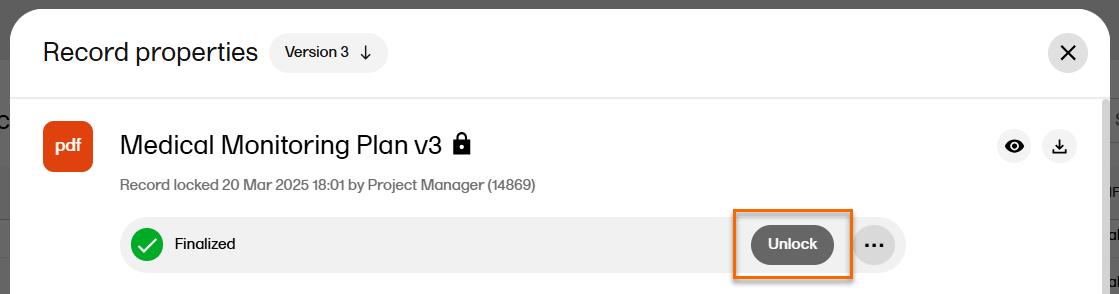
| 3 | The Lock button now changes into an Unlock button. |
Note! It is not possible to create new versions of locked records.
To enable editing of a locked record, you can unlock it.
To unlock a record:
| 1 |
Select the locked record to open the Record properties window. |
| 2 |
If the TMF has Give reason for unlocking records setting disabled (see TMF settings for more information), the Unlock button will appear. Select the Unlock button:
|
| 3 |
If the TMF has Give reason for unlocking records setting enabled (see TMF settings for more information), the Unlock button is not displayed. Instead, select to open the Record actions menu, and from the dropdown select Unlock record: 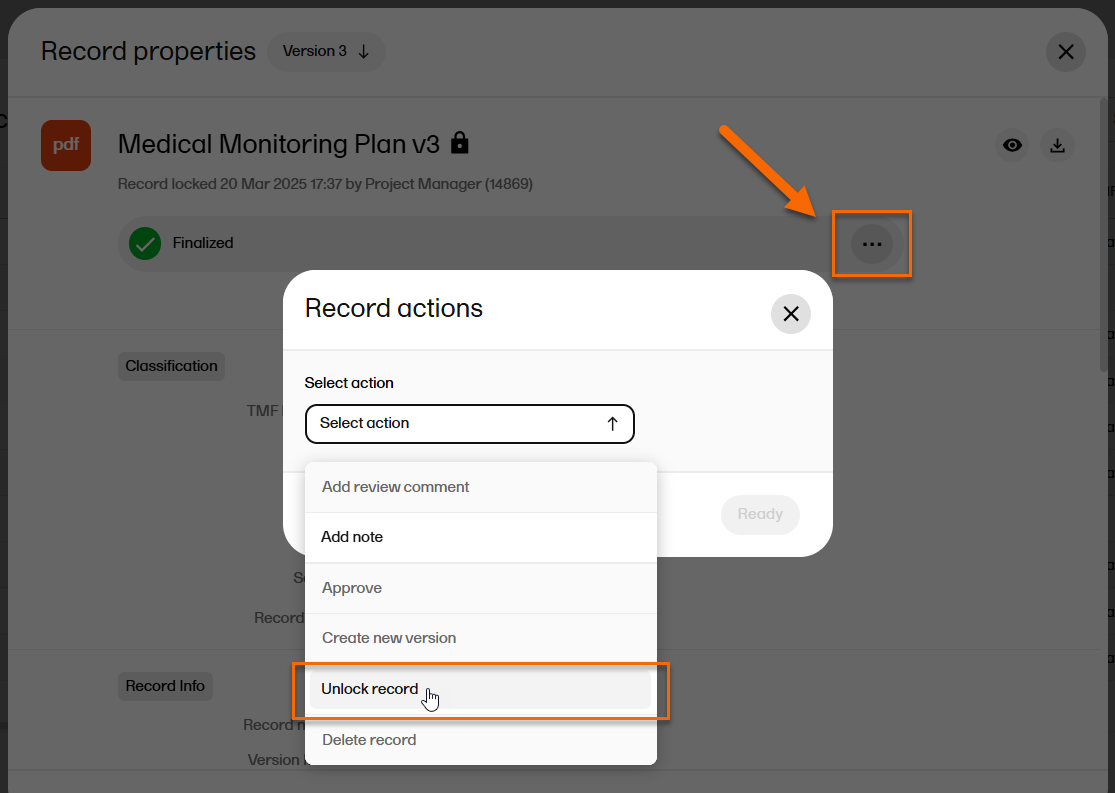
|
| 4 |
Type the reason for unlocking the record and select Unlock Record to confirm. 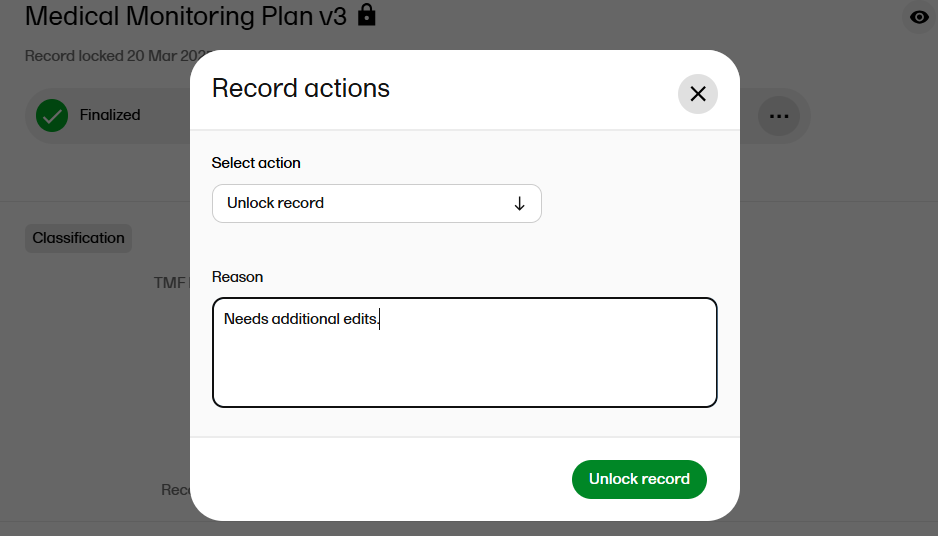
The record is now unlocked, and the unlock reason is recorded in the audit trail report. |
Note! This page contains information and instructions for the new TMF user interface. If you are using the old interface, please go to the relevant user guides:
Want to browse more information for the new interface? Please go to the new TMF user guides:
The Viedoc Share feature is available to TMF users for sharing records with Viedoc Me users, or with Viedoc Clinic users, for information sharing or for collecting signatures.
The following terms are used for reference:
A TMF user can share records if the eTMF Manager assigns one of the following permissions to their role in Viedoc Admin:
See Roles and permissions in Viedoc TMF for more information
A record can only be shared if:
Supported file types:
Viedoc Share supports all file types that can be uploaded into the TMF. For a list of file types that cannot be uploaded to the TMF, please see Blacklisted file formats.
When a shared record is digitally signed by the recipient, Long-Term Validation (LTV) is embedded into the PDF, ensuring that signatures remain verifiable even after certificate expiration.
This happens automatically, with no extra steps are required from the user. A trusted timestamp is applied at the time of signing, and signatures display as valid in standard PDF viewers such as Adobe Acrobat. If an error occurs during validation or timestamping, the signed document cannot be downloaded, ensuring the integrity and compliance of the signed output.
Before a record is published, it can be configured for sharing. A TMF user with WRITE access to a record must enable the sharing before other TMF end users can share the record.
To configure a record for sharing:
| 1 |
In the left navigation menu, select Trial Master File to expand it, and select the Records or the Structure page. Navigate to the unpublished record, and select it to open the Record properties window. |
| 2 |
In the Record sharing section, select the users that the record can be shared with - either Viedoc Clinic users or Viedoc Me users. 
|
| 3 | Select Publish or Save as unpublished, as needed. |
Note! Only an unpublished record can be configured for sharing and have form fields added (see Adding form fields below). If a record has already been published and/or finalized, create a new version of the record, configure for sharing and/or add form fields, then publish and finalize again.
A TMF user with Manage sharing permission will see a Sharing section at the top of the Record properties window.
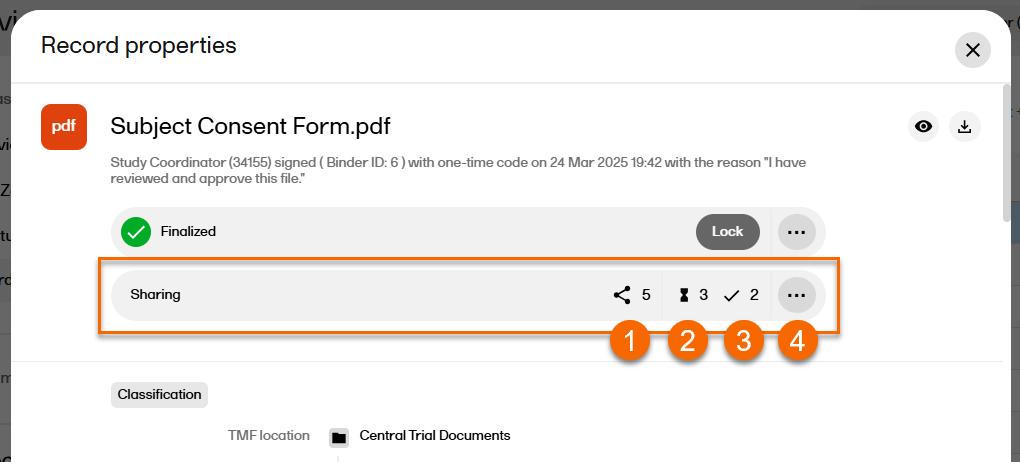
The Sharing section contains the folllowing:
1. The number of active shared binders accessible by the Sharer.
2. The number of pending actions for binders accessible by the Sharer (only displayed if the number is greater than 0).
3. The number of actions done for binders accessible by the Sharer (only displayed if the number is greater than 0).
4. Select ... to open the Sharing window with an overview of the existing binders. This is also where new binders can be created.
Form fields such as radio buttons, checkboxes or open text fields can be added to an unpublished record once it has been added to an artifact. These fields can be customized and set as optional or required for the recipient. If fields are set as required, the recipient cannot sign the record until all required fields have been completed.
Notes!
To add form fields to a record:
| 1 |
In the left navigation menu, select to expand Trial Master File, and select the Records or the Structure page. Navigate to the unpublished record, and select it to open the Record properties window. |
| 2 | Select the eye icon to open a preview of the record:
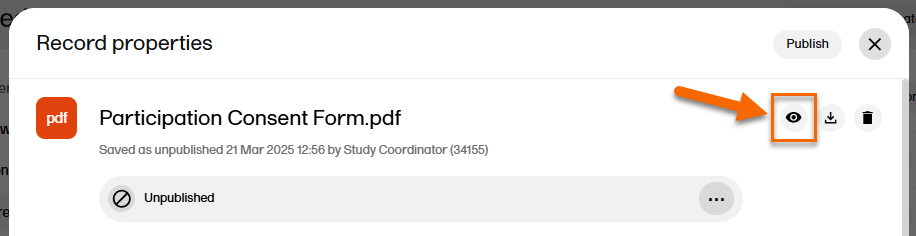
|
| 3 |
On the far left, the options for adding/editing fields are displayed: 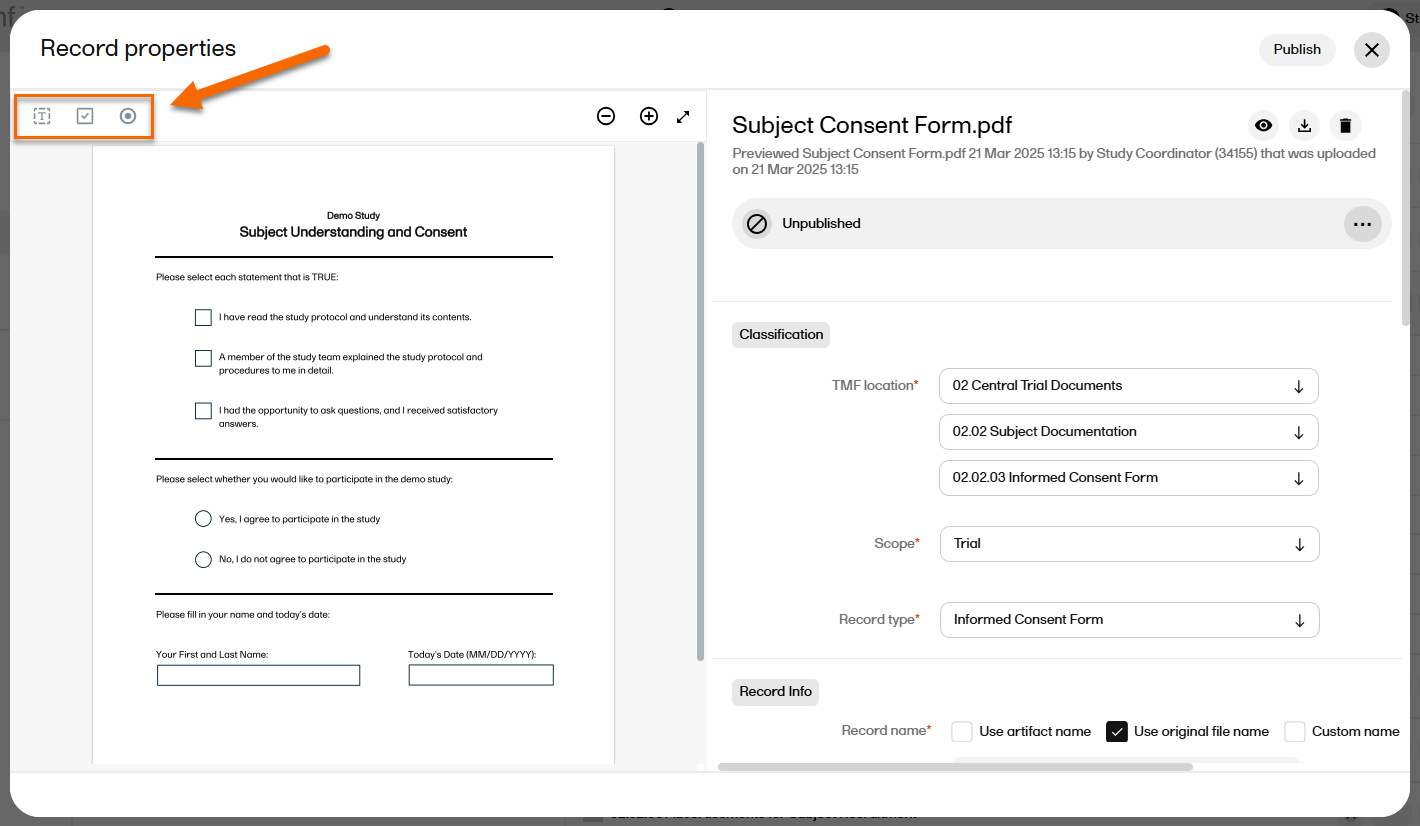
|
Types of form fields available:
Radio buttons allow recipients to select a single option from a predefined set of choices, ensuring only one selection is made.
Checkboxes allow recipients to select multiple options independently from a list, allowing for one, several, or all choices to be selected.
Open text fields provide recipients with a space to input free-form text, accommodating responses that require personalized or detailed information.
To create a radio button:
| 1 |
While previewing the record, select Radio button: 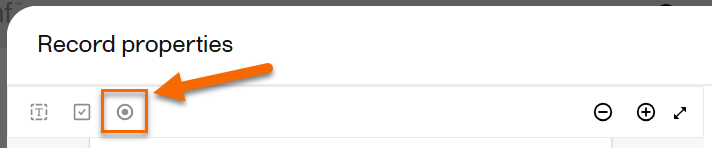
|
| 2 |
Drag the cursor to create the field shape (the size and position can be edited later). 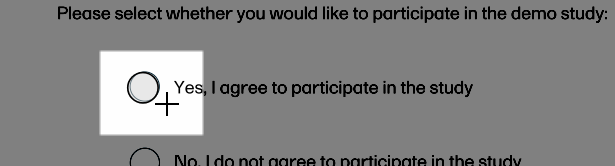
|
| 3 |
Once the shape is created, an edit window is displayed: 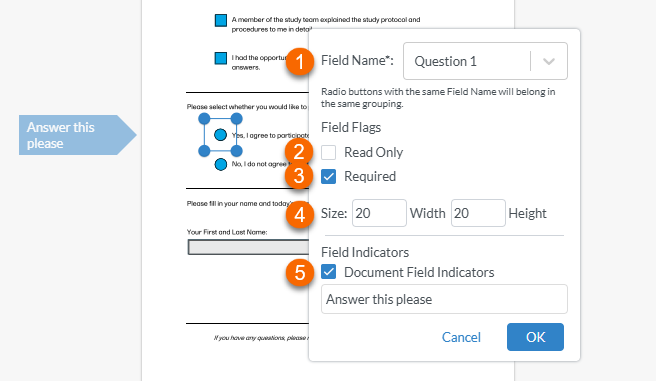
1. To name the radio button, select inside the text box to the right of Field Name and type the name (for example "Question 1". Then select the option that appears below to create the field name. 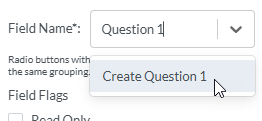
Note! For radio buttons to function properly, options belonging to the same question must have the same field name. For example, both "yes" and "no" radio buttons belonging to the first question must both be named "Question 1", and the next set of "yes" and "no" radio buttons belonging to the second question must both be named "Question 2". 2. Setting the field as Read Only prevents the recipient from selecting or deselecting the button 3. Setting the field as Required prevents the recipient from signing the record until all of the required fields have been filled in. 4. Setting the Size controls the size of the radio button. 5. Selecting Document Field Indicators and typing in a label creates a flag to the left of the field that the recipient will see. Note! This may not be visible if the recipient is viewing the record on a mobile device. |
| 4 |
After completing all of the relevant fields and settings, select Save: 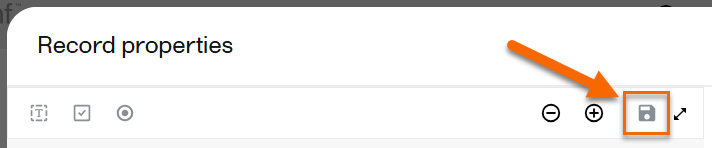
Note! You must save the form fields before publishing, saving as unpublished, or closing the record, otherwise the changes to the form fields will be lost. |
To create a checkbox:
| 1 |
While previewing the record, select Checkbox: 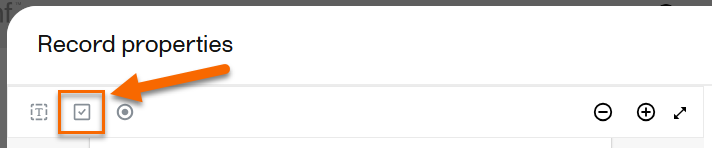
|
| 2 |
Drag the cursor to create the field shape (the size and position can be edited later). 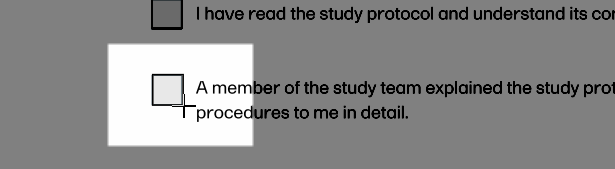
|
| 3 |
Once the shape is created, an edit window is displayed: 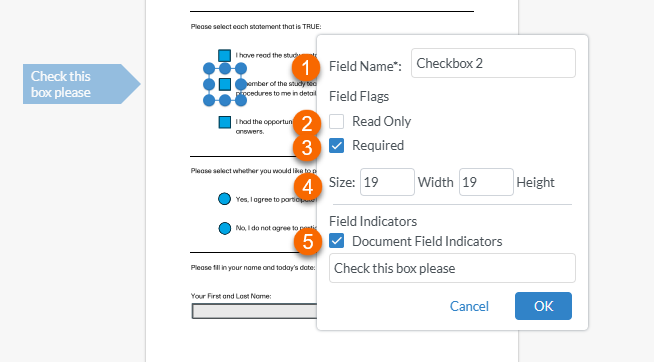
1. To name the checkbox, select inside the text box to the right of Field Name and type the name (for example "CheckBox1". Note! Checkboxes must have unique field names. If you give a checkbox the same name as another checkbox in the same record, you will not be able to save the checkbox. 2. Setting the field as Read Only prevents the recipient to select or deselect the checkbox. 3. Setting the field as Required prevents the recipient from signing the record until all required fields have been completed. Note! If a required checkbox if left blank, the recipient will not be able to sign the record. 4. Setting the Size controls the size of the checkbox 5. Selecting Document Field Indicators and typing in a label creates a flag to the left of the field that the recipient will see. Note! This may not be visible if the recipient is viewing the record on a mobile device. |
| 4 |
After completing all of the relevant fields and settings, select Save:
Note! You must save the form fields before publishing, saving as unpublished, or closing the record, otherwise the changes to the form fields will be lost. |
To create a text field:
| 1 |
Select Text Field: 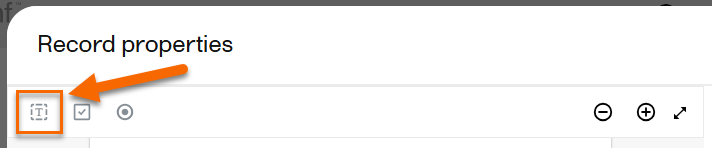
|
| 2 |
Drag the cursor to create the field shape (size and position can be edited later). 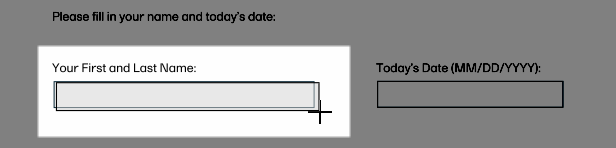
|
| 3 |
Once the shape is created, an edit window is displayed: 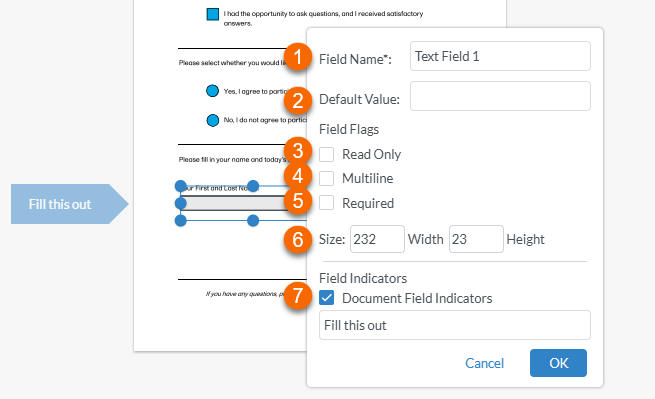
Edit the options for the text field as needed: 1. To name the text field, select inside the text box to the right of Field Name and type the name (for example "TextFormField 1"). Note! Text field names do not affect the functionality as the radio button names do. 2. Entering a Default Value autofills the text field with any text you enter here. 3. Setting the field as Read Only prevents the recipient from typing any text in the text field. 4. Setting the field as Multiline allows for multiple lines of text to be entered. 5. Setting the field as Required prevents the recipient from signing the record until all of the required fields have been completed. 6. Setting the size controls the size of the text field 7. Selecting Document Field Indicators and typing in a label creates a flag to the left of the field that the recipient will see. Note! This may not be visible if the recipient is viewing the record on a mobile device. |
| 4 |
After completing all of the relevant fields and settings, select Save:
Note! You must save the form fields before publishing, saving as unpublished, or closing the record, otherwise the changes to the form fields will be lost. |
To share a record with a Viedoc Me user or a Viedoc Clinic user:
| 1 |
In the left navigation menu, select to expand Trial Master File, and select the Records or the Structure page. Navigate to the finalized record, and select it to open the Record properties window. |
| 2 |
In the Sharing section at the top of the window, select 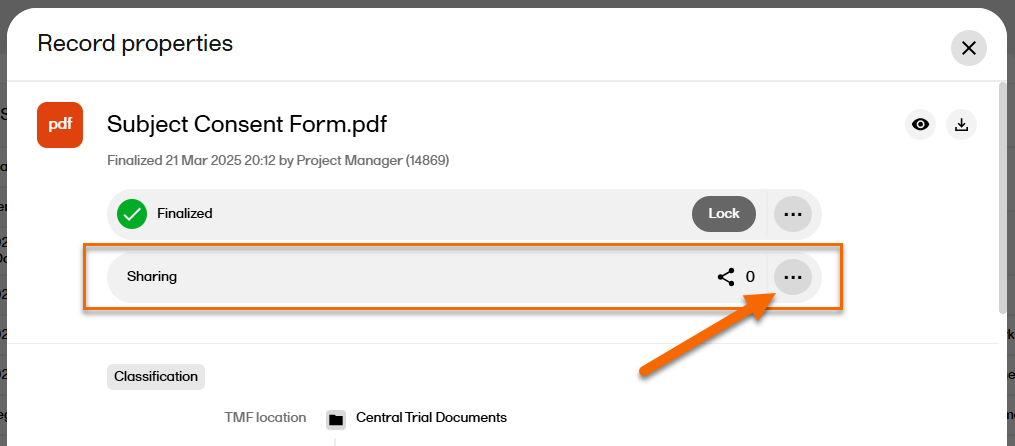 |
| 3 |
Select Create a new binder: 
Or, if the record already has shared binders, select the |
| 4 |
For Recipients select either Viedoc Clinic users or Viedoc Me users. 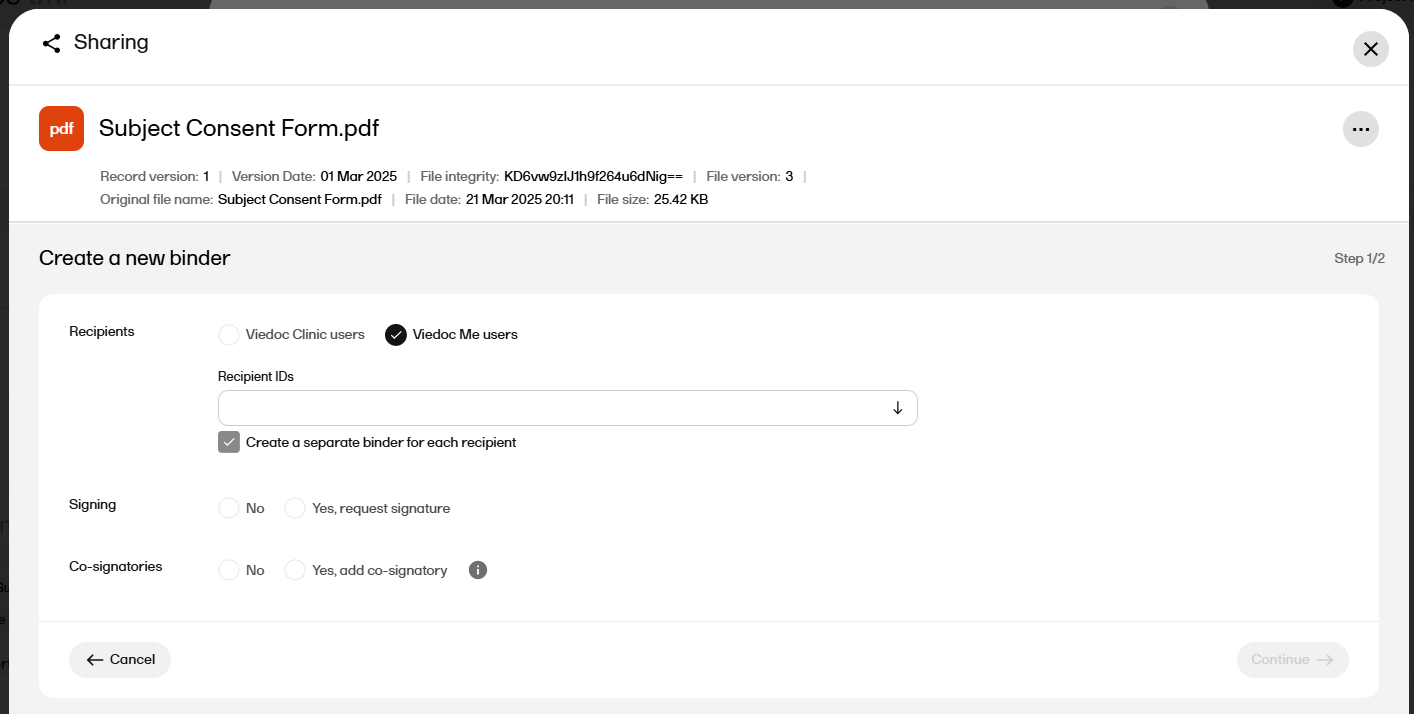
|
| 5 |
For Recipient IDs select the user(s) that you want to share the record with from the dropdown. 
Notes!
|
| 6 |
For Signing, select whether or not to request a signature. Note! If the record is included in an artifact that is only on the Sponsor side of the TMF (or on neither Sponsor nor Investigator side), and the record version is set to be shared with Viedoc Me users, it is not possible to collect signatures. This is because the signatures can include information that could compromise the data integrity of the Viedoc Me users. |
| 7 |
If you selected Yes in the previous step, select a Reason for the signature from the dropdown. 
|
| 8 |
For Co-signatories, select whether or not a co-signatory is required. Note! The co-signatory cannot sign the record if you selected No for the recipient signature. |
| 9 |
If you selected Yes in the previous step, select the co-signatory or co-signatories from the dropdown. Note! You can only select users within the same scope as yourself. |
| 10 |
If you selected to have a cosignatory, select a Reason for the co-signature from the dropdown. 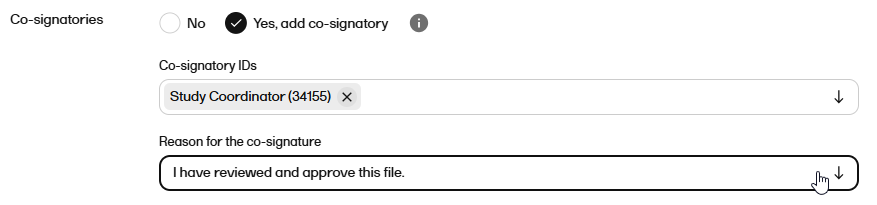
|
| 11 |
Select Continue to see an overview of the sharing details. 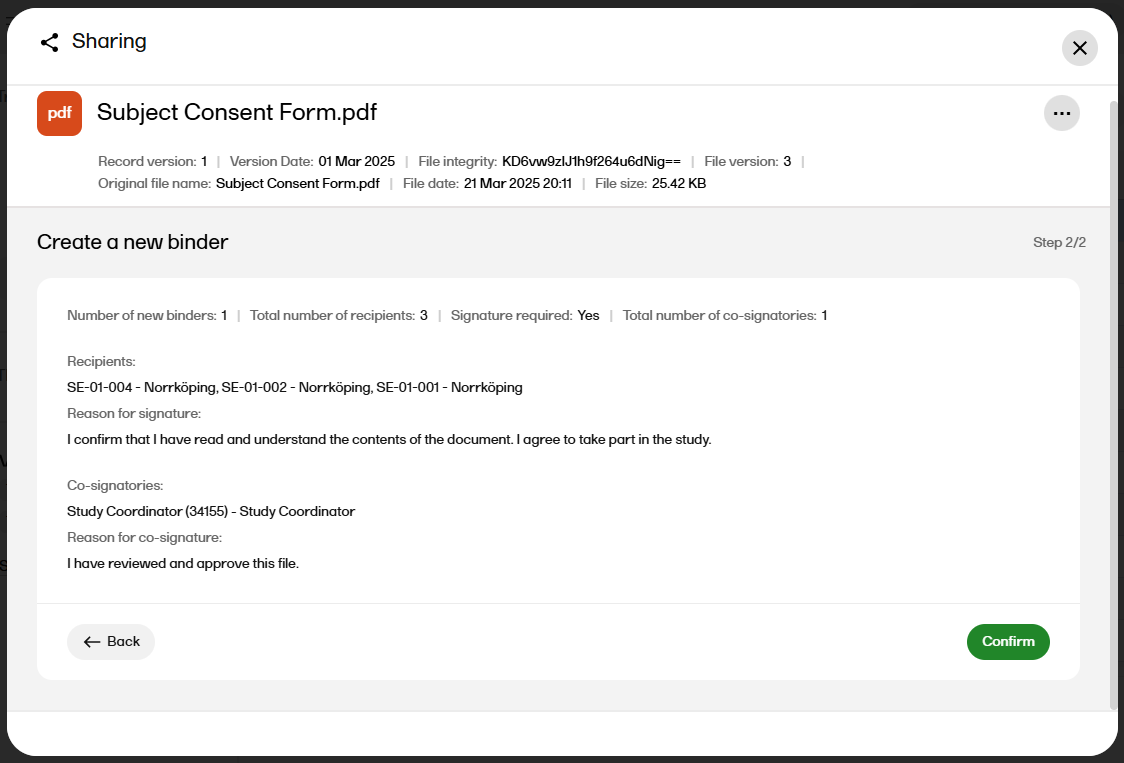
|
| 12 |
If the sharing details are correct, select Confirm. Otherwise, you can select Back and edit. |
| 13 |
After confirming, a binder summary is displayed and an email is sent to each of the recipients with a link to Viedoc Share where the record can be viewed and/or signed. 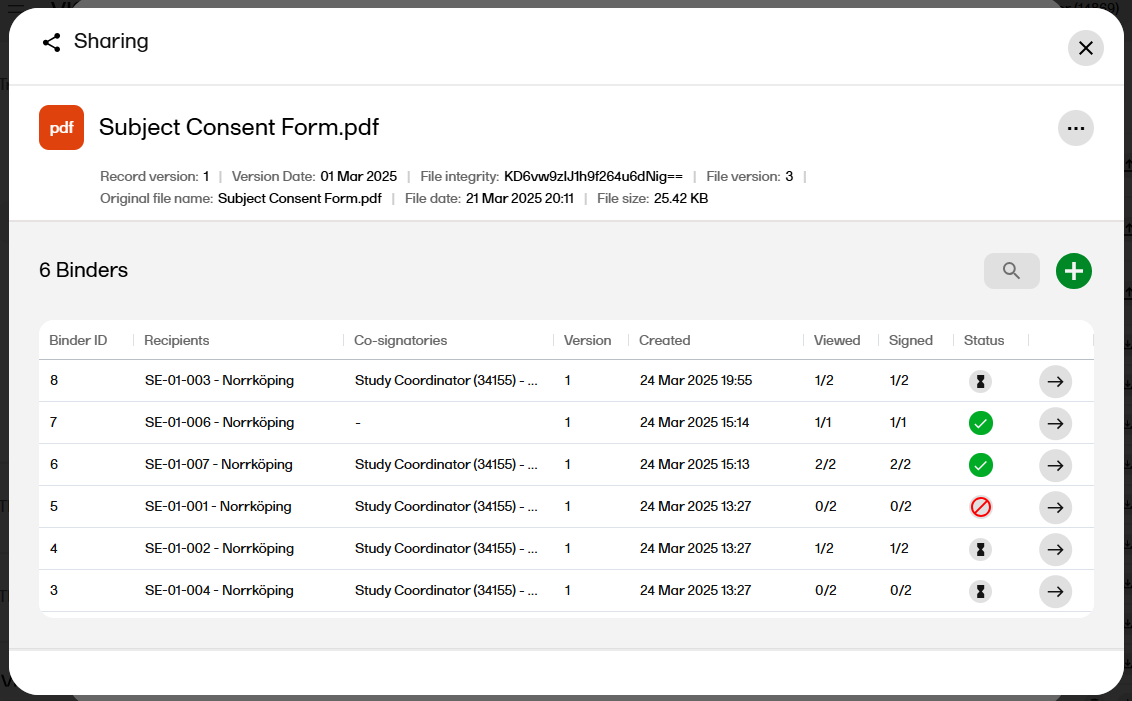
|
| 1 |
In the left navigation menu, select to expand Trial Master File, and select the Records or the Structure page. Navigate to the record, and select it to open the Record properties window. |
| 2 |
In the Sharing section at the top of the window, select |
| 3 |
Select the arrow icon to open the Binder properties window. 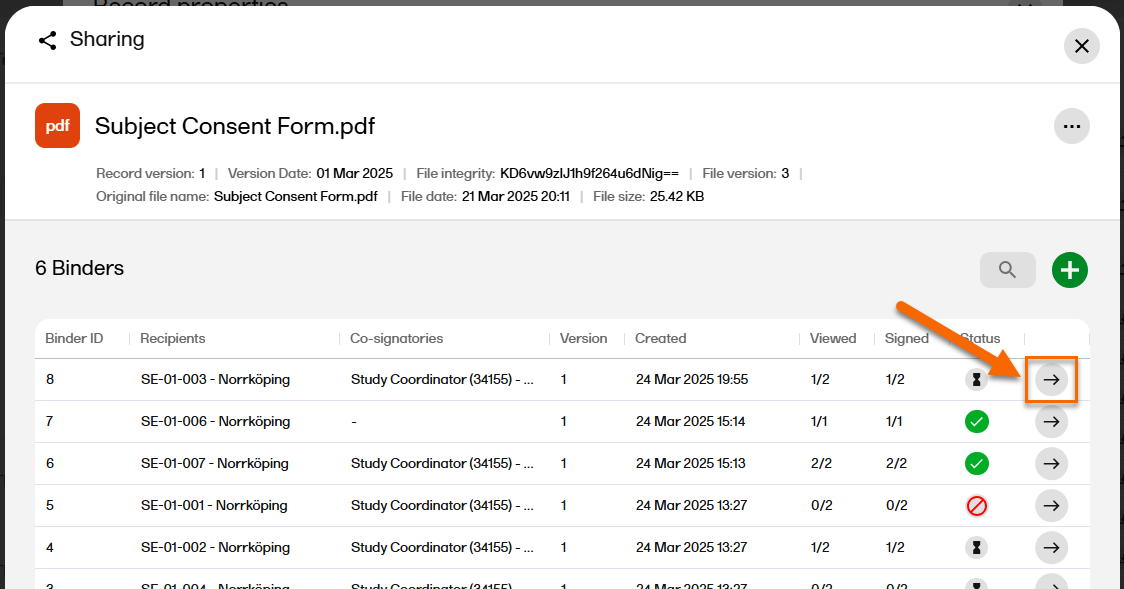
|
| 4 |
The binder properties are displayed, including the history with all actions for the binder. 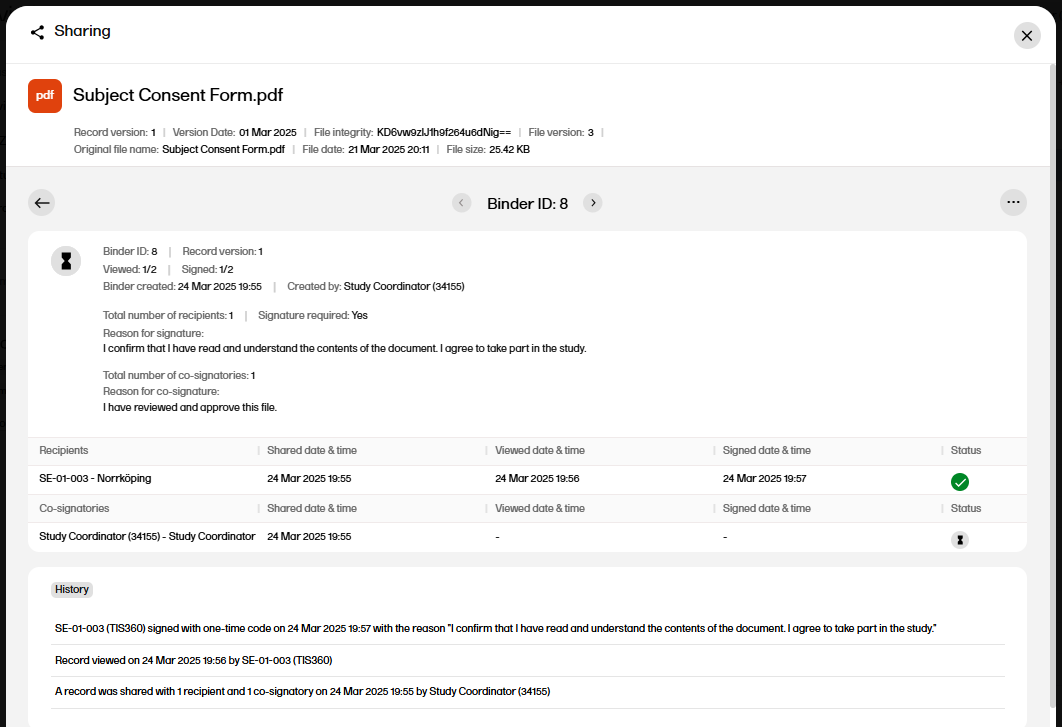
|
To download the shared record from the binder:
| 1 |
In the left navigation menu, select to expand Trial Master File, and select the Records or the Structure page. Navigate to the record, and select it to open the Record properties window. |
| 2 | In the Sharing section at the top of the window, select ... to open the Sharing window. |
| 3 |
Select the arrow icon to open the Binder properties window. 
|
| 4 |
In the top right corner, select 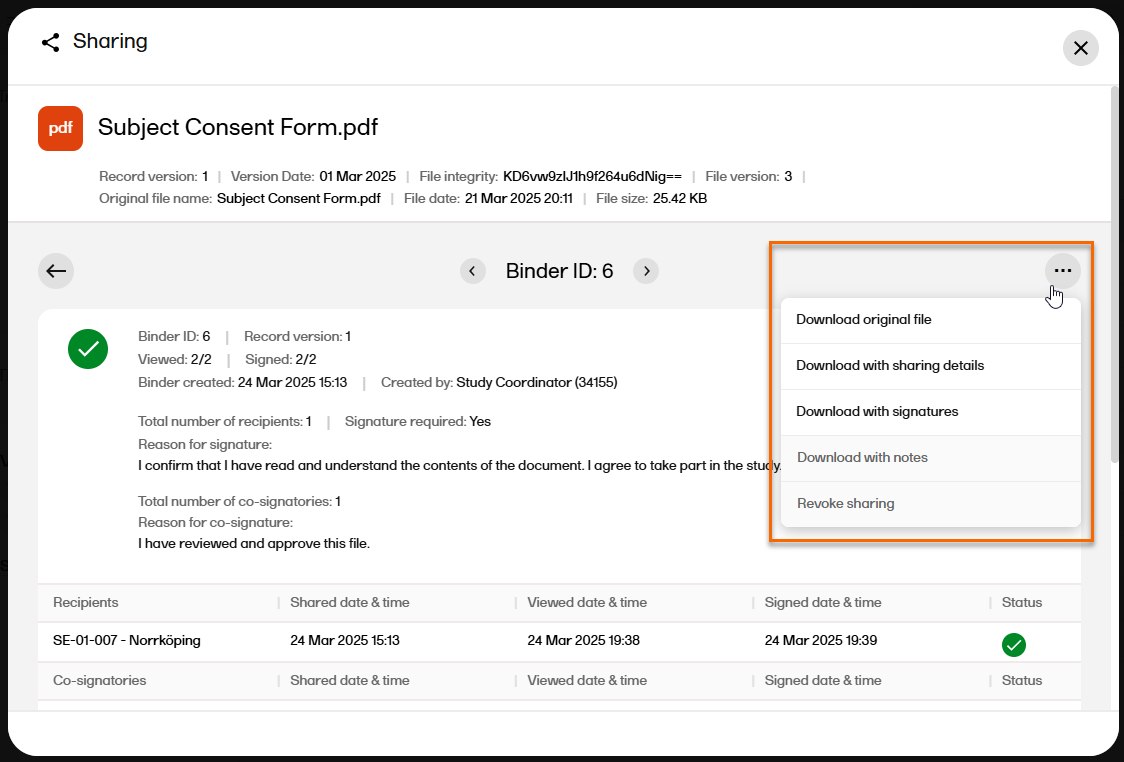
|
| 5 |
Select the download option:
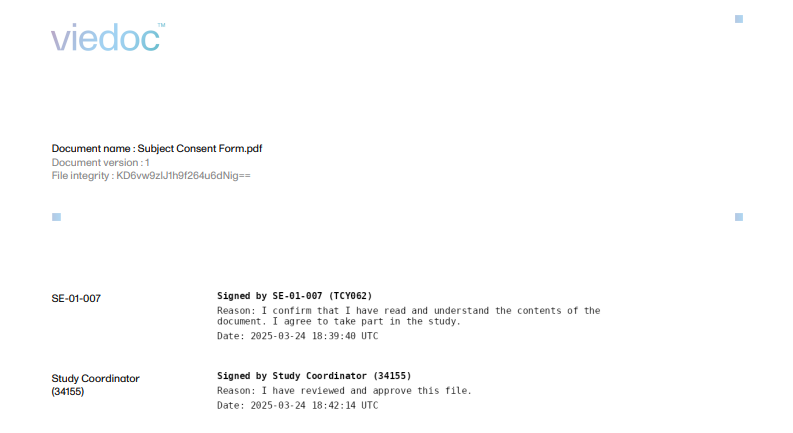
|
A binder can be revoked if you want to share a newer version of a record or to cancel the sharing when a record version has been shared by mistake.
Note! If the record in the binder has been signed, even if it's by only one recipient, the binder cannot be revoked.
To revoke a binder:
| 1 |
In the left navigation menu, select to expand Trial Master File, and select the Records or the Structure page. Navigate to the record, and select it to open the Record properties window. |
| 2 | In the Sharing section at the top of the window, select ... to open the Sharing window. |
| 3 |
Select the arrow icon to open the Binder properties window. 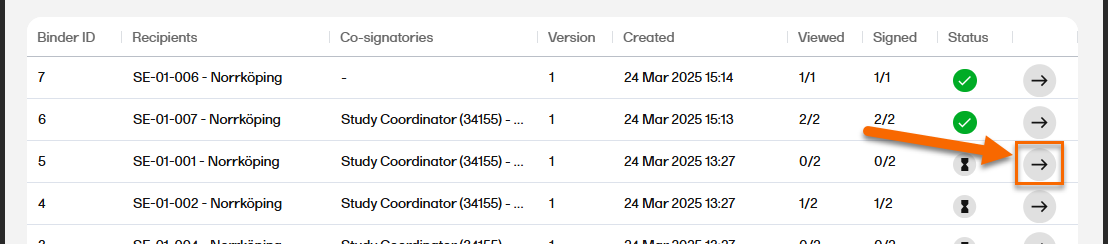
|
| 4 |
In the top right corner, select |
| 5 |
Select Revoke sharing. 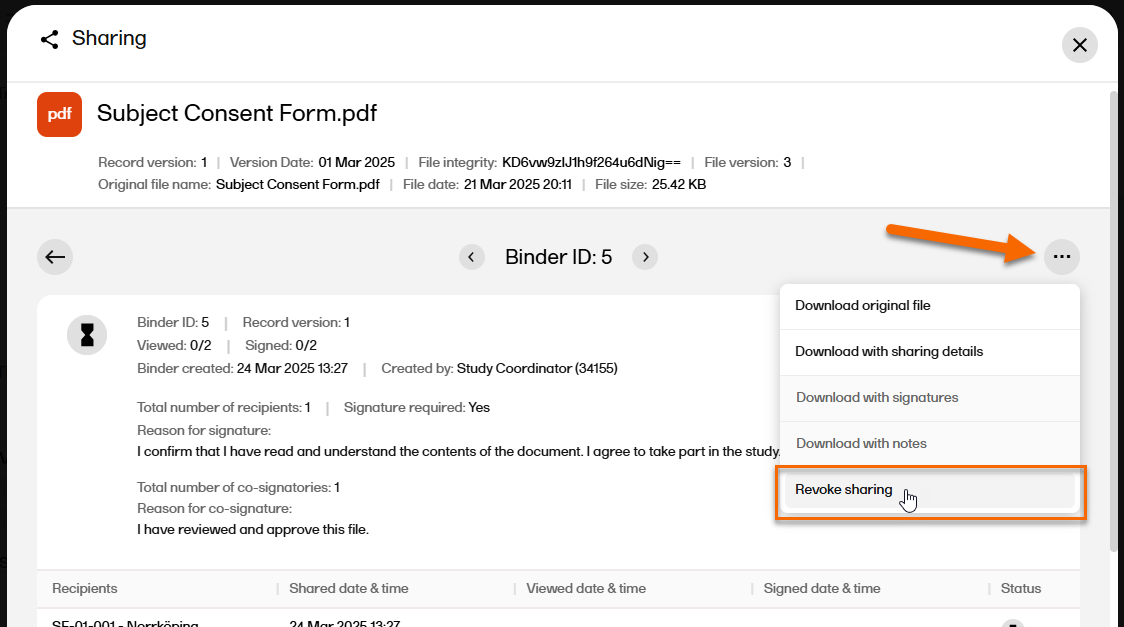
|
| 6 |
The binder properties are displayed, and you can now see that the binder is revoked. 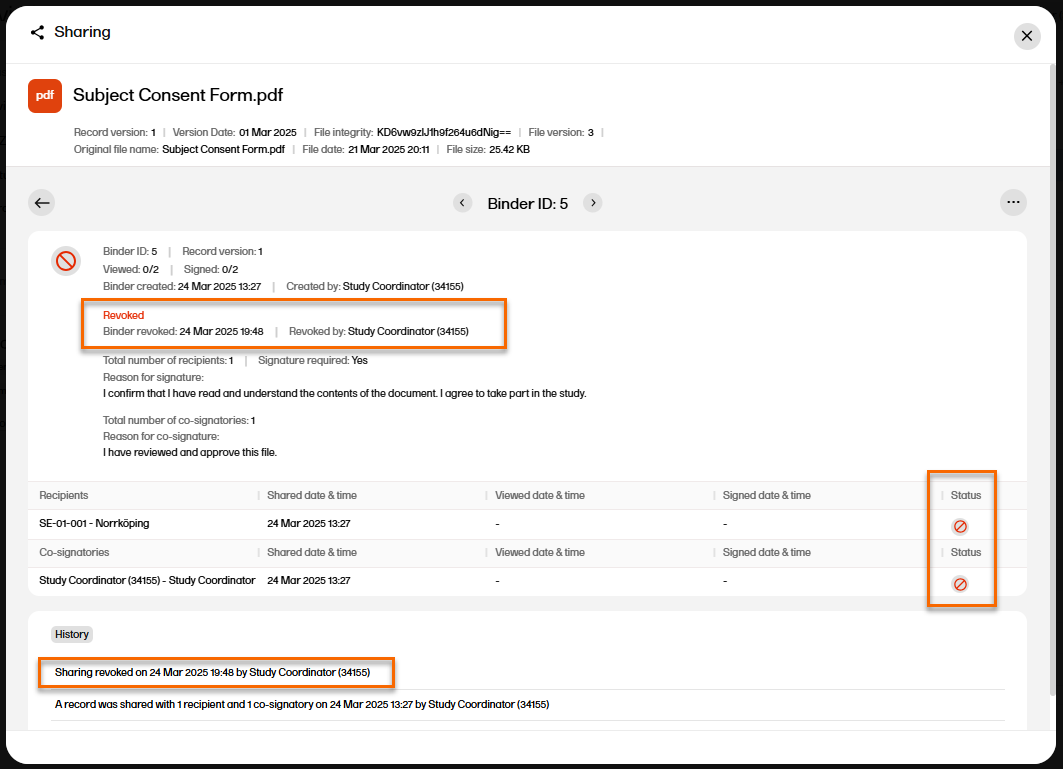
|
Note! This page contains information and instructions for the new TMF user interface. If you are using the old interface, please go to the relevant user guides:
Want to browse more information for the new interface? Please go to the new TMF user guides:
Users with the appropriate permissions for managing the TMF Archive area of Viedoc TMF will see the following in the left navigation menu:
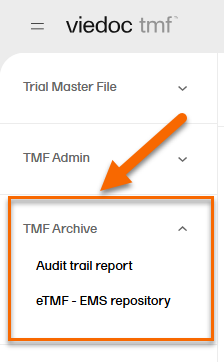
The next sections describe how to generate the Audit trail report and the eTMF-EMS repository.
It is best practice to use the record name templates in TMF settings as naming conventions, to ensure all data that you want to appear are included in file names in the archive and repository.
If an archive template name is defined in TMF settings, when archiving, the latest template will be applied to the files in the zipped folder.
By default, if a record name template is not defined for the archive template:
A complete audit trail report can be generated and downloaded in Excel format. It includes a complete list of actions done on:
The report respects the user roles and access to records, sites, and countries.
In the left navigation menu, select to expand TMF Archive and select the Audit trail report page.
To generate the complete audit trail report:
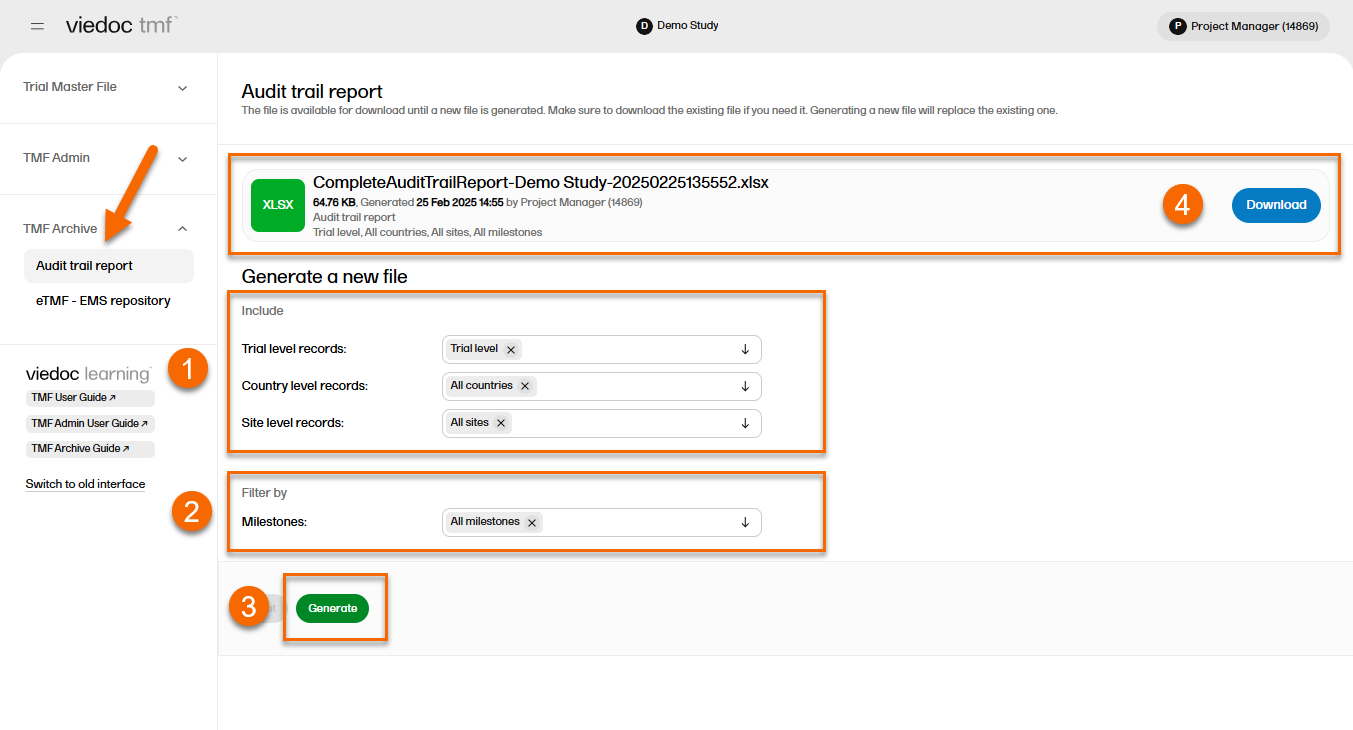
| 1 | Set the options for the records’ audit trails to be included. You can choose to include records that are filed on trial/country/site levels according to your permissions to those. |
| 2 |
Set the milestones/milestone groups you would like to filter by. |
| 3 | Select Generate. |
| 4 | Select Download on the generated file to download the report. |
Each sheet in the complete audit trail report corresponds to the actions done by users in the TMF. The report is self-explanatory, but in the following sections you can find detailed information about each sheet in the file:
This sheet includes general information about the report and the study. The First document added date/time and Last document added date/time show when the first and last records were uploaded to the TMF. This is shown regardless of whether the audit trail of these records is included or not in the report.
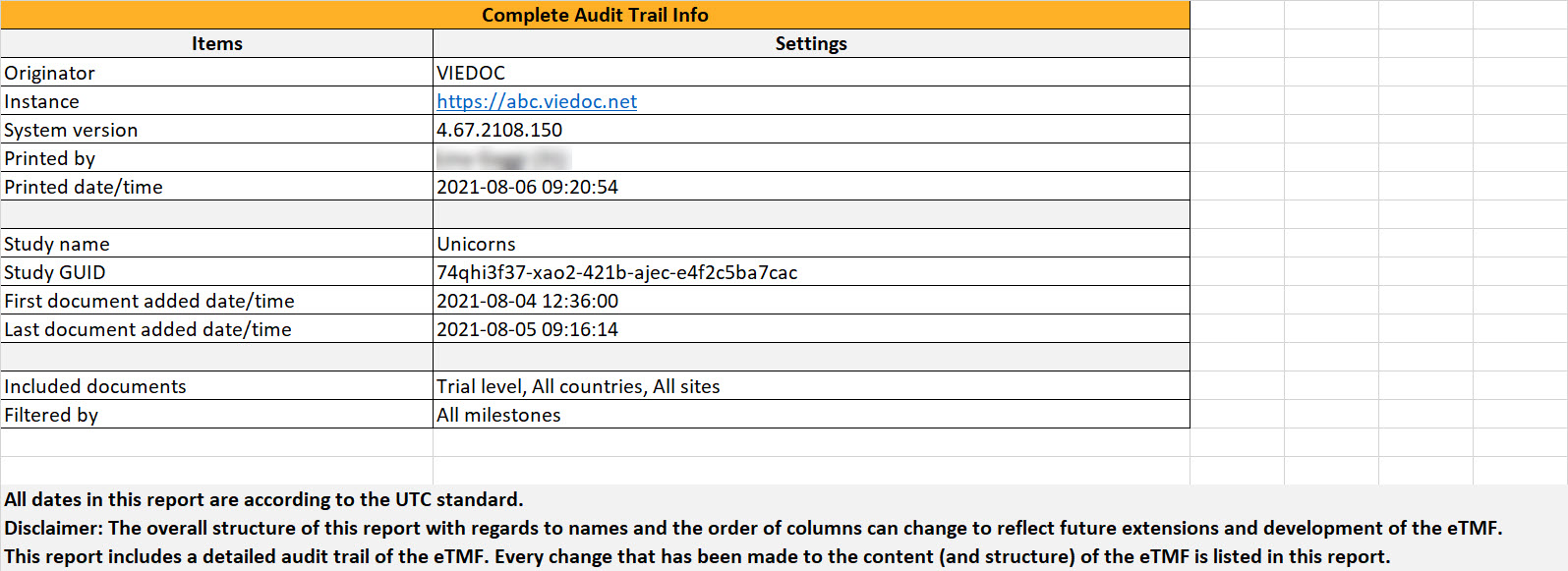
This sheet includes information about all the actions done by users on records in the Trial Master File view. Note that the actions that are included in this sheet are done on:

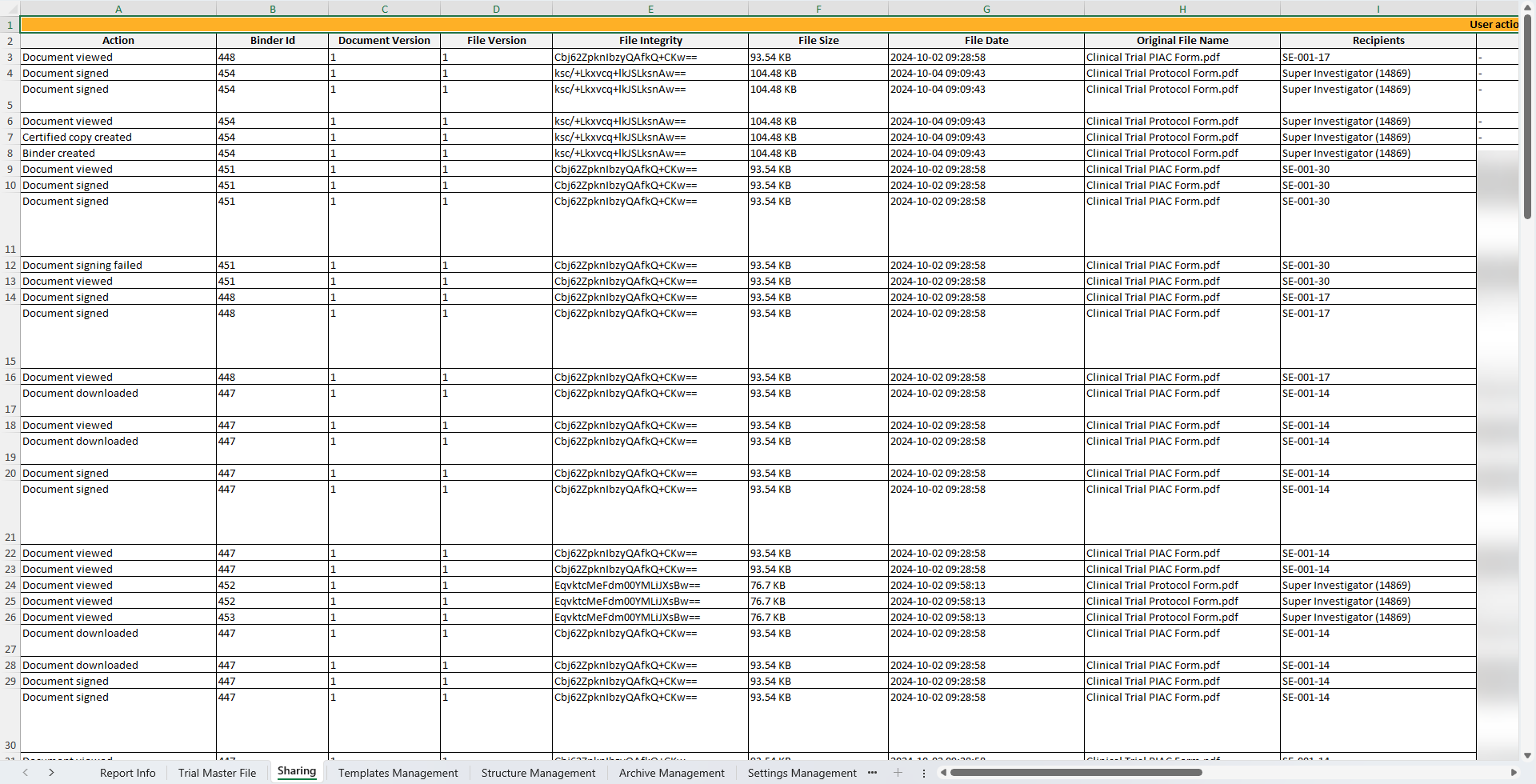
This sheet includes information about all user actions on binders in Viedoc Share and Viedoc TMF.
Note! The sheet only include actions on the binders that the archivist has access to.
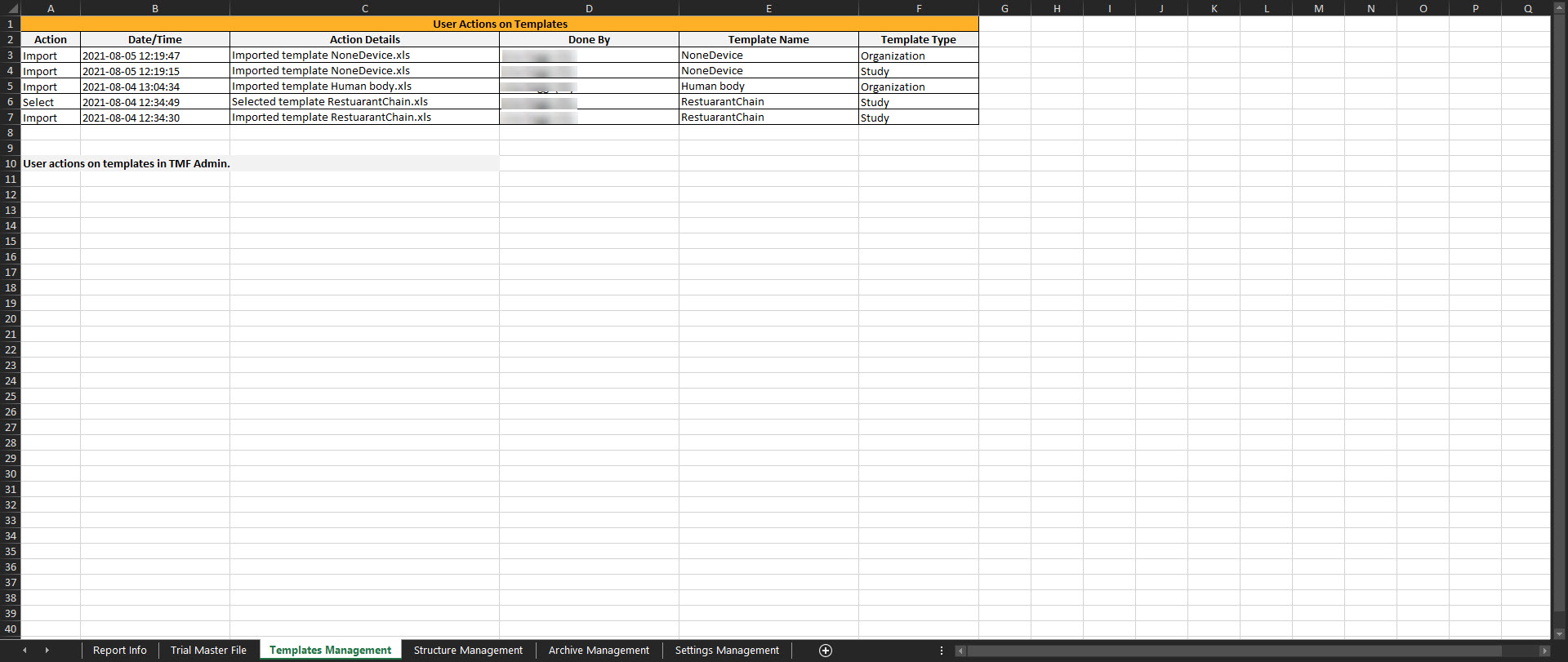
This sheet includes actions done by eTMF Managers on the templates. If the user doesn’t have access to the TMF Admin view, this sheet is empty.
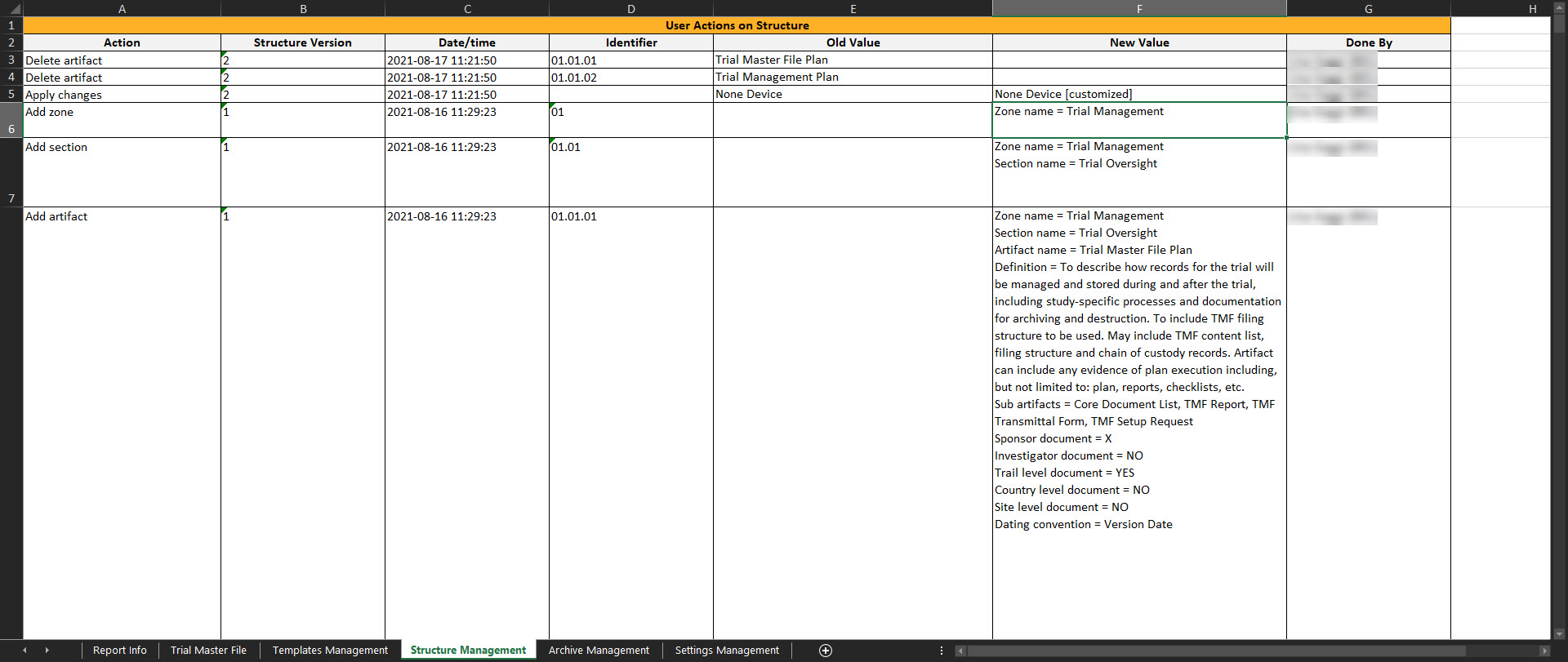
This sheet includes actions done by eTMF Managers on the instantiated structure. If the user doesn’t have access to TMF Admin, this sheet is empty.
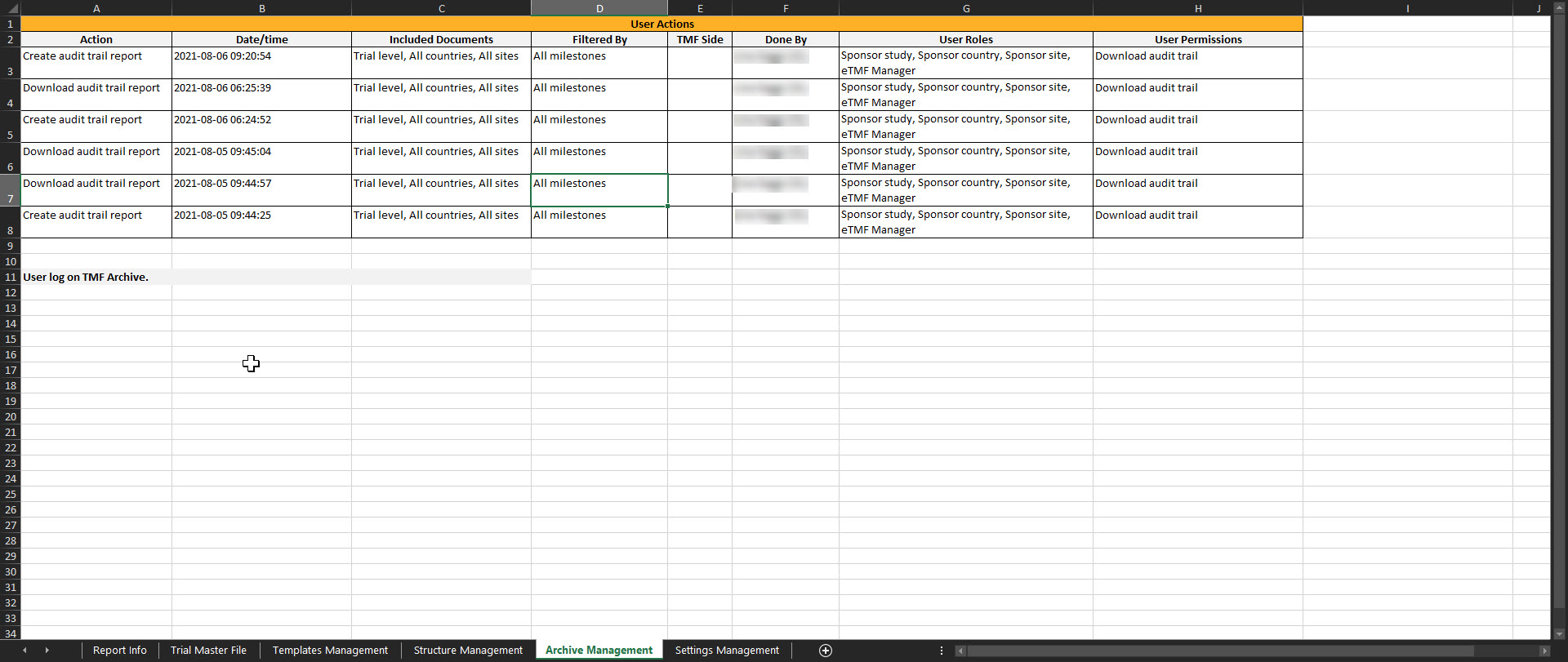
This sheet includes this user actions done on the TMF Archive page.
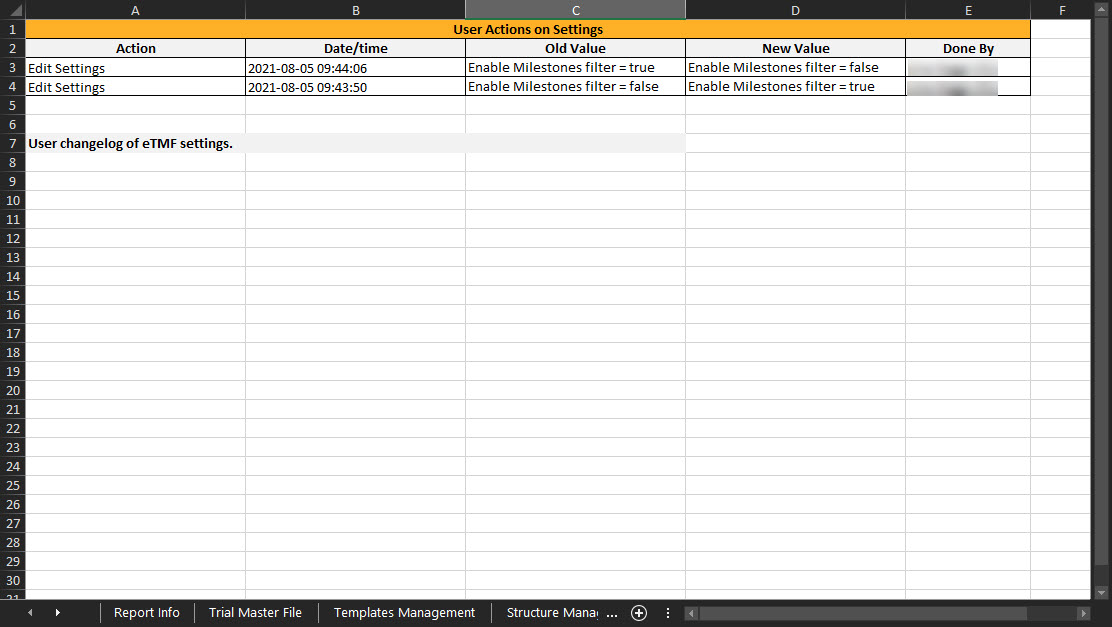
This sheet includes the actions done by TMF Managers on the Settings tab in TMF Admin. If the user doesn’t have access to TMF Admin, this sheet is empty.
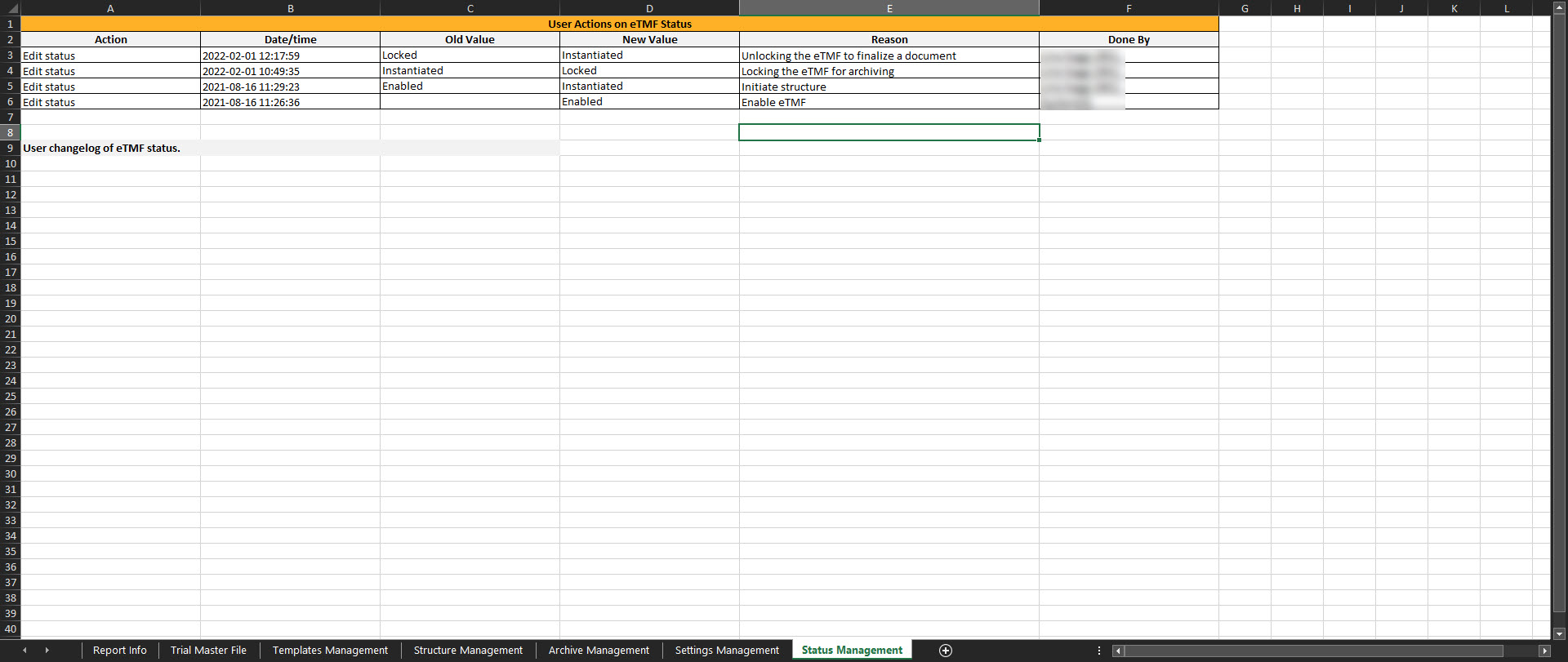
This sheet includes the actions done by TMF Managers on the Status tab in TMF Admin. If the user doesn't have access to TMF Admin, this sheet is empty.
The eTMF-EMS repository can be used for archiving the sponsor and/or investigator side of the study and/or exporting the records that are included in the structure. It is compatible with the Exchange Mechanism Standard (EMS). Read more about the EMS here.
The eTMF-EMS repository respects the user roles and access to records, sites, countries, and TMF side.
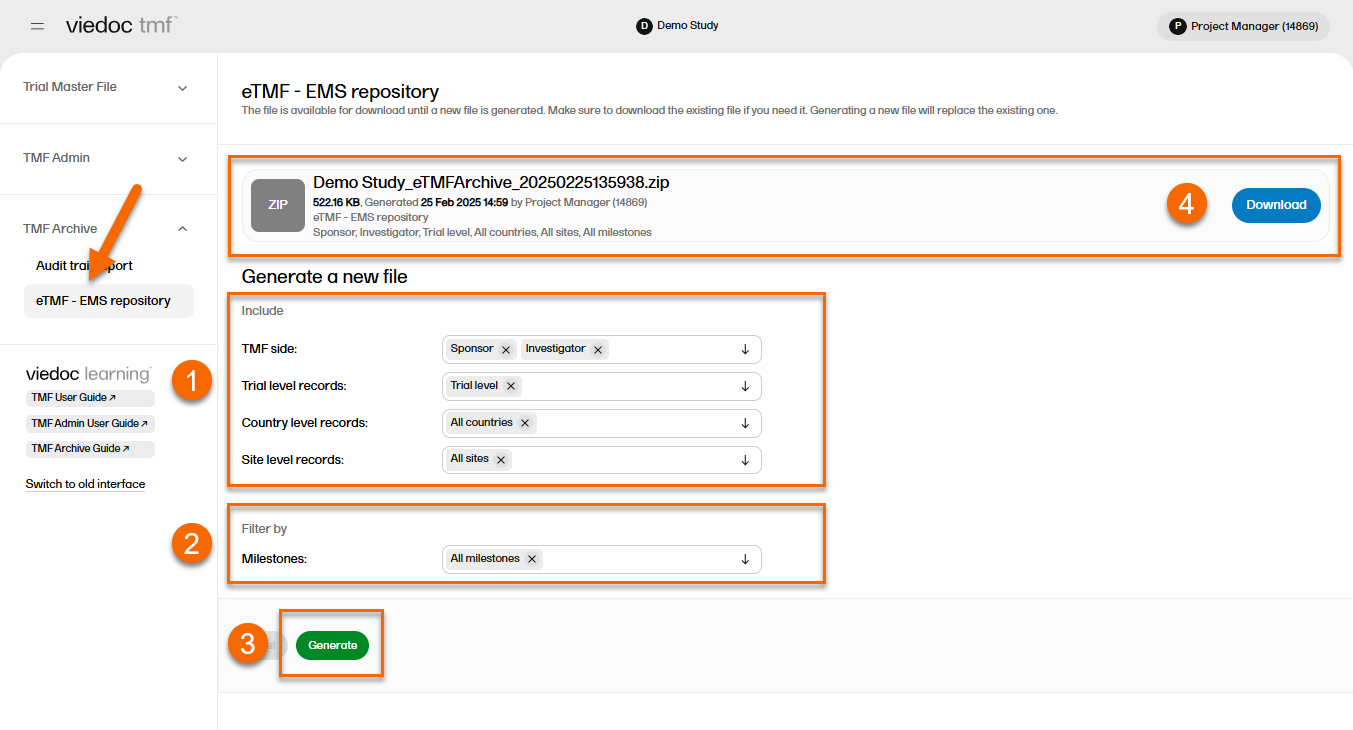
In the left navigation menu, select to expand TMF Archive and select the eTMF-EMS Repository page.
To generate the repository:
| 1 | Set the options for the records you want to include in the archive. You can choose to include records that are filed to the investigator or sponsor side of the TMF, and records that are filed on trial/country/site levels according to your permissions to those. |
| 2 | Set the milestones/milestone groups you would like to filter by. |
| 3 | Select Generate. |
| 4 |
Select Download on the generated file to download the zipped folder. |
The zipped folder structure mirrors the TMF structure used for the study as follows:
StudyName_eTMFArchive_DatetimeStamp
StudyName - the study nameeTMFArchive - static textDatetimeStamp - the UTC date and time of generating the eTMF-EMS repository in the format YYYYmmDDHHMMss
YYYYmmDDHHMMss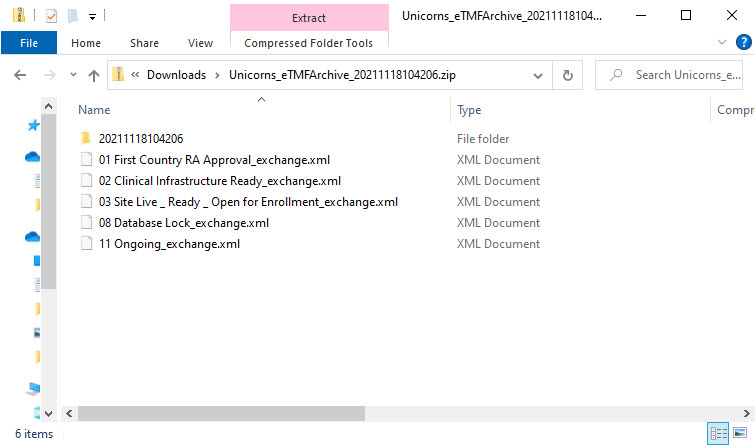
ZoneID.ZoneName for each included zone from the structure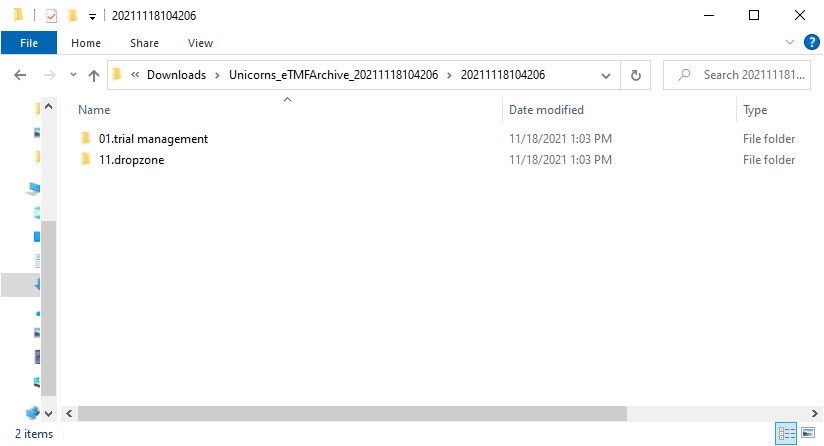
ZoneID.SectionID.SectionName for each included section from the structure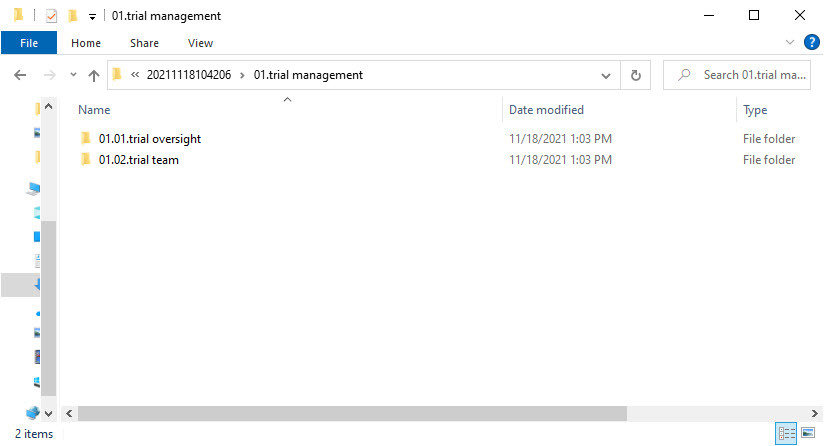
ZoneID.SectionID.ArtifactID.ArtifactName for each included artifact from the structure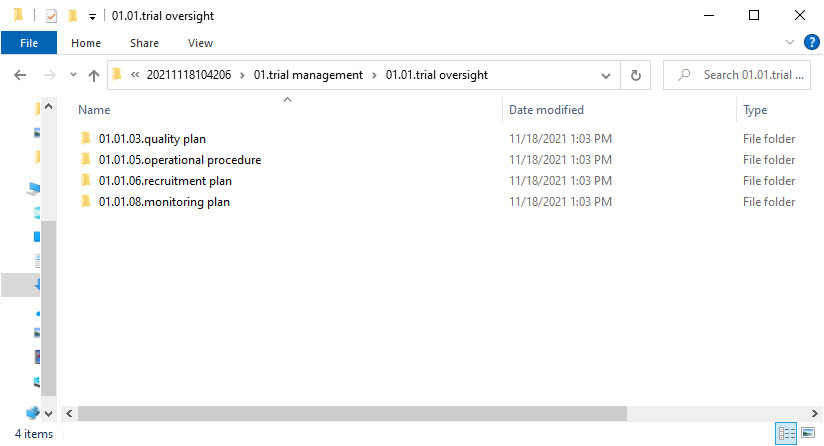
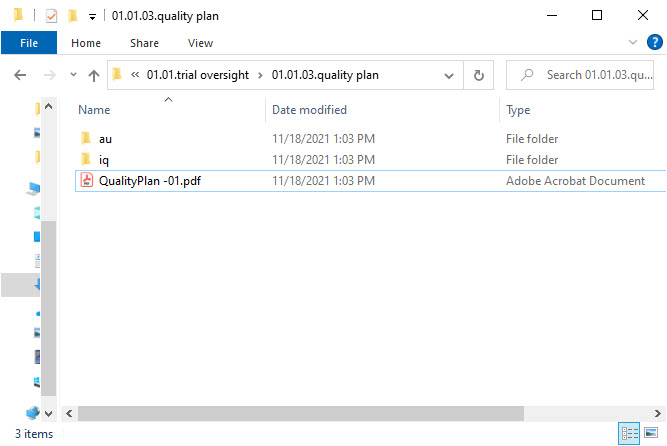
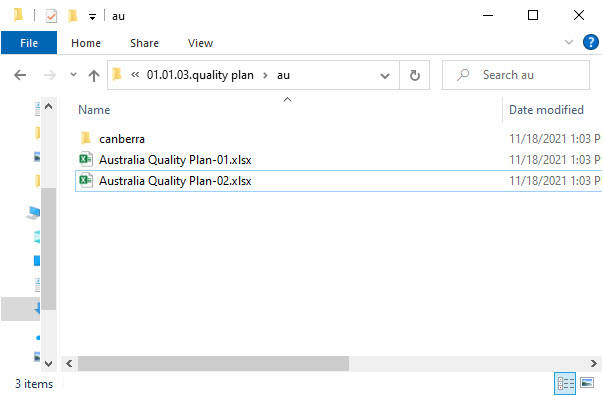
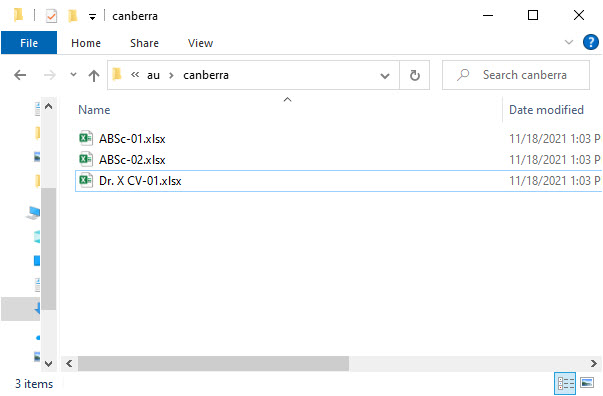
*The files that are signed by Viedoc Me users are only included when archiving the Investigator side of the TMF.
The zipped folder includes all the versions of records included in the structure. The name of the files will be as follows:
CurrentDocumentName-SystemVersion.extension, where:
CurrentDocumentName is the latest record nameSystemVersion is the integer value of the version set by the system for this fileIf there are multiple records with the same name filed to the same artifact and linked to the same levels, the system will add (n) as a suffix to the record name to ensure that all files are included in the zipped folder and no files are overwritten.
Note! This page contains information and instructions for the new TMF user interface. If you are using the old interface, please go to the relevant user guides:
Want to browse more information for the new interface? Please go to the new TMF user guides:
This lesson contains scenarios and frequently asked questions about roles and permissions in Viedoc TMF. For detailed information and explanations about roles and permissions, please see Roles and permissions in Viedoc TMF.
The following table contains examples of common use case scenarios together with the requisites for performing them.
| Scenario | Requisites |
|---|---|
| Drop zone: As a General site user, I want to be able to drop site-generated or site-signed records in the drop zone. |
|
| eISF: As a General site user, I want to be able to file pre-defined records on site level, view some artifacts on study and country levels and archive the Investigator site TMF/eISF. |
|
| As a Project manager, I want to be able to file records at study level, view all sponsor-side records at all levels in the study, archive the TMF (sponsor side), download the audit trail, and see the TMF settings and structure. |
|
| As a Monitor, I do not have access to patient information records on site level. I file site-level records that belong on the sponsor-side TMF, view records for my country and the study, manage drop zone records, and review site-level records. |
|
| As a Country Manager or a Trial Manager, I want to be able to file records at country level, view all sponsor-side records at all levels in the study, and review all sponsor-side records. |
|
| As a Regulatory Inspector, I want to have read-only access to all records (sponsor side and investigator side), TMF settings, and access to the audit trail. |
|
| As an Unblinded Statistician, I want to view, file, and classify blinded records only on all levels. |
|
| Check | To resolve |
|---|---|
| Check that the user is invited to a clinic role with a mapped TMF role with at least Read to the artifact at the expected level. | Invite the user to a clinic role with a mapped TMF role with read/write permissions to the artifact or edit the roles and accesses for the artifact in TMF Admin maintenance mode. |
| Check that the artifact itself is Optional or Required at the expected level, as Not permitted records will override any role access for the artifact. | Edit the trial/country/site level settings for the artifact in TMF Admin maintenance mode. |
| Check | To resolve |
|---|---|
| Check that the user is invited to a clinic role with a mapped TMF role with Write access to the artifact at the expected level. | Invite the user to a clinic role with a mapped TMF role with write permission to the artifact or edit the roles and accesses for the artifact in TMF Admin maintenance mode. |
| Check that the user is invited to a clinic role on at least Country level (for write permission to Country level records) or Study level, All production sites (for write permission to Study level records), otherwise Write will be translated to Read. | Invite the user to a clinic role on at least Country level (for write permission to Country level records) or Study level, All production sites (for write permission to Study level records). |
| Check | To resolve |
|---|---|
| Check that the user is invited to a clinic role with a mapped TMF role with Review access to the artifact at the expected level. | Invite the user to a clinic role with a mapped TMF role with review permission to the artifact or edit the roles and accesses for the artifact in TMF Admin maintenance mode. |
| Check that the user is invited to a clinic role on at least Country level (for review permission to Country level records) or Study level, All production sites (for review permission to Study level records, otherwise Review will be translated to Read. | Invite the user to a clinic role on at least Country level (for write permission to Country level records) or Study level, All production sites (for write permission to Study level records). |
| Check | To resolve |
|---|---|
| Check that the user is invited to a clinic role with a mapped TMF permission Manage drop zone. | Map the Manage drop zone permission to the applicable clinic role. |
| Check | To resolve |
|---|---|
| Check that the user is invited to a clinic role with a mapped TMF role with Write access to the artifact at the expected level. | Invite the user to a clinic role with a mapped TMF role with write permission to the artifact or edit the roles and accesses for the artifact in TMF Admin maintenance mode. |
| Check that the user is invited to a clinic role on at least Country level (for write permission to Country level records) or Study level, All production sites (for write permission to Study level records, otherwise Write will be translated to Read. | Invite the user to a clinic role on at least Country level (for write permission to Country level records) or Study level, All production sites (for write permission to Study level records). |
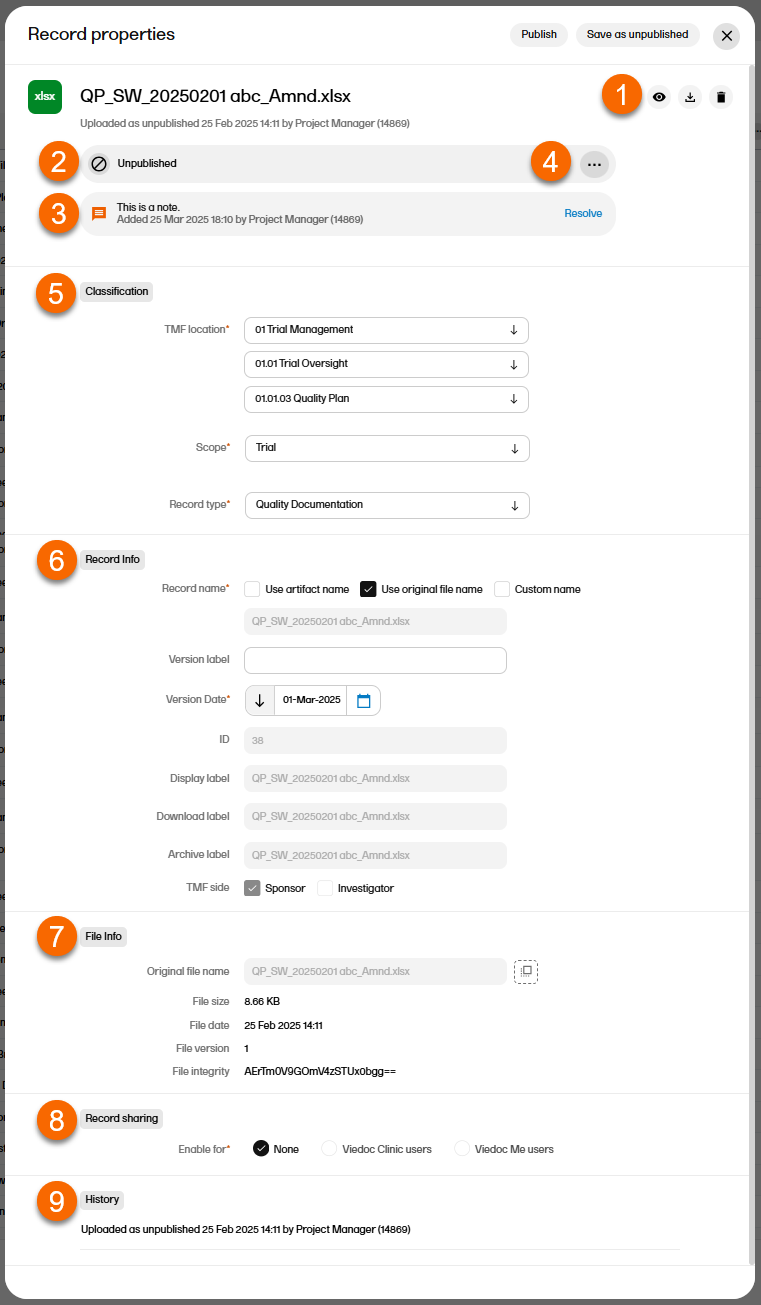 The sections in the Record properties window are:
 The record is now unlocked.