
The Records page
Note! This page contains information and instructions for the new TMF user interface. If you are using the old interface, please go to the relevant user guides:
- Viedoc eTMF User Guide (old interface)
- Viedoc User Guide for eTMF Managers (old interface)
Want to browse more information for the new interface? Please go to the new TMF user guides:
Introduction
The Records page provides an overview of the records that you have access to together with their metadata in a table or grid. On this page you can:
- Sort and filter columns and data
- Copy and export data from page
- Take actions on the records from the Actions column (that is always pinned to the right), or by selecting a row to open the Records properties window.
To open the Records page, select to expand Trial Master File in the left navigation menu and select the Records page.
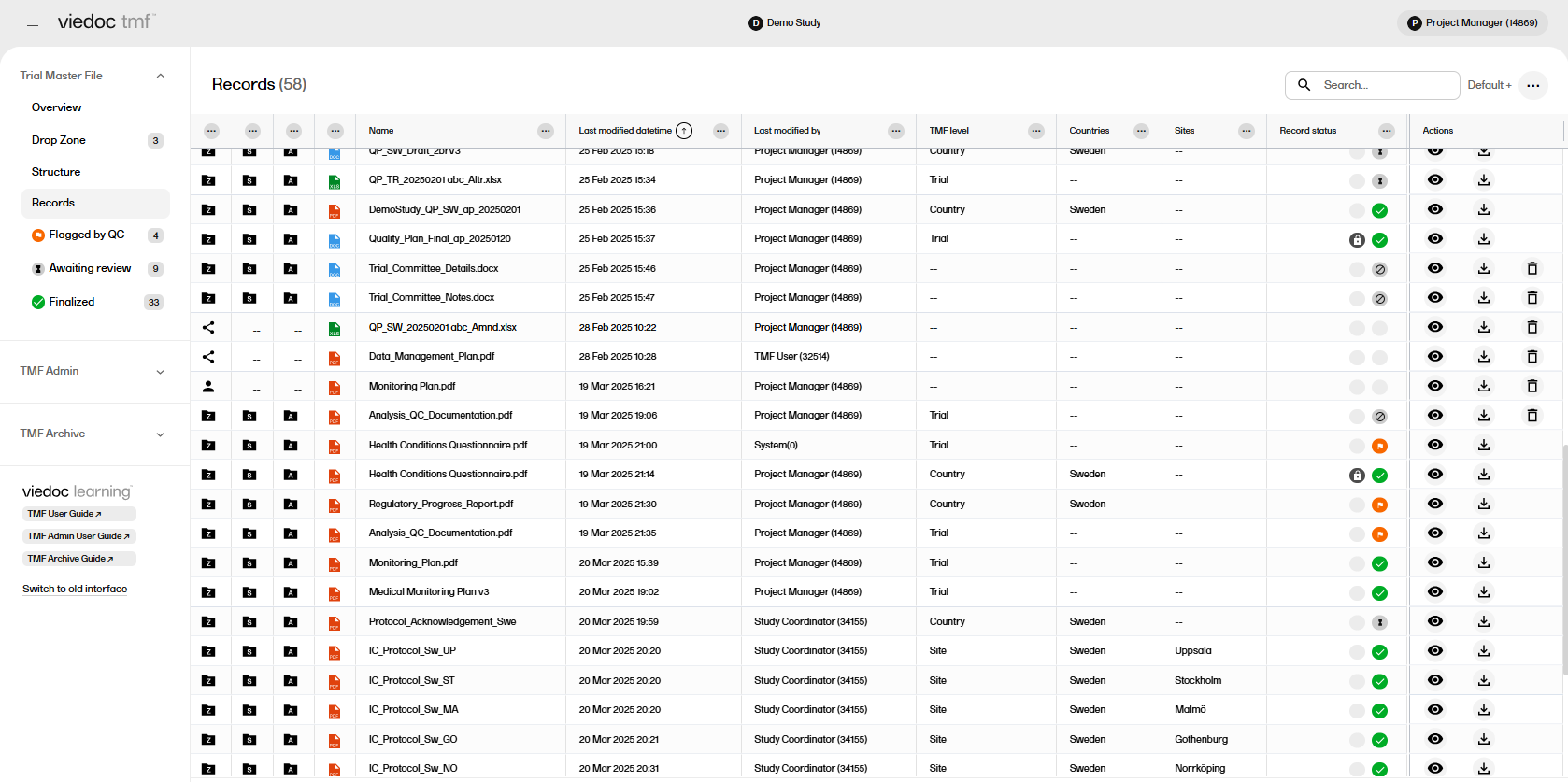
Filter Pages
There are three filter pages in the left navigation menu under Records that allow users a quick way to see a list of records that have been Flagged by QC, Awaiting review, or Finalized.
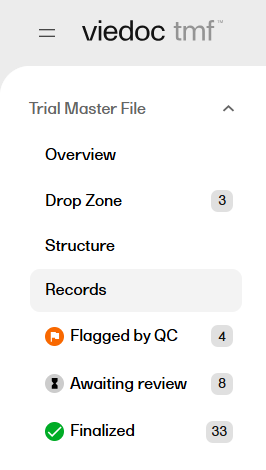
Column Options
There are several options to customize the columns in the Records page.
To view the options available for a column, select the icon with three dots at the top of the column:
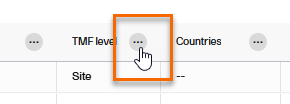
A menu with three tabs will be displayed, which are described in the next subsections:
Autosize or pin columns
The first tab in the column options menu allows you to:
- Pin a column to the left or right of the page, or unpin a pinned column
- Autosize the selected column
- Autosize all columns
- Reset any changes made to the columns
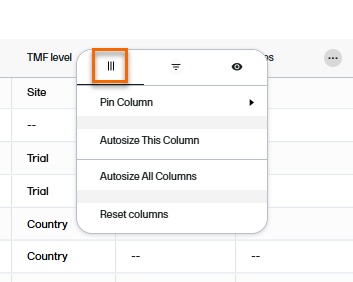
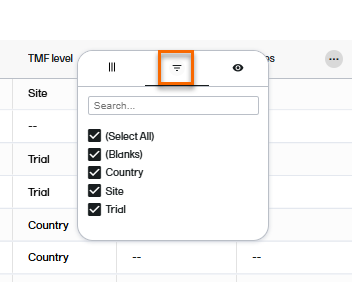
Filter columns
The second tab in the column options menu allows you to filter data in the selected column. Select the contents that you want included in the column, and deselect those that you want hidden. When a filter has been applied to a column, a filter icon is visible in the column header.
Selecting which columns to display
The third tab in the column options menu allows you to select which columns you want displayed or hidden.
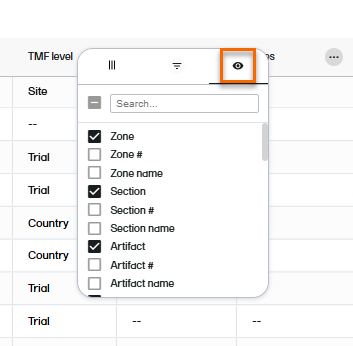
Note! A list of available columns is provided at the end of this lesson.
Sorting the column contents
To sort the data by column contents in ascending order, select the column header. Select it again to sort in descending order. Selecting for a third time removes the column sort order.
To rearrange the order of the columns on the page, simply select a column header and drag the column sideways. To reset the order of the columns to the initial state, select Reset Columns on the column options menu, available from the column header.
The View menu
A customized view of the Records page can be saved and displayed using the View menu. This can be useful if you have filtered, sorted, or sized the columns and want to be able to re-use your viewing preferences.
To open the View menu, select the menu icon in the top right of the Records page:
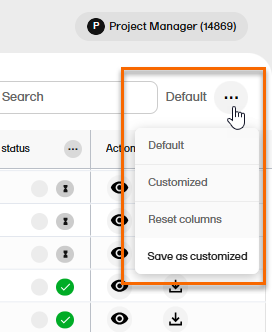
These are the available menu options:
| Menu option | Description |
|---|---|
| Default |
Displays the default view, as provided by the system. This view is displayed:
|
| Default+ |
Indicates that changes have been made to the default view, but the changes have not been saved as a customized view. To save the changes, select Save as customized. |
| Customized |
Displays the saved customized view. This view is retained between login sessions. If the page is reloaded, the customized view is shown if available, otherwise the default view is shown. Note! This option is not available if you haven't saved a customized view. |
| Customized+ | Indicates that changes have been made to the customized view, but the changes have not been saved. To save the changes, select Save as customized. |
| Reset columns | Resets the view to the latest used of the default or the customized views. |
| Save as customized |
Saves the current view as a user-specific customized view. Each user can save their own tailored viewing preferences. This option is not available when the TMF is locked. |
Note! If you perform any further search on the Records page, or switch between pages in the navigation menu, the system displays your last selected view.
Copying or exporting data
Copying data
To copy the data in a table cell on the Records page:
| 1 | Right-click in the cell |
| 2 | Select Copy to copy the contents of the table cell to your clipboard |
| 3 | Select Copy with Headers to copy the contents of the table cell and the column header to your clipboard |
Exporting data
To export the data that is displayed on the Records page:
| 1 | Right-click anywhere in the table and select Export and then CSV Export or Excel Export. |
| 2 | A file of the selected type is then available for download from your browser. |
The columns on the Records page
There are several columns available to show or hide on the Records page:
| Column | Description |
|---|---|
| Zone | This column shows either the zone folder icon  , a shared drop zone icon , a shared drop zone icon  , or a private drop zone icon , or a private drop zone icon  . When you hover over the icon, a tooltip shows the zone number and the zone name. For drop zone icons, the tooltip shows shared or private drop zone. . When you hover over the icon, a tooltip shows the zone number and the zone name. For drop zone icons, the tooltip shows shared or private drop zone. |
| Zone # | The zone number. |
| Zone name | The name of the zone as set in the structure. |
| Section | This column shows the section folder icon  . When you hover over the icon, a tooltip shows the section number and the section name. . When you hover over the icon, a tooltip shows the section number and the section name. |
| Section # | The section number |
| Section name | The name of the section as set in the structure. |
| Artifact | This column shows the artifact folder icon  . When you hover over the icon, a tooltip shows the artifact number and the artifact name. . When you hover over the icon, a tooltip shows the artifact number and the artifact name. |
| Artifact # | The artifact number |
| Artifact name | The name of the artifact as set in the structure. |
| Filetype | The filetype icon  . When you hover over the icon a tooltip text shows the filetype. . When you hover over the icon a tooltip text shows the filetype. |
| Filetype name | The filetype name in text, for example pdf or xlsx. |
| Name |
This column shows:
|
| Display label | This label represents how the record is displayed on the Trial Master File view. |
| Record name | The name of the record as set by the user in the corresponding Record properties window. |
| Download label | The name of the latest version of the record when downloaded. |
| Archive label | The name of the record in the archive. |
| Dating convention | The dating convention label that is applicable to the record . |
| Dating convention value | The date value of the dating convention metadata in the format YYYY-mm-DD. |
| Last modified datetime | The date and time when the record was last modified, in the format YYYY-mm-DD HH:MM. |
| Last modified by | The user name of the user who last modified the record |
| Last reviewed datetime | The date and time when the record moved to the status Flagged by QC, in the format YYYY-mm-DD HH:MM. |
| Last reviewed by | The user name of the user who last commented on the record . |
| Uploaded to drop zone datetime | The date and time when the file was uploaded to a drop zone, in the format YYYY-mm-DD HH:MM. |
| Uploaded to TMF datetime | The date and time when the file was moved to the TMF structure, in the format YYYY-mm-DD HH:MM. |
| TMF level | One of Trial, Country, or Site. |
| Record type |
For main artifacts, the column shows the artifact name. For sub-artifacts, the column shows the sub-artifact name. For other types, the column shows the customized name. |
| Countries | The names of the countries that the record is linked to. |
| Country codes | The country codes of the countries that the record is linked to. |
| Sites | The names of the sites that the record is linked to. |
| Site codes | The site codes of the sites that the record is linked to. |
| Record version | The record version number as set by the user in the Record properties window. |
| Record system version | The system version of the record. |
| Record Id | The record's unique Id within the study TMF. |
| Original file name | The original name of the file when it was uploaded. |
| File size | The size of the file. |
| File date | The date and time when the latest version of the file was uploaded to the TMF structure, in the format YYYY-mm-DD HH:MM. |
| Milestone |
The milestone that the artifact is linked to. Milestones are assigned at the artifact level, however, different milestones can be assigned to different levels within the artifact (site, trial, country). The milestone in this column refers to the level that the record is filed in. |
| Milestone group |
The milestone group for the milestone that the artifact is linked to. |
| Record status |
This column shows the record status icon. It can be one of the following:
|
| Actions |
This column is pinned to the right and cannot be removed. It shows the action icons according to the actions that can be performed on the record according to the user permissions. Select the icons to:
|
| ICH code | The code according to the International Council for Harmonisation |
| Unresolved notes count | The number of unresolved notes for a record |