
Risk assessments
Introduction
Risk assessments in Viedoc SDV Manager are based on MRACT, a Monitor-driven Risk Assessment Categorization Tool. MRACT is designed to be completed by the Monitor continuously throughout the study. It captures both the status of data being collected at a site, and qualitative input from the Monitor that is not visible in the data alone.
The risk assessment tool is intentionally simple to use so that structured risk assessments can fit into the Monitor's existing workflow without adding significant administrative overhead. For organizations and teams that are new to risk-based monitoring, or have only partially begun to use risk-based monitoring, or that do not yet have a systematic or structured way of performing site risk assessments, this feature is a practical entry point.
MRACT scope
MRACT allows you to perform structured, continuous risk assessments entirely within Viedoc SDV Manager, without the need for complex procedures or external tools.
Published research has shown that the combination of MRACT assessments and adjusted SDV levels based on identified risk reduces monitoring effort without negatively affecting data quality. (Evaluation of Data Errors and Monitoring Activities in a Trial in Japan Using a Risk-Based Approach Including Central Monitoring and Site Risk Assessment).
MRACT is used to identify risk, it cannot itself improve quality at a site. Your response to the collected information will determine the outcome. For example, if an MRACT submission flags a concern, for example, inadequate adverse event reporting at a site, increasing SDV rates can help restore confidence in the data reported during that period. However, the root cause would need to be addressed by re-training site staff in AE reporting. Flagging and responding are two separate steps, and both steps are necessary for risk-based monitoring to be effective.
Risk assessments in SDV manager
The SDV Manager application also includes risk assessments using the Monitor-driven Risk Assessment Categorization Tool (MRACT), as part of the SDV workflow. This allows you to continually assess and document site-level risk for the duration of the study without leaving the application. This feature further enables a risk-based monitoring approach. Viedoc supports the Kondo method MRACT questionnaire template.
This lesson describes risk assessments and the main tasks that can be performed. For information about risk assessments in SDV Manager, see the section below, Working with the Monitor-driven Risk Assessment Categorization Tool.
Risk assessment permissions
The following permissions relate to risk assessments in SDV Manager. These are activated for your user role in Viedoc Designer.
Note! Selecting a permission enforces its prerequisites: Both View risk assessment templates and View risk assessments require View SDV plans.
Edit risk assessment templates requires View risk assessment templates.
Both Submit risk assessments and Approve risk assessments require View risk assessments.
| Risk assessment permissions | Description |
| View risk assessment templates | View the template configuration. |
| Edit risk assessment templates | Create, edit, and publish templates. |
| View risk assessments | View the assessments and history for a site. |
| Submit risk assessments | Start, answer, submit, recall, and delete your draft assessments for a site. |
| Approve risk assessments | Approve or reject the submitted assessments for a site. |
SDV Manager with risk assessment enabled
If your study has implemented risk assessments and you have the relevant permissions, the Site Assignments page has two additional columns so that you can see each site's current risk level and when the risk level was last assessed on the site:
- Risk assessed
- Risk level
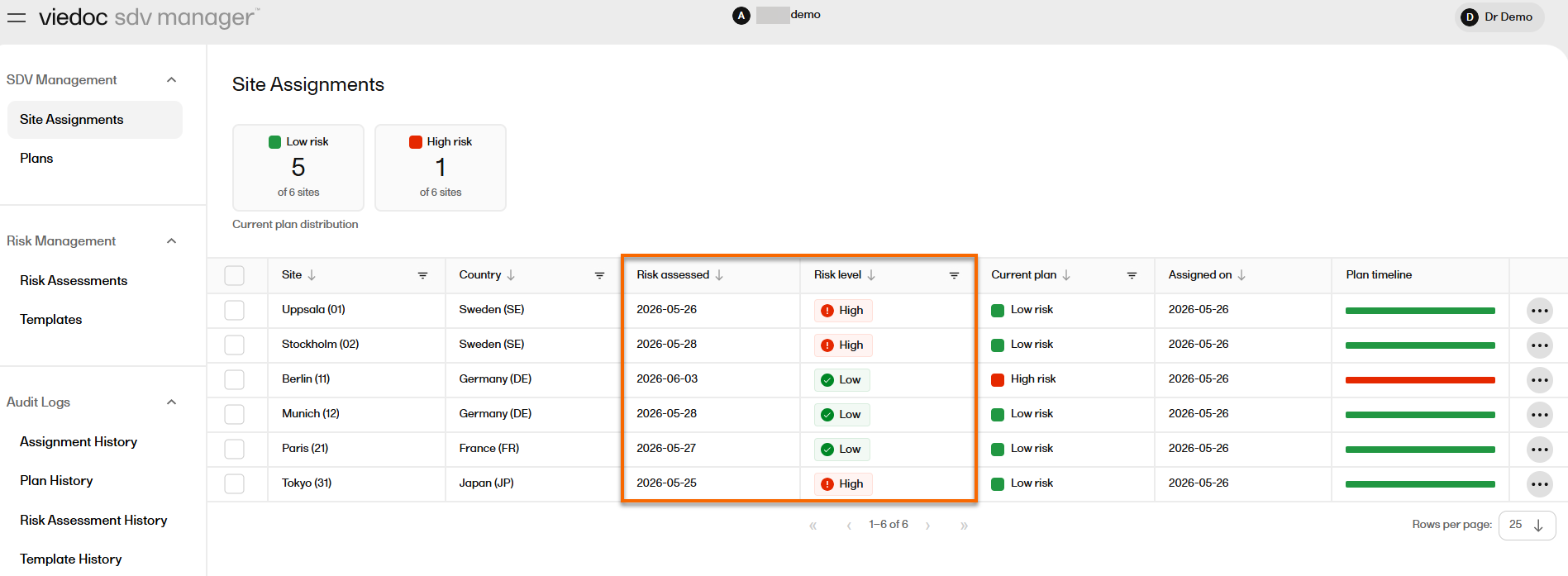
You will also see the Risk Management section, which includes Risk Assessments and Templates.
Working with risk assessments
This section describes how you can work with risk assessments in SDV Manager.
This allows you to conduct site risk assessments, record the rationale for assigning a risk level to a site, and connect outcomes directly to monitoring activity. Site monitoring can be easily adjusted based on the results of site risk levels.
Templates page
The templates overview page shows the risk assessment templates available for your study, and contains the following information and actions:

1. Name: the name of the template.
2. Version: the current version number of the template.
3. Created: the date and time the template was created, displayed in UTC.
4. Last modified: the date and time the template was last edited, displayed in UTC.
5. Assessments: the number of risk assessments completed using any version of this template.
6. Active: a toggle indicating whether the template is currently active for the study. Only one template can be active at a time. Toggle to activate/deactivate a template for your study.
7. An ellipsis icon (...) on each template row with an Open action.
8. A plus icon in the top right corner of the page allows users with the Edit risk assessment templates permission to add a new template.
Adding a risk assessment template
You can add a risk assessment template to your study from a predefined template.
To add a new template:
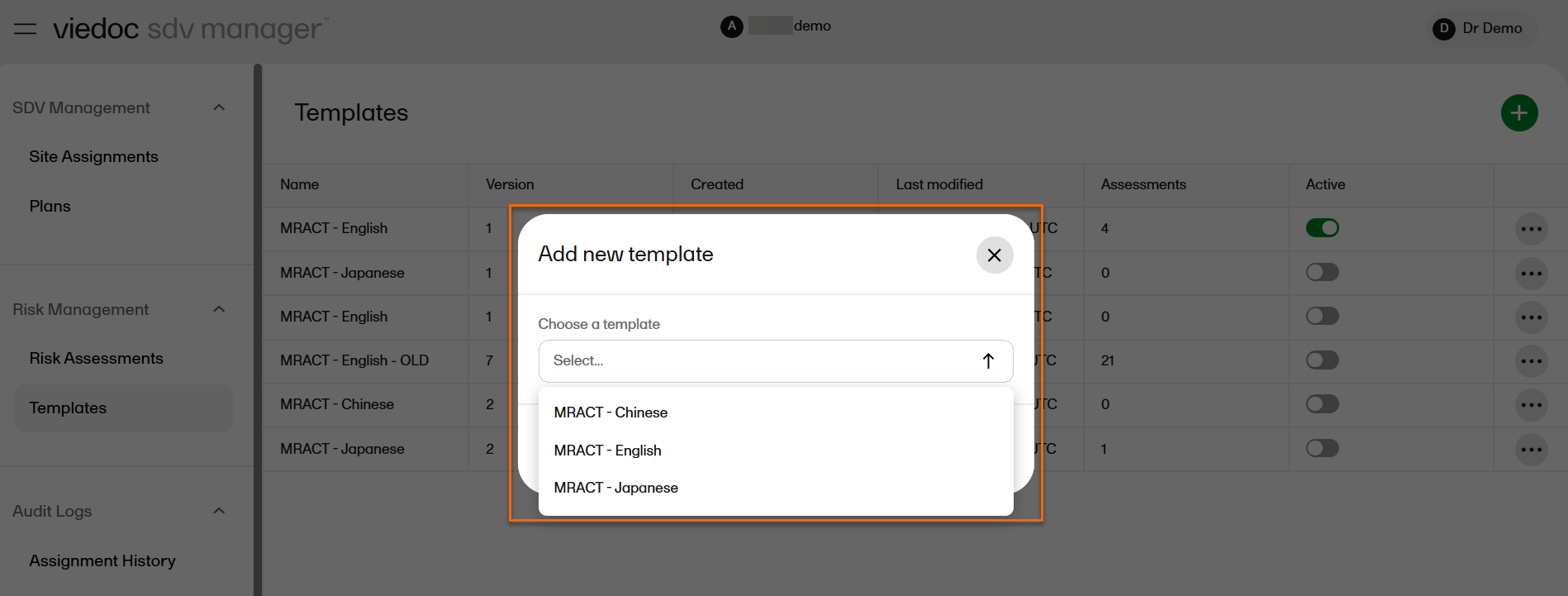
| 1. | Under the Risk Management menu, on the Templates page, select the plus icon, Add new template. |
| 2. | The Add new template dialog opens. The dialog lists the predefined templates. From the dropdown field Choose a template you can select from one of three risk assessment template options:
|
| 3. | Select Add. The new template is added to the study, to the Templates page, pre-populated with the chosen template's categories, questions, and answer alternatives. |
| 4. | Select the ellipsis icon (...) on your template row. You can select to Open or Delete the template. |
| 5. |
Select Open. The View risk assessment template page opens showing the template's categories, questions, and answer alternatives in a read-only view. 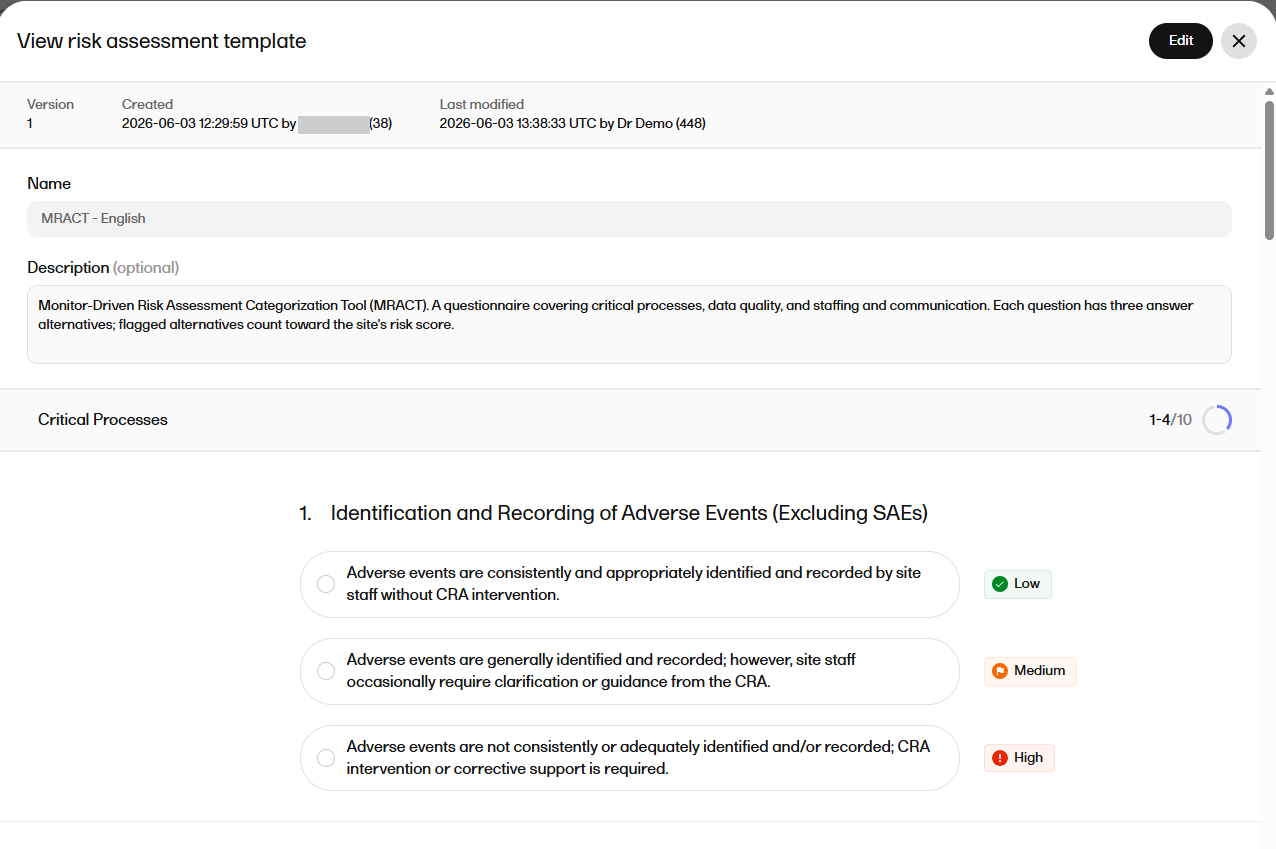
|
| 6. |
If you have the appropriate permission, you can toggle Edit to revise the template, then select Save. You can make the following changes to the template in Edit mode:
|
Deleting a risk assessment template
A risk assessment template that has not been used for the study can be deleted.
To delete a risk assessment template:
| 1. | On the Templates page, on the row of the template you want to delete, select the ellipsis icon (...) |
| 2. |
The Delete template? dialog opens asking you to confirm that you want to delete the template. Once you have deleted the template from your study, it is permanently removed and cannot be restored. Select Cancel to close the dialog without making any changes. |
Risk assessments page
The Risk Management section includes a Risk assessments overview page which lists every site that you have permission to view. Each site shows its current risk assessment plan and a summary of its assessment statuses.
The Risk Assessments overview page contains the following information and actions:
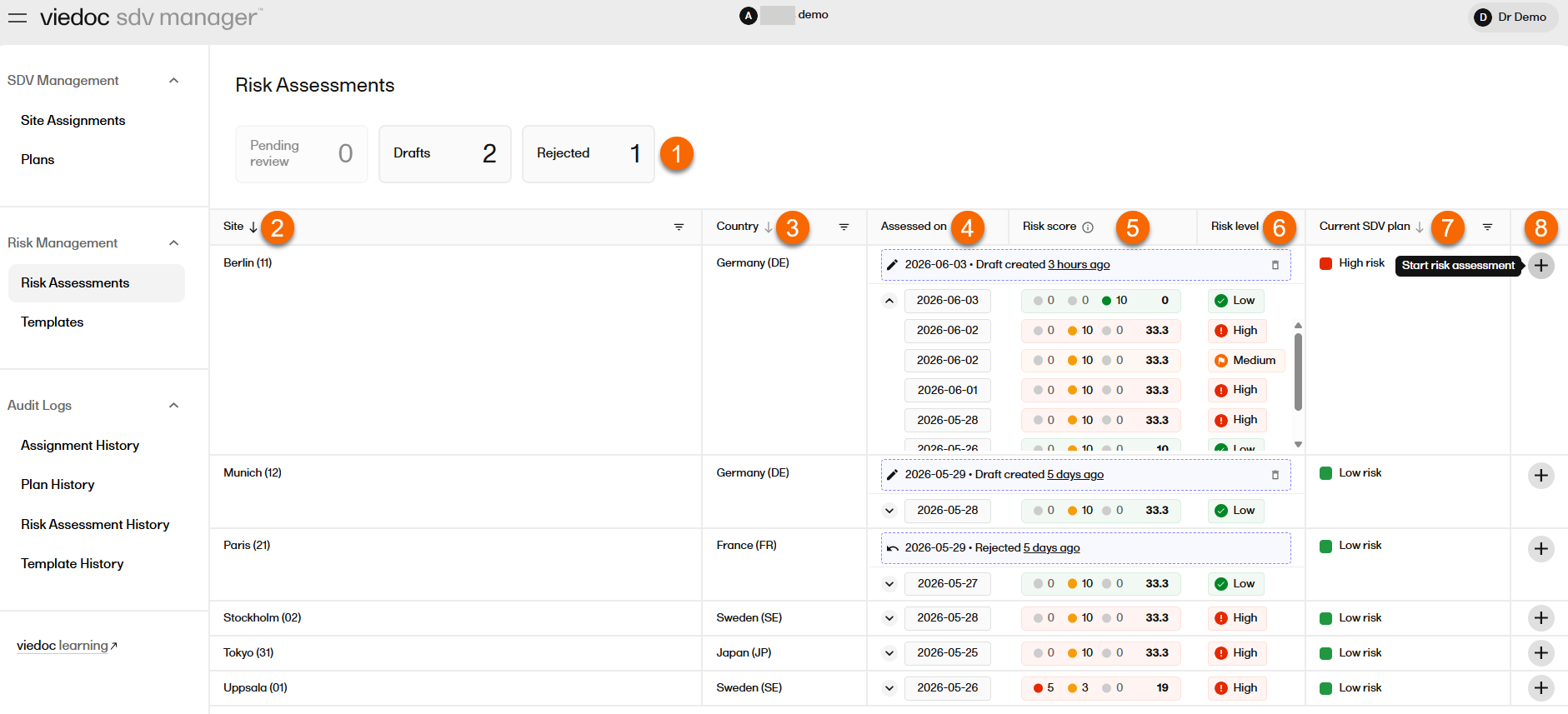
1. At the top of the page, three summary cards show the current counts of assessments by status: Pending review, Drafts, Rejected.
2. Site name and code, formatted as Site Name (CODE) (sortable and filterable).
3. Country name and code, formatted as Country Name (CODE).
4. Assessed on: shows the date of the assessment. You can expand each site row to show the full assessment history for that site. The most recent assessment is shown at the top. Draft and rejected assessments are clearly marked.
5. Risk score: displays a color-coded breakdown of the distribution of answer scores alongside the total score. Select a colored dot to open the risk assessment and view specific grouped answer scores.
6. Risk level: the calculated risk level displayed as a colour-coded badge: Low (green), Medium (orange), or High (red). Select a badge to open the risk assessment and view the relevant answers.
7. Current SDV plan: the SDV plan currently assigned to the site, displayed with a color-coded badge (sortable and filterable by All plans, High risk and Low risk).
8. A Start risk assessment button (plus icon) on each site row to start a new risk assessment.
Viewing and editing a risk assessment
User roles with view-only permission
If you have view permissions for risk assessments, you can see the status overview on the Risk Assessments page. This summarises how many assessments are pending review, in draft status, or have been rejected, and allows you to narrow the list to one of those statuses. You can search and sort the list by site name or site code.
User roles with viewing and editing permissions
In addition to the view permissions, if you have both viewing and editing permissions for risk assessments, you can edit draft risk assessments. You can edit the following fields:
- The Assessment date: Pre-populated with the draft's saved value and you can change the date to today or an earlier date.
- Questions: Pre-populated with the draft's saved answer and you can select a new answer.
- Comments: Pre-populated with the draft's saved comment if one exists and can be edited.
Filling in a site risk assessment
This is usually performed by the study Monitor.
To fill in a risk assessment:
| 1. |
On the Risk Assessments page, select the plus icon on the row of the site you want to perform the risk assessment for. 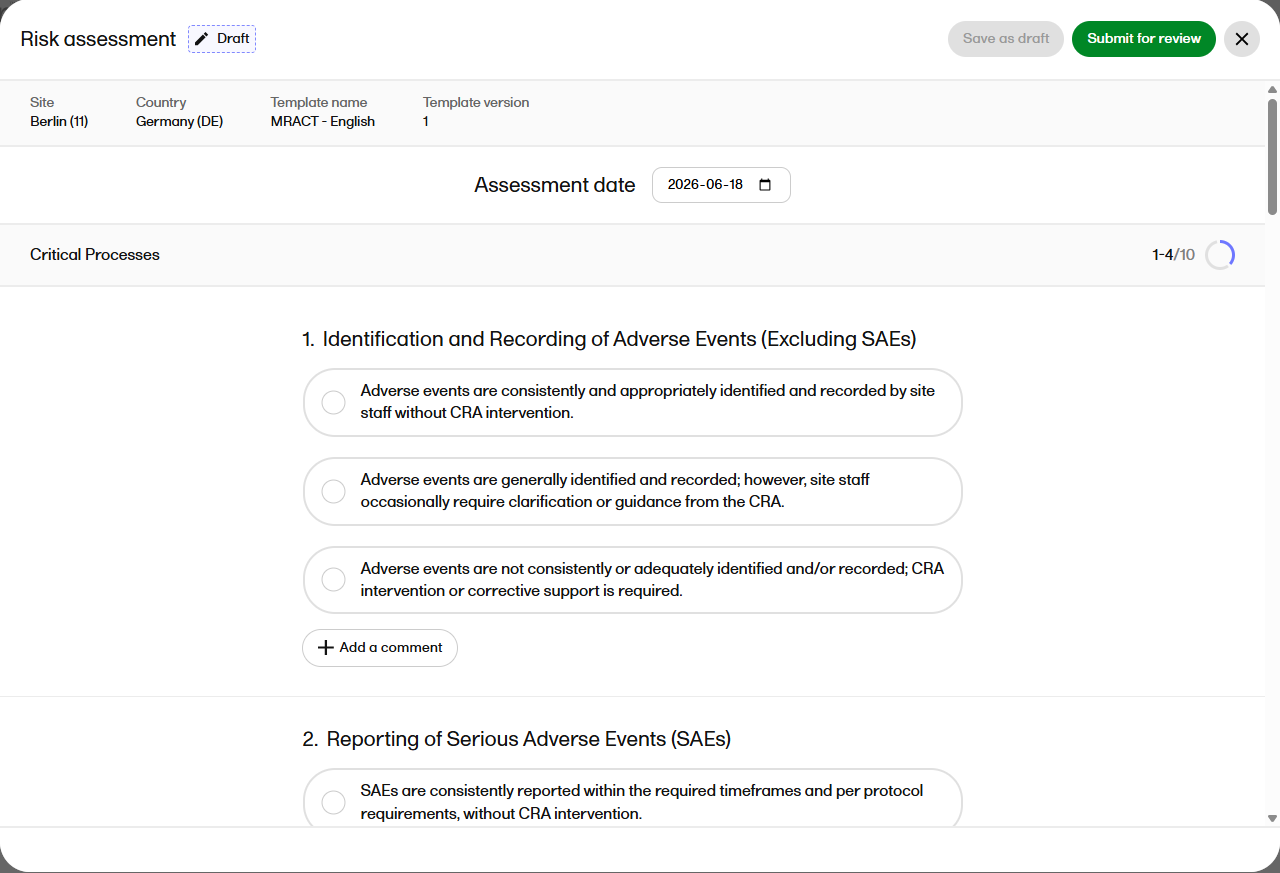
|
| 2. | Select your answers for each category and question. You can add a comment to add context.
Note! A comment is mandatory when the template requires it for the selected alternative (in the MRACT template, this is the medium and high-risk options). |
| 3. | Select Save as draft. The draft risk assessment is saved on the site row. |
Note! The assessment date defaults to today's date; you can change it to an earlier date but not a date in the future.
Submitting a risk assessment for review
This is usually performed by the study Monitor.
To submit a risk assessment for review:
| 1. | Follow steps 1 and 2 above. |
| 2. |
Select your answers for each category and question, then select Submit for review. The Submit assessment for review dialog opens. |
| 3. |
Select Submit. An information message is shown: 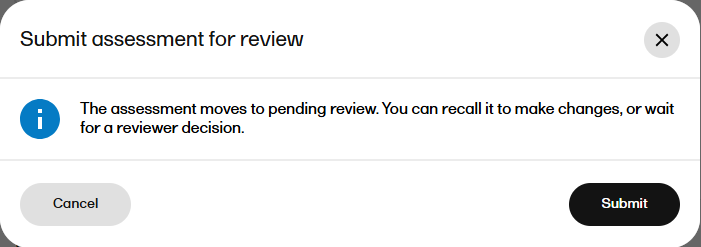
|
| 4. |
After selecting Submit, the assessment status is set to Pending review: 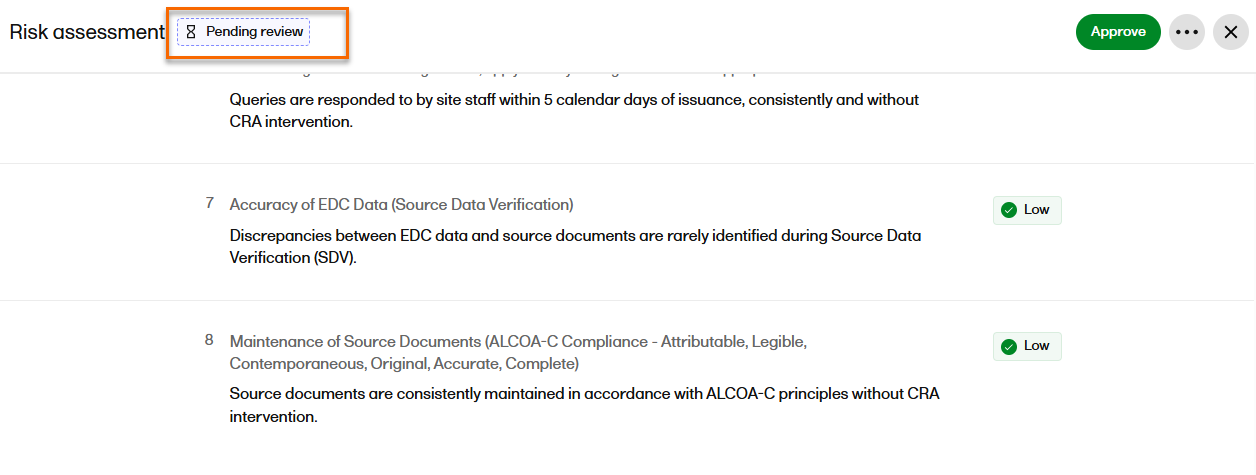
|
Recalling a risk assessment
To recall a risk assessment:
| 1. | Select the ellipsis icon (...) in the assessment. |
| 2. |
Select Recall from the dropdown: 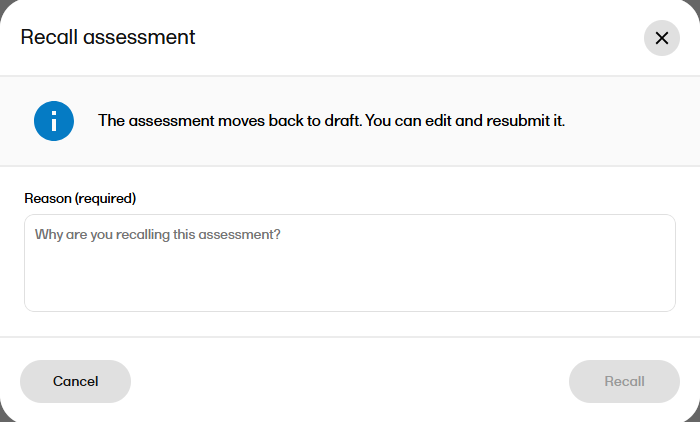
|
| 3. |
The assessment returns to Draft status, where it can be edited, resubmitted, or deleted. The reason for the recall is preserved with the assessment's review history and in the audit trail. An assessment can be submitted and recalled repeatedly before it is finally approved. Note! If you have the permission to submit risk assessments, you can recall an assessment that is in Pending review status by providing a required reason.You can only recall if a reviewer has not approved or rejected the assessment. |
Reviewing the risk assessment
Once the risk assessment has been submitted, its status can be viewed on the site row above the assessment date, risk score and risk level fields. The reviewer (normally a Project Manager) can then review and approve or reject the submission for the site.
To review a submitted risk assessment:
| 1. |
Select the submitted risk assessment: 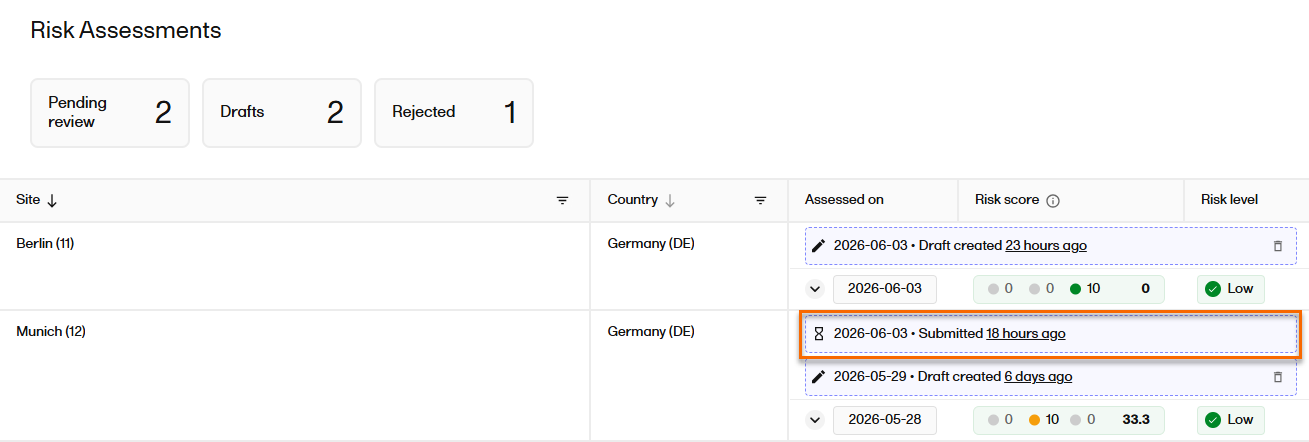
|
|
| 2. |
The risk assessment opens. You can see the risk score and the current risk level for the site and assign a new risk level if required. All of the questionnaire answers are graded Low, Medium or High risk. The risk score is fixed as follows: |
|
| 3. |
You can choose to either Approve or Reject the submission. 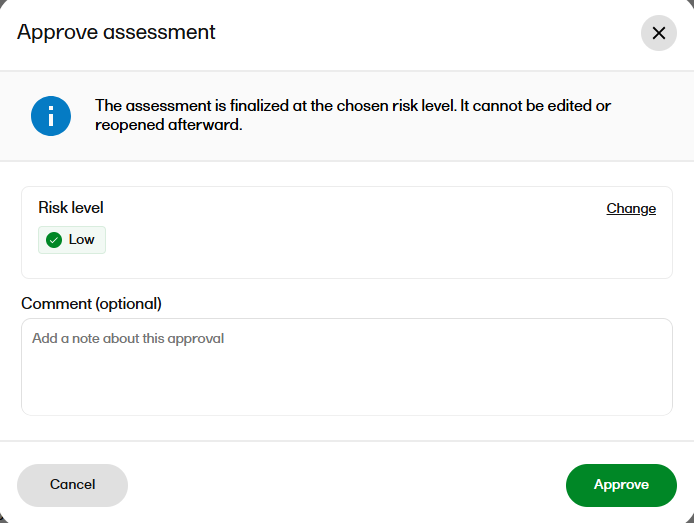
If you select to change the risk level, the choice of Low, Medium or High is shown, with the suggested level highlighted based on the responses in the questionnaire. The approval is recorded in the Risk Assessment History. |
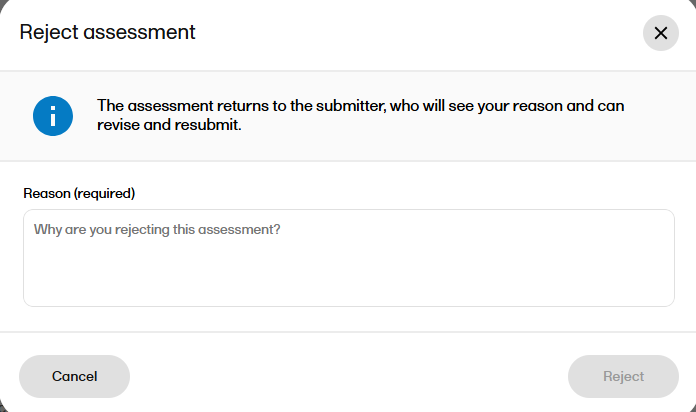
Rejecting the submission. If you reject a submitted risk assessment, a dialog is shown and you are asked to provide a reason for rejecting the risk assessment: The risk assessment is returned to the submitter for revision. |
Deleting a risk assessment
For sites where you have submit permissions, you can delete a risk assessment from the Risk Assessments page. You can only delete assessments that are in Draft status. This includes drafts that have been reopened by recalling a submission or revising a rejected one. If you delete a draft that was previously submitted and then returned to draft status (if recalled or rejected and resumed), you are prompted to give the reason for discarding the draft.
To delete a risk assessment:
| 1. | On the Risk Assessment page, on the row of the template you want to delete, select the trashcan icon. |
| 2. |
The Delete risk assessment dialog opens asking you to confirm that you want to delete the assessment. Once you have deleted the assessment from your study, it is permanently removed and cannot be restored. Select Cancel to close the dialog without making any changes. |
Note!
- A risk assessment with the Pending review, Rejected, Approved or a Deleted status cannot be deleted. These assessments must first be returned to Draft status.
- An approved assessment is a permanent record and is recorded in the Risk Assessment History.
Risk assessment audit logs in SDV Manager
Viedoc SDV Manager keeps an audit log of all changes to SDV plans and plan assignments and risk assessments, supporting 21 CFR Part 11 compliance requirements.
If your study is using risk assessments and your study role has the correct view permissions, Audit Logs in SDV Manager includes two additional audit logs: Template History and Risk Assessment History. To export the Template History and Risk Assessment History, select Export CSV.
Template History
The Template History page shows every change made to the study's risk assessment templates. You can filter the template history entries by template ID, template name, or action. Select a Template ID in any row to narrow the history to that template only. You can sort by date and export the filtered results as a CSV file.
The CSV file shows the following information: Template ID, Template Name, Version, Action (Created, Version added, Status changed, Deleted), Status (Active, Inactive, Deleted), Changed by, Changed at (date and time of the change in UTC).
Note! The template history is available to users with the View risk assessment templates permission.
Risk Assessment History
The Risk Assessment History page shows the history of risk assessment activity in your study and shows every action on every risk assessment in the study, including creation, edits, submission, recall, rejection, resume, approval, and deletion.
You can filter the risk assessment history by one or more sites, search for a specific risk assessment by Assessment ID and select an assessment to narrow the history to that assessment's full lifecycle. You can sort by date and export the filtered results as a CSV file.
The CSV file shows the following information: Assessment ID, Site (name and code), Assessment date, Action (Created, Updated, Submitted, Recalled, Rejected, Resumed, Approved, Deleted), Status (Draft, Approved, Pending review, Rejected), Reason for change, Changed by, Changed at.
The risk assessment history is available to users with the View risk assessments permission. Users can only see the sites for which they have permissions.